
On this page
- Before you start
- Open analytics and choose a period
- Set dates and narrow the traffic
- Check custom dates carefully
- Read the traffic totals and breakdowns
- What the breakdowns mean
- Keep activity counts separate from traffic
- Check for incomplete or stale results
- Optionally export the loaded summary
- Use the numbers with their limits
Before you start
Step 1 of 6
Open analytics and choose a period
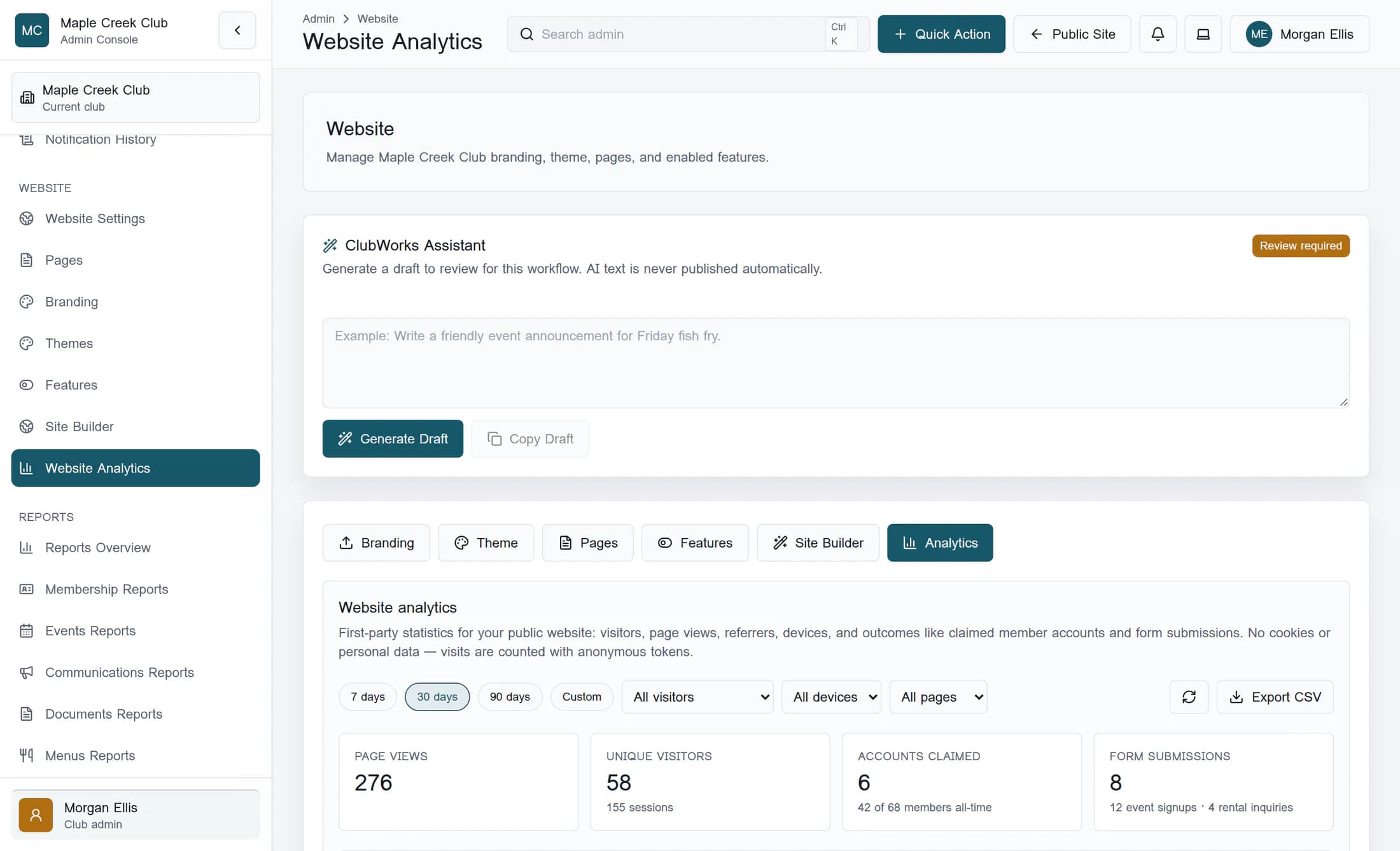
Select Website Analytics in the admin navigation, then choose 7 days, 30 days or 90 days. Wait for Loading analytics… to finish before reading the totals; each preset starts at local midnight that many days ago and ends at the time the range was set.
Step 2 of 6
Set dates and narrow the traffic
Select Custom and fill From date and To date, with the earlier date first. Use Audience, Device and Page together to narrow the page-view rows—for example, Guests, Mobile and
/about. The Page choices come from the current top-page results; choose All pages before looking for a page that disappeared from a narrowed list.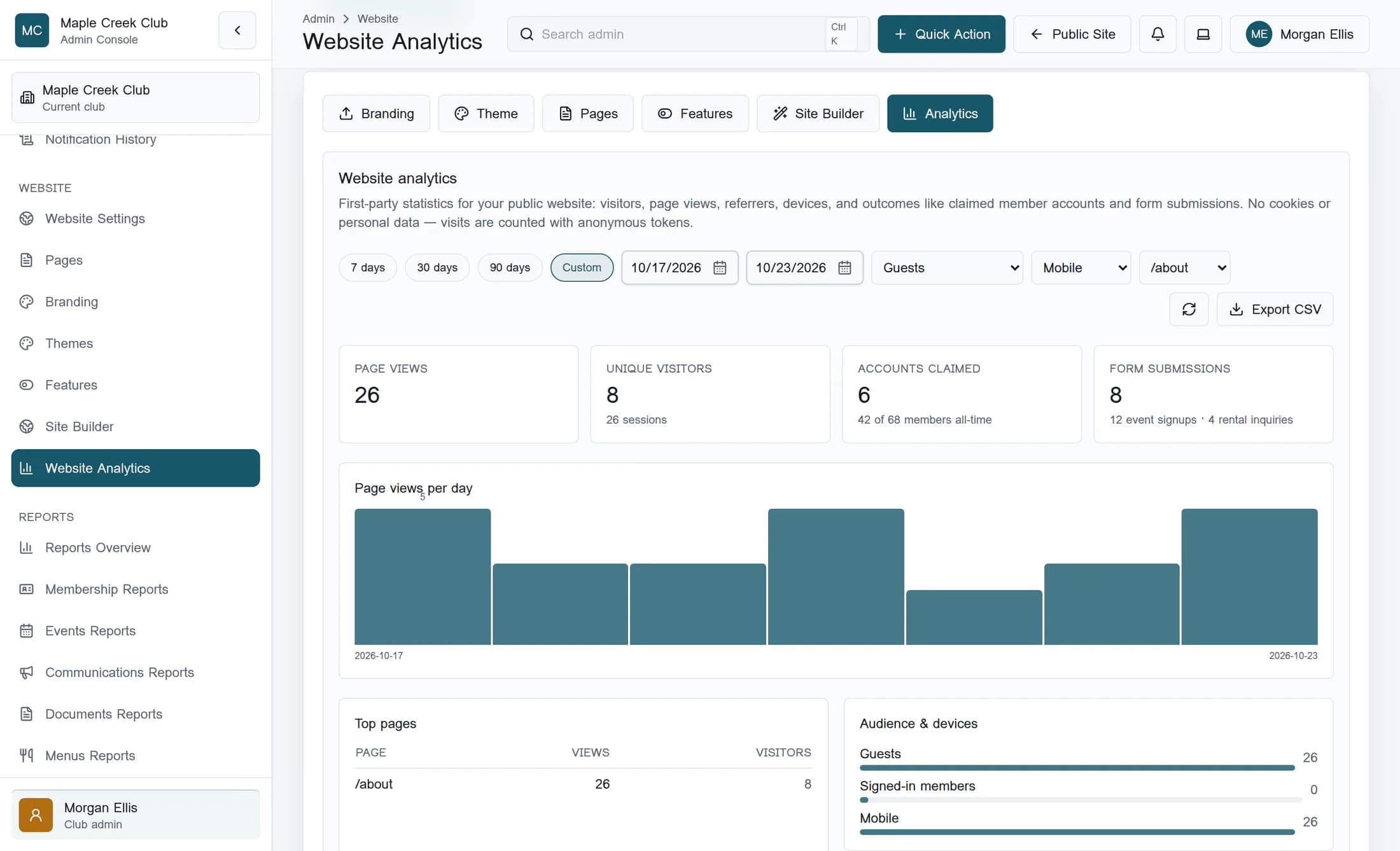
Check custom dates carefully
Step 3 of 6
Read the traffic totals and breakdowns
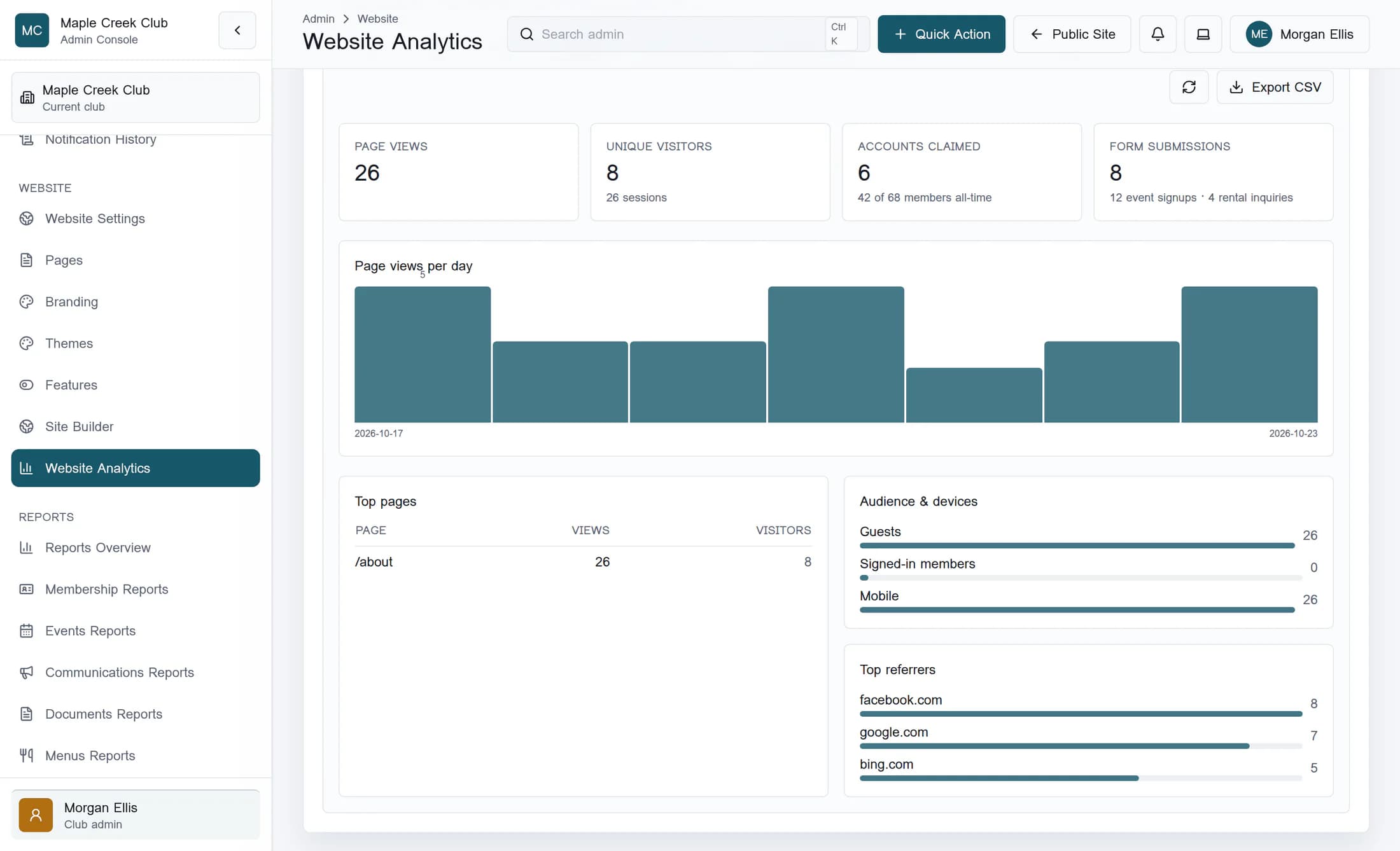
Page views counts recorded page views, including repeat views and tracked navigation between pages. Unique visitors and the sessions beneath it count distinct anonymous tokens, not identified people; the same person can have different tokens across browsers or after storage changes. Compare Page views per day, Top pages, Audience & devices and Top referrers to spot busy dates and frequently read pages.
What the breakdowns mean
- Top pages shows up to 12 paths with views and visitor tokens. Top referrers shows up to 8 recorded referring hosts, so these lists are not a complete inventory.
- Guests and Signed-in members split page-view rows. Desktop, Tablet and Mobile describe browser width when a view was recorded, not verified hardware.
- Visitor tokens normally persist in browser local storage; session tokens use session storage. If storage is blocked, a load can receive new tokens.
- Designer draft previews and Do Not Track visits are skipped. Current collection also excludes staff view-as visits and masks private Help-request paths; this is not a count of every possible visit.
Step 4 of 6
Keep activity counts separate from traffic
Accounts claimed and Form submissions, plus event signups and rental inquiries, come from separate club-wide queries for the date range. Audience, Device and Page filters do not narrow those counts, so they do not prove that the selected traffic caused a signup or inquiry. The account/member comparison is all-time; claims count successful linking events and event signups count created registrations without a status filter.
Step 5 of 6
Check for incomplete or stale results
If Analytics failed to load appears, old numbers may remain. Use the circular-arrow Refresh control above the results and wait for a successful load before relying on the numbers; ask your club administrator to check access if the error persists. After a successful load, No page views in this range yet. means no traffic matched the current dates and filters; separate activity can still be nonzero.
The empty message alone does not confirm a successful load. Some activity-source failures can appear as zero in this classic view without a visible warning. Even when traffic loads, a zero outcome is not proof that no activity occurred.
Step 6 of 6
Optionally export the loaded summary
After a successful load, select Export CSV. The download includes summary metrics, daily totals, top pages and top referrers; it does not contain raw visits, every page/referrer or a device breakdown. Export remains available during loading or errors and can download older results, so confirm the filters and load state first.
Use the numbers with their limits
Use filtered website traffic to compare pages, audiences and dates. Keep the separate activity counts and collection limits in mind before drawing conclusions.
