
On this page
Before you start
Step 1 of 7
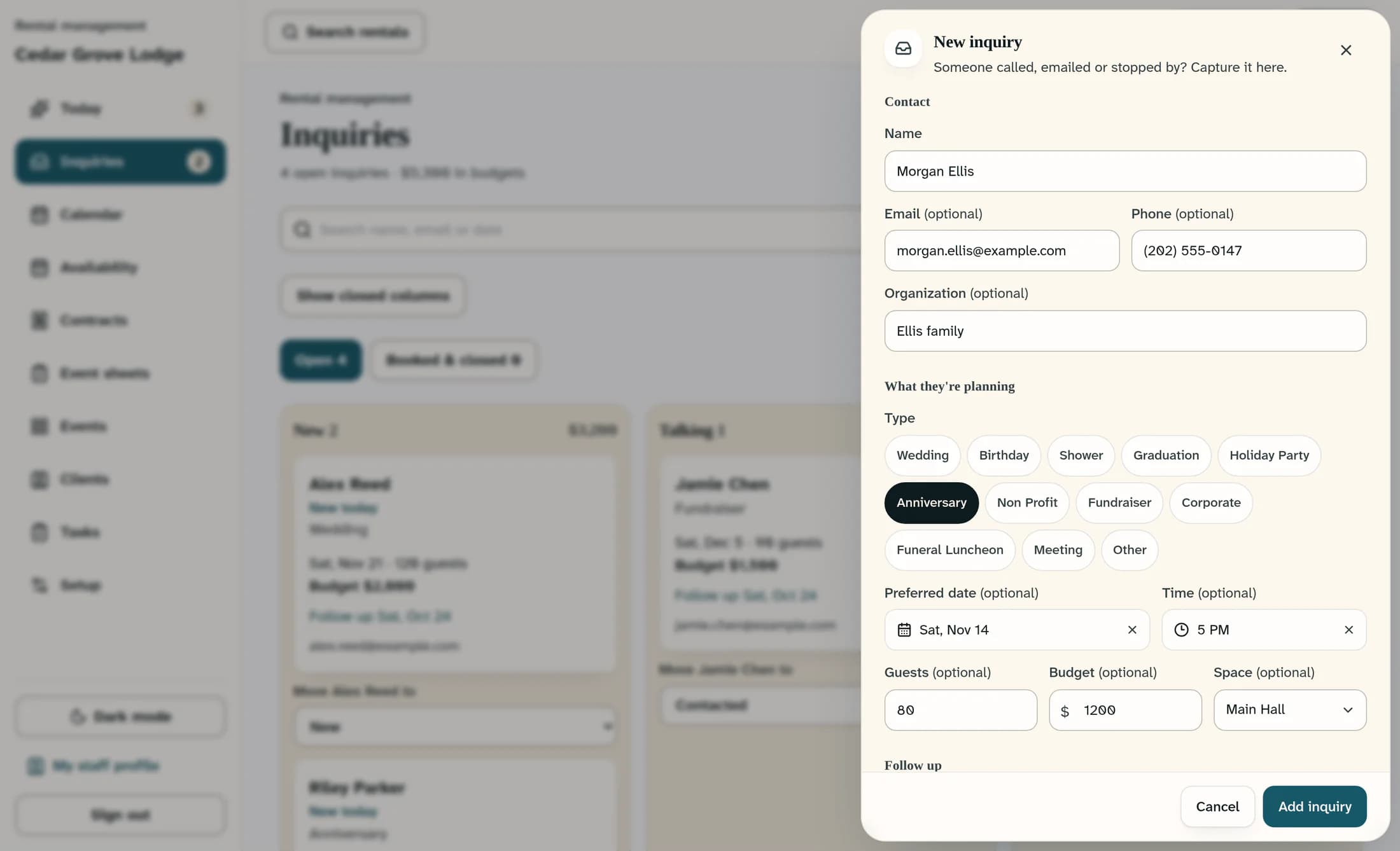
Record the contact and event plans
In Rentals, open Inquiries and choose New inquiry. Enter the contact's Name; this is the only required field. Add any known Email, Phone, Organization, event Type, Preferred date, Time, Guests, Budget, and Space.
Step 2 of 7
Set a follow-up and save
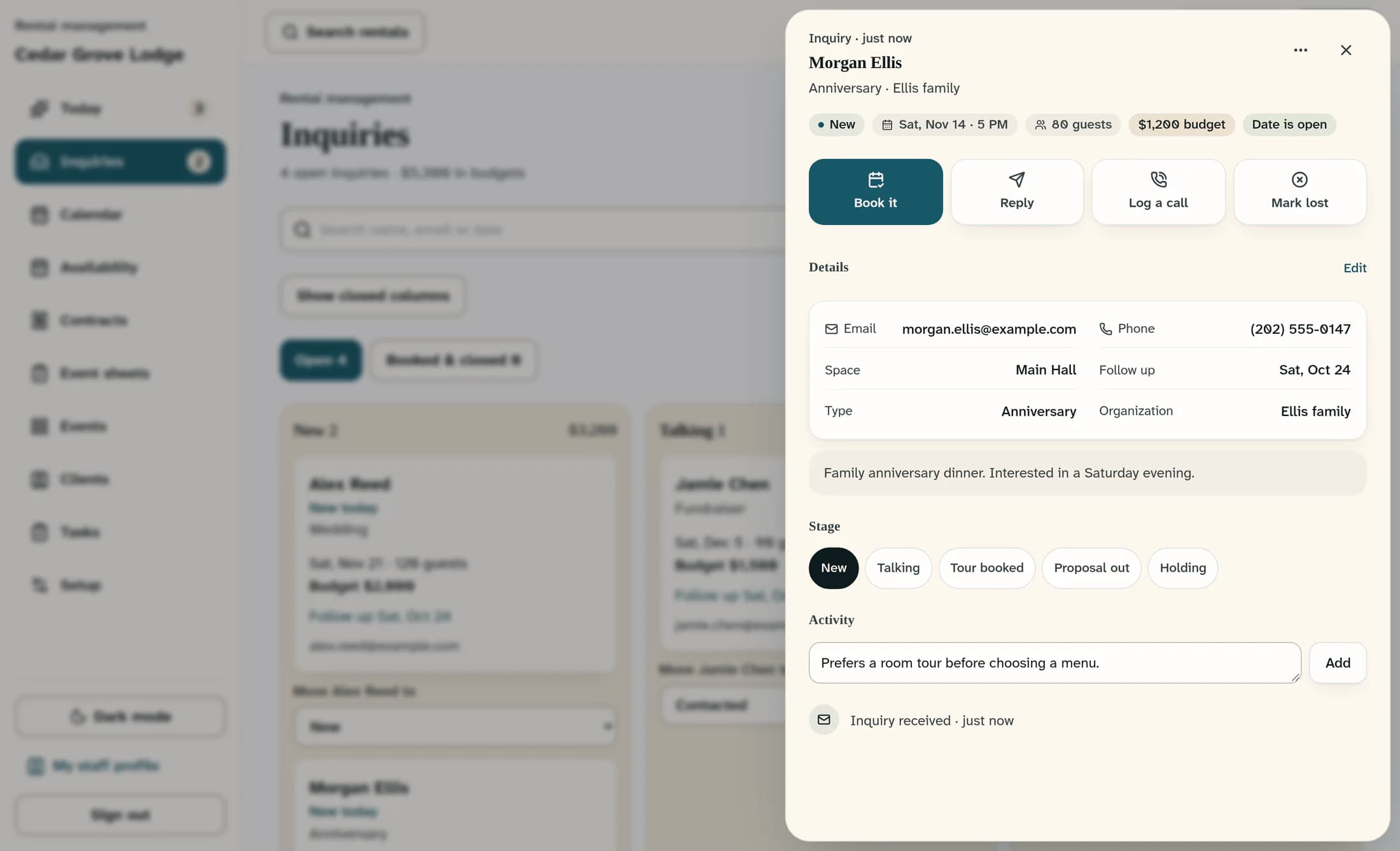
Scroll to Follow up and review Follow up on, which defaults to tomorrow. Add useful Notes, then choose Add inquiry. The saved inquiry opens with its contact details and activity.
Step 3 of 7
Add an internal note
In Activity, type into Add a note… and choose Add. Use this for information your team needs; adding a note does not send a message to the contact.
Step 4 of 7
Record a phone conversation
If you followed up by phone, choose Log a call. Enter the result under How did the call go?, then choose Log call. This records the conversation; it does not place a call.
Step 5 of 7
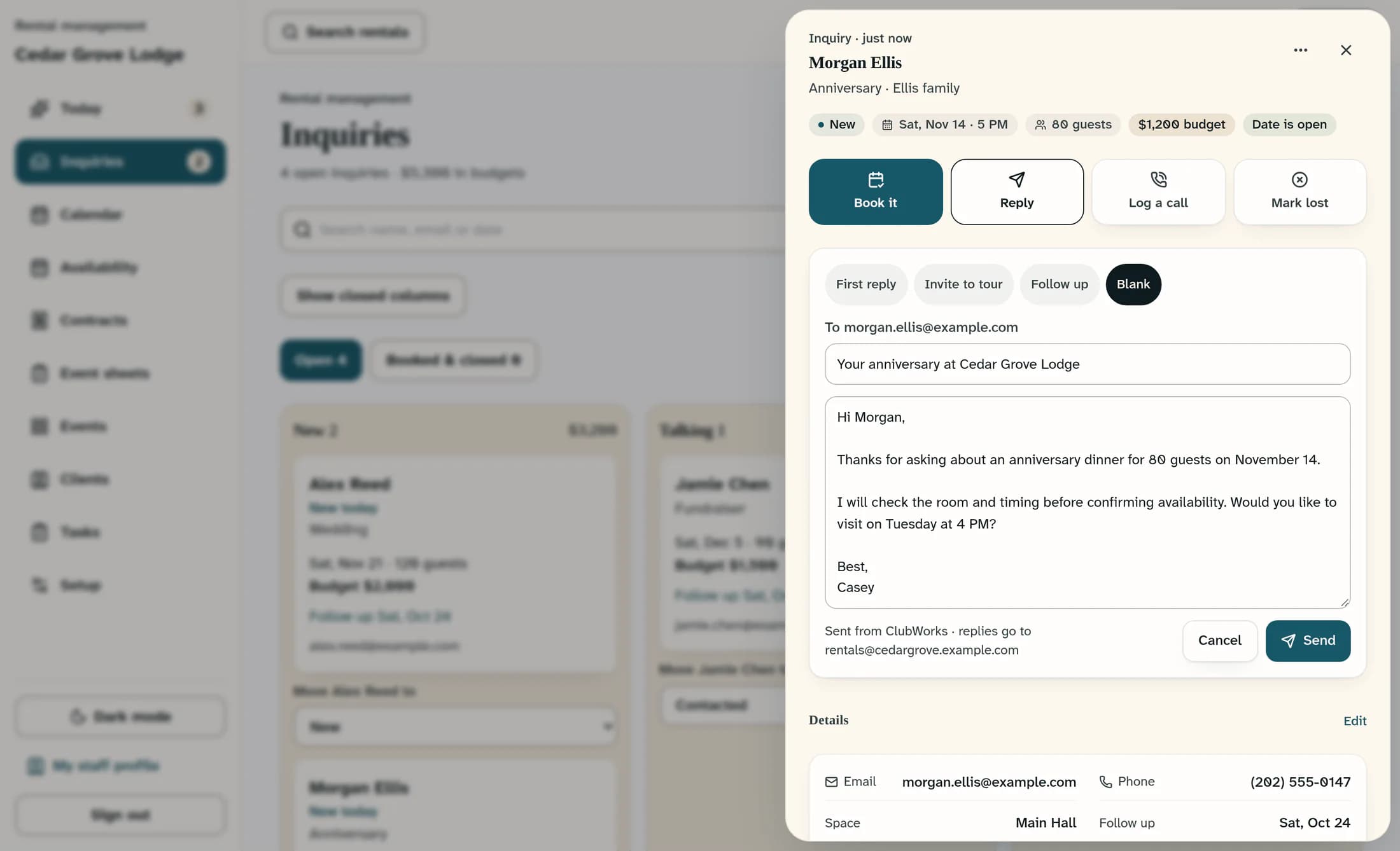
Send an email reply when needed
Choose Reply, then select First reply, Invite to tour, Follow up, or Blank. Review the displayed recipient, subject, and message, and replace any unfinished template text or availability claims with details you have checked. Choose Send only when the email is ready to go to the contact.
Step 6 of 7
Set the next follow-up date
Under Details, choose Edit, update Follow up, and choose Save. For a New inquiry, a successful reply or logged call moves it to Talking and clears its follow-up date. For inquiries already in later stages, check the date yourself; later replies and calls do not automatically clear it.
Step 7 of 7
Keep the stage current
Choose the appropriate button under Stage, such as Talking or Tour booked; the change saves immediately. Stage buttons track progress, but they do not send a proposal or reserve a space—even Proposal out and Holding. Book it opens another form to create an event or hold; it does not immediately confirm a booking.
Tips
Troubleshooting
- If Reply is disabled, the inquiry has no email address. Add one through Details > Edit, then choose Save.
- If a save seems uncertain, refresh and search for the inquiry before adding it again to avoid a duplicate.
Outcome
Your inquiry now holds the contact's plans, follow-up history, and next reminder. Inquiries and holds do not reserve space; only a confirmed booking does.
