
On this page
Before you start
Step 1 of 6
Find the event
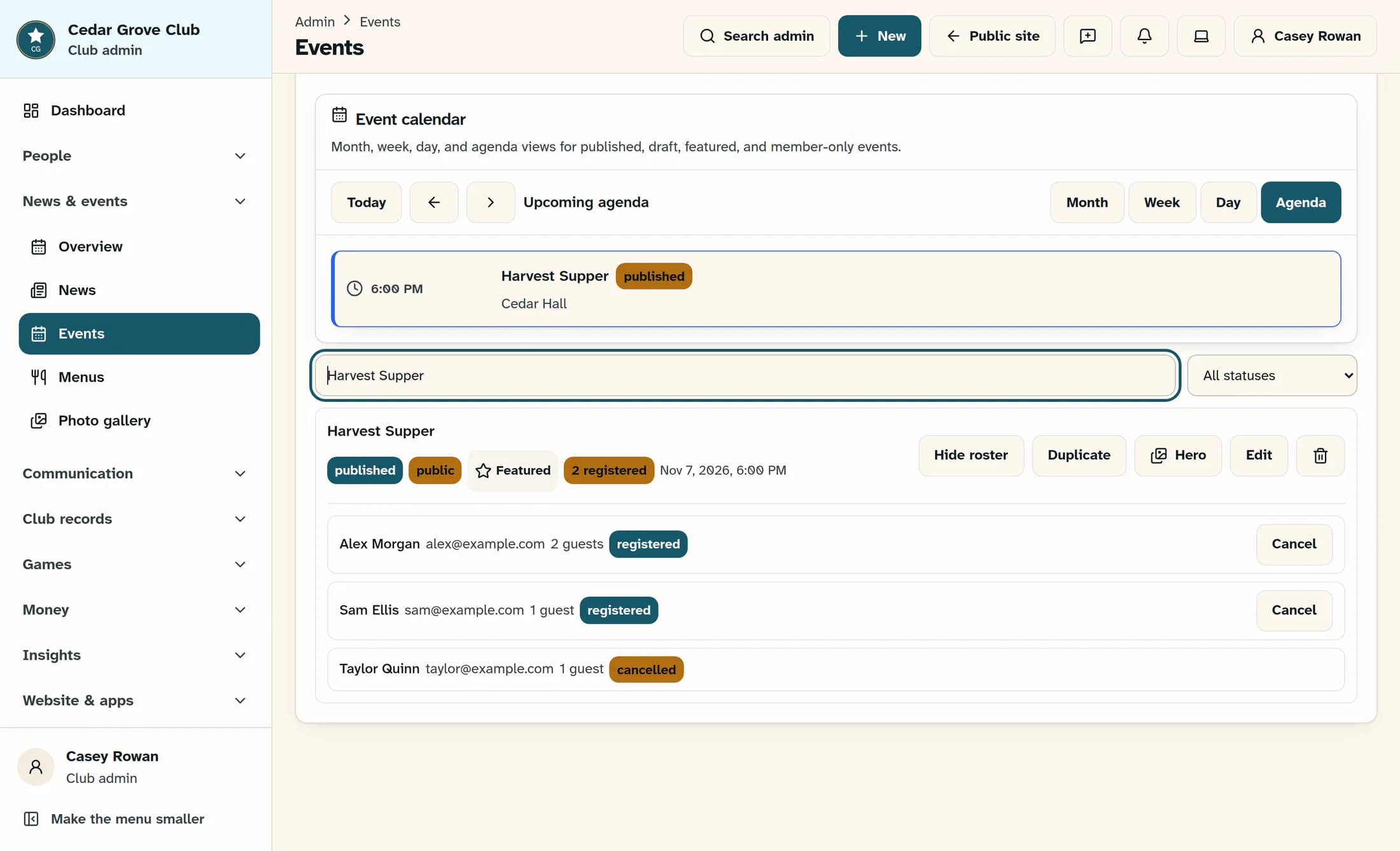
Open Events under News & Events, then use Search events to find the intended event. Check its title and date, and select Roster on that event’s card; this control appears only when registration is required.
Step 2 of 6
Read names, guests and statuses
Review each loaded row’s name, optional email, guest count and status. In the illustrated Harvest Supper roster, two rows are registered and one is cancelled; the badge says 2 registered because it counts registered rows, not guests.
What the roster can tell you
- The example’s registered rows show 2 guests and 1 guest, while the cancelled row shows 1 guest. Keep guest values and row statuses separate; neither the badge nor this roster confirms attendance or payment.
- The dashboard loads the latest 1,000 registration rows across the whole club. Searching for an event or opening its roster does not fetch older rows, so an older or larger event’s roster and registered badge can undercount.
- Wait for loading to finish and resolve any loading error before treating an empty roster as meaningful. An empty or failed view is not proof that nobody registered.
- This review does not cancel registrations, issue refunds, record attendance or resolve an over-capacity review. Leave those separate actions untouched while checking the records.
Step 3 of 6
Open Events Reports
Open Events Reports under Insights. Wait for the reports to finish loading; if the page says some report data could not be loaded, its numbers may be incomplete.
Step 4 of 6
Find registration-enabled events
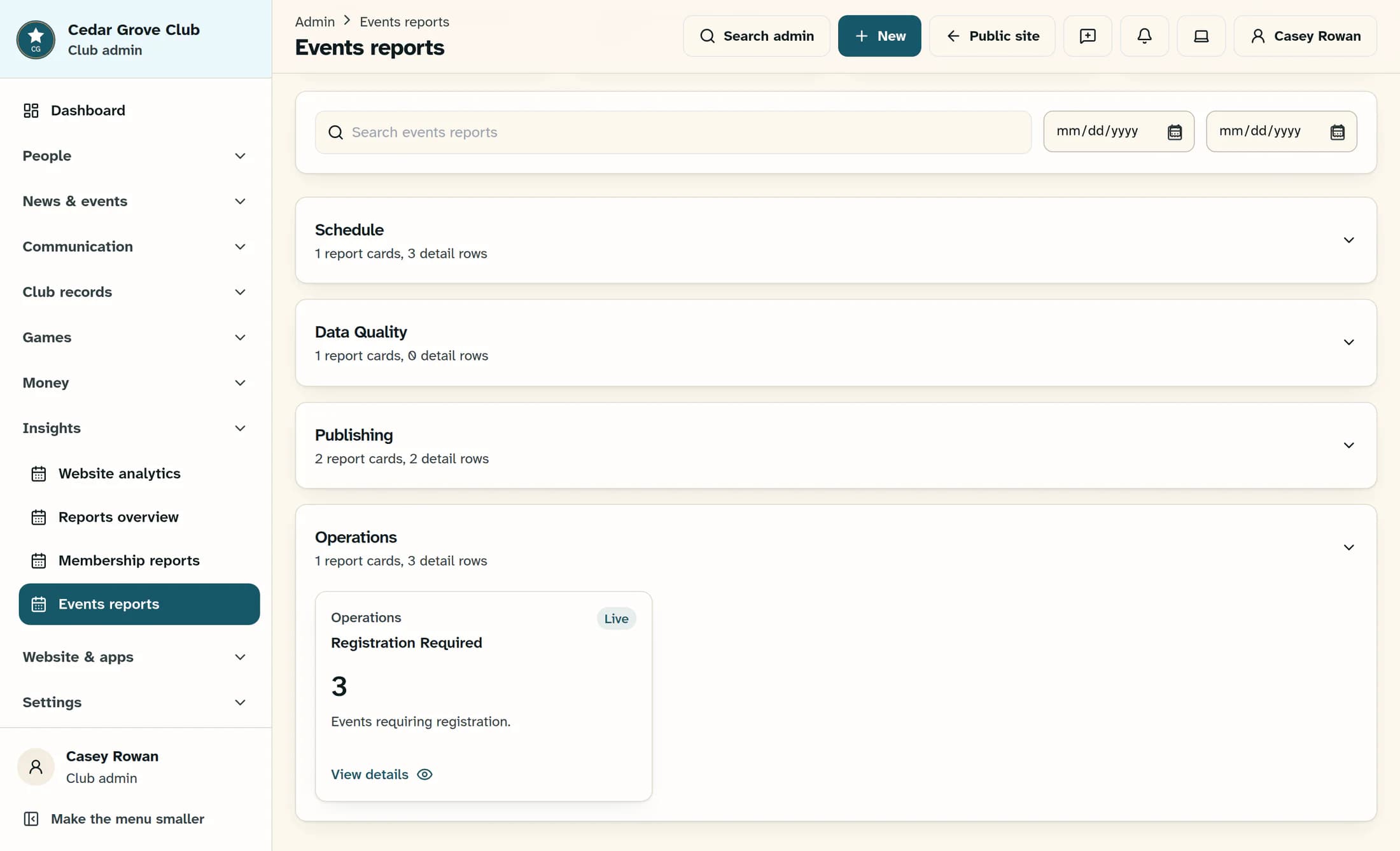
Expand Operations, then select Registration Required. This card counts events that require registration, not people, registration rows or guests.
Step 5 of 6
Interpret the report details
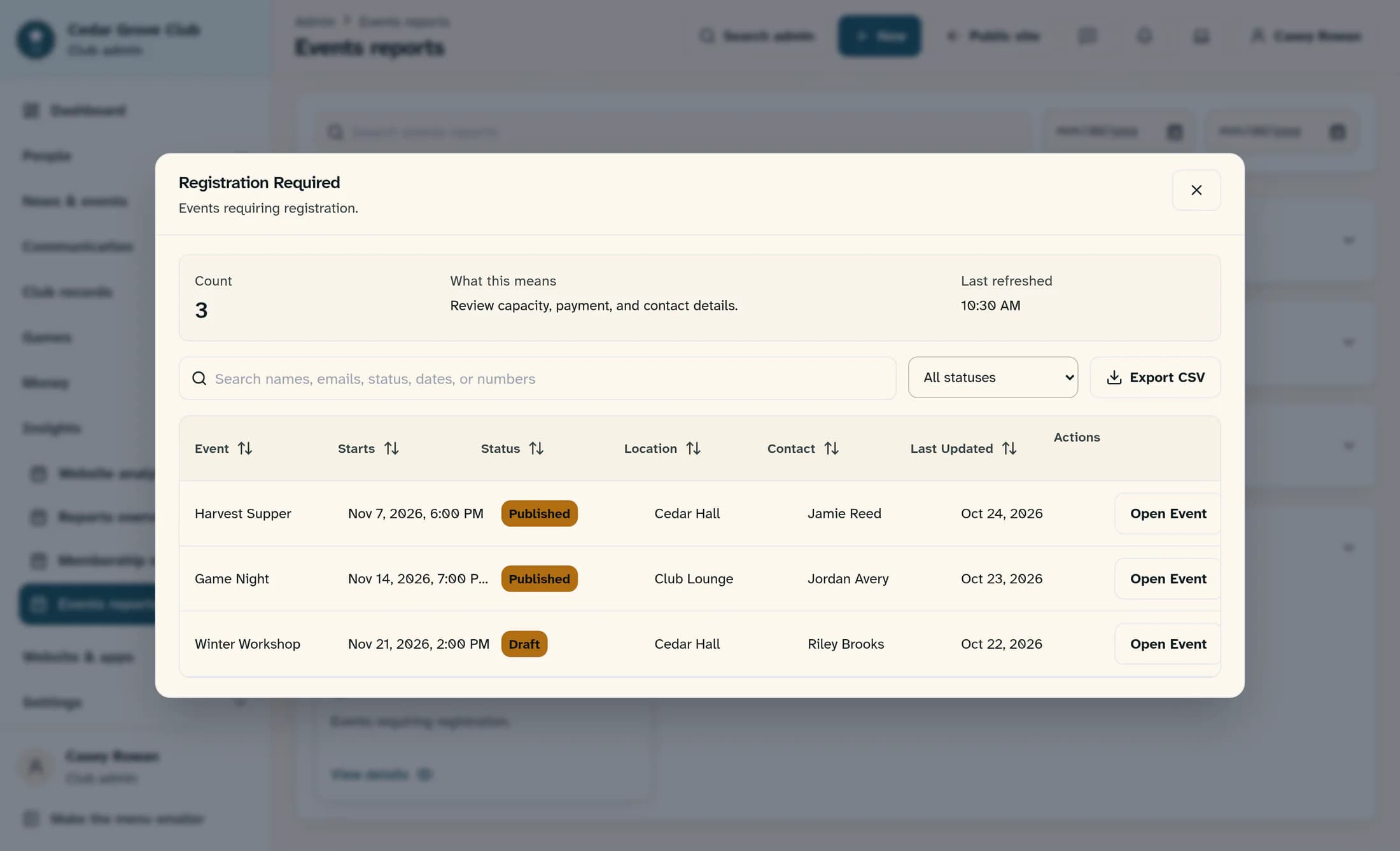
Read the Event, Starts, Status, Location, Contact and Last Updated columns. The example includes Harvest Supper once among three registration-enabled events, even though its roster contains three registration rows.
What the five event reports mean
- Upcoming Events: events that have not started yet.
- Events Missing Description: events with neither a description nor body content.
- Draft Events: all events that are not currently published, including other nonpublished statuses.
- Featured Events: events marked featured.
- Registration Required: events set to require registration. Its detail rows and CSV contain event records, not an attendance list, guest revenue summary or ticket-payment reconciliation.
Step 6 of 6
Keep the reporting scope in view
Close the report details with Close, then use Report date from and Report date to on the report page if you need a different reporting period. These dates filter the event’s stored start date; they do not filter when a person registered or rebuild the roster.
Read totals in context
Your review
You can now distinguish loaded registrations and guest values from event-level report records. Use the roster for participation review and Events Reports for setup and activity checks, keeping each view’s loading and completeness limits with your findings.
