
On this page
- Before you start
- Set the review scope
- Review each staff roster
- Read status labels carefully
- Read each person’s system access
- Check where each permission comes from
- Review club roles and direct access
- Keep the club review complete
- Record a decision and owner for every person
- Example review records — fictional
- Arrange approved changes safely
- Recheck the result and set the next review
- Review outcome
Before you start
Step 1 of 7
Set the review scope
Record the current club, review owner, date, and the duties you expect each person to perform. Include club administration, permission roles and direct grants, plus Workforce and Rentals (RMS) wherever enabled. A review of one system does not cover the other. Note systems that are turned off and any access you cannot inspect; an incomplete or failed load is an open follow-up, not an empty access list.
Step 2 of 7
Review each staff roster
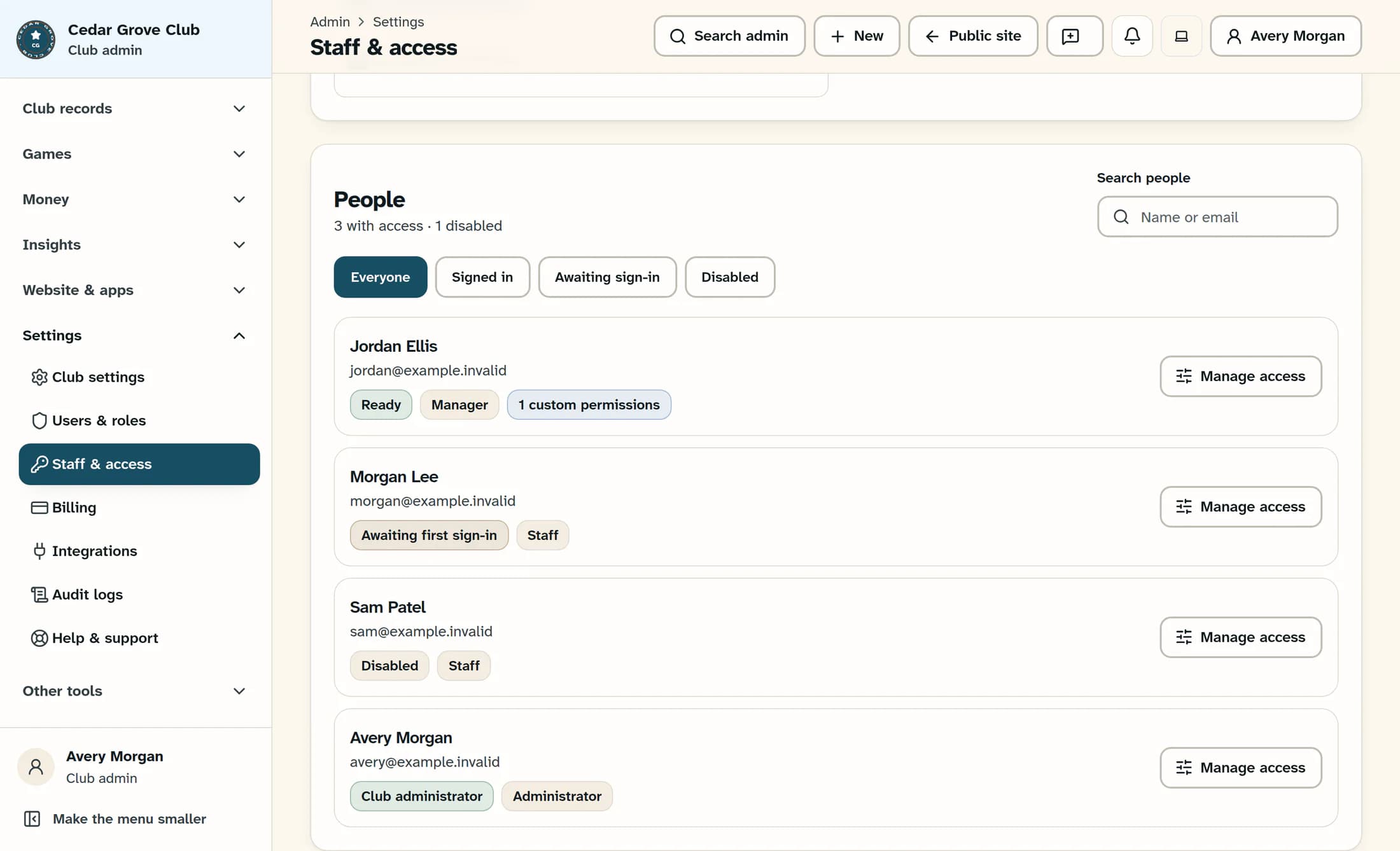
In Club Admin, open Settings → Staff & Access. Confirm the club and choose Workforce or Rentals (RMS). Select Refresh access and wait for the list to load without an error. Use Everyone and Name or email to match names and email addresses to your current staff list. Review Signed in, Awaiting sign-in, and Disabled separately so a status filter does not hide someone. Clear the search before checking the whole roster. Repeat this review for each enabled system.
Read status labels carefully
Step 3 of 7
Read each person’s system access
For each person, use Manage access beside their name. Review their Access level, effective-permission count, and Individual permissions against their duties. Use Find a permission to inspect a specific item, then clear the filter to review the rest. Read controls without changing them: access levels and permission checkboxes save when changed. A small count or a familiar role name is not enough to approve access.
Check where each permission comes from
Step 4 of 7
Review club roles and direct access
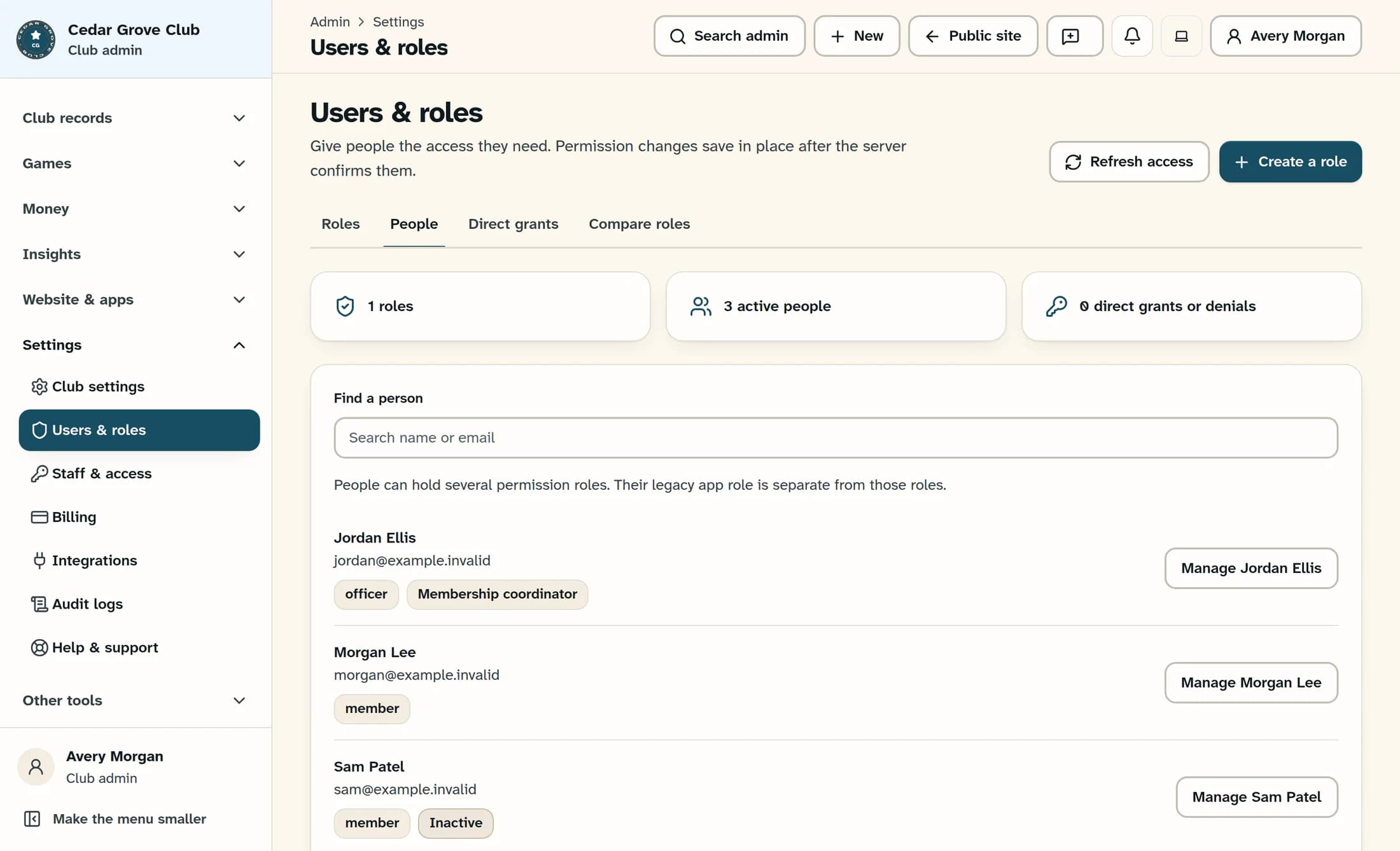
In Settings → Users & Roles, refresh the access data. In the newer Users & roles view, use People and Find a person to review each person’s legacy app role and all assigned permission roles. Include people marked Inactive, and work through all pages. Use Direct grants to review individual grants and denials, then the person’s management panel for the details. Review Roles to understand what each assigned permission role contains. Keep the controls unchanged while inspecting them.
Keep the club review complete
Step 5 of 7
Record a decision and owner for every person
Compare the access you found with the duties the club owner confirmed. Mark each item keep, change, remove, or question. Record the actual authority sources, the approving person, any unresolved question, a follow-up owner and due date, and the next review date. Use your club’s review procedure or calendar for reminders.
Example review records — fictional
- Review: Cedar Grove Club; 26 October 2026; owner Avery Morgan. Scope: club roles/direct access, Workforce, Rentals. Next review: 26 January 2027, with earlier review when duties change.
- Person: Jordan Ellis, jordan@example.invalid. System: Workforce. Current authority: Manager; one individual interview-permission exception; club role review also required. Needed duty: coordinate authorized hiring interviews. Decision: Question. Approver: Casey Reed. Follow-up: Avery to confirm the exception and other grants by 30 October; no change approved yet. Next review: 26 January.
- Person: Morgan Lee, morgan@example.invalid. System: Rentals. Current authority: Staff; Awaiting first sign-in. Needed duty: none after temporary cover ended. Decision: Remove, subject to approval. Approver: Casey Reed. Follow-up: Avery to obtain approval, follow the disable guide, and recheck club/Workforce access by 30 October. Next review: 26 January.
- Person: Avery Morgan, avery@example.invalid. System: club administration and Workforce. Current authority: club Admin plus Workforce Administrator. Needed duty: club administration and staff setup. Decision: Keep. Approver: Casey Reed. Follow-up: record the second active club administrator and second Workforce administrator; confirm legitimate access. Next review: 26 January.
Step 6 of 7
Arrange approved changes safely
Before reducing club administration or a system Administrator role, confirm that another authorized, active administrator remains at that same level. Use Change staff access and permissions or Disable or restore staff access for approved staff changes. Have an authorized club administrator handle club app-role changes, and an authorized permission manager handle permission roles or direct entries in the appropriate view. Do not toggle controls merely to test or inspect access. Record any blocked or unapproved change as follow-up.
Step 7 of 7
Recheck the result and set the next review
After approved work, refresh and read the saved roles, permissions, source labels, and statuses again in each affected system and in club access. If a change was accepted but the updated list failed to load, or the result is uncertain, refresh before retrying. Ask affected people to confirm the access they legitimately need, and investigate unexpected access or missing tools with an authorized administrator. Record the check date, result, remaining exceptions, and owner. Set the next review in your own calendar or procedure; this checklist does not rely on a ClubWorks access-review scheduler or export.
The illustrations show fictional people in source-reconstructed ClubWorks views. Your menu may include newer entries, and preview availability can vary. No live access changes were made for these examples.
Review outcome
You now have a dated record of who needs access, which sources provide it, and who owns each change or unresolved question. Keep the review open until required follow-ups are resolved or explicitly tracked; it is a review record, not a guarantee of complete security.
