
On this page
Before you start
Step 1 of 6
Open your account
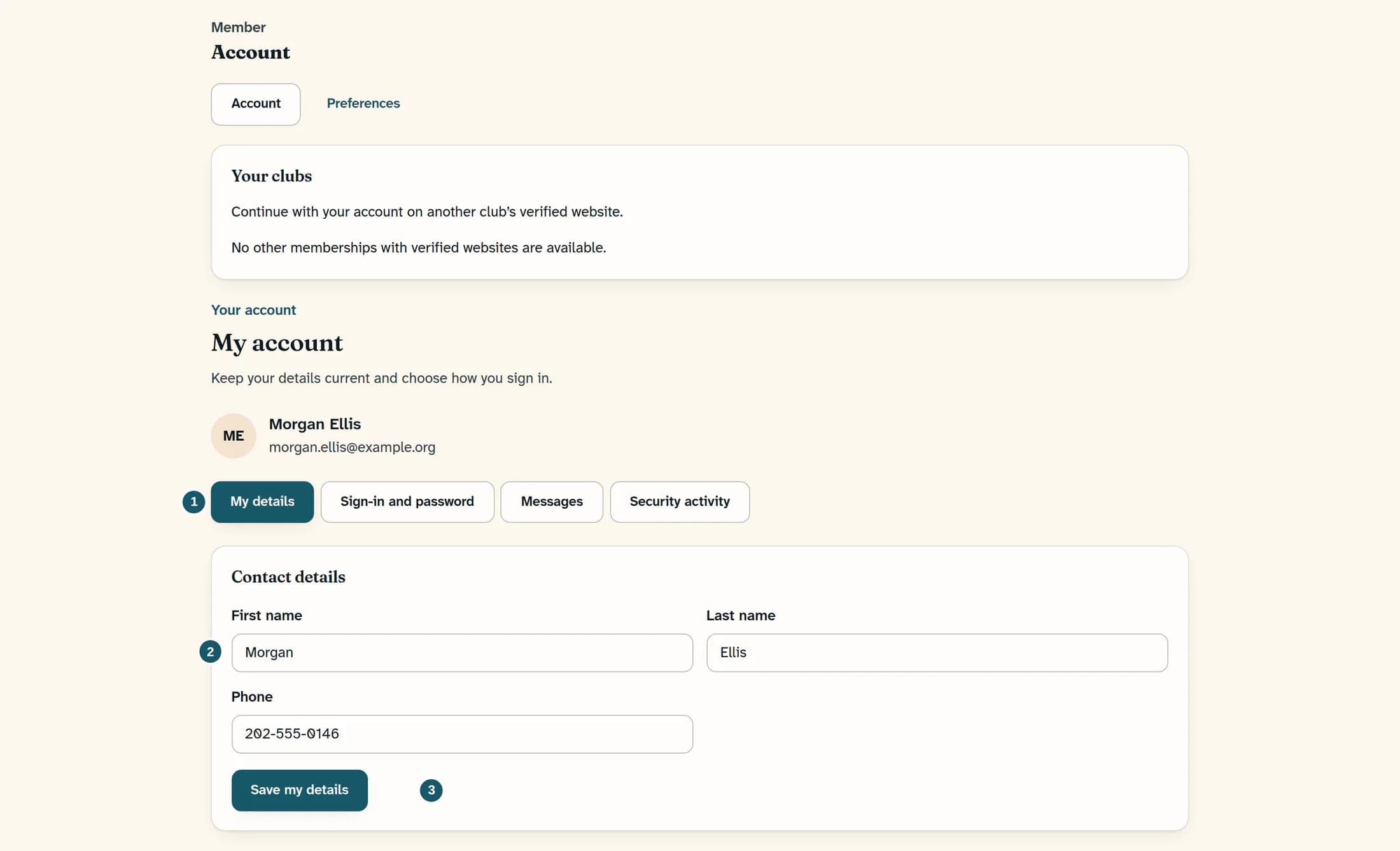
Open the Account menu at the top right and choose Account. On My account, choose My details to reach Contact details.
Step 2 of 6
Update your contact details
Edit First name, Last name, or Phone as needed. The email address beneath your name is displayed information, not an editable field here; ask the club office if your sign-in email needs correcting.
Step 3 of 6
Save your details
Choose Save my details once. Wait for “Account profile saved.” before leaving the page.
Step 4 of 6
Open directory privacy
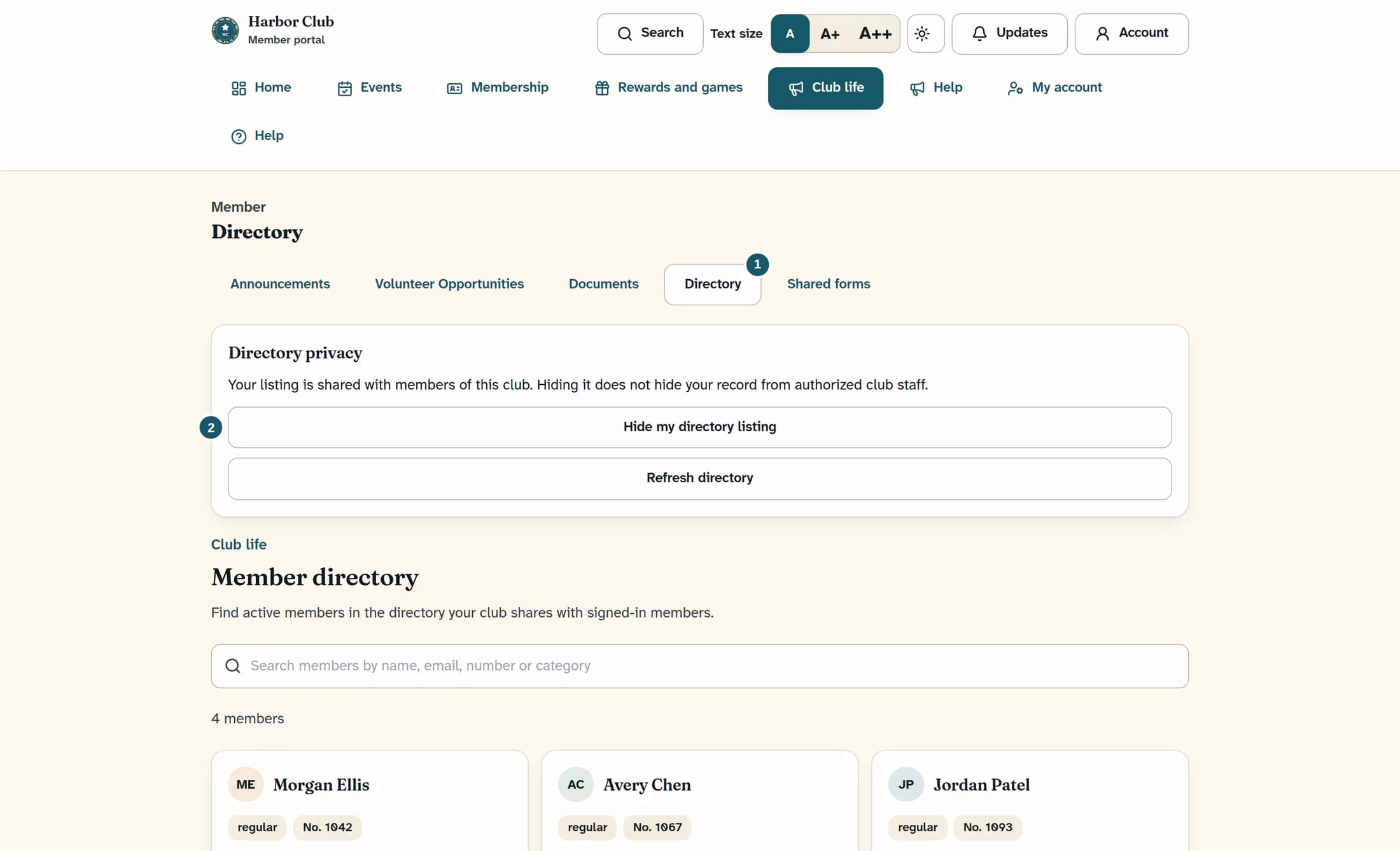
Choose Club life in the member navigation, then Directory. The Directory privacy panel appears above Member directory.
Step 5 of 6
Hide your listing
To hide your listing from other members, choose Hide my directory listing once. The change saves immediately and the directory refreshes; there is no separate save button. Once the refresh finishes, Show my directory listing is the next action available.
Step 6 of 6
Show your listing again when you want to
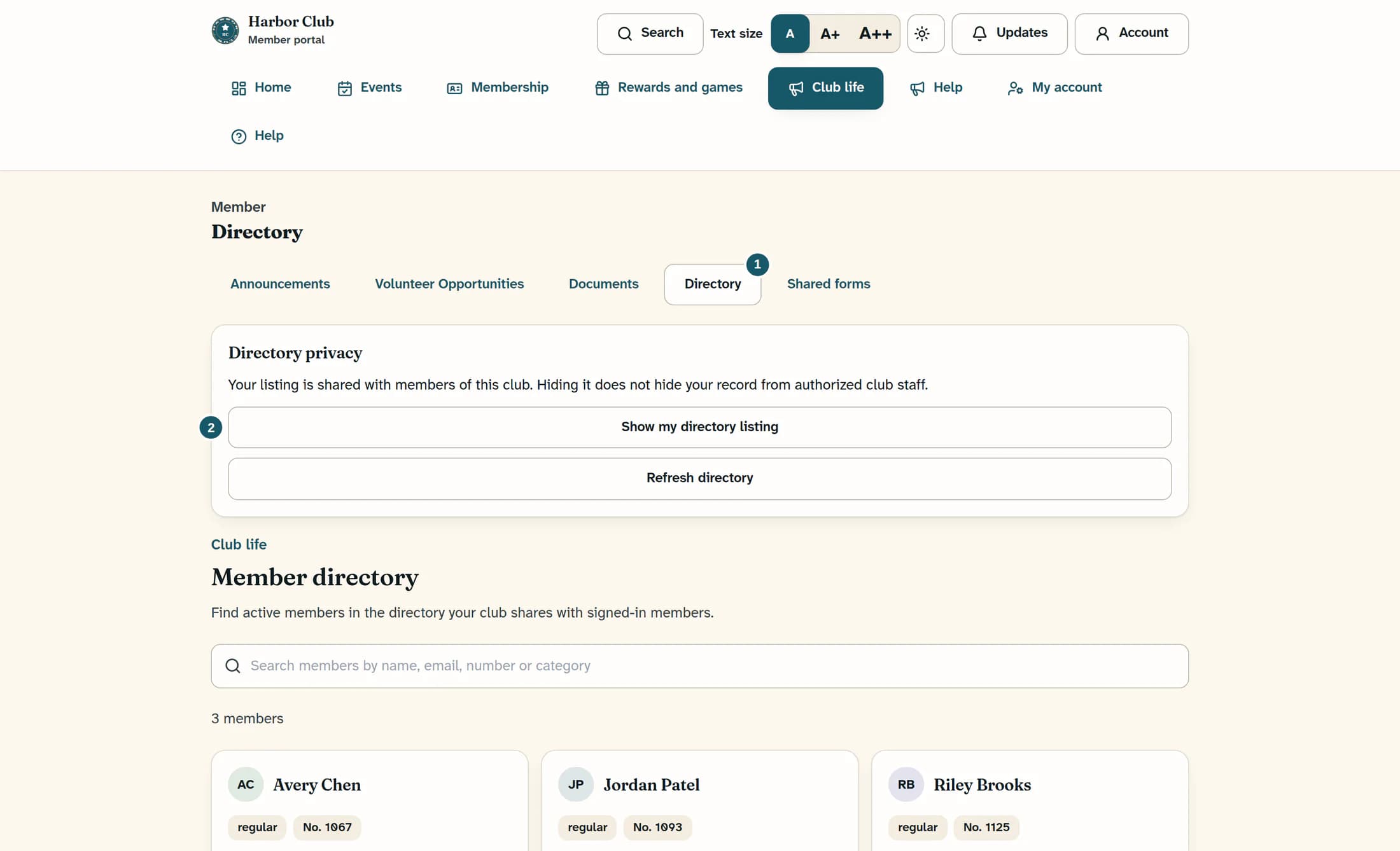
If you want to make your hidden listing visible again, choose Show my directory listing once. Wait for the save and refresh to finish; Hide my directory listing then becomes the next action available.
What this privacy choice changes
The button describes what will happen next: Hide my directory listing means your preference is currently set to visible; Show my directory listing means it is set to hidden. Hiding your listing does not hide your record from authorized club staff, delete your membership, or change your messaging preferences.
If a change does not finish
Expected result
Your saved name and phone number appear in My details. Your directory button shows the next available action after a successful refresh, so you can check whether your listing is set to visible or hidden.
About this guide
Applies to the ClubWorks member website using the Clubhouse design. Source checked on October 22, 2026 against release 16782cba; the relevant source matched production release 440543f1. The illustrations reconstruct the interface from source using fictional people and values; they are not live application captures. Live workflow and database behavior have not been verified, and this guide does not verify the native phone app.
The screens in this guide show example clubs and people. Your club's name, colours and some labels may look different.
