
On this page
Before you start
Step 1 of 5
Find Forms & Responses
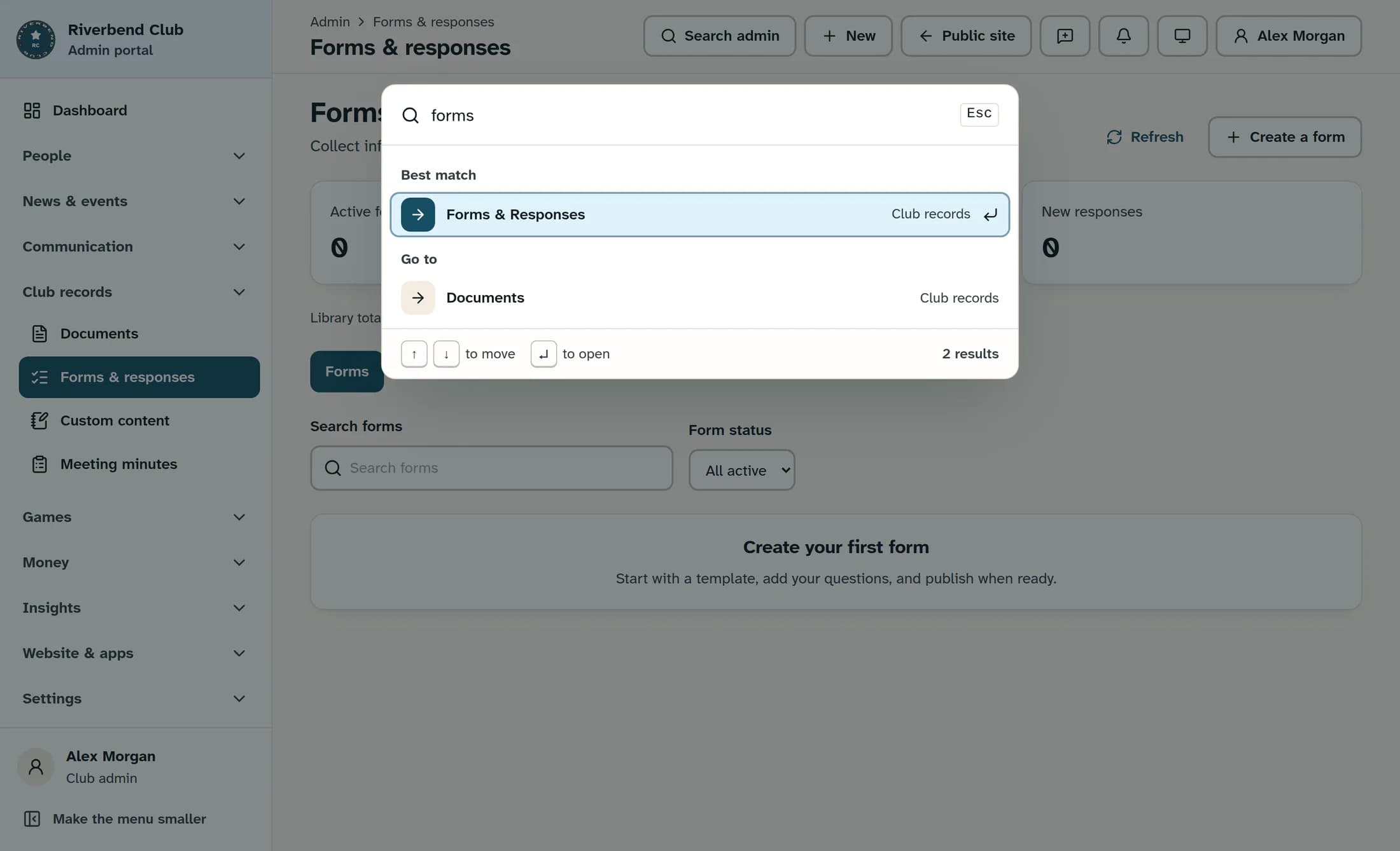
Open Search admin in the top bar and type “forms”. Under Best match, choose Forms & Responses.
Step 2 of 5
Start from scratch
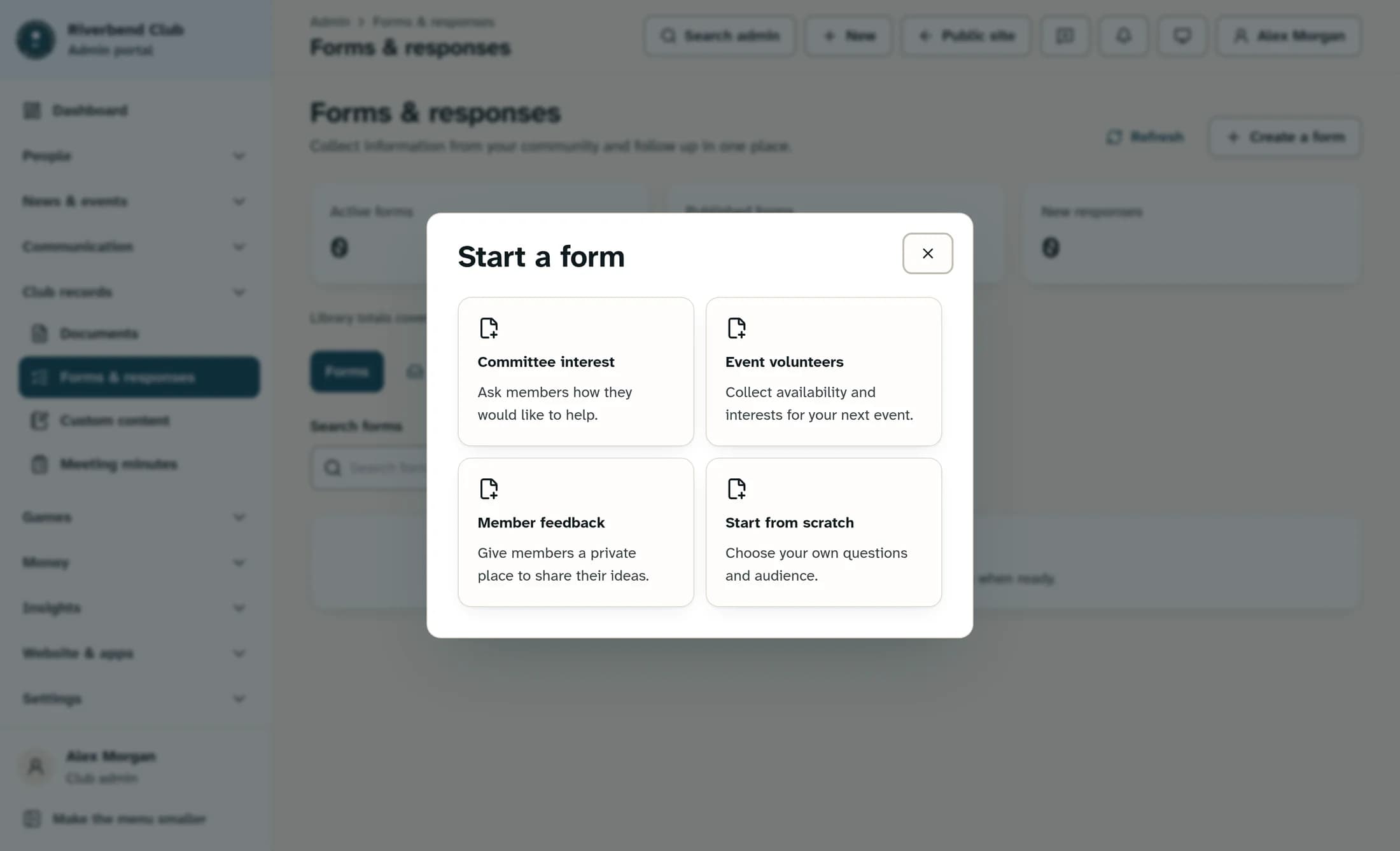
On Forms & responses, choose Create a form. In Start a form, choose Start from scratch; the starter includes required Your name and Email address questions.
Step 3 of 5
Give your form a title and introduction
In Build form, enter a Form title, such as “Volunteer interest”. Add an Introduction that explains what you’re asking and what happens next, such as “Tell us how you’d like to help. Our volunteer coordinator will contact you.”
Step 4 of 5
Add a required question
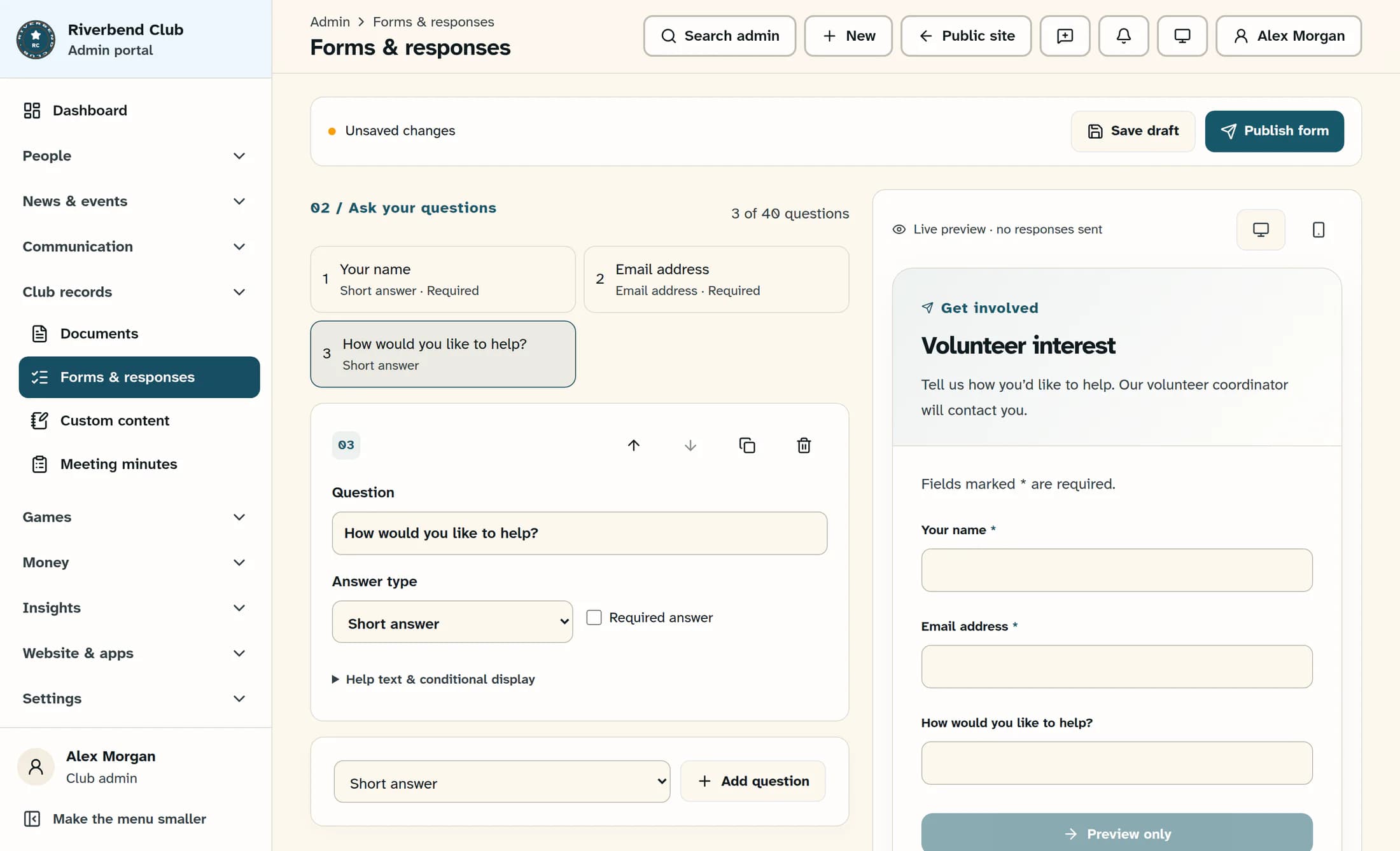
Below the existing questions, leave the new question type set to Short answer and choose Add question. In the new Question field, enter “How would you like to help?” and check Required answer. The Answer type can stay as Short answer.
Step 5 of 5
Review and save your draft
Review your wording in the inline Live preview · no responses sent panel. Choose Save draft in the save bar, then wait for “Saved · version draft”. The form still shows draft and Not published; it needs publishing before people can respond.
Tips
Result
You have a saved draft with a title, an introduction and a new required question. This new form is not live yet; publishing is a separate step.
Troubleshooting
- If Create a form is missing, ask your club administrator to check your permission to manage forms.
- If saving shows an error, keep the form open and read the message before trying again. Unsaved changes are not a saved draft.
About this guide
These illustrations are source-based reconstructions of the Clubhouse web admin, with fictional club details and form content. Your club’s colors and available menu items may differ.
The screens in this guide show example clubs and people. Your club's name, colours and some labels may look different.
