
On this page
Before you start
Step 1 of 5
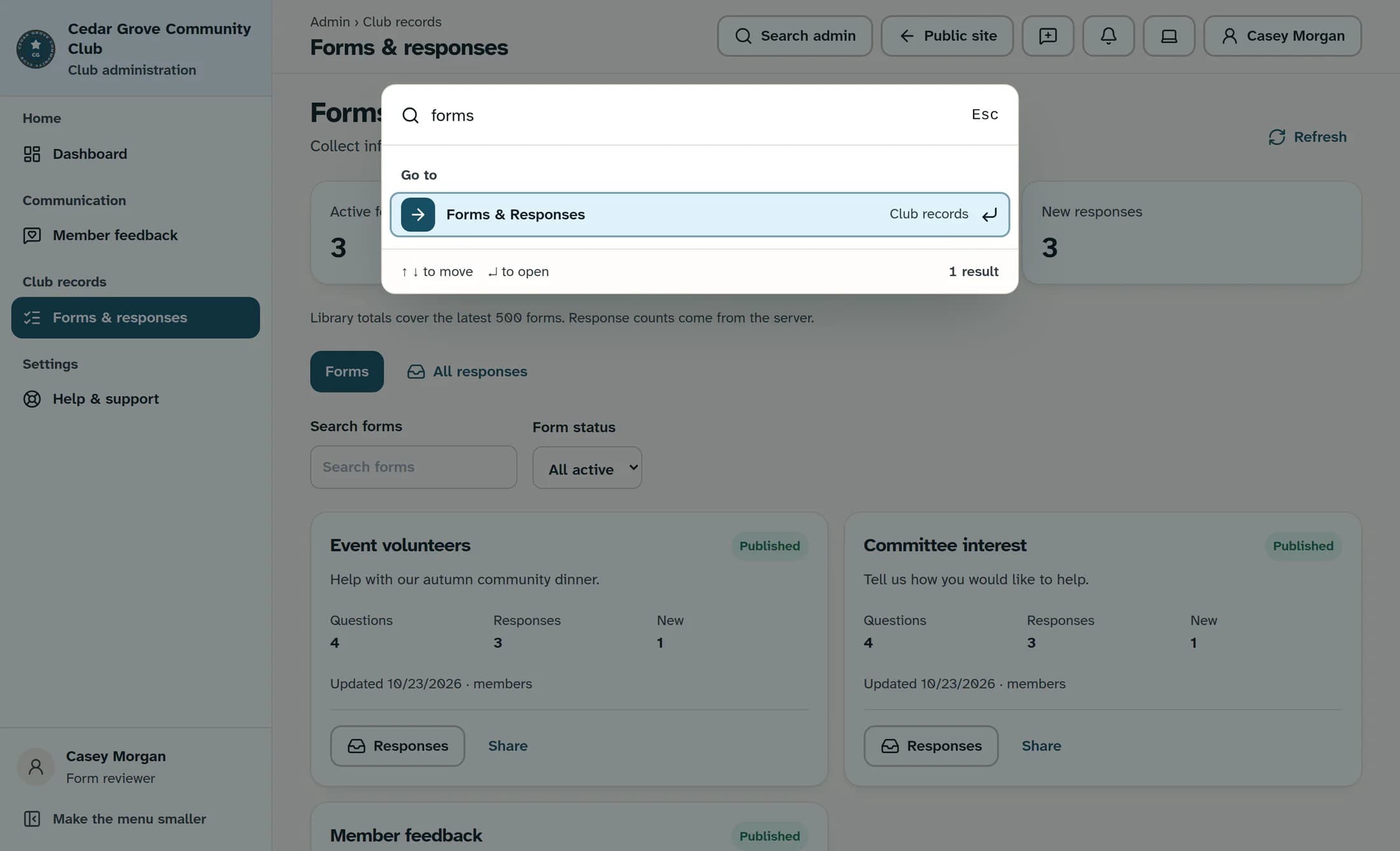
Find Forms & Responses
Select Search admin, enter forms in Search members, pages, or what you want to do, then choose Forms & Responses.
Step 2 of 5
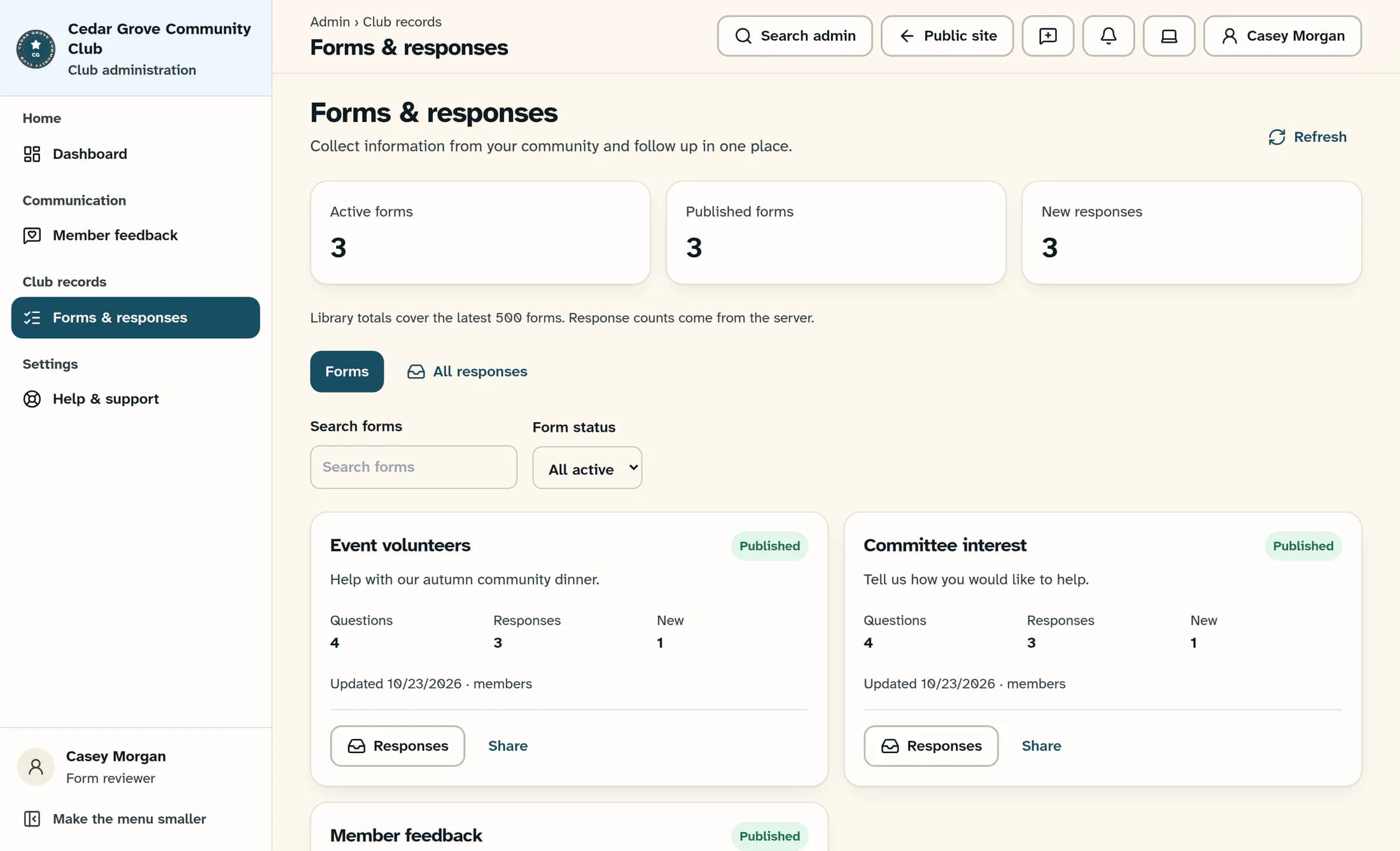
Open the response inbox
Select All responses in the forms library. To work with one form instead, its Responses button opens an inbox already limited to that form.
Step 3 of 5
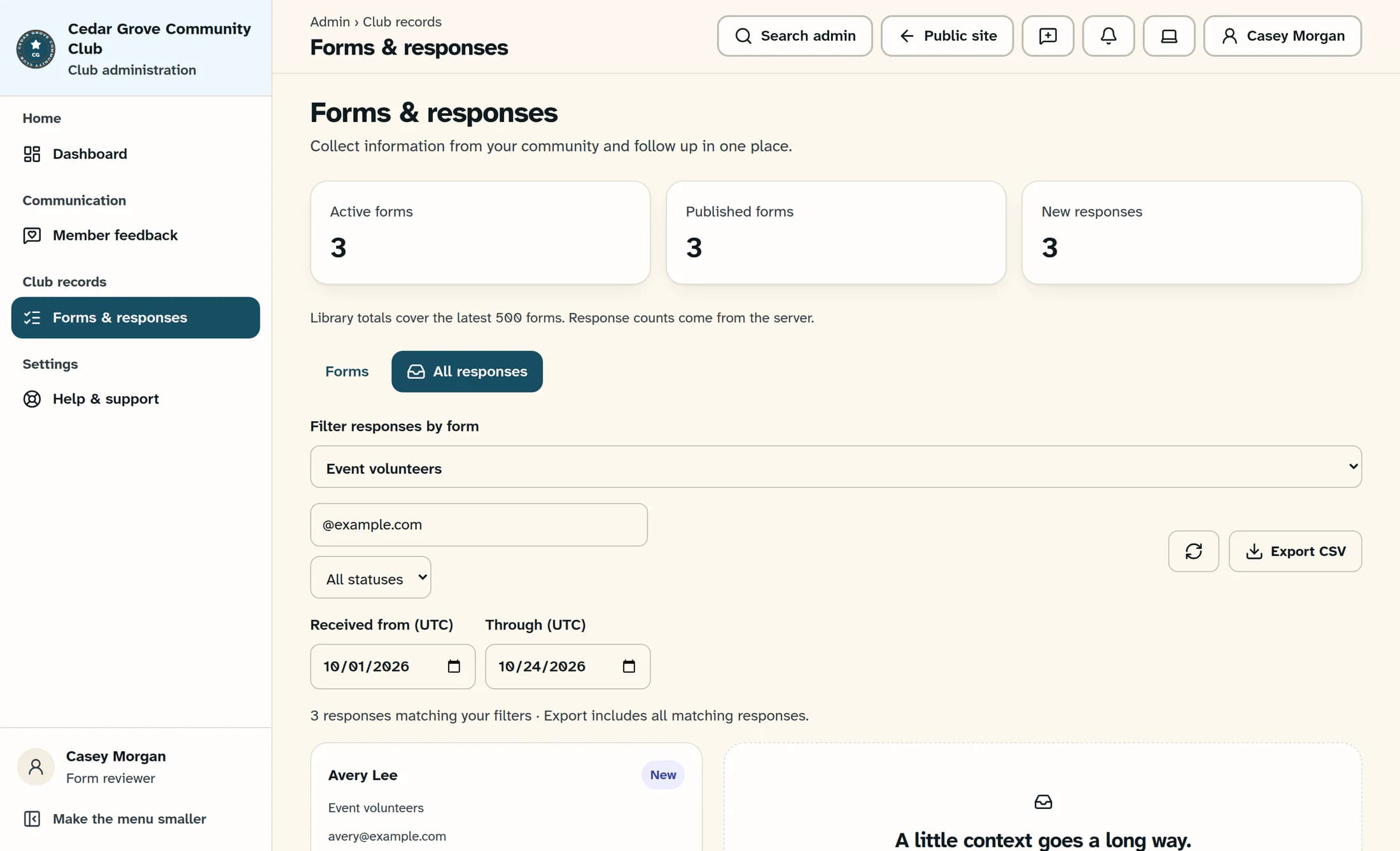
Choose which responses to include
Use Filter responses by form to choose a form, or keep All forms. Enter a name or email in Search responses and choose a Response status when you need a smaller set.
Step 4 of 5
Set a received-date range
Set Received from (UTC) and Through (UTC) if needed. These dates use UTC and include the full selected end date.
Step 5 of 5
Download the matching responses
Wait for the response count to update, then select Export CSV. The download includes all matching responses, not just the current page of up to 40.
What is in the file
- Each row includes the response reference, form ID, received time, status, name, email, form version, source, internal notes and answers.
- Question columns follow the versions people answered. Renamed questions can produce separate columns.
- Search matches submitter names and email addresses; it does not search answer text or internal notes.
- From All responses, the filename starts with all-forms even if you filtered to one form.
If the export does not download
- Export CSV is unavailable when no responses match. Check the filters and the response count.
- For an export-too-large error, narrow the received-date range. A single export is limited to 20,000 responses, 20 million characters of response data and 500 question columns across historical versions.
- Check any message shown in the inbox. A download error does not confirm that a file was created.
- If you cannot find the inbox, ask your administrator to check your form-response review permission.
Your responses are ready to use
The CSV contains the matching responses available when the export began. Keep its private notes and contact details within your club’s authorized review team.
About this guide
Illustrations are source-based reconstructions with fictional club and response data. The browser workflow was checked against matching application source; a live CSV export has not been verified.
The screens in this guide show example clubs and people. Your club's name, colours and some labels may look different.
