
On this page
Before you start
Step 1 of 6
Find Meeting Minutes
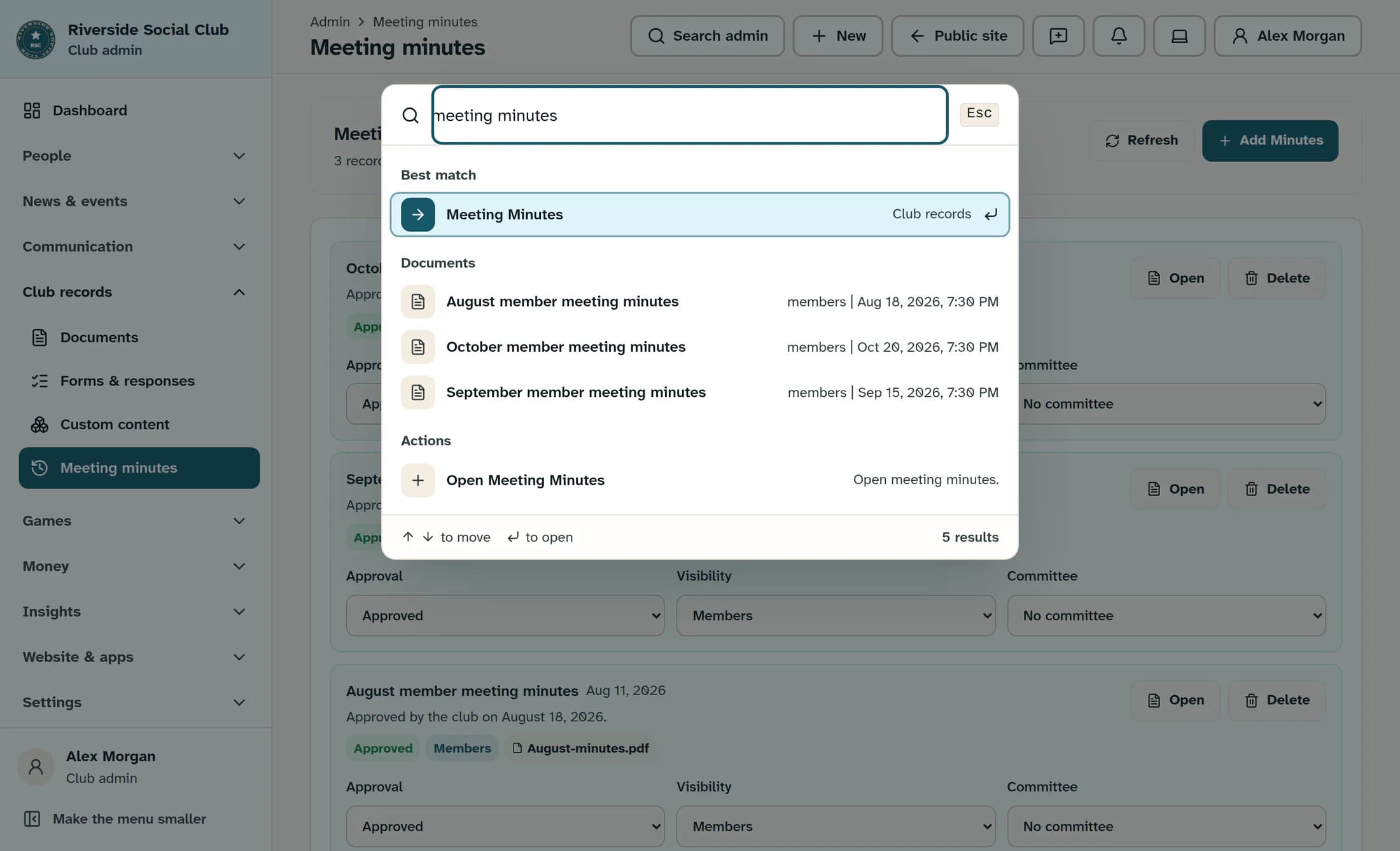
In the admin area, click Search admin. Type meeting minutes into Search members, pages, or what you want to do, then select Meeting Minutes under Best match.
Step 2 of 6
Start a minutes record
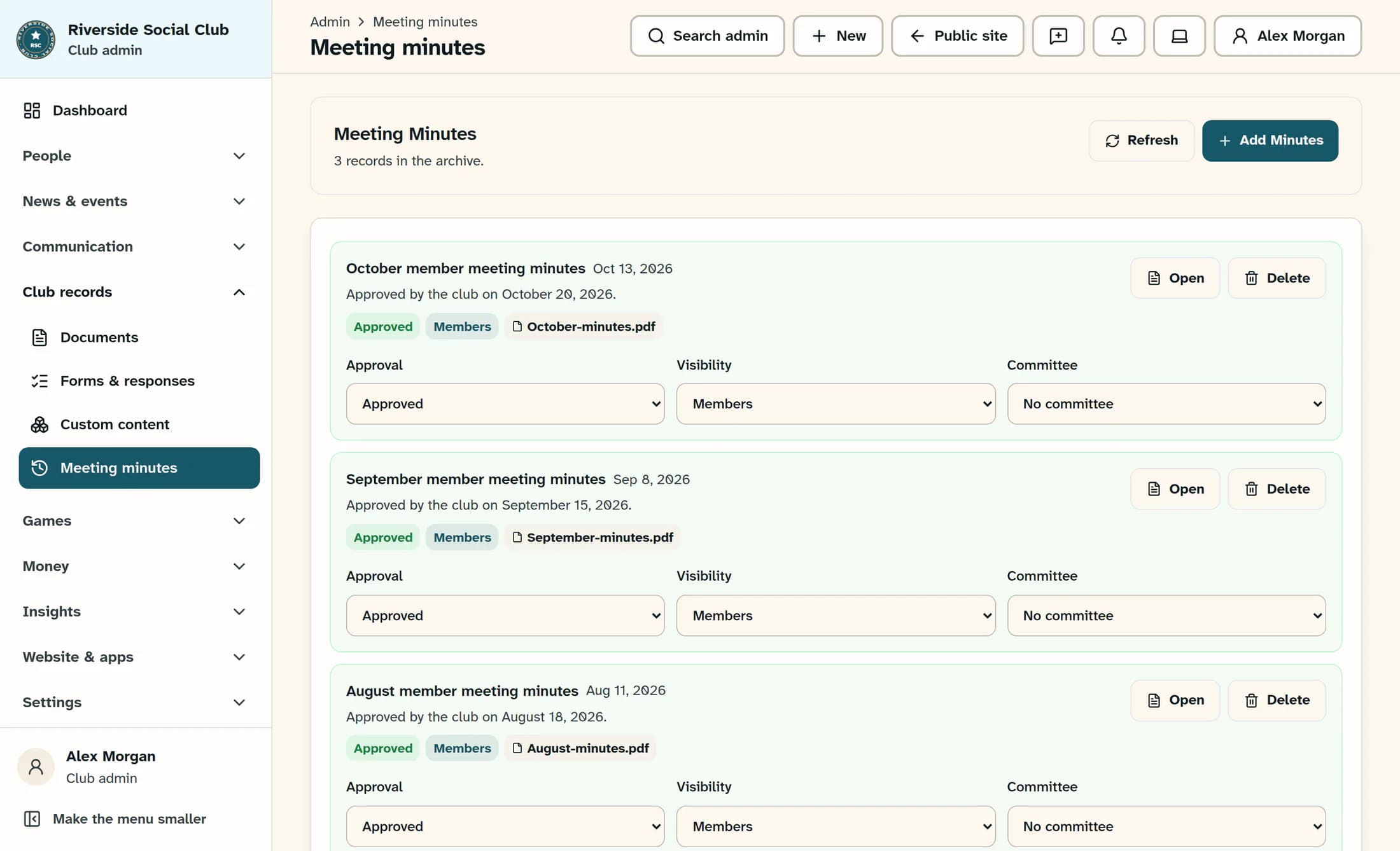
Click Add Minutes at the top of Meeting Minutes. The Add meeting minutes form opens over the archive.
Step 3 of 6
Enter the meeting details
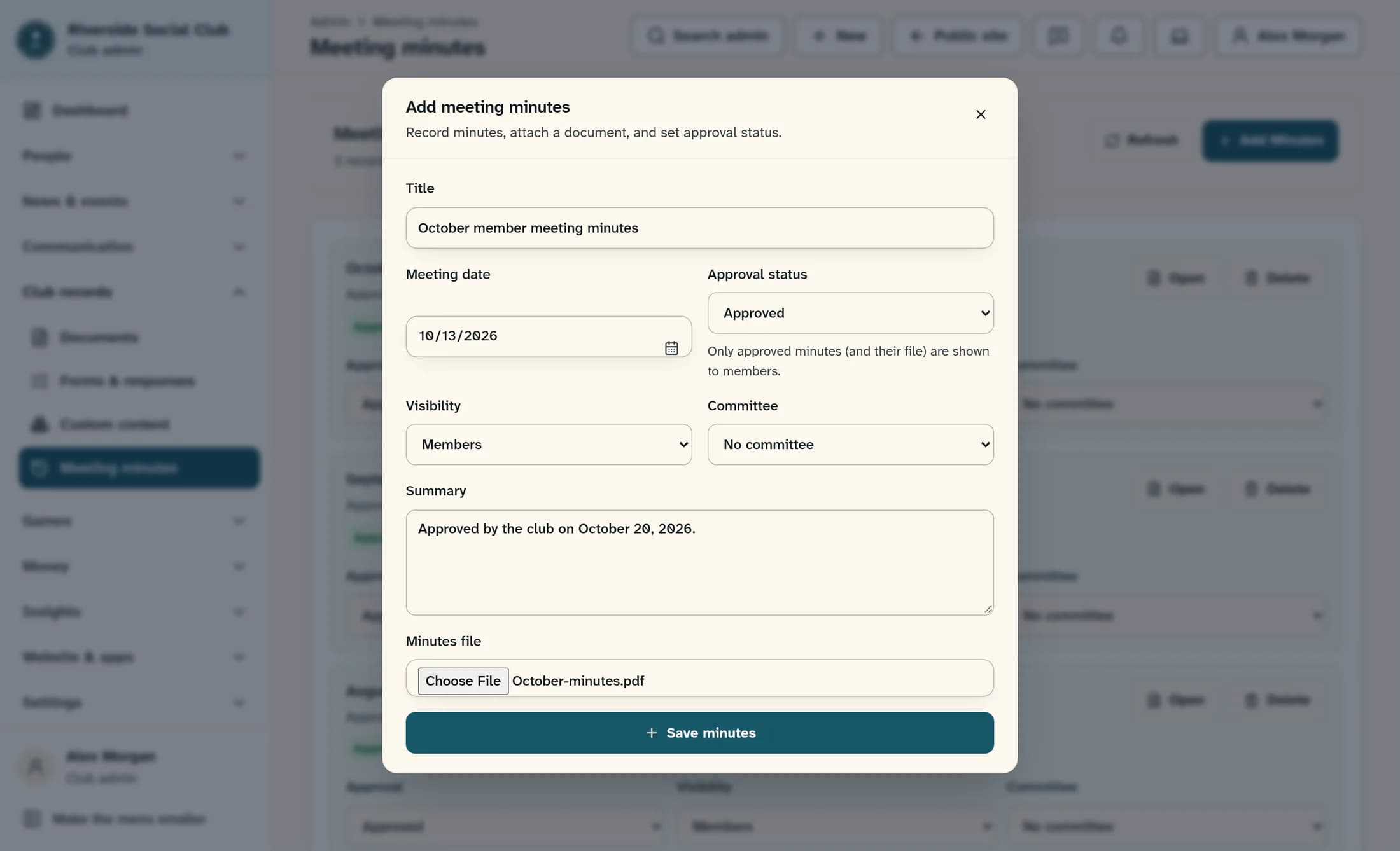
Enter October member meeting minutes in Title. In Meeting date, enter October 13, 2026 using the date field’s editable segments; use your meeting date, not the date the minutes were approved. Add an optional Summary, such as Approved by the club on October 20, 2026.
Step 4 of 6
Set approval and audience
For these already-approved minutes, choose Approved in Approval status and Members in Visibility. Leave Committee at No committee for this club-wide member meeting; approval and audience are separate settings.
Step 5 of 6
Attach the minutes and save
Use Minutes file to choose your approved document; the example uses October-minutes.pdf. Review the details from steps 3 and 4, then click Save minutes once and wait for the form to close.
Step 6 of 6
Check the saved record and file
Find your record in Meeting Minutes and check its title, meeting date, Approved and Members badges, and attached filename. Click Open on that record to confirm that the intended minutes file opens.
Tips
- Approval records the club’s decision; it does not approve the minutes on the club’s behalf. The app records when you save them as approved, so the optional summary can preserve the actual approval date.
- Successfully saved Draft, Pending approval, and Archived minutes are withheld from ordinary member access. Authorized document staff may still have access.
- Existing records’ Approval, Visibility, and Committee controls save immediately, but changing them does not update the attached document’s audience. This guide sets the intended audience at creation; later audience corrections need an admin’s attention.
Result
The approved minutes record and its attachment are available to members according to the selected audience. Saving the record does not send a notification.
Troubleshooting
- Missing Meeting Minutes or a permission error: ask your club admin to check feature access and your document permissions.
- If a save fails or you are unsure it finished, use Close on the form, then Refresh in the archive and check for the record as in step 6 before retrying. If the record is missing after an attachment uploaded, ask an admin to check the document library: the file may remain there with the audience chosen during creation.
- If a file is rejected, the supported formats and size limit are listed in Before you start. Follow step 5 with a supported file only after resolving an uncertain save.
- If Open is unavailable, no file may be attached. If it opens the wrong file or shows an access error, ask your club admin to check the record and attached document.
About these illustrations
These illustrations are source-based reconstructions of ClubWorks. Club names, people, meeting records, and documents are fictional; your club’s branding and available menu items may differ.
