
On this page
- Before you begin
- Open the intended event
- Describe the cover you want
- Make the picture
- Review the preview and choose it
- If the preview needs attention
- Confirm the image was applied
- Know what becomes public
- Review the event and save the selection
- Read the save result
- Reopen the same event and check it
- Changing your mind
- Summary
Before you begin
Step 1 of 8
Open the intended event
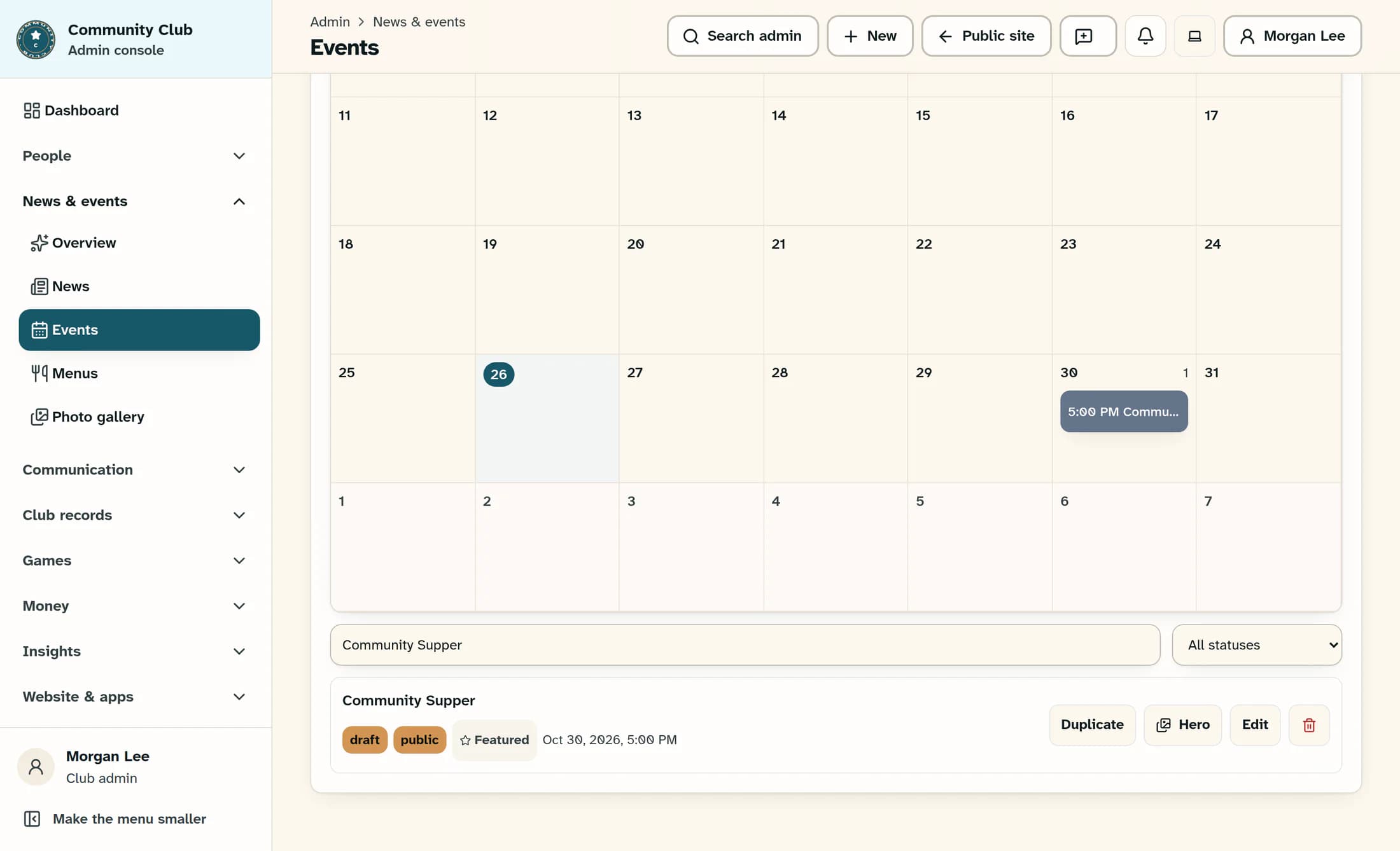
If the correct editor is already open, stay there; otherwise enter Events in Search admin, choose the Events result, then scroll past Event calendar to Search events and enter the event title. Find the intended existing row, confirm its title, date, audience and draft status, then select its Edit button. In Edit event, check the editing banner names that same event; a repeating event warns that saved changes apply to every date, so this example uses a one-off event.
Step 2 of 8
Describe the cover you want
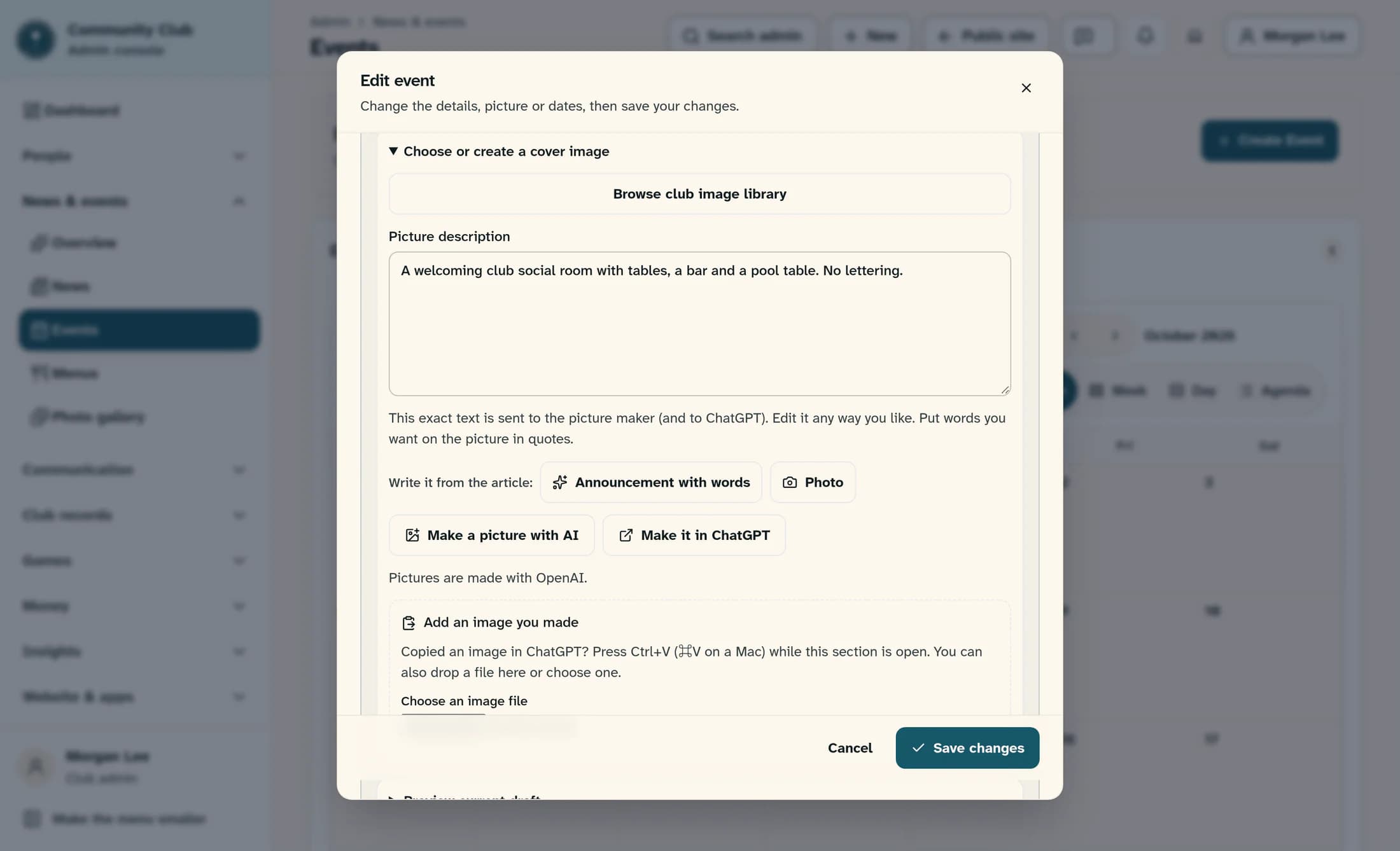
In Create with AI, expand Choose or create a cover image and scroll within the drawer to Picture description. Enter a specific scene, such as “A welcoming club social room with tables, a bar and a pool table. No lettering.”; if you need words on the picture, put the exact approved words in quotes and check all event facts before generation. The picture request is separate from the text-draft request above it.
Step 3 of 8
Make the picture
Select Make a picture with AI once and wait for the result; the provider order appears below the button, without a provider picker. If waiting becomes uncertain, Stop stops waiting in your browser, and Check last generation checks the existing request before you start another; “Generation is still running. Check its result in a moment.” means wait and check again. Successful generation supplies a preview; it hasn't selected a cover or saved your event.
Step 4 of 8
Review the preview and choose it
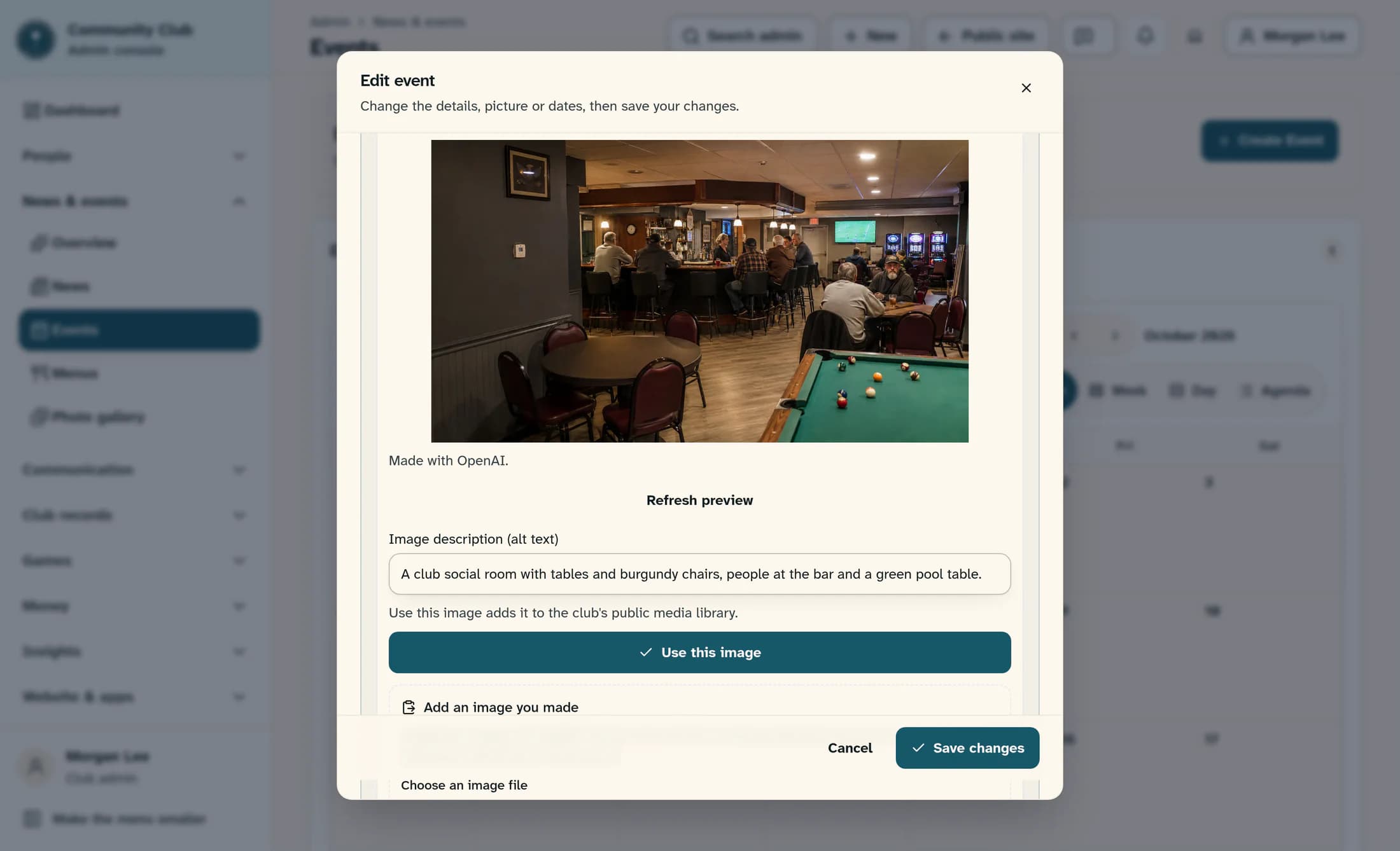
Scroll within the drawer to the generated cover preview and review its scene, spelling, facts, contrast and suitability; read the Made with provider line when present. Enter an accurate, nonblank description of the actual picture in Image description (alt text), up to 500 characters, then select Use this image only when you're comfortable adding it to the club's public media library. The illustrated fictional room is sample artwork, not a live AI result.
If the preview needs attention
Step 5 of 8
Confirm the image was applied
Read the result: “Image applied and saved to your library. Save the article or event to keep the selection.” means the library asset exists and the cover URL and description were applied to the current unsaved form. If you instead see “Image saved to the library. Your more recent image or description edits were kept.”, the library asset was added but your newer form values were preserved; inspect them before deciding what to keep. In the event form below the assistant, inspect Featured image URL, Cover image description and the selected-cover preview.
Know what becomes public
- A generated preview is temporary and private. Use this image copies it into public club-media before the event is saved, even for a draft or members-only event.
- Don't accept private or sensitive imagery on the assumption that event visibility protects the library asset.
- Adding an image to the library does not prove the event retained it; finish the save and reopen checks below.
Step 6 of 8
Review the event and save the selection
Keep the intended title, description, dates, audience, status, reminders and Facebook choices unchanged; for a published event, saving a new cover can update what readers see. Scroll down through the complete form to When you save, read its current summary, then select Save changes in the form footer. Saving changes to this existing event sends no immediate push notification, but existing reminders remain separate and Facebook delivery depends on the saved choices and whether it was already posted; don't turn either on just to save a cover.
Step 7 of 8
Read the save result
Look for “Event saved.” and read any added notice; “Event saved. Shared to Facebook.” and “Event saved. Already shared to Facebook.” describe Facebook outcomes, not extra image acceptance. If the warning says “The event was saved, but its reminders were not. Open the event and save again.”, inspect the saved event and its reminders; a Facebook failure beginning “Event was saved, but the Facebook post failed:” also means the event itself saved. For “The event request did not finish. Check the event list before retrying.”, inspect the existing event before retrying or creating another.
Step 8 of 8
Reopen the same event and check it
Back in Events, clear or reapply Search events as needed, identify the same title and date, and select its row's Edit button again. Confirm the editing banner names the same event, then scroll to Featured image URL, Cover image description and the selected-cover preview to check the retained image and alt text. Check the event's content, dates, audience, status, reminders and Facebook choices still match your intent; this is the verification you perform, not a result demonstrated by the preview screenshot.
Changing your mind
Summary
The cover is retained when you've accepted it, saved the intended event and reopened that same event to confirm the image and description. Keep the public-library and event-save results distinct whenever a warning appears.
