
On this page
- Keep your content and identify the assistant
- Return to the intended event for structured recovery
- Match the availability message to the right fix
- Check an interrupted generation before retrying
- Check recovery scope and newer edits
- Refresh an existing picture preview
- Retry the simple assistant only after fixing the error
- Handle limits and request errors
- Ask for help with a sanitized error
- Summary
Step 1 of 9
Keep your content and identify the assistant
Before refreshing, navigating away or signing in again, copy any prompt, previous generated draft and unsaved event text you need into a safe place. Note the current club and the exact record you're editing. Closing an unsaved editor can lose changes.
In Communications, ClubWorks Assistant has Generate Draft and Copy Draft. Its prompt and result stay only while that panel remains open; it has no Check last generation control. In an event editor, Create with AI has structured text and picture tools with pending-generation recovery. Don't use one interface's recovery instructions in the other.
Step 2 of 9
Return to the intended event for structured recovery
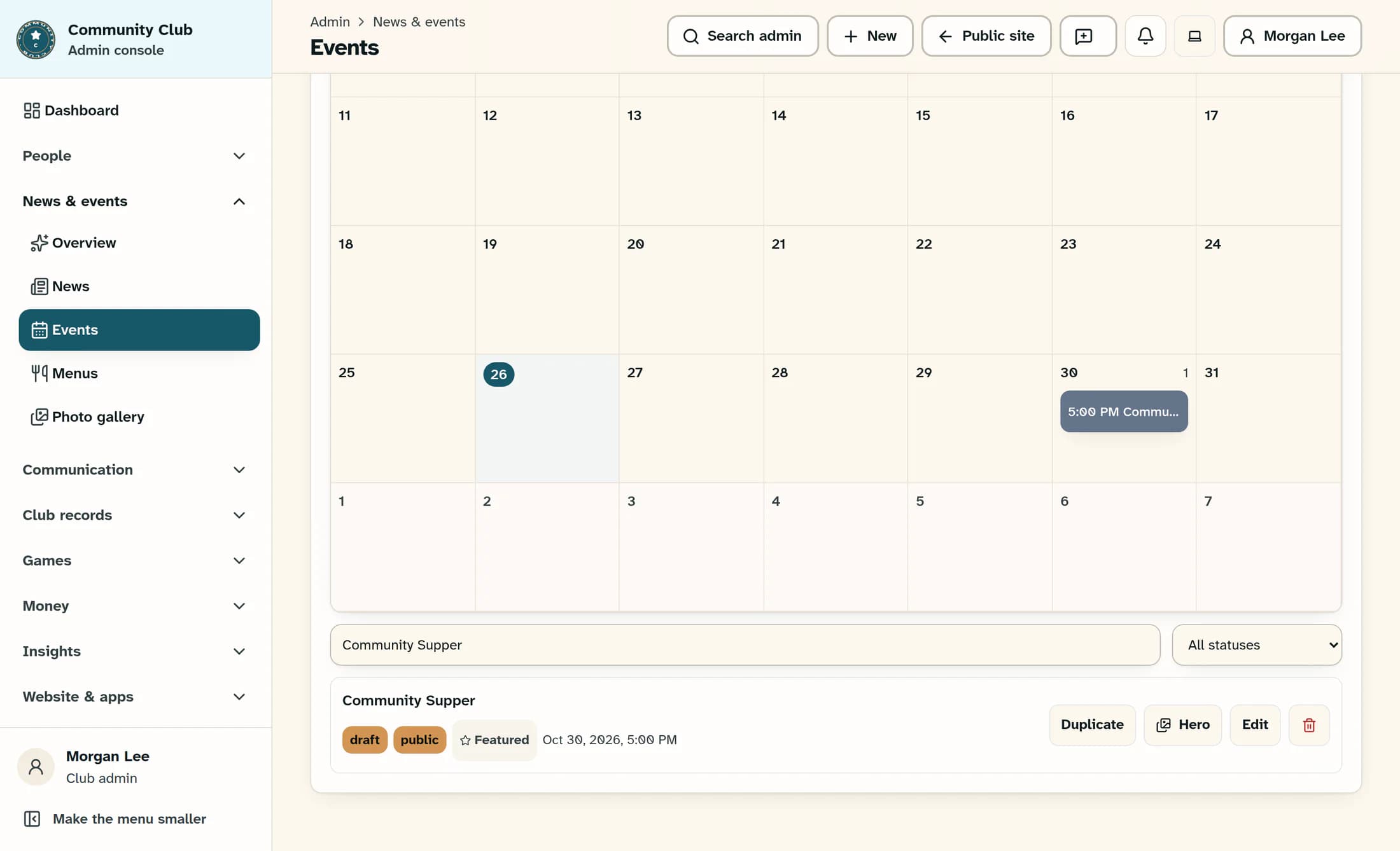
If the intended event is already open, stay there after protecting your unsaved content. Use this path only when you need to return or reopen it. For an event request, type Events into Search admin and choose the Events result. Scroll past the event calendar to the event list if needed. In Search events, enter the intended existing event's title, confirm its date and status, then choose that row's Edit. This example uses the fictional one-off draft Community Supper; use your own record, not a new duplicate.
Confirm Edit event and the “You're editing…” banner name the intended record. Stay in the same club and use the same signed-in account, content type and editor record as the request. Editing a recurring event can affect its series; check the editing banner before proceeding. If you are recovering after sign-in, reopen that same record and check your current unsaved content before another action.
Step 3 of 9
Match the availability message to the right fix
Read the actual message beside the assistant. A visible menu alone doesn't prove you can generate content.
- Sign in to use the assistant. or Your session expired. Sign in again. — Preserve unsaved content, sign in through your normal club sign-in flow, then return to the same club and record.
- You do not have access to this club. or You need AI assistant access and permission to create or edit this content. — Ask your club administrator to check your current club access, AI assistant access and the relevant content permission.
- Unable to verify AI permissions. — Permission checking could not complete. Ask for help if it persists; it doesn't establish that your role was denied.
- AI is disabled for this club. or a message about a missing/unreadable key or invalid text model — Ask an authorized administrator to check Integrations and the text AI setup. Don't share keys in a help request.
- AI pictures aren't set up. — Picture services have separate settings. Ask an administrator to check the picture integration. Working text doesn't prove pictures work, and pictures may be available while text AI is unavailable.
There is no connection button inside Create with AI. The picture tool may show configured services in their fallback order; this is not a provider picker.
Step 4 of 9
Check an interrupted generation before retrying
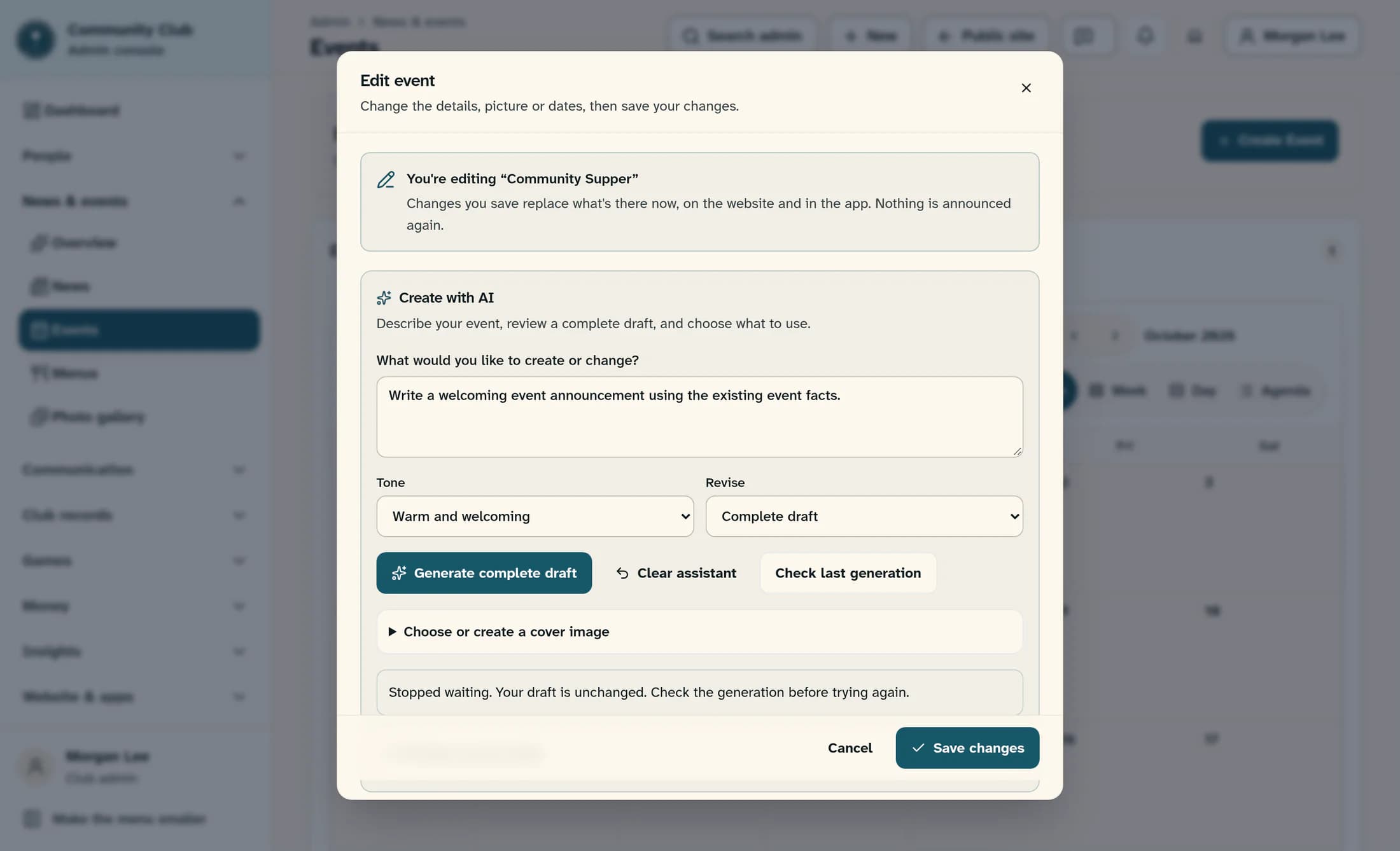
If Create with AI is still busy and you need to stop waiting, choose Stop once. This stops the browser waiting; it does not prove the server cancelled generation. The message says Stopped waiting. Your draft is unchanged. Check the generation before trying again.
When waiting has stopped and Check last generation is available beside the generation controls, choose it before starting another request. Stop and Check last generation appear in different states; they are not available together.
- Generation is still running. Check its result in a moment. — Wait, then use Check last generation again. Don't repeatedly submit a new generation.
- Draft ready. Choose the fields to apply; your current content is unchanged. — Review the recovered proposal and its facts. Recovery doesn't insert text or save the event. If you reopened the editor since starting the request, no fields are selected automatically when the text is recovered; any later use requires deliberate field selection and a separate apply action.
- A picture preview appears — Review the picture and its description. Recovery hasn't accepted the picture into the library or saved it to the event.
- Generation did not finish. Try again., This generation did not finish. You can start a new request., or another explicit failure — Fix the stated reason first, then start a new request if appropriate. A failed status check or unreachable response alone doesn't prove the generation failed.
If no pending request remains, there may be no Check last generation control. Don't use Clear assistant as a recovery step: it clears the pending reference and suggestions. An older proposal or preview still visible is not proof the latest request succeeded.
Step 5 of 9
Check recovery scope and newer edits
The event composer may remember which generation is pending in the same browser tab, for the same club, content type and record. It does not store the whole unsaved event form. If your browser cannot retain that reference, recovery may be unavailable. You cannot rely on a new tab, another browser or another account recovering it. Checking a generation also requires the original signed-in account and club, with the matching content workflow.
Generation not found. means this lookup did not find an accessible request. Confirm the original account, club and record; ask for help before repeating an uncertain request. If event facts or the audience changed, review the updated facts before any new generation. Recovered suggestions are a proposal for review, not proof your current edits were replaced, saved, published or sent.
Step 6 of 9
Refresh an existing picture preview
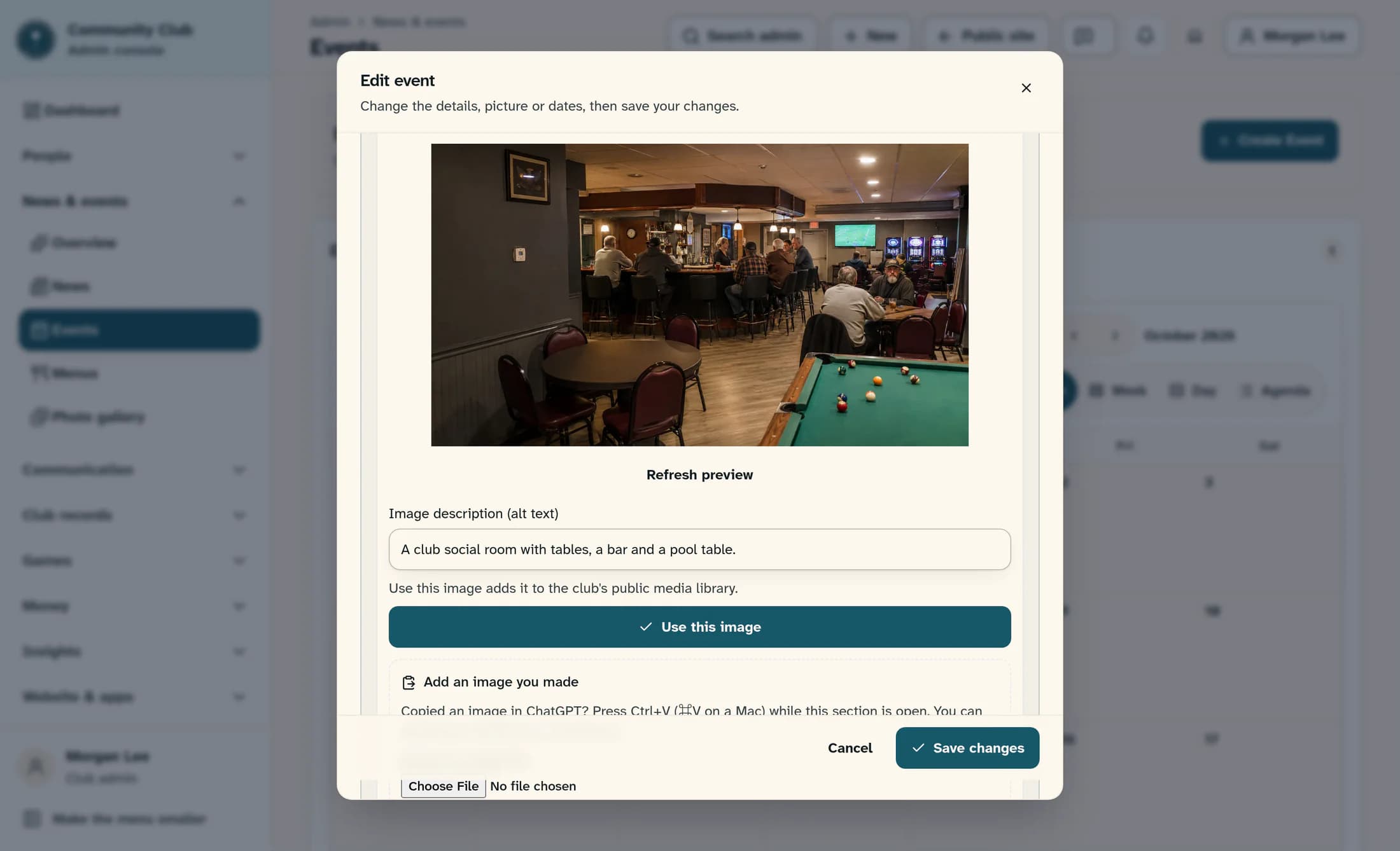
If an existing generated picture's temporary preview expires, return to Choose or create a cover image in the same event editor. Under the generated preview, choose Refresh preview first. It checks that existing image generation and renews its temporary preview link; it doesn't make another picture.
If the message says Image preview could not be loaded. Try checking this generation again., check again as directed. If the underlying draft is no longer available, read the actual error; a new picture request may be needed. Don't treat refresh as a guarantee a missing draft can be recovered. With a preview present, the generation button says Make another picture, not Make a picture with AI. Leave Use this image for a separate reviewed selection; troubleshooting doesn't require accepting or saving the image.
Step 7 of 9
Retry the simple assistant only after fixing the error
In ClubWorks Assistant, read the message below Generate Draft and Copy Draft. Add a short prompt before generating a draft. needs a prompt; AI assistance could not be reached. Your existing draft is unchanged. needs a later retry after connectivity or availability is restored. Follow any more specific access or integration error first.
Keep the previous text you need, fix the reason, then choose Generate Draft once. Look for Draft generated. Review it before using. and inspect the new text. A previous Generated draft can remain visible after a failed request, so its presence doesn't prove the latest attempt succeeded. Copy Draft copies the currently displayed draft; it does not check a job, save, publish or send content.
Step 8 of 9
Handle limits and request errors
Use the specific symptom rather than submitting the same request repeatedly. For structured requests, check an uncertain existing generation first.
- Too many AI requests. Wait a minute before trying again. — Wait at least the stated minute before a new attempt.
- An image is already being generated, or this club has reached its 20-image daily limit. Try again later. — Check the existing image request where available and wait. The message covers either a concurrent image or the daily limit; don't assume which occurred.
- A provider usage-limit or temporary-unavailability message — Wait as directed. Ask an administrator to review that provider's access or allowance if it persists. This does not establish a global outage.
- Gemini could not use this key or model. or This Gemini model is unavailable. — An authorized administrator should check model availability and API access in the integration.
- The request is too large. Shorten the notes or existing text. or The response was incomplete. Try a shorter request. — Keep a copy, shorten the request to the relevant facts, then retry after resolving any pending structured request.
- A refusal or Gemini could not generate this content. Revise the description and try again. — Revise the description to a suitable request; don't try to bypass the refusal.
- An unreadable, empty or incomplete response — Check pending generation if available, then use a clear, shorter request when a new attempt is appropriate.
- AI request tracking is unavailable. or The generated result could not be saved. — Ask support or an administrator to investigate the service. Preserve your existing draft; don't assume a result was recovered.
For an added image file, use PNG, JPEG or WebP and keep it within 10 MB if the tool reports that limit. Those upload rules are different from a generated-picture request.
Step 9 of 9
Ask for help with a sanitized error
If you're still blocked, send your club administrator or support the exact error with sensitive details removed, the approximate time and time zone, current club, workflow, intended record, action taken and whether a previous draft remains. Say whether you used the simple assistant or Create with AI, and whether Check last generation reported running, success, an explicit failure or could not be checked.
Remove API keys, tokens, private prompts and full member details from text or screenshots. Don't assume content was published or sent because generation ran. These are fictional source-reconstructed illustrations; the live workflow is unverified. No live provider request or saved-event outcome is demonstrated.
Summary
Keep your existing content, resolve the actual error and check a pending structured generation before repeating it. A recovered proposal or renewed picture preview is ready for review; applying it and saving or publishing remain separate actions.
