
On this page
Before you start
Step 1 of 5
Find your club’s invitation card
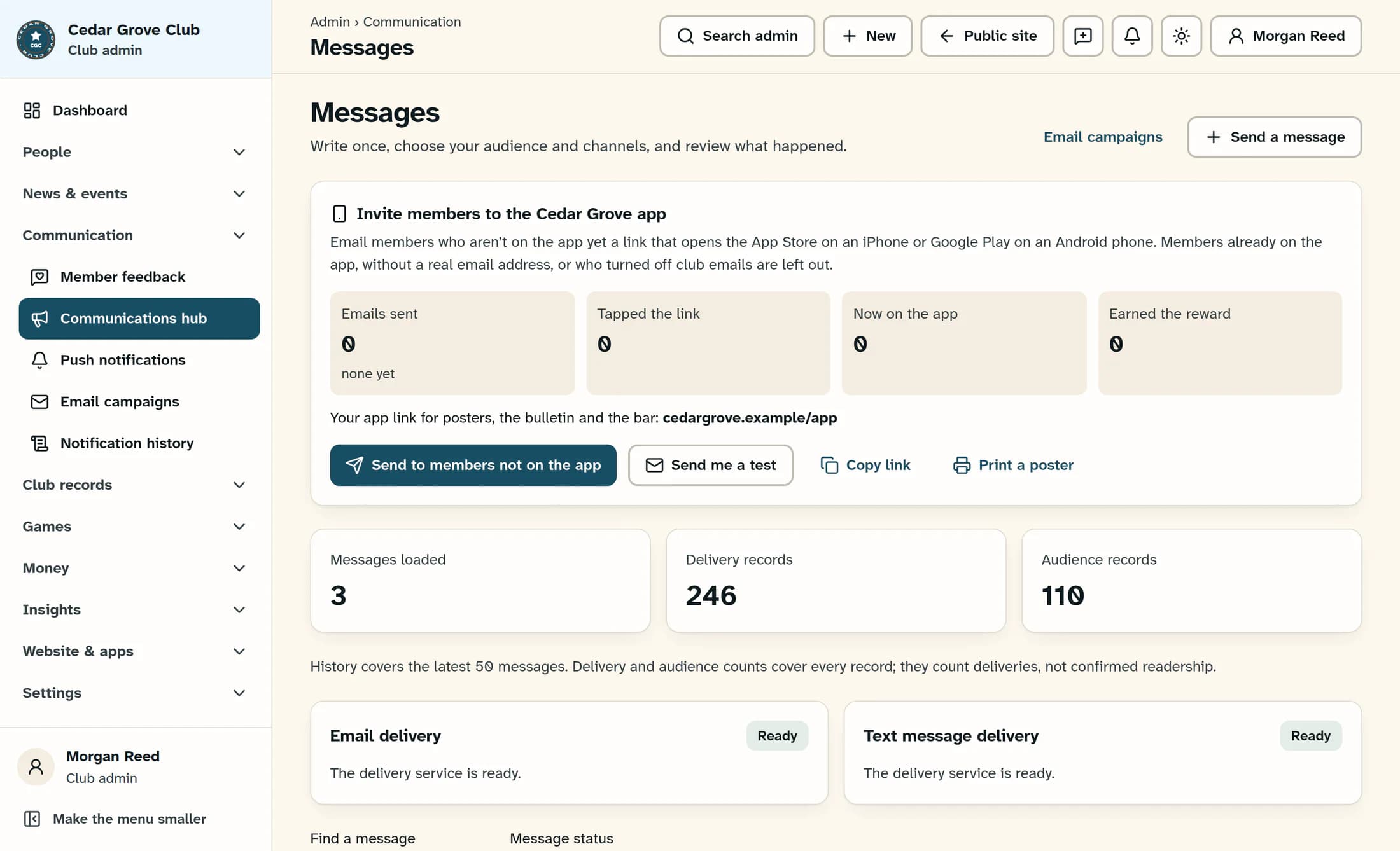
In the admin sidebar, open Communications hub under Communication. On the Messages page, find the app invitation card near the top and check the app name.
Step 2 of 5
Try the invitation yourself
On that card, select Send me a test; this sends immediately to your staff email, without emailing members. Open the received email on your phone and check that Get the app opens the correct store listing.
Step 3 of 5
Choose when to send
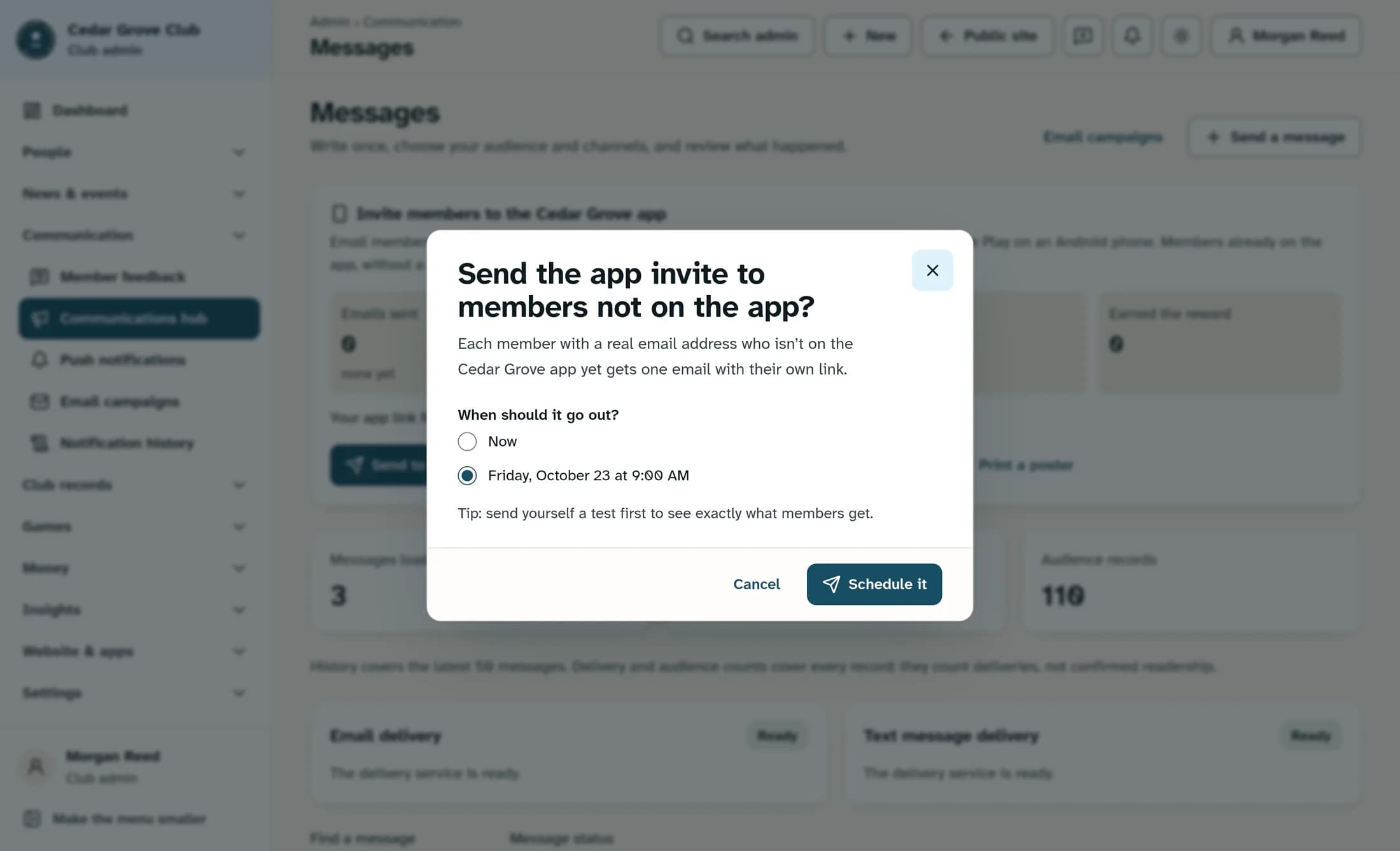
Select Send to members not on the app, or Invite members added since if that is the button shown. Under When should it go out?, choose Now or the displayed 9:00 AM date and time in your browser’s local time zone. Confirm with Send now or Schedule it, then read the queued count.
Step 4 of 5
Review the results
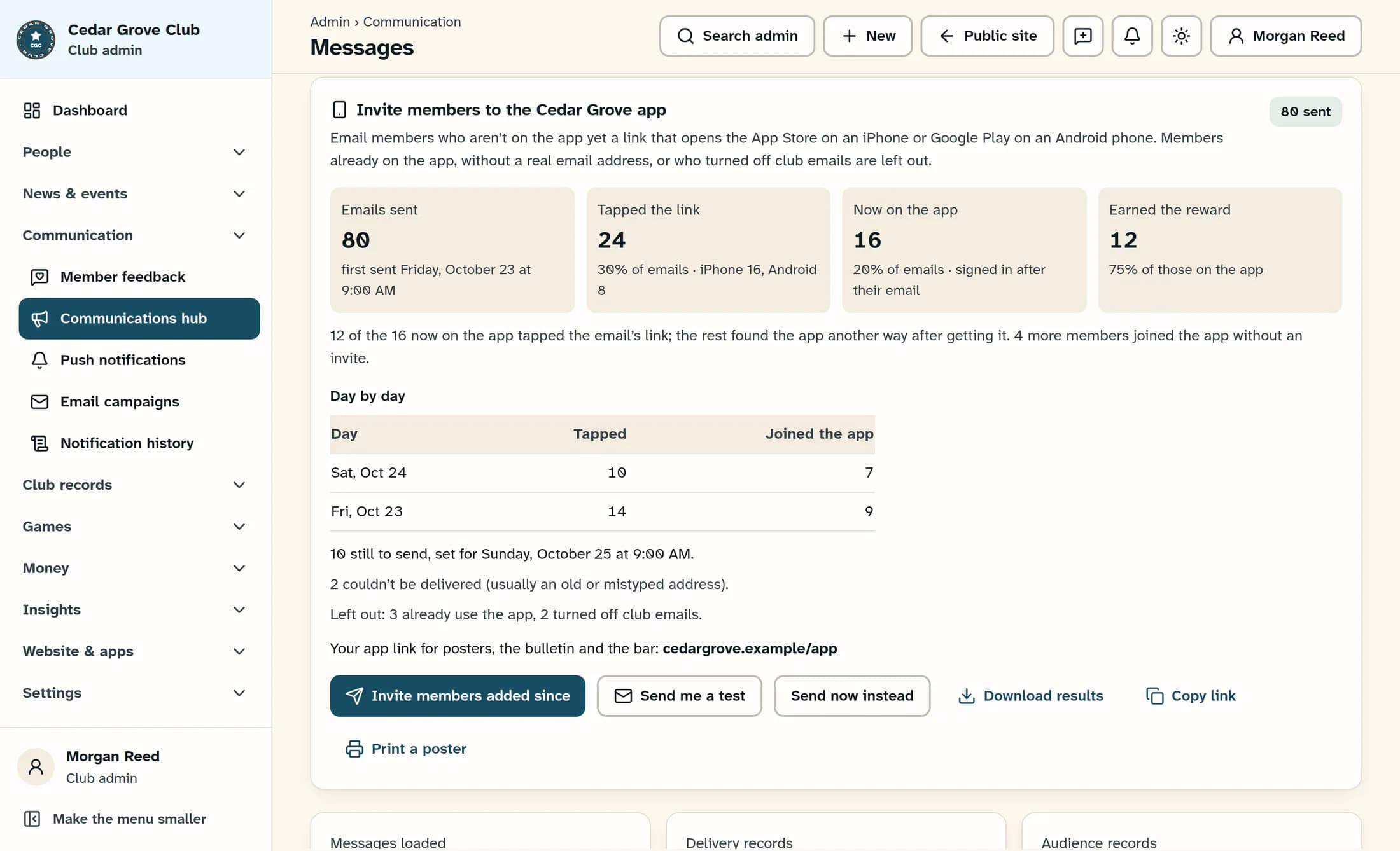
Return to the invitation card to review Emails sent, Tapped the link, Now on the app and Earned the reward. Check the remaining queue and any failed or Left out counts; a queued invitation has not yet been sent.
Step 5 of 5
Keep a copy for follow-up
Once at least one invitation has been sent, select Download results for a CSV spreadsheet. Share it only with staff who need the member details.
Who gets an invitation?
- The club chooses the recipients automatically; there is no recipient picker on this card. Eligible members have both an active profile and an active membership.
- Members already on the app, invalid or placeholder addresses, common email-domain typos and email opt-outs are excluded. Empty email addresses are omitted, so the Left out summary is not a complete audit of your roster.
- Email addresses are compared without extra spaces or letter-case differences. Only one invitation is created per address, and an address with any previous invitation record—including failed or skipped records—is not automatically invited again.
- The button becomes Invite members added since when there are sent, failed, queued or currently sending invitations. Reopening it does not resend existing invitations.
Timing and confirmation
- The offered 9:00 AM uses your admin browser’s local time zone. Before 9:00 AM it is today; at 9:00 AM or later it is tomorrow. Check the full date shown, especially if you are away from the club.
- These are the only timing choices on this card. Cancel closes the confirmation before you submit; it does not cancel a submitted queue. There is no schedule editor or cancellation control for submitted app invitations here.
- Sending starts when the queue is processed, so a scheduled time is not a promise of arrival at exactly 9:00 AM. A zero queued count may show Everyone who can be invited already has been.
- When a future queue exists, Send now instead immediately brings forward all queued app invitations for this club. It has no extra confirmation and cannot recall emails already sent.
What the numbers mean
- Emails sent: accepted by the email provider. This does not confirm inbox delivery or that the email was opened.
- Tapped the link: a recorded tap on a member’s personalized invitation link. It does not confirm installation.
- Now on the app: invited members whose first recorded app sign-in was after their email. Some may have found the app another way, so this is not proof that the invitation caused the sign-in.
- Earned the reward: credited awards from a qualifying app sign-in offer. A reward depends on an offer being available and its requirements being met; sending an invitation does not guarantee one.
- Day by day shows up to 14 days with recorded activity, using your browser’s local dates. The CSV includes first name, email, result, sent and link-tap times, phone type, app sign-in and reward times; its dates are local too.
If something needs attention
Next steps
Members can install the app and sign in with their confirmed email address. For access help, see help a member with no real email on file, correct a member’s sign-in email or account link, and sign in with a password or one-time code.
