
On this page
- Before you start
- Open the client list
- Search for the client
- Choose how the list is ordered
- Open the matching client
- Update the contact details
- Save the changes
- What the client panel tells you
- Start a new client only if no match exists
- Add the client's details
- If something needs attention
- Expected result
- Related tasks
Before you start
Step 1 of 7
Open the client list
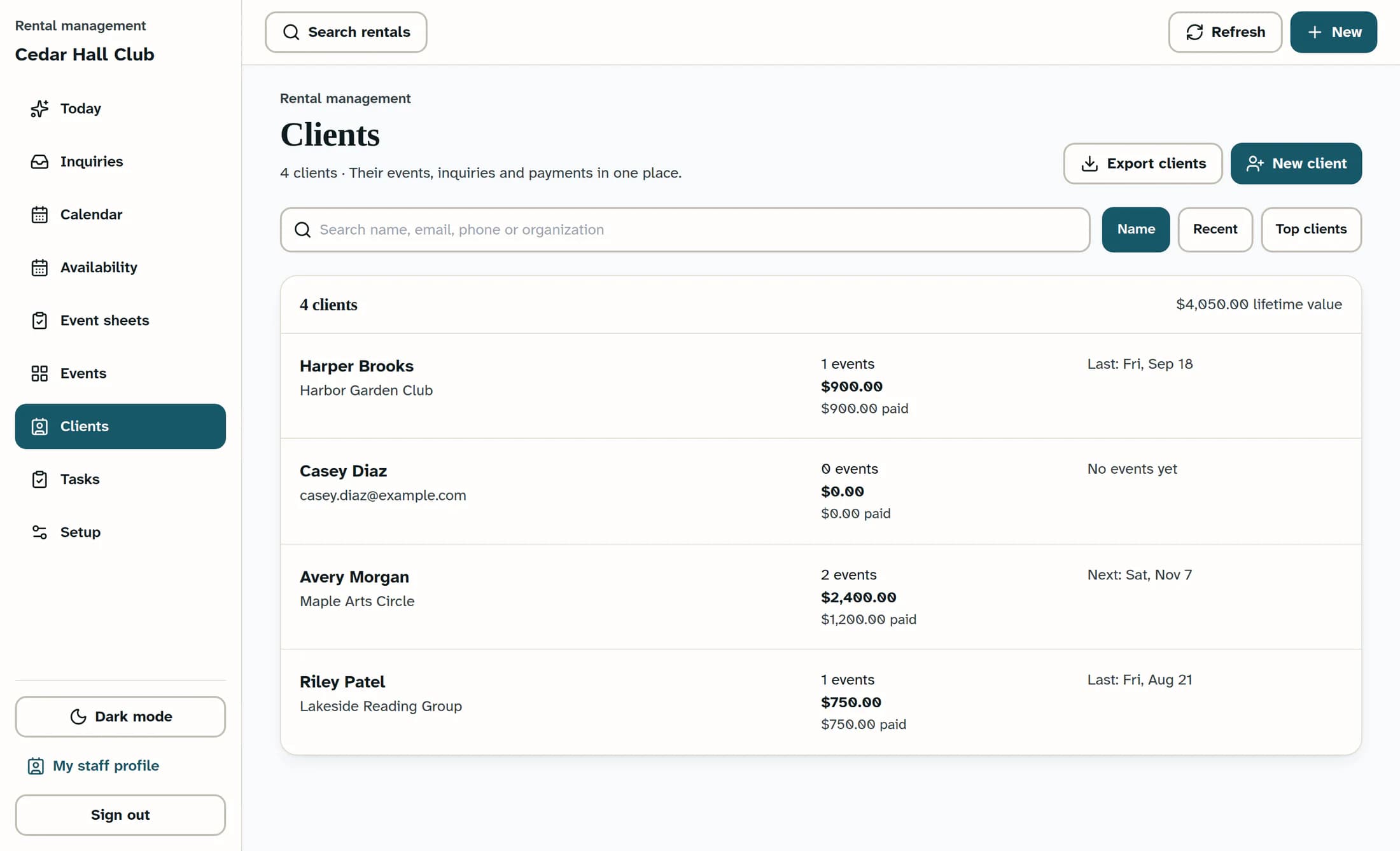
In your club's Rental Management browser workspace, select Clients in the left menu.
Step 2 of 7
Search for the client
Enter a name, email address, phone number, or organization in Search name, email, phone or organization. Try another detail if the first search does not find the person.
Choose how the list is ordered
Name sorts alphabetically, using the last name when available. Recent puts the newest activity first: the client being added, or an event or inquiry being created; ordinary contact edits do not move a client to the top. Top clients sorts by event value, then event count—not by payments received.
Step 3 of 7
Open the matching client
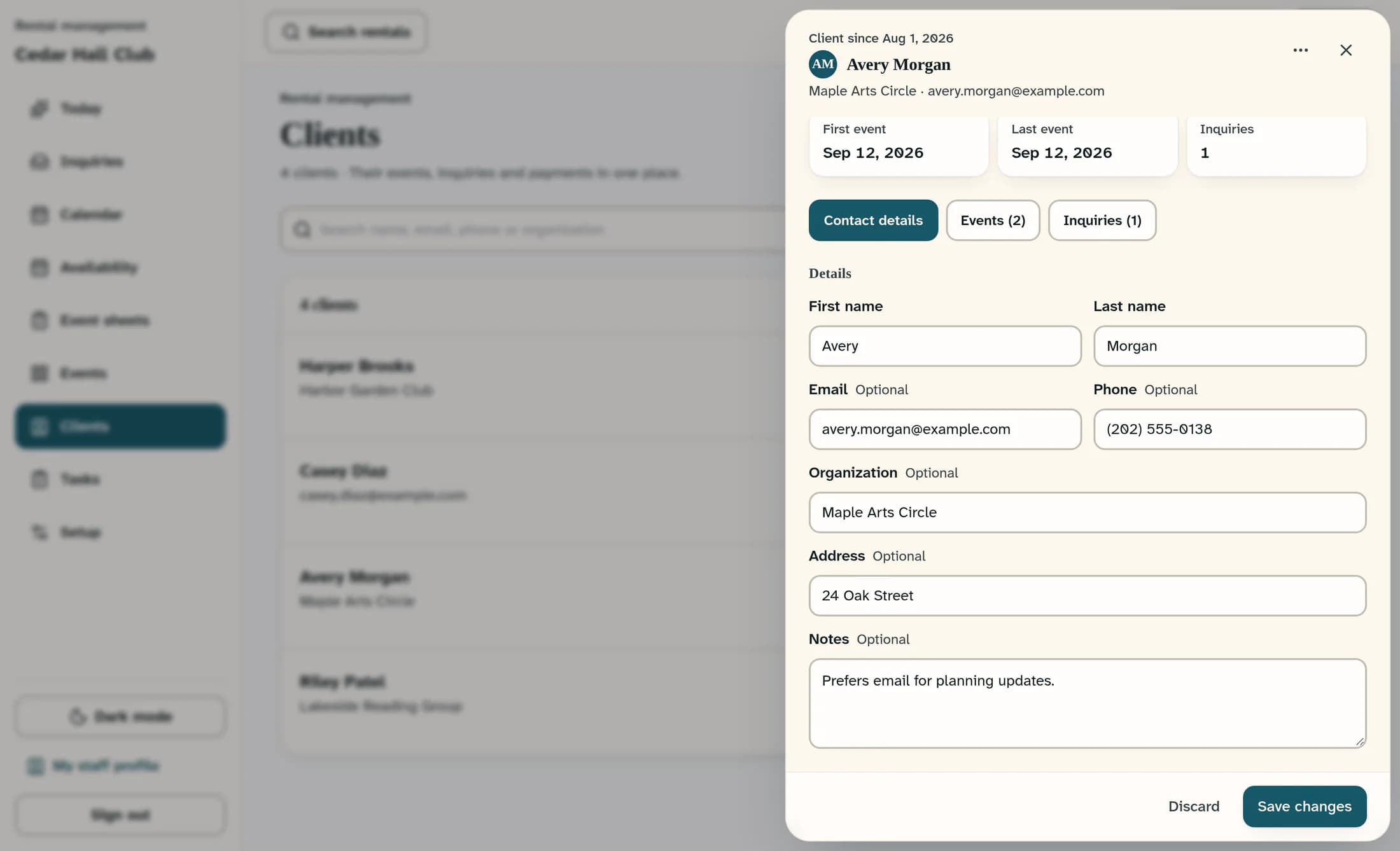
Select the matching client row. Their side panel opens with Contact details, event and inquiry tabs, and a summary of their rental history.
Step 4 of 7
Update the contact details
In Contact details, update the fields you need, such as Email, Phone, Organization, Address, or Notes. Keep at least a first name, last name, or organization; an email address is optional, but it must be valid if supplied.
Step 5 of 7
Save the changes
Select Save changes at the bottom of the panel. The Client saved message confirms that the existing client record was updated.
What the client panel tells you
Step 6 of 7
Start a new client only if no match exists
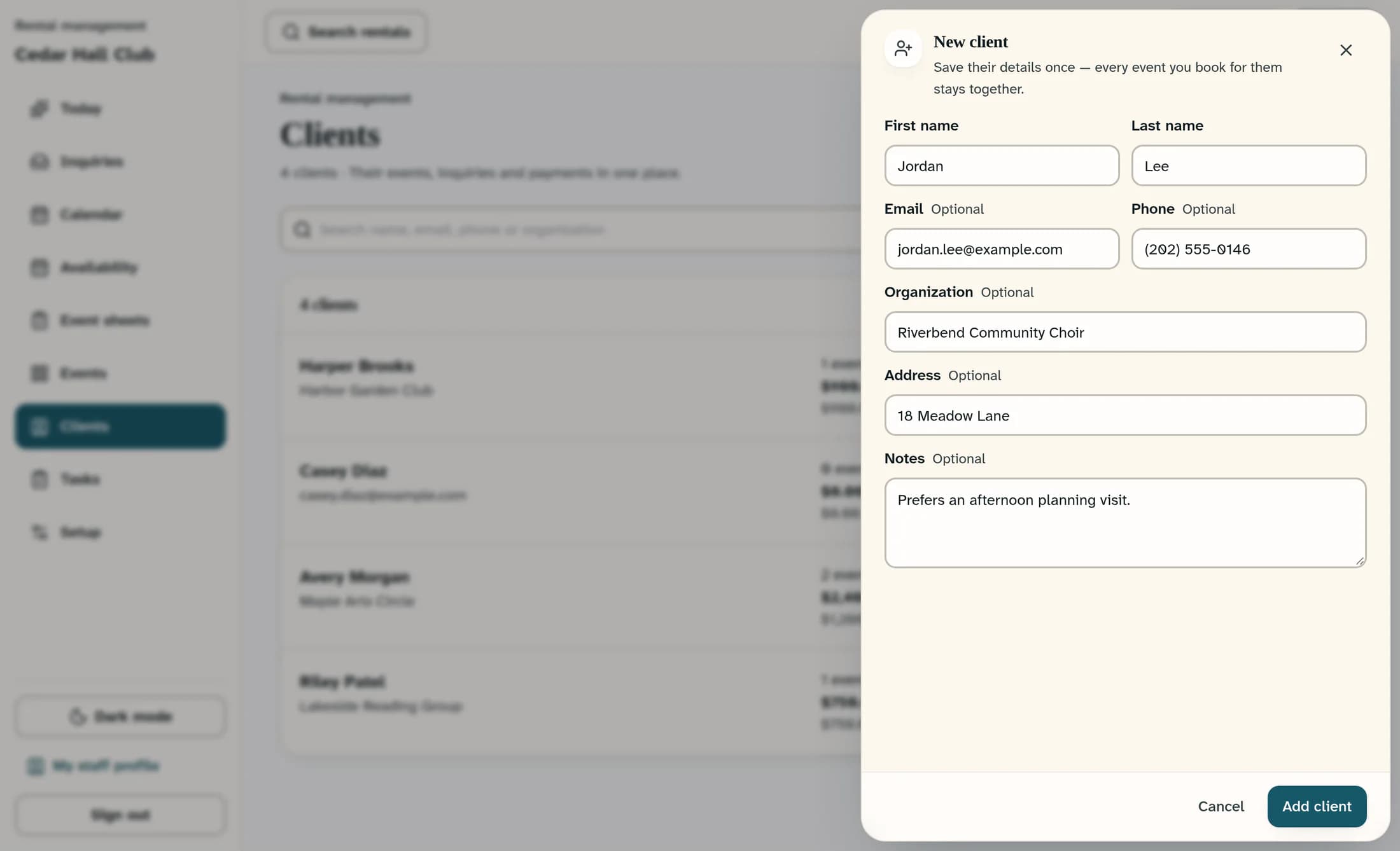
After searching for an existing record, select New client above the list if the person is missing. This button is available when you have permission to manage rental events or inquiries.
Step 7 of 7
Add the client's details
Enter the client's details in New client, including at least a name or Organization. Select Add client; the new record is added and its client panel opens.
If something needs attention
Expected result
The client's saved contact record is ready for future rental work. Existing event and inquiry contact fields remain as previously stored.
About this guide
This guide covers Clubhouse Rental Management in a desktop browser. The instructions were checked against the October 21, 2026 source release and compared with the current web release on October 24, 2026. Illustrations are reconstructed from source with fictional data; this draft does not establish a completed live workflow or verify native apps.
The screens in this guide show example clubs and people. Your club's name, colours and some labels may look different.
