
On this page
Before you start
Step 1 of 5
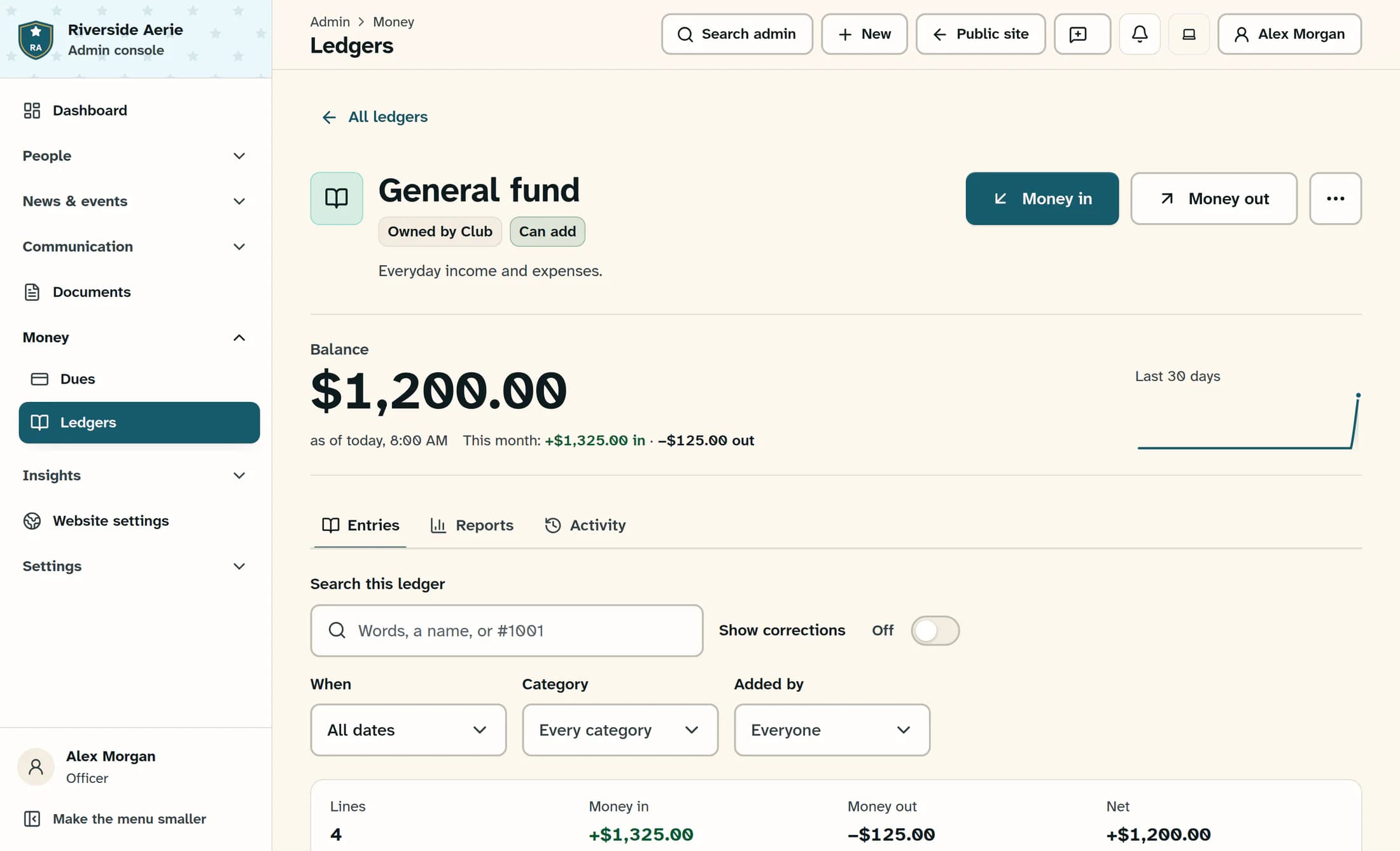
Open the ledger and choose a direction
In the admin sidebar, open Money → Ledgers, then choose the ledger you want to update. Check its name and balance, then choose Money in for money received or Money out for money paid or spent.
Step 2 of 5
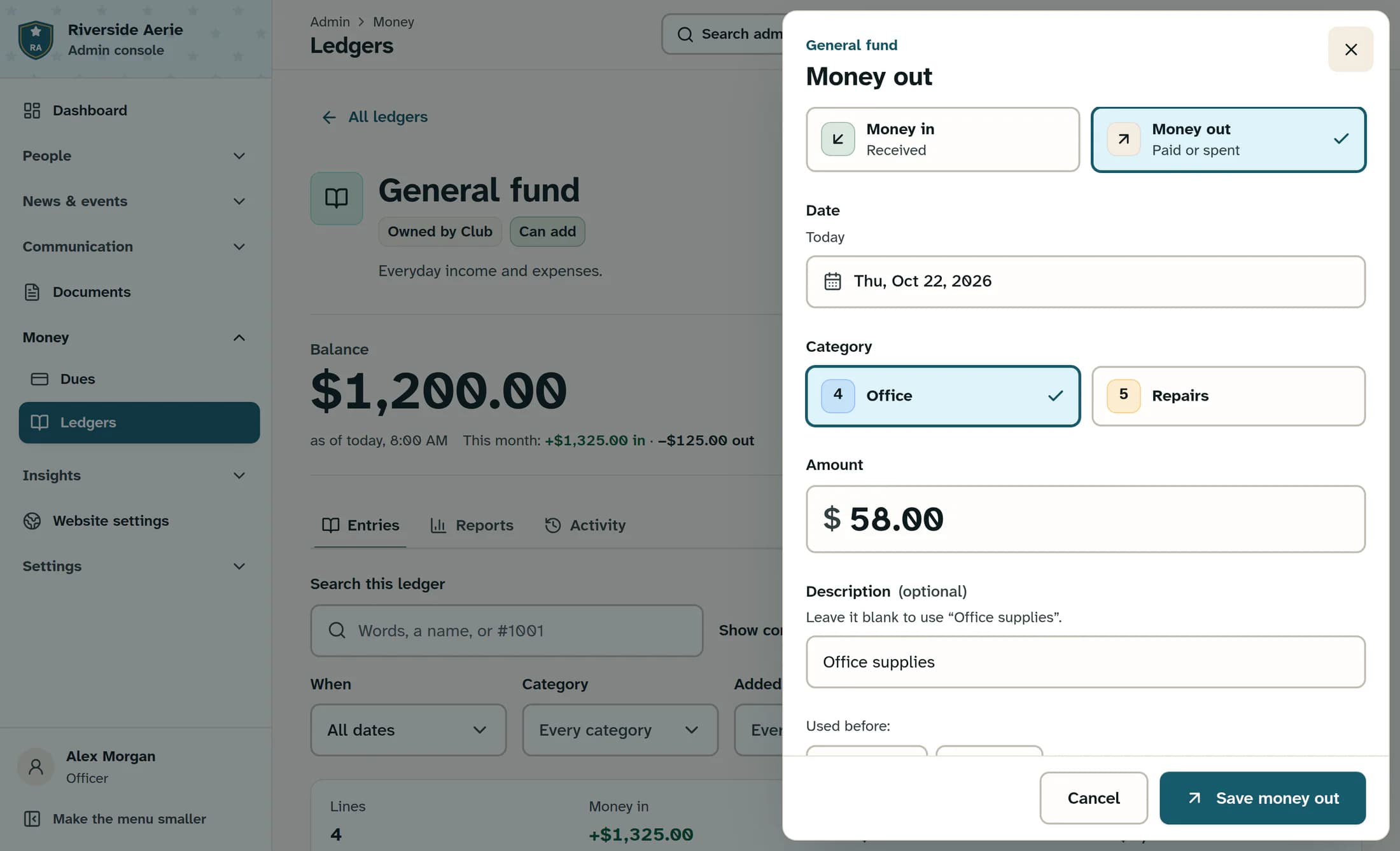
Enter the date, category and amount
Check Date, which starts at today in the club’s time zone, and choose the appropriate Category for this direction. Enter a positive dollar Amount—for this example, 58.00 with Money out selected. Check Description and make it clear; if the category supplies a default description, leaving the field blank uses that wording.
Step 3 of 5
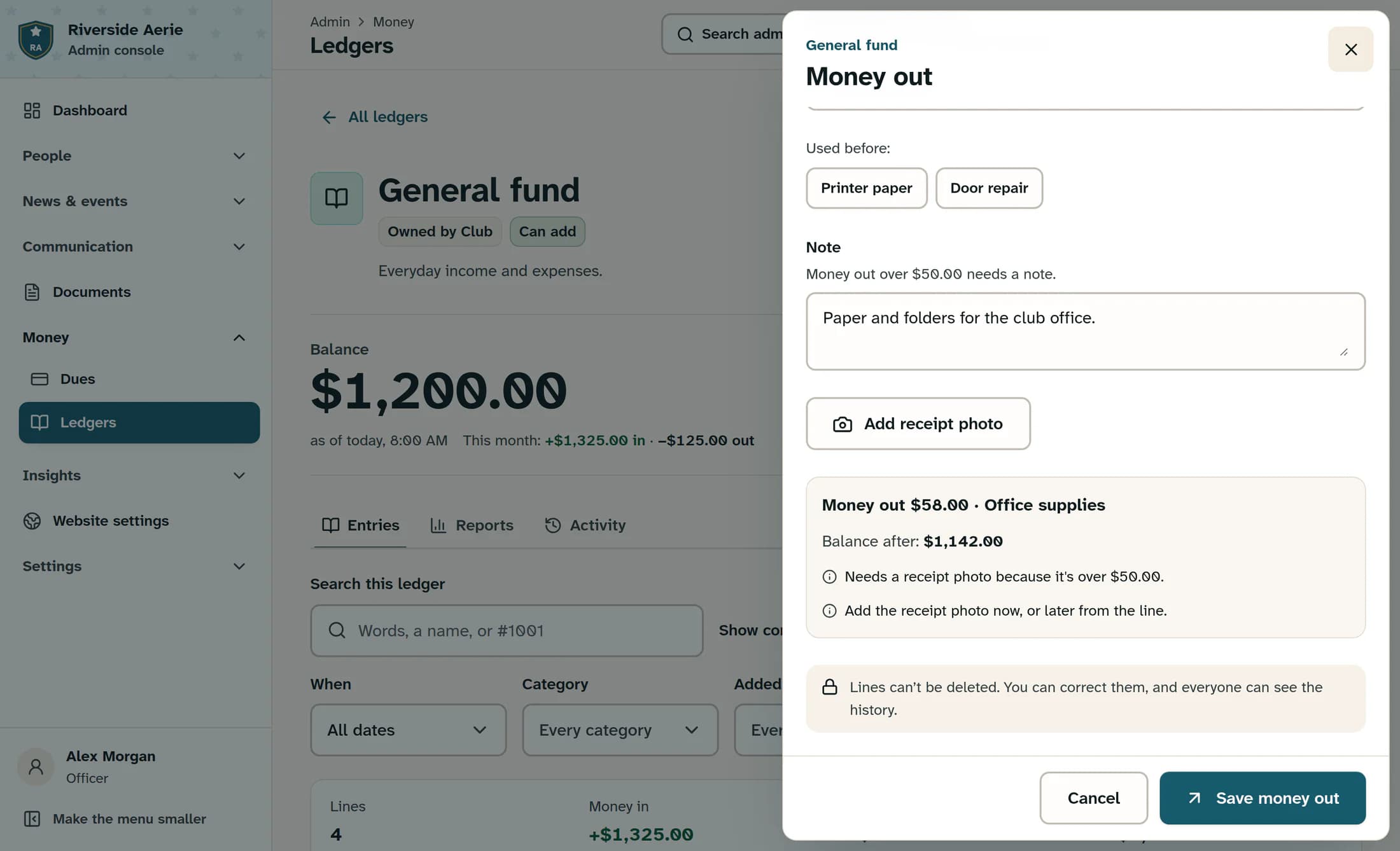
Add any notes and receipt
Add a Note if useful or required, and complete any required extra fields. Use Add receipt photo to attach a receipt if you have one; the picker also accepts PDFs.
Step 4 of 5
Review and save the line
Review the amount, description and Balance after: in the summary before saving. Read any warnings or notices about a receipt or second check, then choose Save money out for this example, or Save money in for money received.
Step 5 of 5
Check the saved line
After a confirmed save, the message gives the new line number and an Open it shortcut. The saved line is also available in Entries: check its amount, direction and balance, plus any receipt or second-check follow-up.
If the line does not save as expected
Your entry is recorded
A confirmed save adds one line to the ledger. If an amount or detail needs correcting later, follow Correct a ledger entry.
Illustrations are source-based reconstructions with fictional club data. No live financial record, payment or upload was performed.
