
On this page
Before you start
Step 1 of 6
Open the ledger
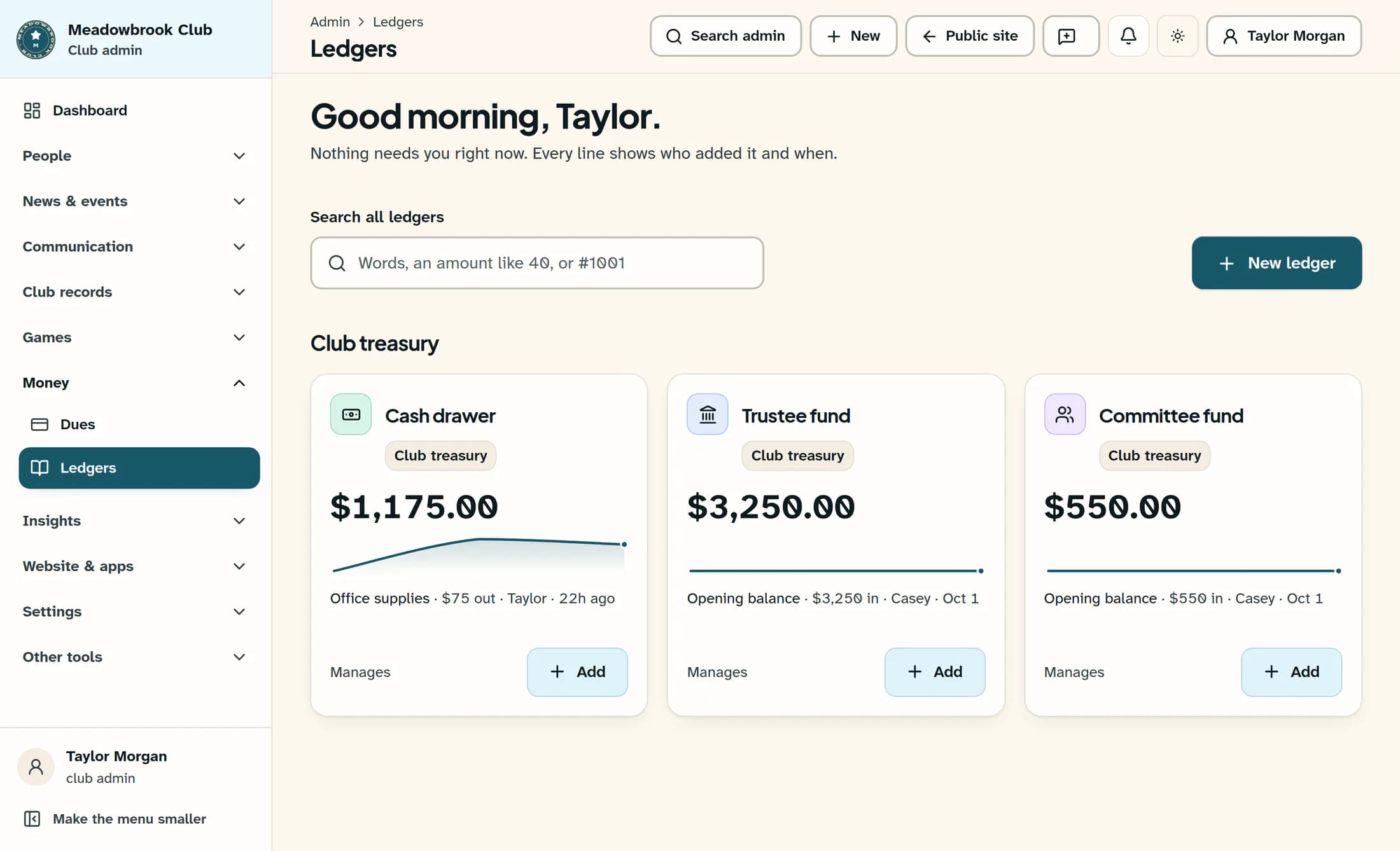
In the admin menu, open Ledgers under Money. Select the ledger’s name, such as Cash drawer, and check that it’s the one you want to put away.
Step 2 of 6
Open Settings
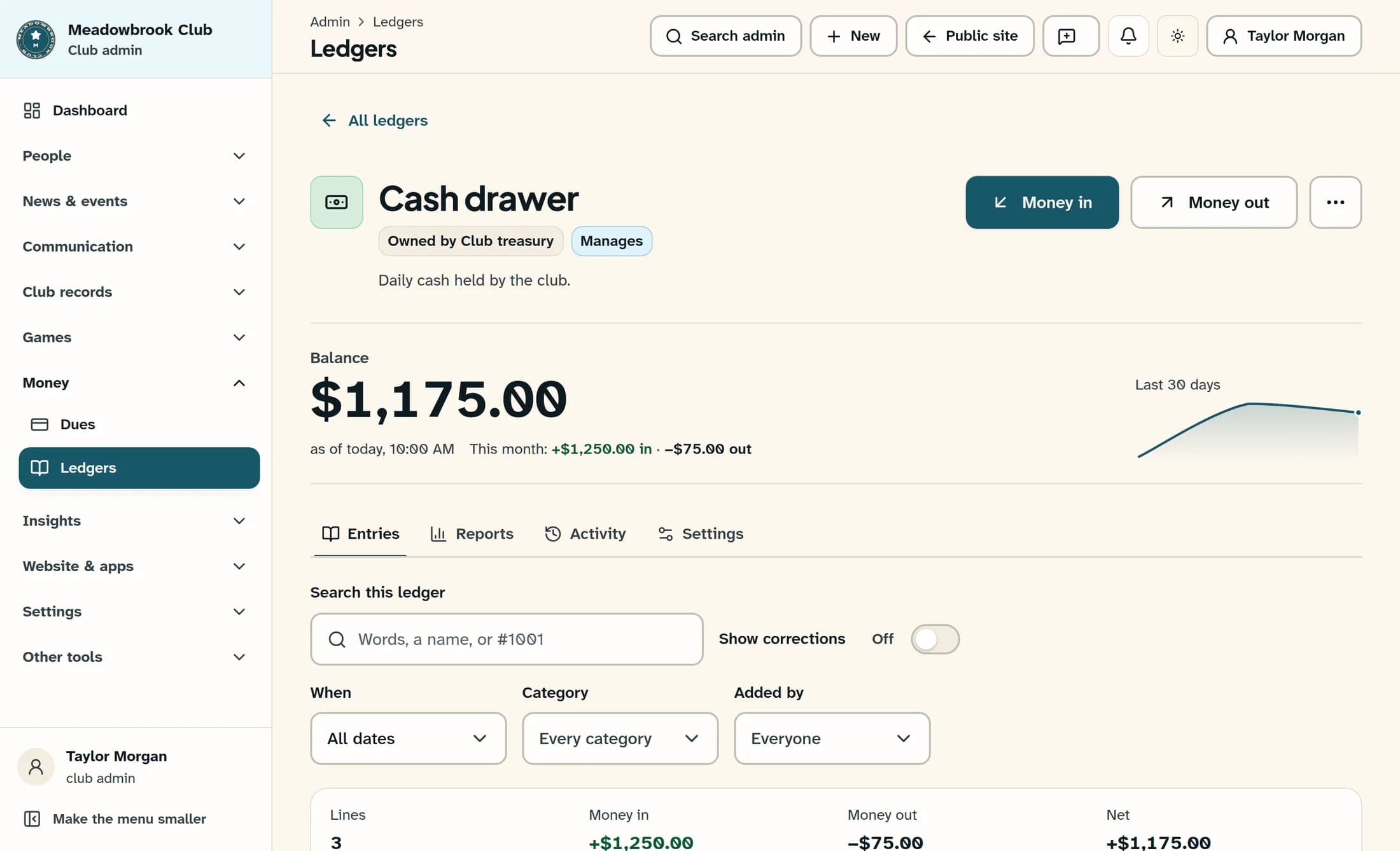
Choose the ledger’s Settings tab. This tab is available to managers.
Step 3 of 6
Give a reason and start the archive
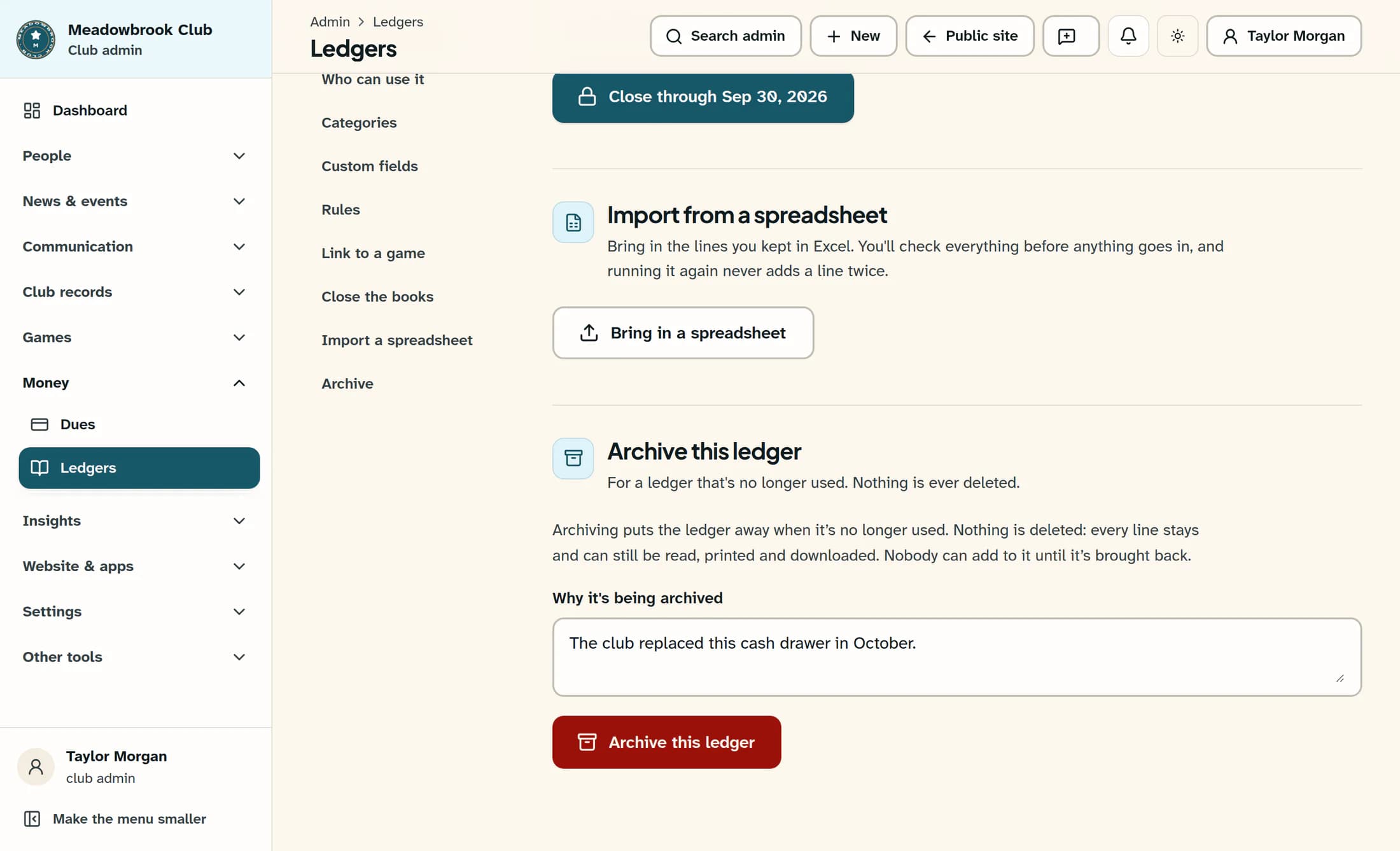
In Settings sections, choose Archive to jump down to Archive this ledger. Enter a reason in Why it's being archived, then select Archive this ledger. A reason is required; the field accepts up to 500 characters.
Step 4 of 6
Confirm the ledger
Check the confirmation names the right ledger—for example, Archive “Cash drawer”? It explains that the ledger moves to the archived ledgers and every line is kept. Choose Archive this ledger to confirm. The success message is Ledger archived. Nobody can add lines while it is archived.
Step 5 of 6
Find an archived ledger
Return to All ledgers. Turn on Show archived beside the count—for example, Show archived (1). Open the ledger from Archived ledgers. You can still read its lines and use Reports to print or download its history.
Step 6 of 6
Bring it back when you need it
With Manage access, open the archived ledger’s Settings and choose Bring it back in the settings sections. Under Bring this ledger back, you may enter Why it's coming back; this reason is optional. Select Bring it back, check the Bring back “Cash drawer”? confirmation, and choose Bring it back again. After Ledger brought back, it shows with the other ledgers and people with access can add lines again. Existing access levels and other ledger rules still apply. If an active ledger already has the same name, restoration is blocked. Rename one of them first, then try again.
Keep the history clear
Summary
Your retired ledger can stay available for reference without accepting new lines. A manager can bring it back when the club needs to use it again.
