
On this page
The illustrations are source-based reconstructions with fictional club and account details; a live workflow was not verified. The read-only example uses a Clubhouse preview layout, so layout and availability may vary.
Step 1 of 7
Confirm the club, account and task
Record the club, workspace and intended task on the page you already encountered. The signed-in account should be yours and belong to the intended club; its email and role details belong in a private report. Unsaved work needs a private backup before any refresh or sign-out, and an uncertain save, send or charge should not be repeated.
Step 2 of 7
Recognize an access-denied message
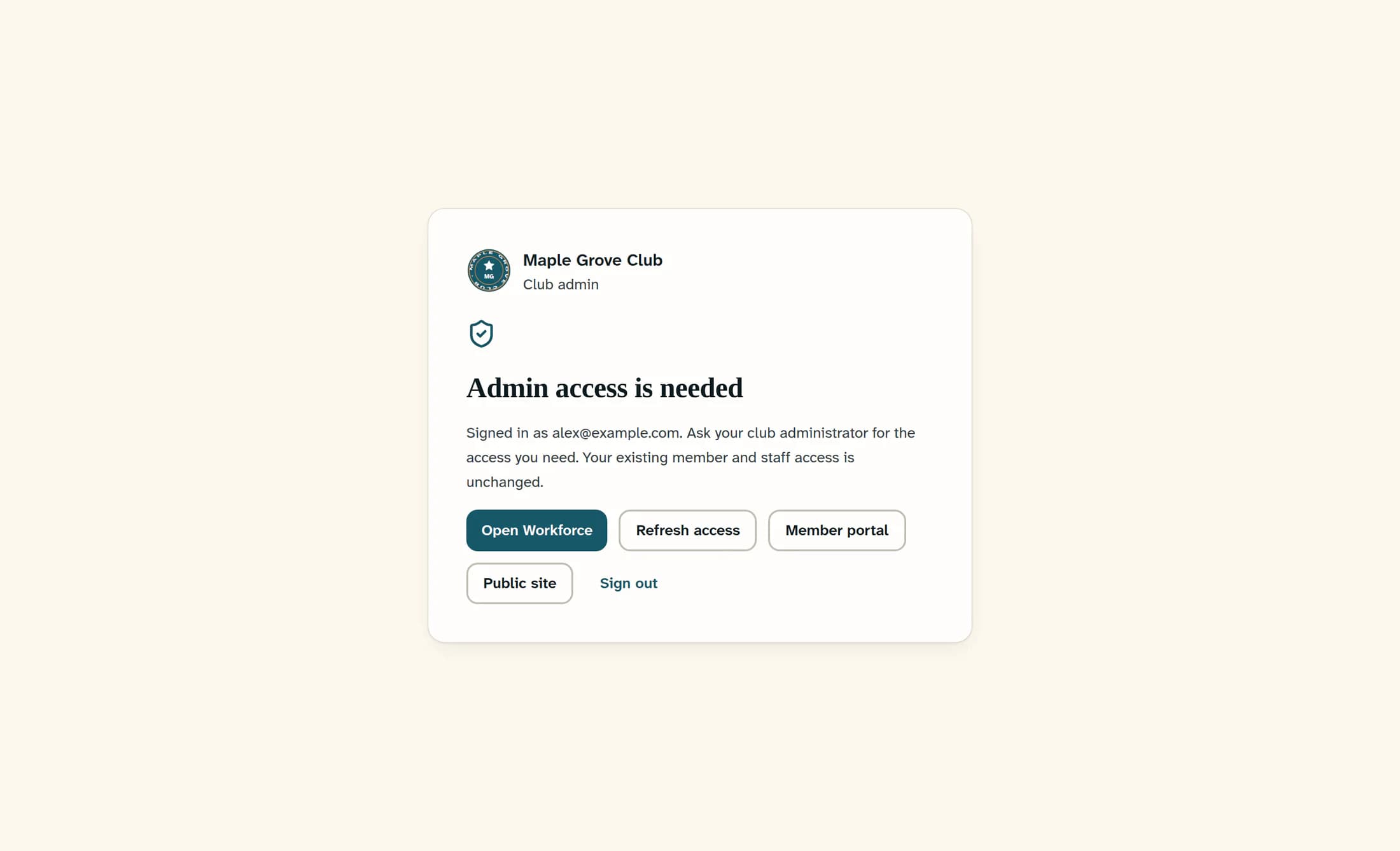
Admin access is needed means the current session has not been given the admin access required for this area. The message directs you to your club administrator and says your existing member and staff access is unchanged. Report the exact wording and the task you need to perform; the controls in this example are context, not steps for obtaining more access.
Step 3 of 7
Recognize a read-only page
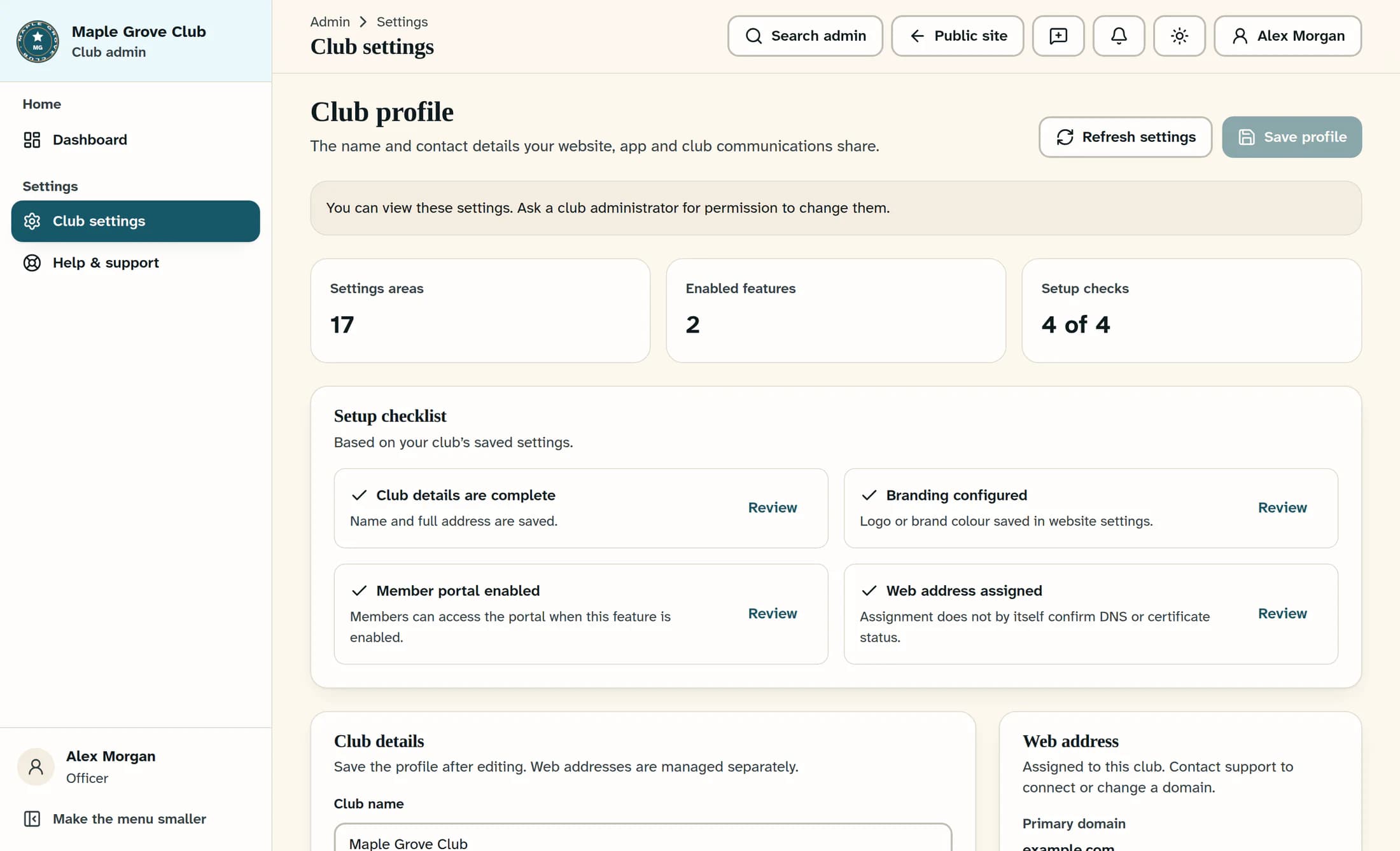
A page that loads can still allow viewing without changes: this Club profile example says to ask a club administrator for permission, while Save profile and the form are disabled. Record both the visible explanation and the affected control; a disabled button on its own can also reflect loading or saving. These illustrations use fictional details, and the available layout and controls can vary by club.
Step 4 of 7
Separate loading problems from missing navigation
We couldn’t open club admin says access could not be loaded, which is different from a confirmed access denial; Loading club settings… also describes a loading state. Note whether the message persists, whether the session expired, and whether only one page is affected. A missing menu item alone does not establish a missing permission: club features, product prerequisites and navigation layout can also affect what appears.
Step 5 of 7
Prepare a concrete report
The report template below separates observed facts from your best guess. A sanitized screenshot can show the relevant page, message and affected control, with passwords, sign-in codes, private links and unrelated personal details fully obscured. The public support form accepts text: describe the image there and arrange a private follow-up channel if an image is needed.
Report template
Step 6 of 7
Ask your club administrator to verify access
Give the report to your club administrator and ask them to confirm your intended role, permission for the specific task, feature availability and relevant product or module prerequisites. Request only the access needed for that task; a visible link or an admin label does not itself establish authorization. Do not borrow an account, try hidden routes or treat first-admin setup as a general fix.
Step 7 of 7
Escalate an apparent software fault
If your administrator confirms the intended access and prerequisites but the problem persists, use ClubWorks support for a software investigation. Include the report and what your administrator checked, and keep any reference supplied with the response. Club decisions about your role or records still belong with your club administrator.
What a useful report achieves
A clear symptom, intended task and private account context let your club administrator check access without guesswork. If the setup appears correct, the same evidence helps ClubWorks investigate the software.
