
On this page
Before you begin
Step 1 of 3
Open the connection overview
In the admin sidebar, open Settings, then Integrations. Select All connections to review the service cards and their current saved status.
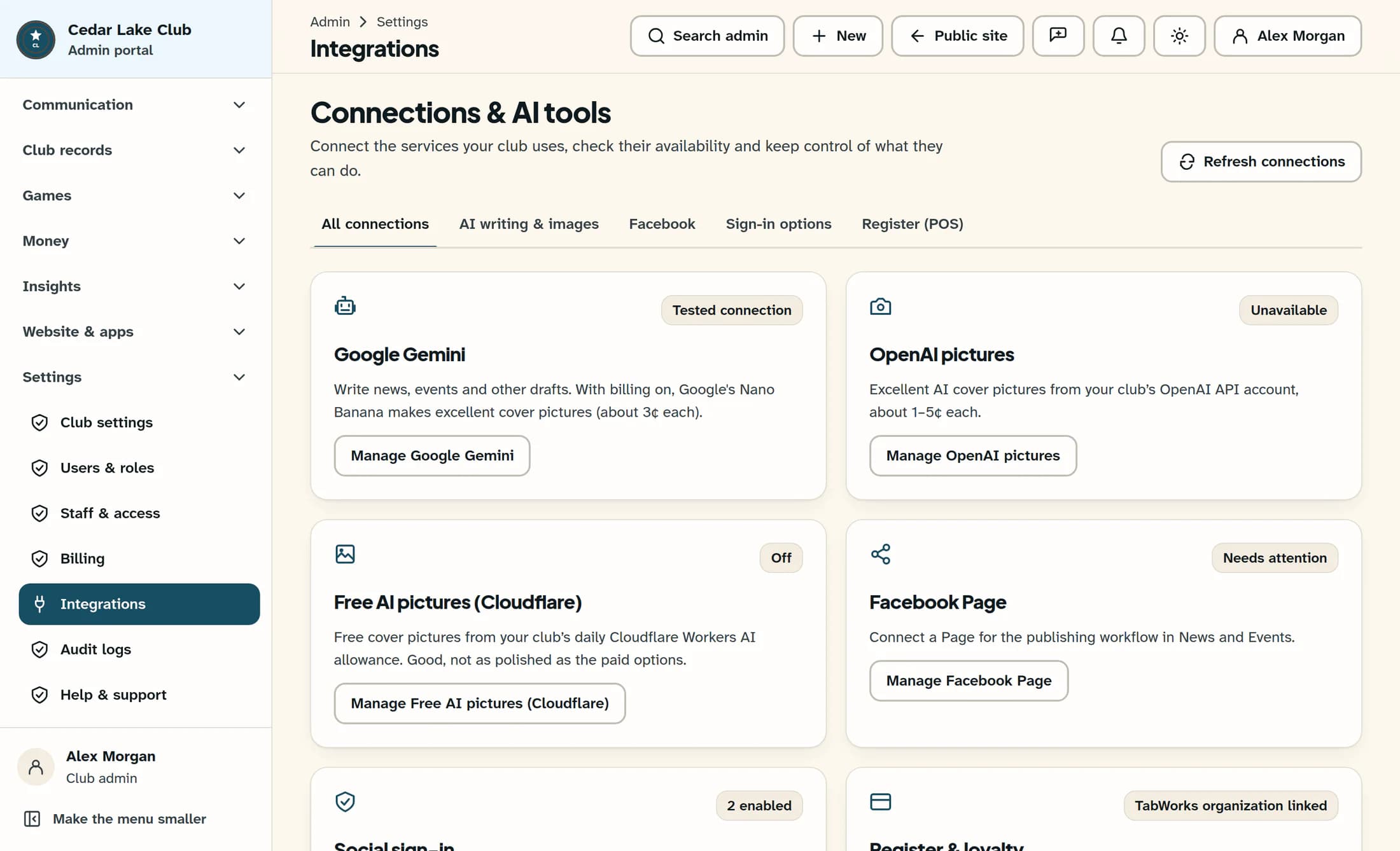
Read the connection badges
- Unavailable: the service’s settings could not be loaded. This is different from an off service or a failed connection test.
- Checking…: saved provider data has not arrived yet. Wait for loading to finish before drawing conclusions.
- Off: the loaded service setting is disabled. It can still have a stored credential or an older test result.
- Configured: the service is enabled, but its saved status is neither connected nor error. It is not proof of a successful test.
- Tested connection: the service is enabled and its saved connection status is connected. This describes a recorded result, not a continuous health check.
- Needs attention: the service is enabled and its saved connection status is error. Review its details before relying on it.
Some cards mean something different
- Social sign-in shows how many provider buttons are enabled. Button visibility does not verify that an external sign-in provider works; ClubWorks must also configure the provider.
- Register & loyalty shows TabWorks organization linked or Setup needed after loading. An organization link does not certify register health; a load error can instead show Unavailable.
- Under Other services, Google Calendar and QuickBooks are marked Planned and cannot be enabled. Stripe payments points to Features for payment availability and Billing for setup help.
Step 2 of 3
Review a service’s details
Select AI writing & images for the AI providers, Facebook for Page publishing, Sign-in options for member sign-in buttons, or Register (POS) for register and loyalty settings. Below an AI provider’s controls, read its last-tested time, result and any saved error before interpreting the overview badge.
Keep test history and load errors separate
Step 3 of 3
Refresh the saved connection settings
Select Refresh connections at the top of the page. In Reload saved settings?, choose Cancel to keep your unsaved edits, or Reload settings to replace them with the saved settings and load the providers again.
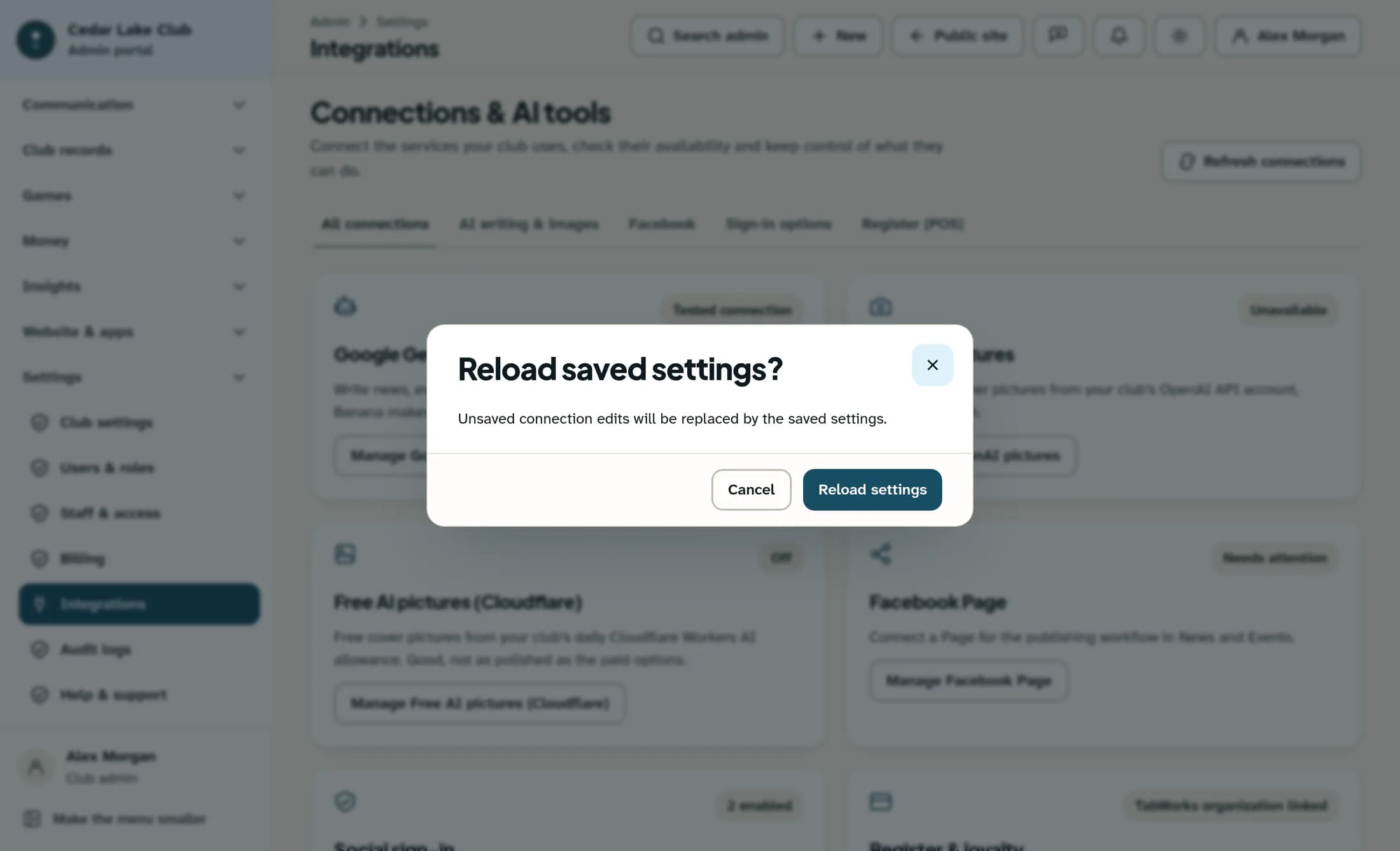
Reloading does not save your draft edits or run a connection test. Wait for each service to finish loading, then review any remaining error; a successful reload of one service does not establish the health of the others.
What you have checked
You can now distinguish saved setup, recorded test results, load errors and planned services. Use those details to decide whether a service needs an access check or a separate setup or testing workflow.
About this guide
The illustrations are source-based reconstructions of the Clubhouse preview view, with a fictional club and fictional connection states. They were not captured from a live club or a native app; no credentials were accessed and no live provider connection was tested.
The screens in this guide show example clubs and people. Your club's name, colours and some labels may look different.
