
On this page
- Before you begin
- Find the correct member
- Review past suspensions
- Reading suspension records
- Find membership activity
- Keep the search focused
- Narrow the dates and read the results
- What the results tell you
- Check the record behind an entry
- If an expected entry is missing
- If your heading is Audit Log
- Related guides
- Review complete
Before you begin
Step 1 of 6
Find the correct member
Open People > Members, find the person, and select their name to open Member details. Check the name and member number before reviewing their record. Membership status, dues status, and membership dates show current values; they are not a list of previous changes.
Step 2 of 6
Review past suspensions
In Member details, look under Suspension for Past suspensions. Each returned closed record shows its creation date through the actual lifted date, how it ended, and a reason when one was recorded. If a record has an attachment, select Letter to view it; a current suspension uses View letter when an attachment is available.
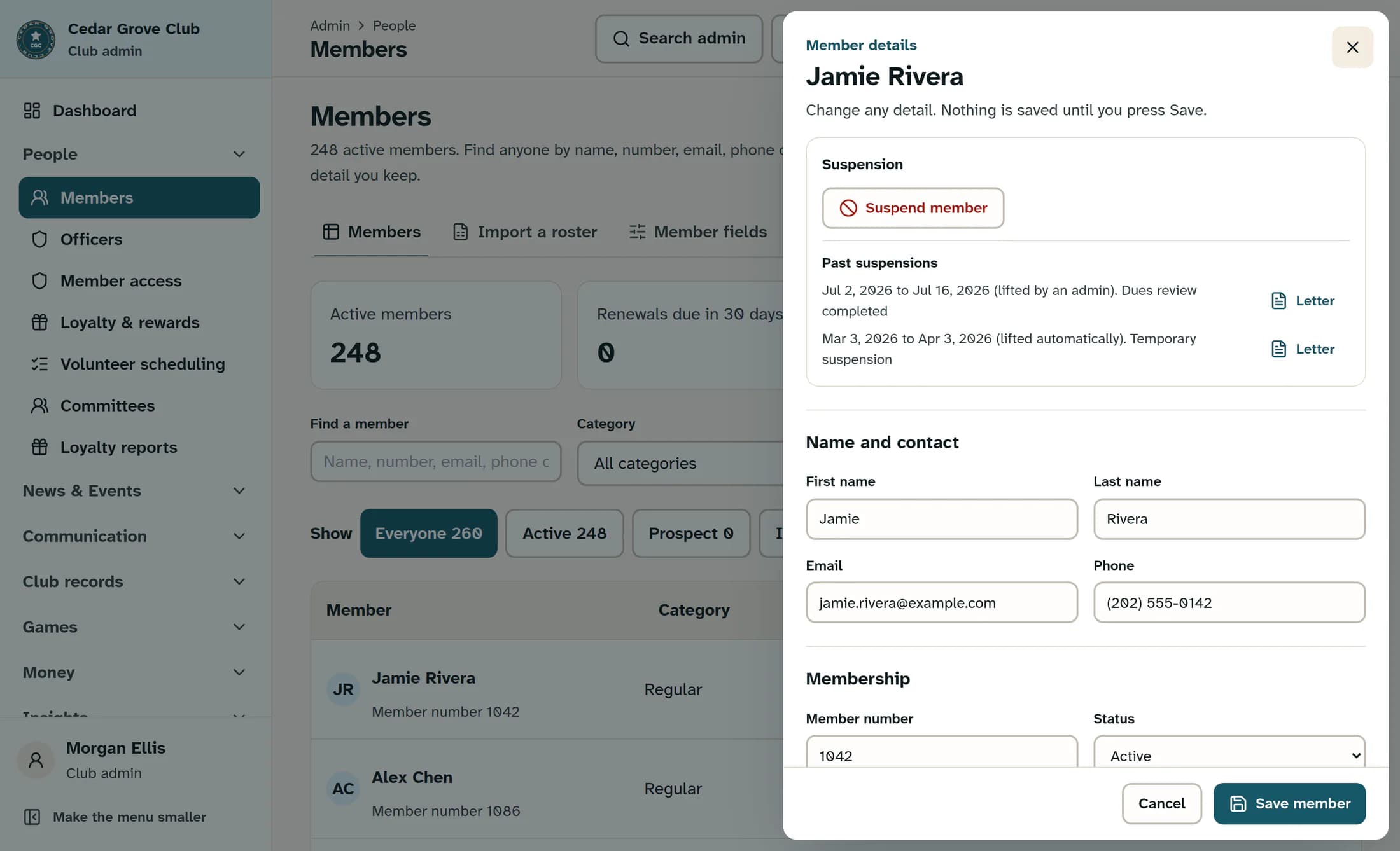
Reading suspension records
Step 3 of 6
Find membership activity
Open Settings > Audit Logs; on the Clubhouse screen, the heading is Audit activity. Use Clear filters if it is present, choose Members in Area, and leave Who did it as Anyone and What happened as Anything. Enter the member’s name in Search, then pause while the results update.
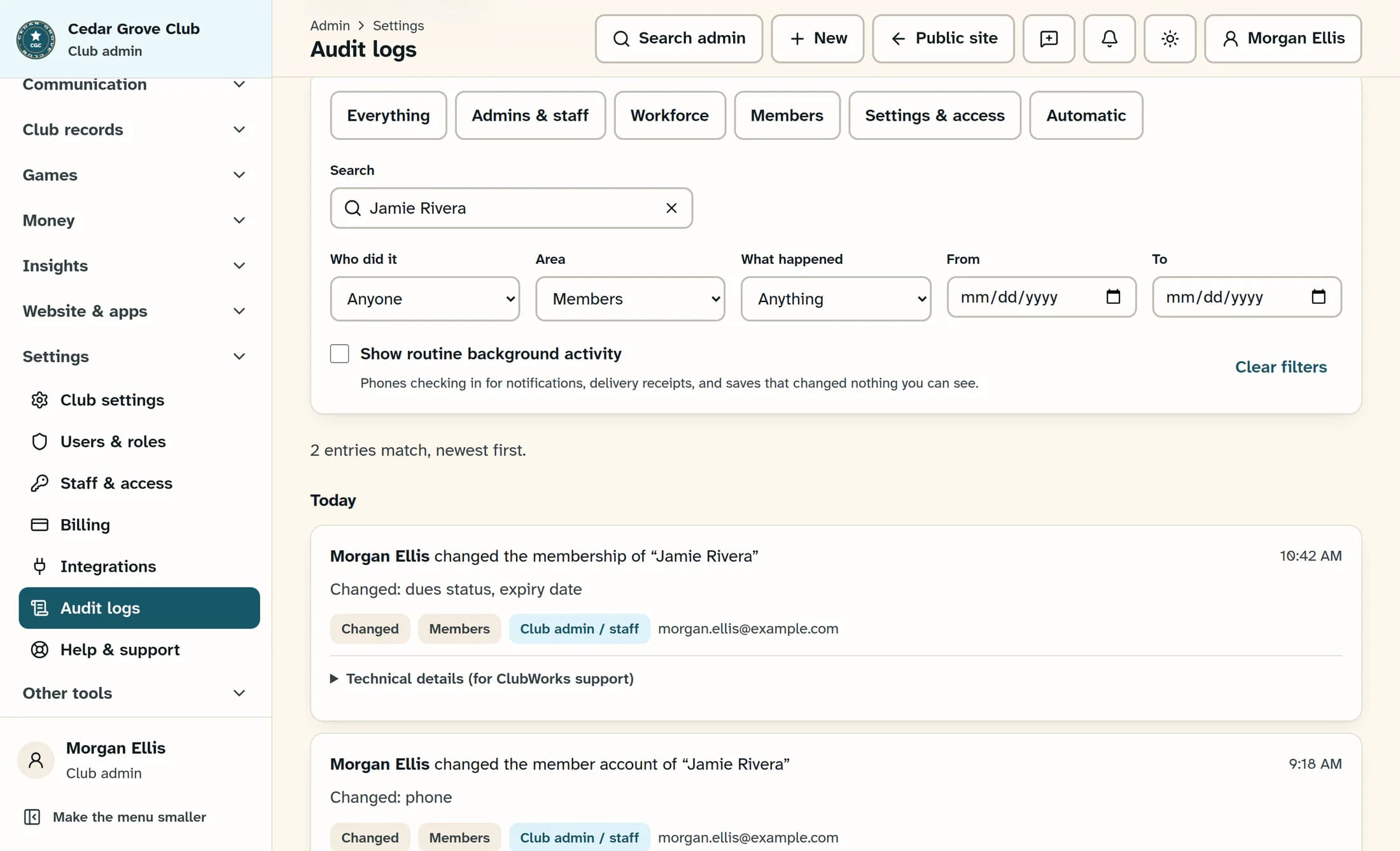
Keep the search focused
Step 4 of 6
Narrow the dates and read the results
If needed, set From and To to include both end dates using your browser’s local calendar. Read the newest entries first, then use Show older activity when it appears to continue through the matching history. Keep What happened at Anything for a broad review; Changed selects update actions and can leave out other kinds of recorded events.
What the results tell you
Step 5 of 6
Check the record behind an entry
Expand Technical details (for ClubWorks support) on the entry you want to verify. Use Record type, Record id, Action code, Entry id, and Exact time, along with any metadata, to identify the recorded change. If two members share a name, ask an administrator to match the record id against the existing member records before drawing a conclusion.
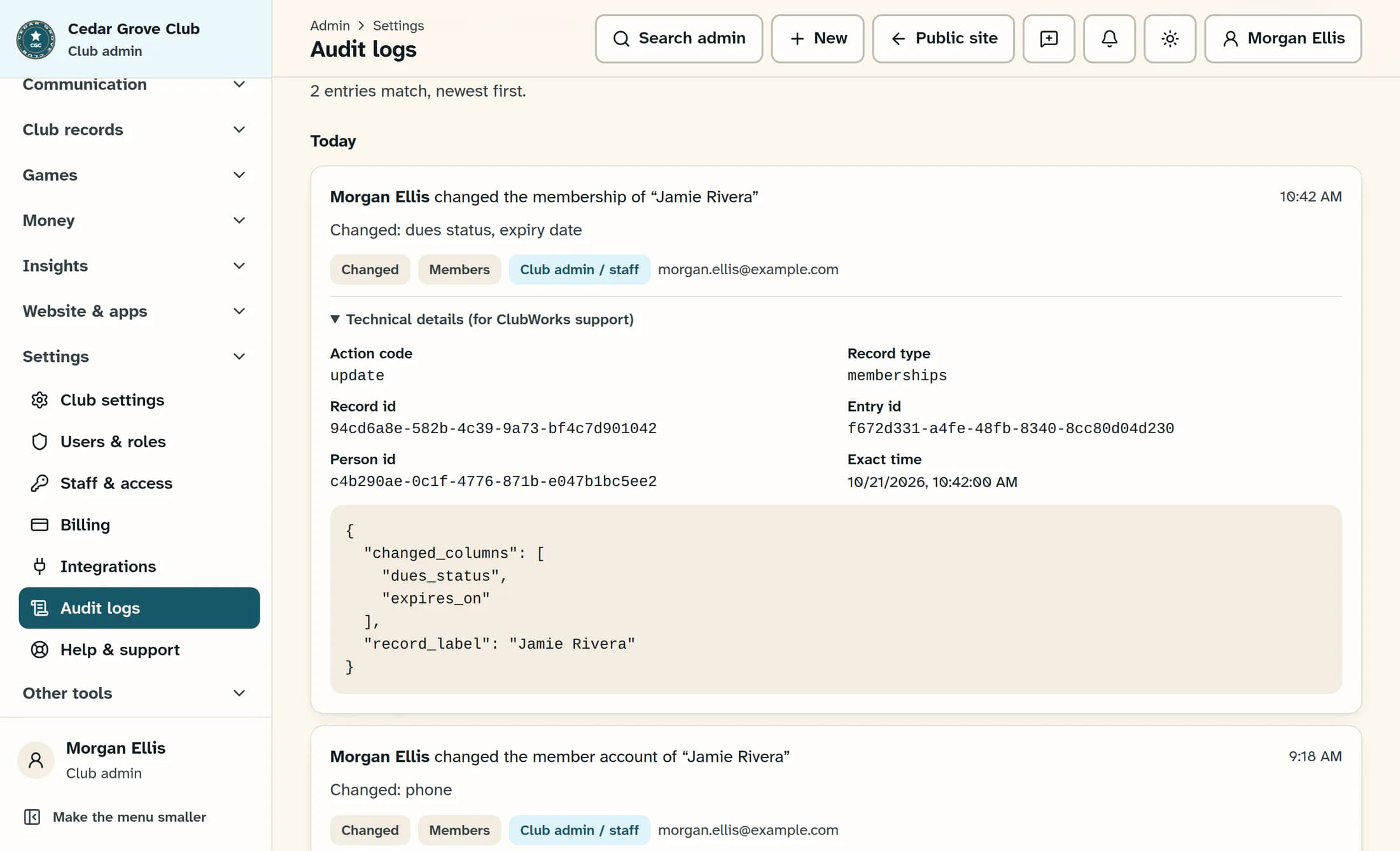
In the example, the metadata lists the changed column names and a record label. It does not contain the earlier and later field values. Audit activity has no export button or direct open-member link.
Step 6 of 6
If an expected entry is missing
Use Clear filters, reapply the member search and Area > Members, then widen or remove the dates and keep Who did it at Anyone and What happened at Anything. Turn on Show routine background activity, check Show older activity, and use Refresh activity for the latest matching entries. An absent entry does not prove nothing changed; events from before logging was available may not exist.
Routine activity is hidden by default and includes notification activity and saves with no visible change. Clear filters also turns routine activity off. Refresh activity preserves your filters and reloads the newest page.
If your heading is Audit Log
Use Search person, action, area, or details, leave All users and All actions selected, and choose Members from All areas. This screen has a single date filter, Refresh, and Load older activity; its date includes the whole selected browser-local day. Routine activity is included without a checkbox, and the user dropdown lists actors encountered in loaded results rather than every person in the club.
Review complete
You can now compare returned suspension records with the recorded audit activity for the correct member, while keeping current values separate from historical evidence.
About this guide
Based on ClubWorks release 16782cba. Illustrations reconstruct that source using fictional records. Live checks and checks of your club’s screen are still pending; the audit screen shown can vary by club.
The screens in this guide show example clubs and people. Your club's name, colours and some labels may look different.
