
On this page
Before you start
Step 1 of 4
Find the right member
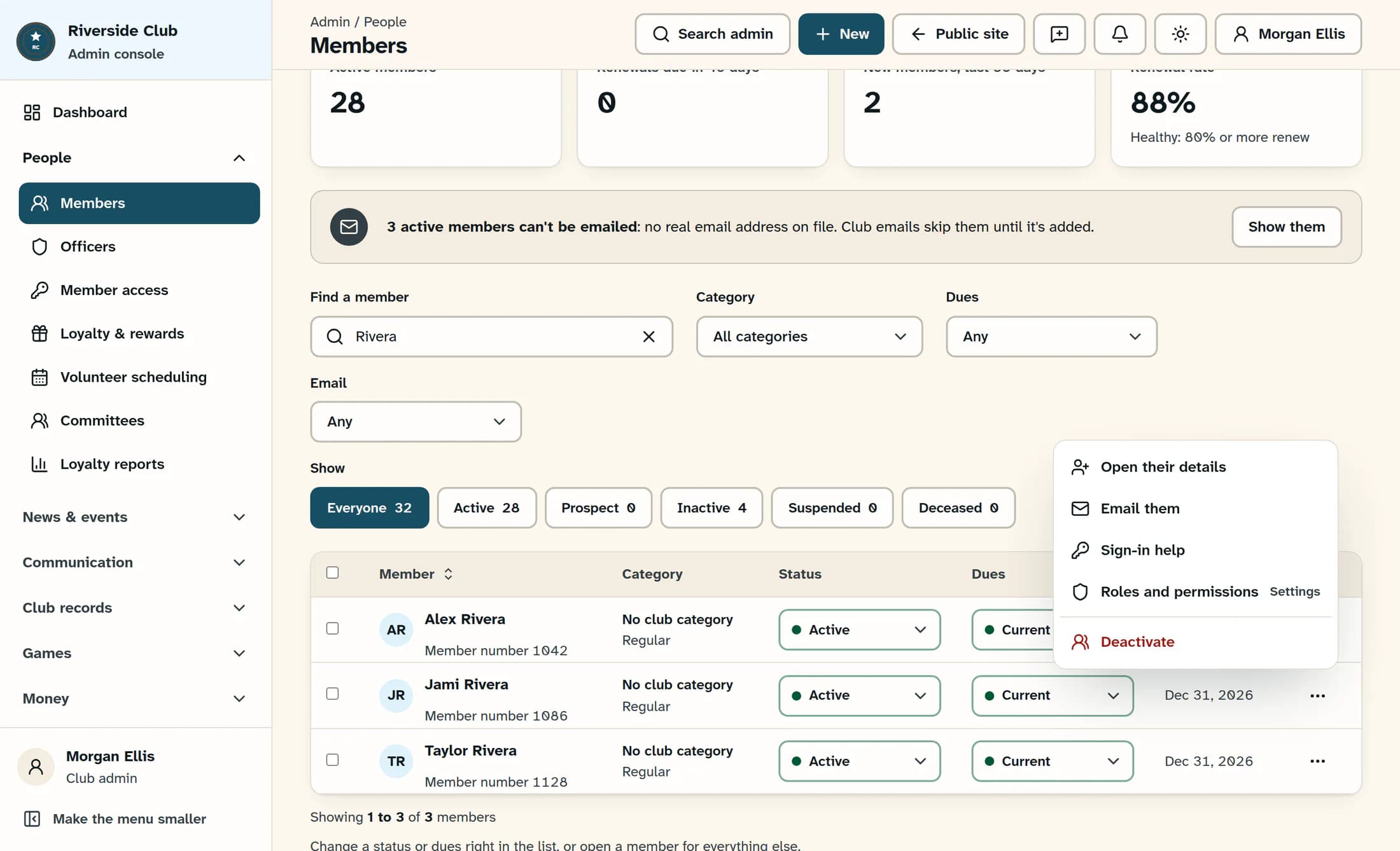
Open People > Members in the admin menu. Type the member’s name, number, email or phone in Find a member. Check the matching row’s member number, then click the member’s name. Verify the email in their details before editing. You can also use that row’s More menu and choose Open their details.
Step 2 of 4
Correct their name or contact details
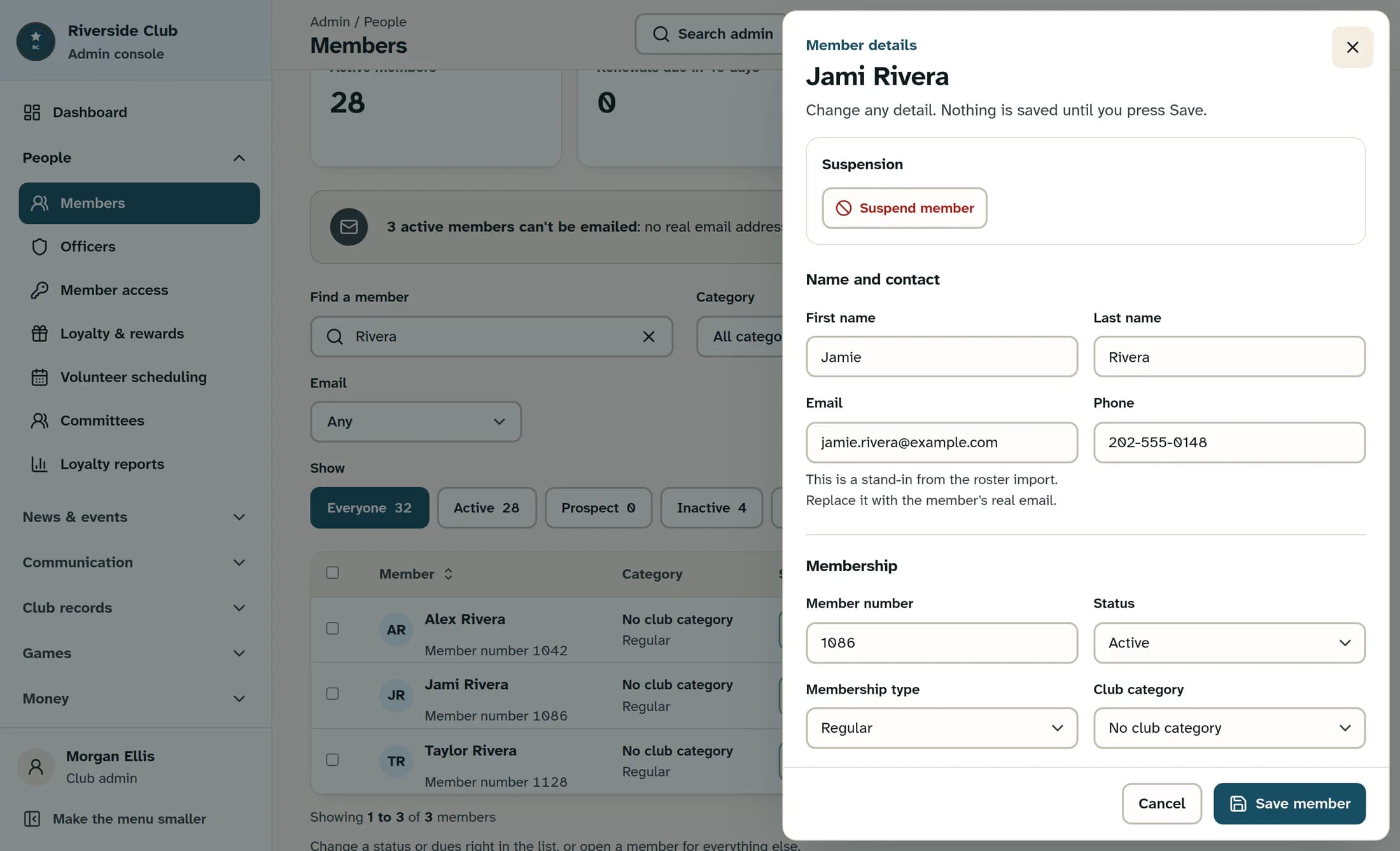
In Name and contact, edit the fields that need correcting. In this example, change First name from “Jami” to “Jamie” and update Phone to “202-555-0148”. Leave Email as it is for this correction. An email is required for every member record; if you need to change it, read the sign-in note below before saving.
Step 3 of 4
Review any other details you need to change
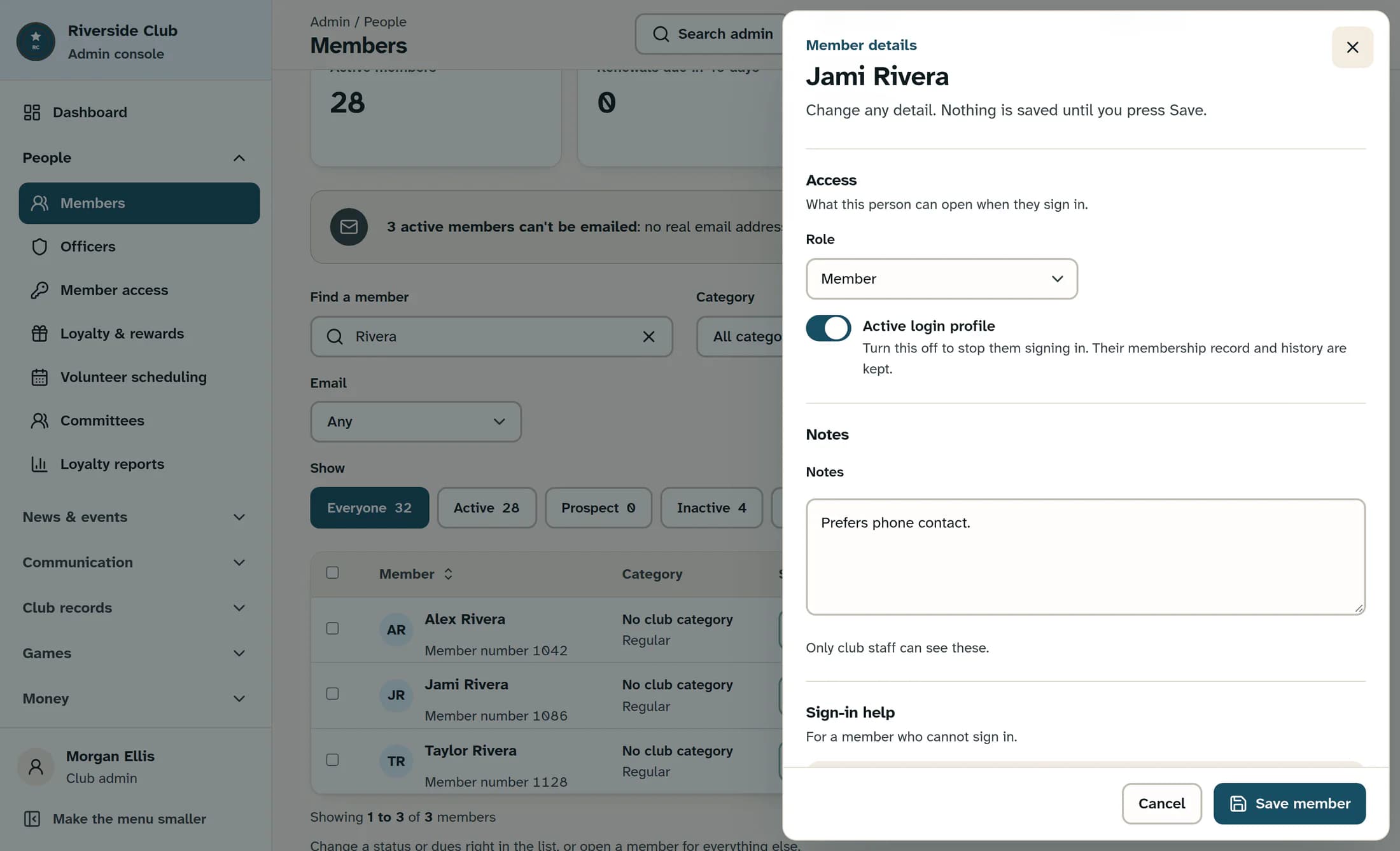
Scroll through the sheet and update only the details you intend to change. Membership holds the member number, status, membership type, club category, dues status and dates. Access holds Role and Active login profile. Extra details appears when the club has extra member fields; complete any marked “(required)”. Notes are visible only to club staff. Your club may use different field labels.
For this name and phone correction, keep the existing membership and access settings. Active login profile is separate from membership status and suspension. Turning it off stops access through this club’s login profile while keeping the member’s record and history. It does not disable a shared sign-in account at other clubs. No role falls back to the club’s member role when one exists; it does not mean “no access”.
Step 4 of 4
Save and check the result
Click Save member at the bottom of the sheet. If you have granted an Admin or Officer role, a confirmation explains that the person can open the admin tools allowed by that role. Confirm only if the person and role are correct.
For a successful profile edit, the sheet closes and Member profile updated. appears. Open the member’s details again and check the saved name, phone and any other changed fields. Before saving, Cancel discards unsaved profile edits; it does not undo separate actions already completed in Suspension or Sign-in help.
If you need to change their email
Saving a new email for someone with an existing login can disconnect their old sign-in from this club after the profile and membership details save. The success message tells you when they can sign in with the new address and receive a one-time code there. If the message says their sign-in still uses the old email, the profile change has saved but the sign-in change has not. Check Sign-in help before deciding what to do next.
Sign-in help offers separate actions such as Email a reset link, Create a one-time link and setting a password. These actions, and the actions in Suspension, take effect through their own buttons and confirmations. They do not wait for Save member, despite the sheet’s general “Nothing is saved until you press Save” description. Cancel does not reverse them.
If something does not save
Read the error shown near the top of the sheet. A blank email produces Email is required for each member record. A required custom field must be filled in, and a field marked as unique cannot reuse another member’s value. Correct the field named in the message, then try Save member again.
Other errors can happen after some details have already saved. Record the error and any changes you still need, then refresh the member list and reopen the profile to check what was saved before retrying. Do not assume an error means every change was rolled back. If the problem continues, share the error with your club administrator. If a staff member’s record, a role change or a sign-in change is refused, ask a club administrator to help.
What to expect
The reopened profile shows your saved corrections. Membership, access and sign-in actions are separate decisions, so check the saved details and any message before making another change.
