
On this page
- Before you start
- Find the right member
- Check the email used for sign-in
- Open the password form
- Enter and confirm the password
- Set the password and check the result
- Help the member sign in
- If the email is missing, a stand-in, or mistyped
- If the roster and sign-in addresses differ
- If the account is protected
- If saving fails or the code screen persists
- What happens next
Before you start
Step 1 of 6
Find the right member
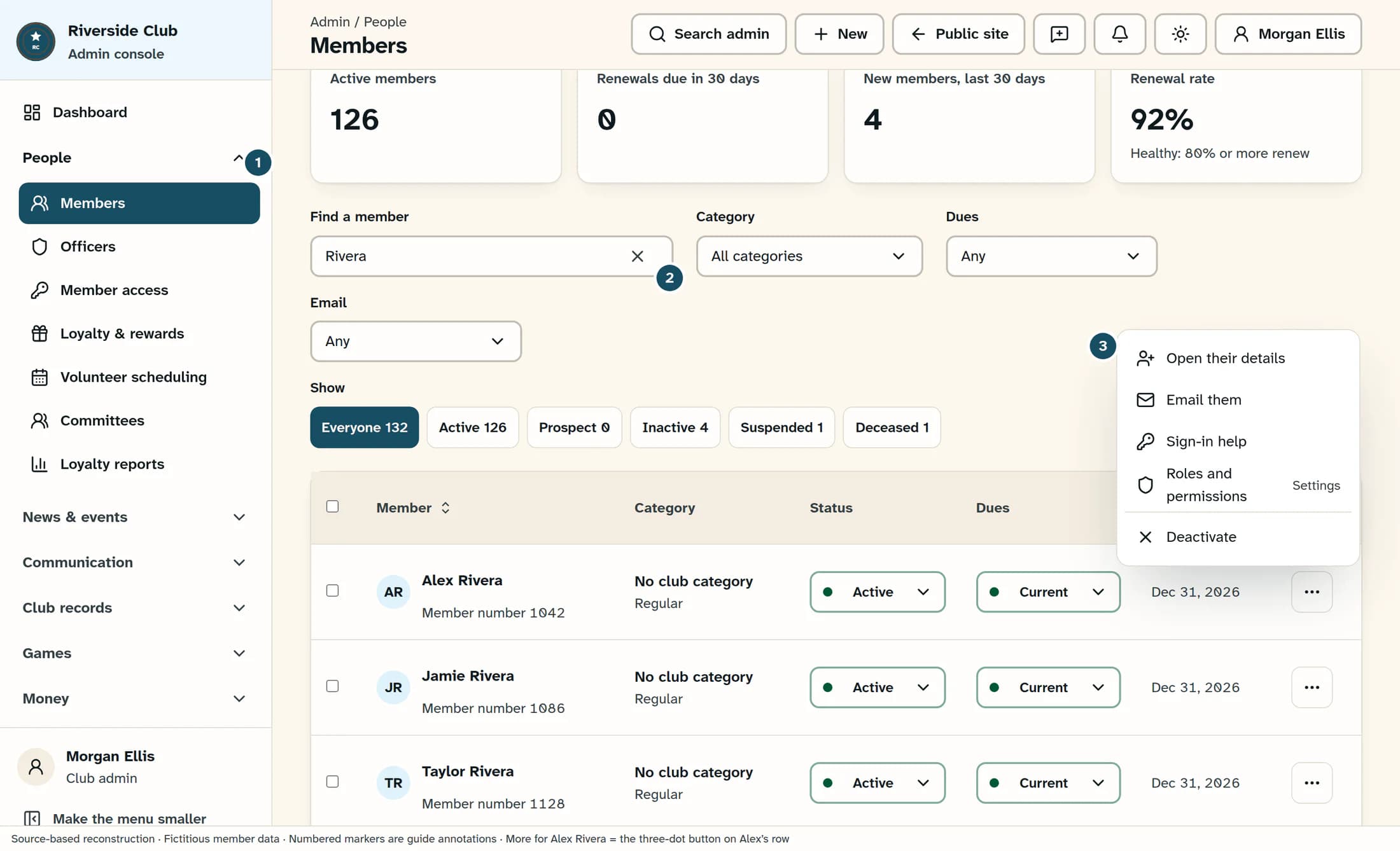
Open People, then Members. Use Find a member to search by name, member number, email or phone, and check the member number. Open that row’s three-dot menu and choose Open their details.
Step 2 of 6
Check the email used for sign-in
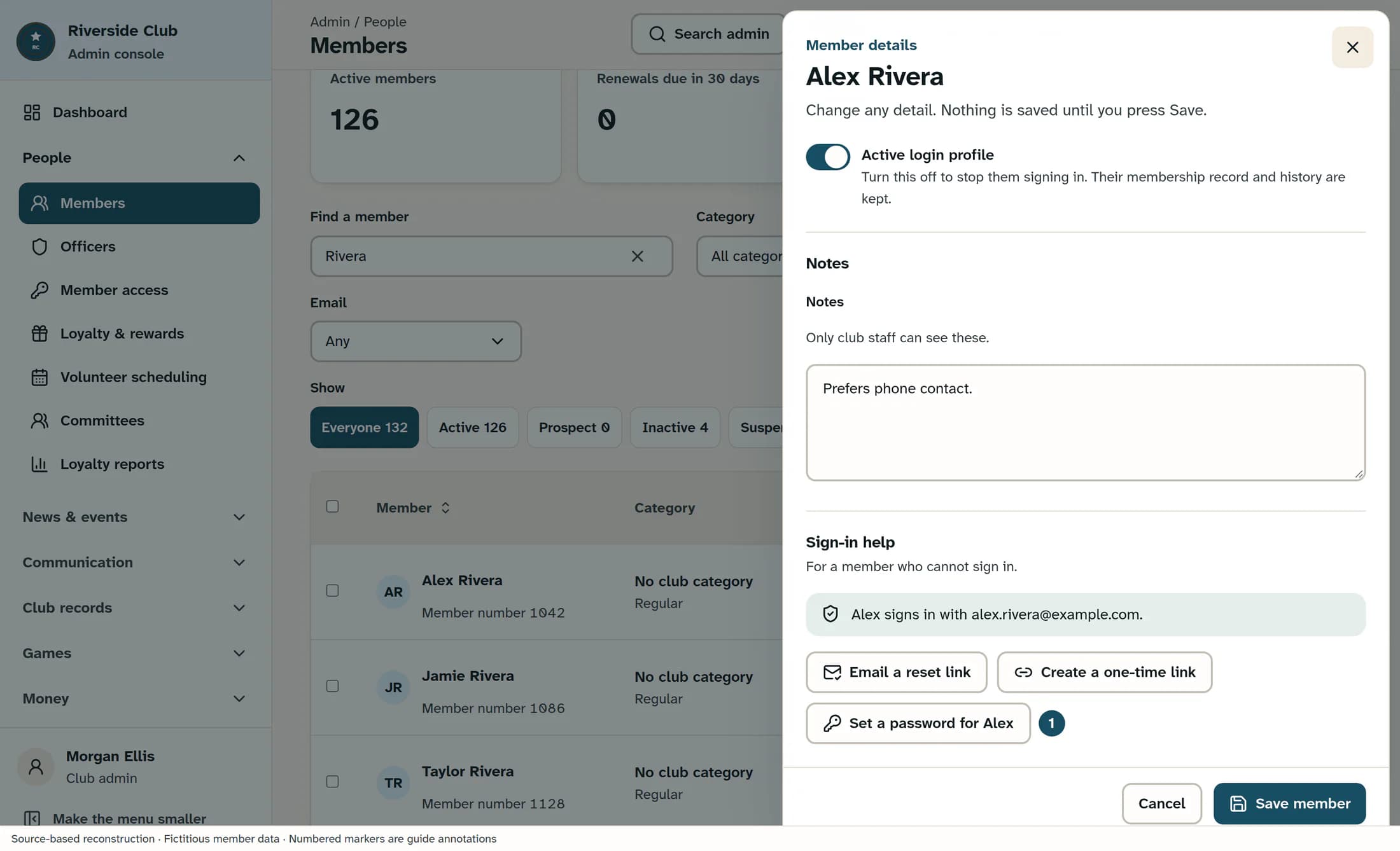
Check the roster Email in Name and contact, then scroll down to Sign-in help. Read the status message: it shows the linked account’s actual sign-in email when available and warns if it differs from the roster address. Continue only after confirming that you are helping the right person and that the sign-in address is correct.
Step 3 of 6
Open the password form
In Sign-in help, select the button that begins Set a password for and ends with the member’s first name. This opens the password fields inside the member’s details.
Step 4 of 6
Enter and confirm the password
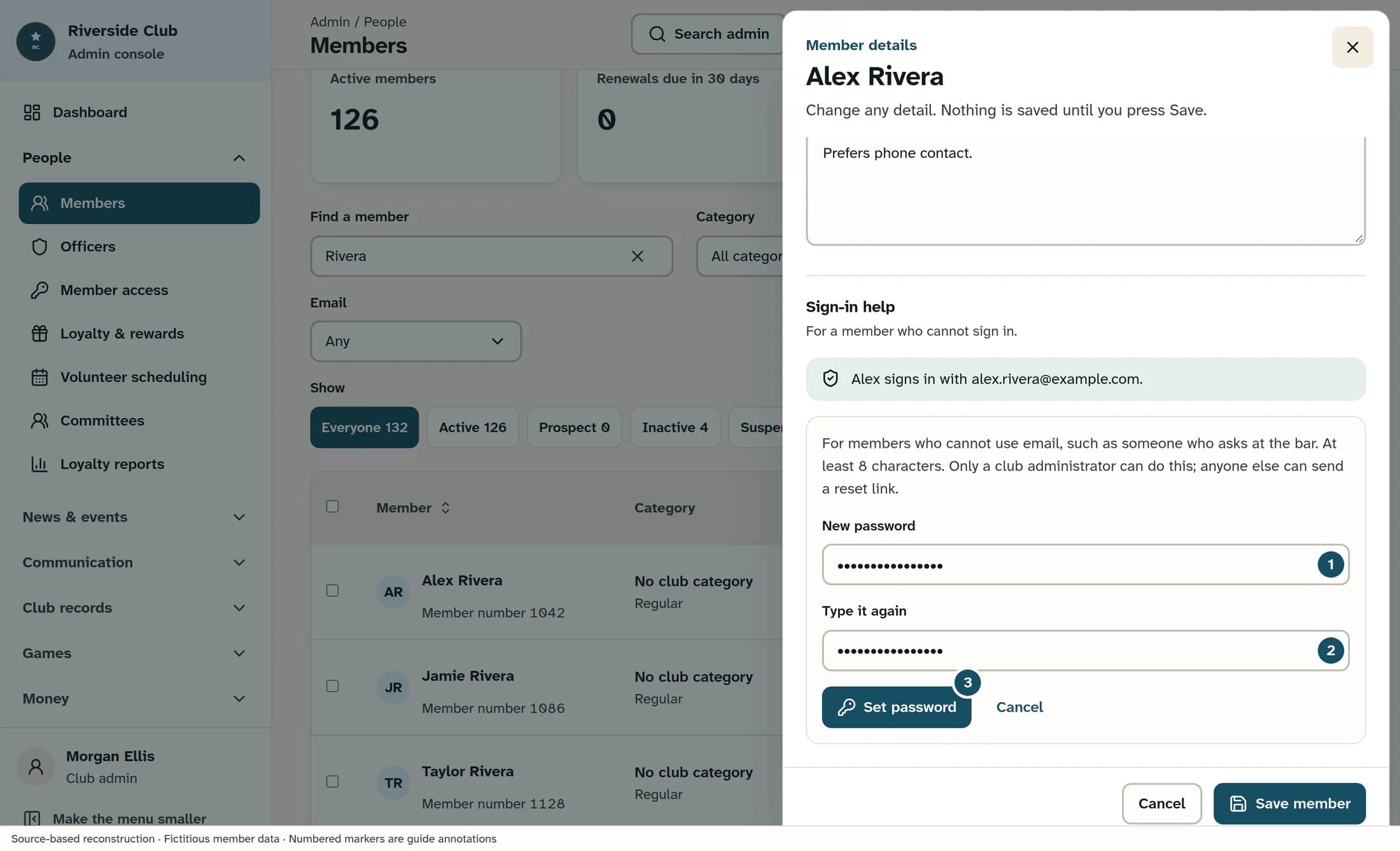
Enter a password of at least 8 characters in New password, then enter exactly the same password in Type it again. The form checks the minimum length and whether the two entries match.
Step 5 of 6
Set the password and check the result
Select Set password and wait for Password set with the message “Member password updated.” The password is saved by this button; Save member saves changes to the member record separately.
Step 6 of 6
Help the member sign in
Give the member their confirmed sign-in email and new password in person or by phone. After a successful save, starting sign-in again on the correct club website should lead to the regular password screen, even on their first visit. See Sign in to ClubWorks with your password or a one-time code for the member’s steps; an emailed code remains an explicit alternative.
If the email is missing, a stand-in, or mistyped
If the roster and sign-in addresses differ
Saving a different roster email tries to reset the member’s old sign-in link for this club; it does not change the old account’s email. Read the save message, then reopen Sign-in help to check whether the reset succeeded. If a mismatch remains, setting a password updates the existing linked account and does not fix the address. Reset sign-in is a separate action that disconnects the old login from this club and requires a code at the roster address on the next sign-in; ask ClubWorks support to resolve a mismatch when the member cannot receive that code.
If the account is protected
ClubWorks refuses a club-set password when the linked sign-in account has an active profile in another club or active platform-administrator access. It also refuses when an account already exists for the roster email but is not linked to this member. The error recommends a reset email so the owner stays in control; in this interface that action is called Email a reset link. If the member cannot receive it, ask ClubWorks support to resolve access. Do not change their address or unlink accounts to get around the protection.
If saving fails or the code screen persists
What happens next
Once Password set confirms success, the member can use their email and the password you provided without receiving a first-visit email code. Keep the related sign-in guide handy for their next visit.
