
On this page
- Before you start
- Open your agreement
- Review the agreement and your name
- Complete the details the venue needs
- If your PDF has assigned fields
- If your agreement has signature or initials fields
- Agree and complete signing
- Check the confirmation
- Keep the confirmation and get the signed copy
- If you need to leave before signing
- If you cannot finish
- Summary
Before you start
Open your agreement
Open Review and sign in the venue’s email, or Review & sign in your verified event portal. The link opens your agreement; if it is unavailable, ask the venue for a fresh link or check your event portal.
Step 1 of 3
Review the agreement and your name
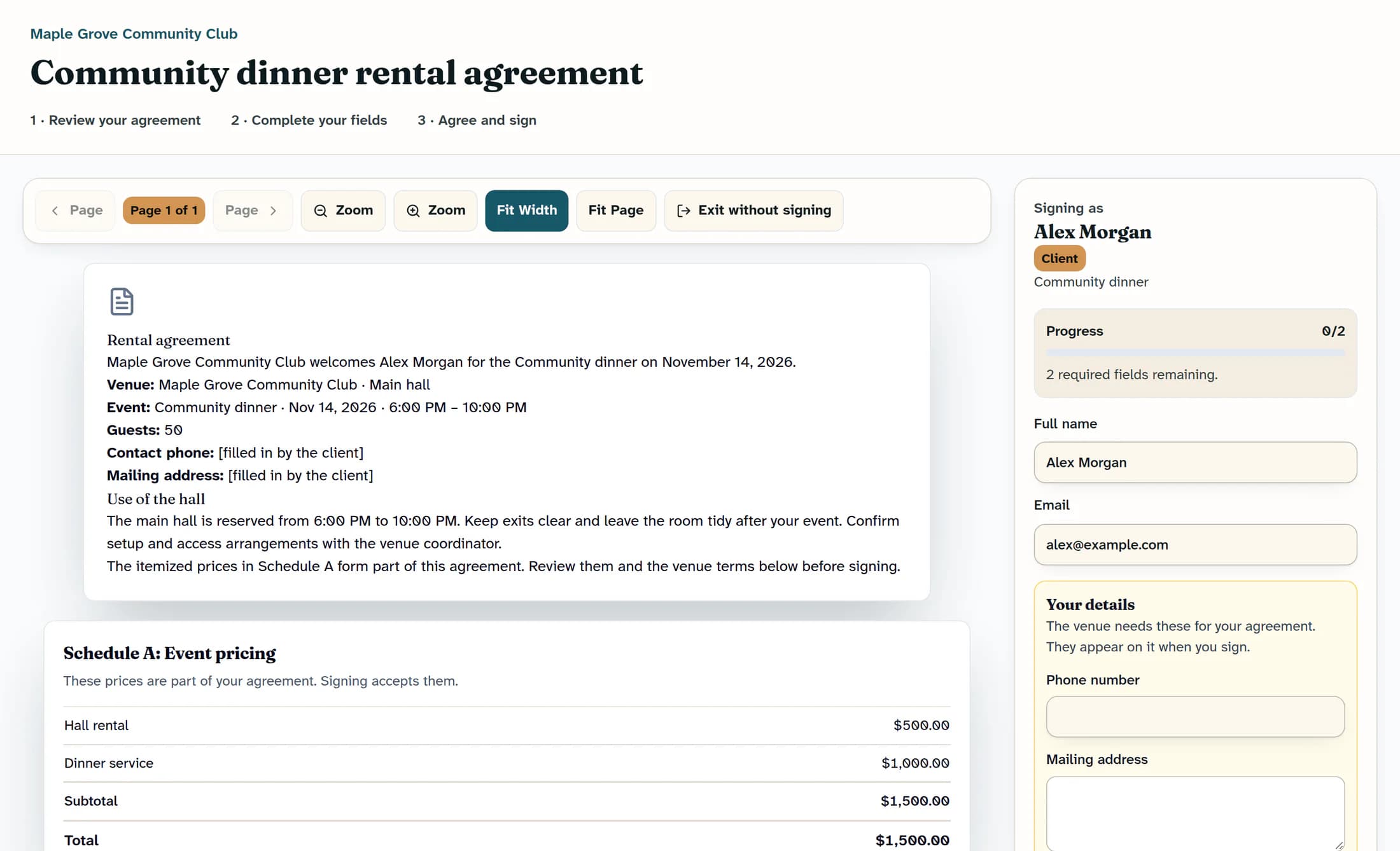
Read the document and any Schedule A: Event pricing, Terms, Cancellation and Deposit sections supplied by the venue; signing accepts the supplied Schedule A prices as part of the agreement. Enter your full legal name in Full name and check Email if provided; the illustrated text agreement uses a complete name entry as its typed signature.
Step 2 of 3
Complete the details the venue needs
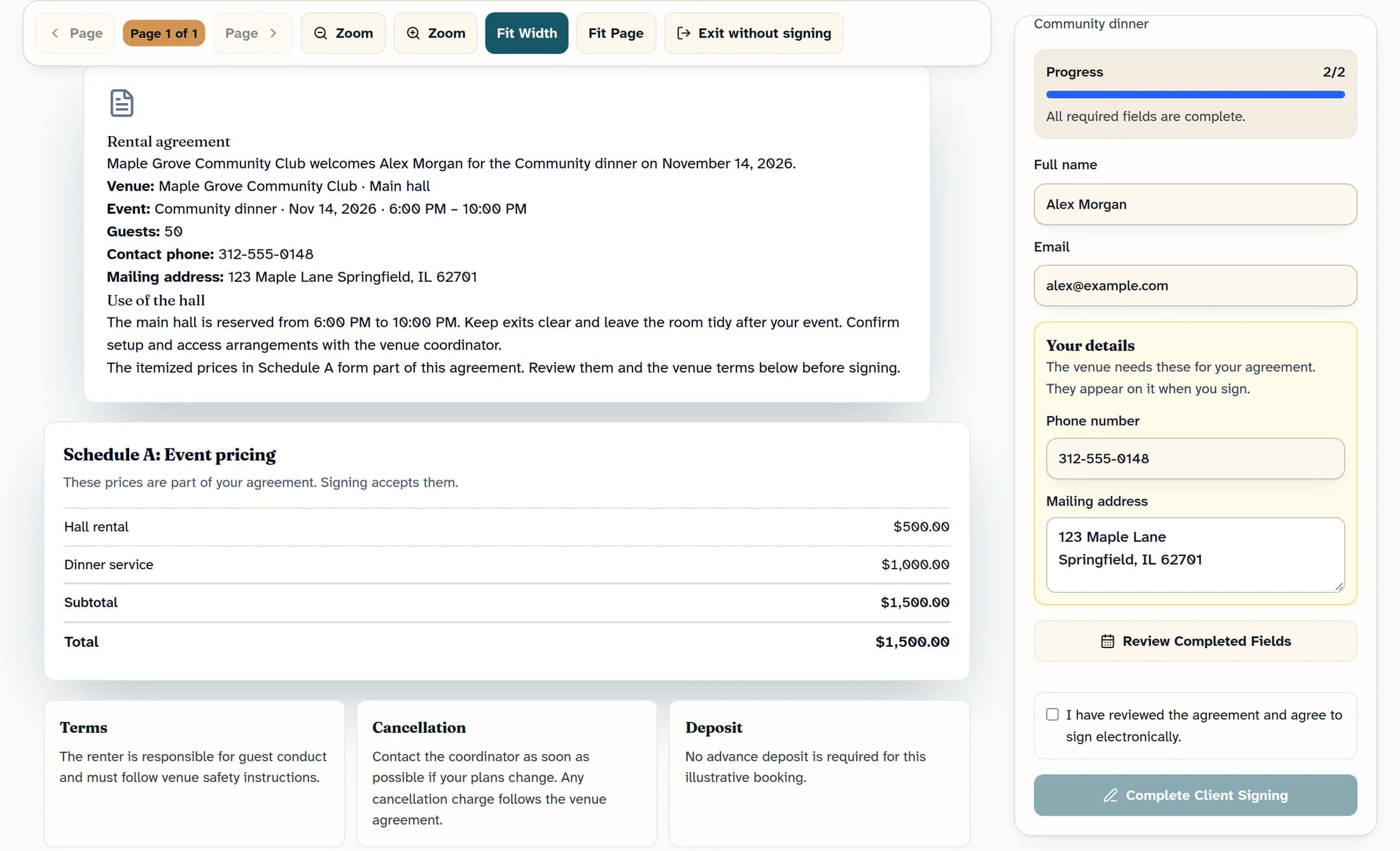
If Your details appears, fill each field the venue asks for before signing. The illustrated agreement asks for Phone number and Mailing address; your agreement may ask for different details.
If your PDF has assigned fields
For a PDF, use Page, Zoom, Fit Width and Fit Page to review the document as needed. Choose Next Required Field, complete the text, date, choice or checkbox fields assigned to you, and repeat until the required fields are complete; venue-filled or locked fields stay read-only. When no required fields remain, Review Completed Fields replaces Next Required Field.
If your agreement has signature or initials fields
Open each assigned signature or initials field on the PDF and choose Type or Draw. For typed entries, enter your legal name or initials and choose a Signature style if offered; for a drawn entry, draw it in the box and use Clear if you need to start again. Choose Adopt Signature or Adopt Initials to place the entry, then finish any other required fields.
Step 3 of 3
Agree and complete signing
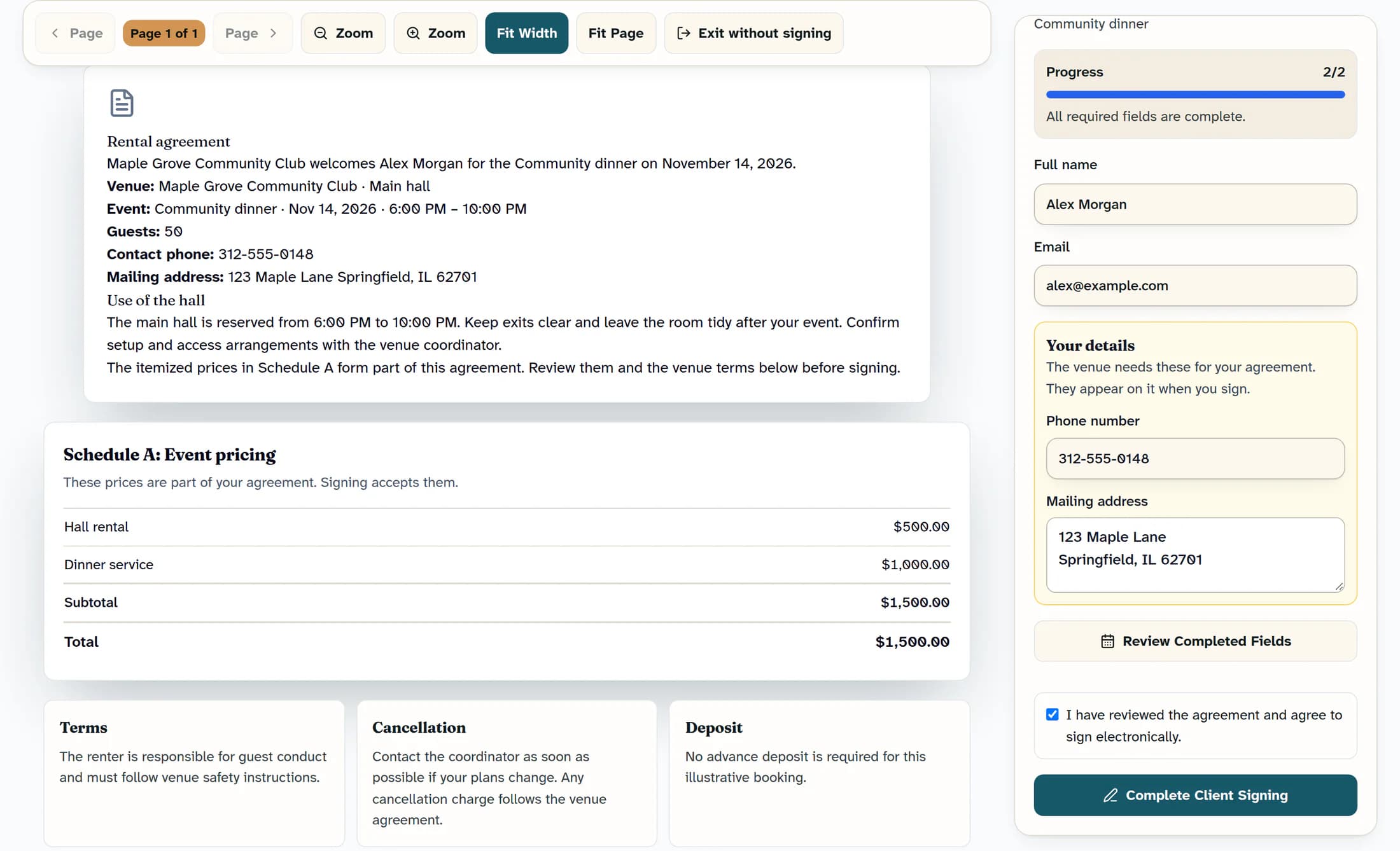
Read the agreement and all your entries. Select I have reviewed the agreement and agree to sign electronically. and choose Complete Client Signing when it becomes available.
Check the confirmation
Wait for the explicit confirmation that your signature was recorded. If it says the venue representative will countersign next, your part is complete and the venue’s signature is still pending.
Keep the confirmation and get the signed copy
Choose Print or save confirmation on the Clubhouse receipt if you want to print or save that receipt. This prints the confirmation, rather than the signed agreement; return to your event portal for Download signed copy (PDF) when it is available, or ask the venue for a copy.
For help returning to the booking and contacting the venue, see How to find your rental details and contact the coordinator.
If you need to leave before signing
Choose Exit without signing to open the exit options: Keep signing returns to the agreement, Discard leaves without saving this session’s changes, and Save & exit saves supported progress before leaving. Saved progress covers mapped field values plus your signer name and email; separate Your details entries, consent and live signature-entry state are not all restored, so check them again when you return.
If you cannot finish
Summary
You’ve reviewed the agreement, supplied the requested information and completed your signing step. Keep the confirmation and check whether the venue still needs to countersign.
