
On this page
Before you begin
Step 1 of 3
Recognize Website settings
On Website settings, the current tabs are General, Appearance, Pages & menu and Features. Each tab has its own save boundary; none uses the Builder’s page-draft publication flow.
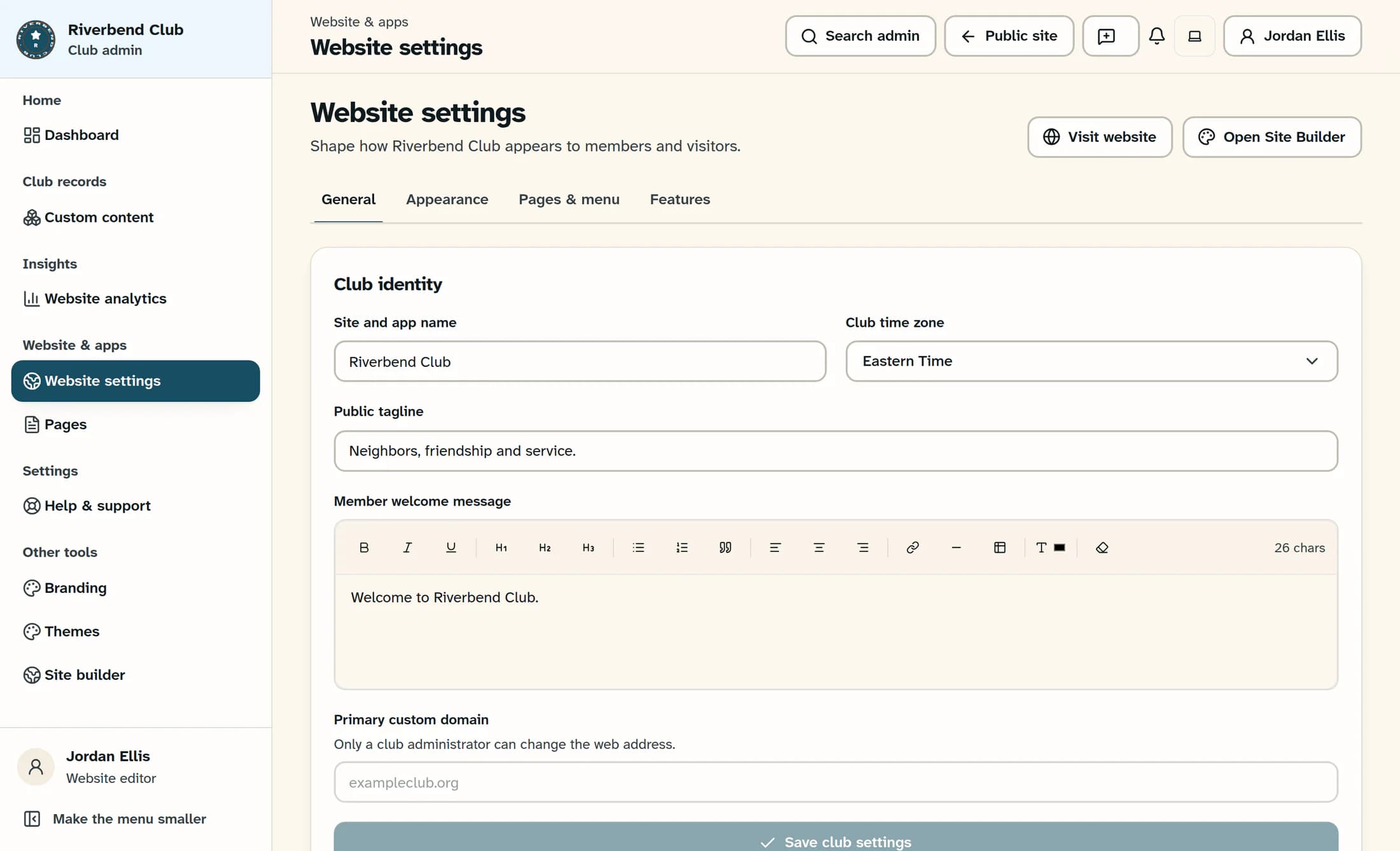
Match the task to a settings tab
- General contains the site and app name, club time zone, public tagline, member welcome message and primary custom domain. Its save control is Save club settings; website visibility and mobile app navigation have separate links.
- Appearance contains existing logo, favicon and hero image URLs, theme and color settings, and supported layout and navigation styling. Its save control is Save appearance; media uploads and homepage slides remain under the branding links, while published Builder headers, footers and layouts belong in the Builder.
- Pages & menu contains built-in page titles, fixed addresses, ordering, navigation groups, visibility, menu/footer placement and login requirements. Save pages & menu saves that group of settings; pending group renames must be applied first, and enabling a page can also enable its paired content feature.
- Features contains the available club feature switches and Save features. Feature changes need settings management permission; text messaging still depends on provider setup and member consent, and registration follows each event’s settings.
Understand a settings draft
An Unsaved draft locks editing controls in the other settings areas until that draft is finished, though the tabs remain switchable; unchanged areas have disabled save buttons. An uncertain save result locks further changes; Reload saved settings loads saved records and discards the unsaved settings draft. Refresh access rechecks permissions, and a viewer without editing access has read-only settings.
Step 2 of 3
Enter the Site Builder
Choose Open Site Builder to reach the Club Website Designer. The top Page chooser identifies the selected page, and the sidebar Page tool opens the studio titled Pages. The expanded toolbar in the illustration makes the other tools easier to recognize.
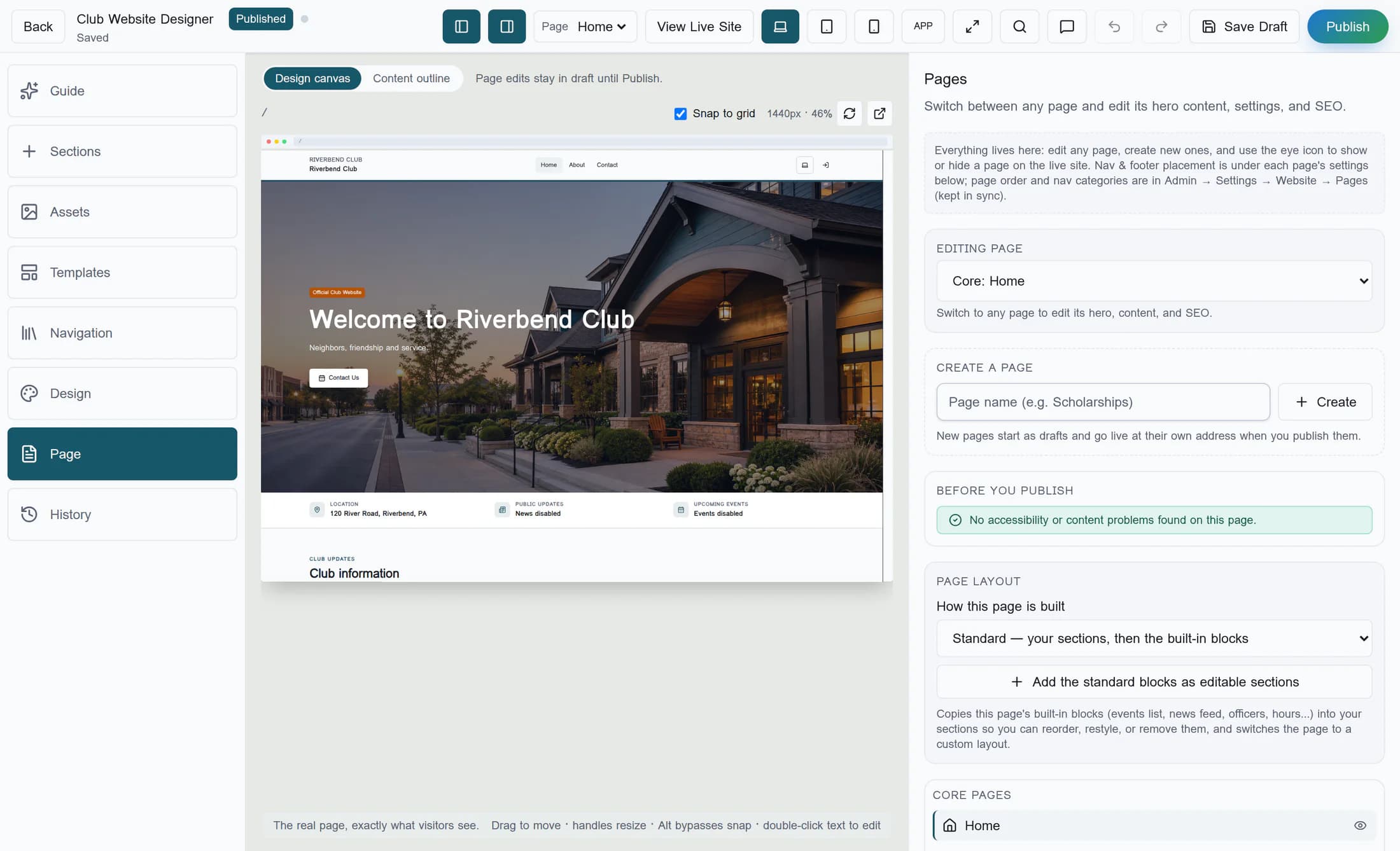
Find the Builder tool for your task
- Guide offers help getting started with your site.
- Page covers the selected page’s hero wording, settings and search information; Sections covers its content blocks and layout.
- Assets holds media choices, Templates offers starting designs and layouts, and History holds saved versions.
- Navigation covers page-link metadata and the custom menu. These have different publication controls.
- Design covers design choices and custom CSS. Its changes are separate from the selected page’s draft.
Keep the Builder’s save boundaries separate
- Save Draft forces a save of pending page edits, including edits on a page you switched away from. Eligible edits also autosave; a saved draft is still unpublished.
- Publish publishes the selected page and its sections. That page’s navigation metadata publishes with it; custom menu changes use Publish Navigation.
- Design choices apply automatically through the design save path. Custom CSS uses Apply design now; design changes do not wait for page publication.
- Applying a theme does not, by itself, switch an active Clubhouse public design to a theme-based design. A theme switch is not a prerequisite for saving or publishing page content.
Step 3 of 3
Know where the website links lead
Visit website in settings and View Live Site in the Builder lead to the published home page. They do not jump straight to the selected Builder page or prove that its latest draft is public. A built-in page can already have a default public layout; seeing your latest Builder edits also depends on their publication and the page’s access.
Continue with a focused guide
Choose the matching save control
Use Website settings for club-wide settings and the Site Builder for page content and layout. Settings, page drafts, page publication, custom menus and design each have their own save path.
