
On this page
Before you start
Step 1 of 7
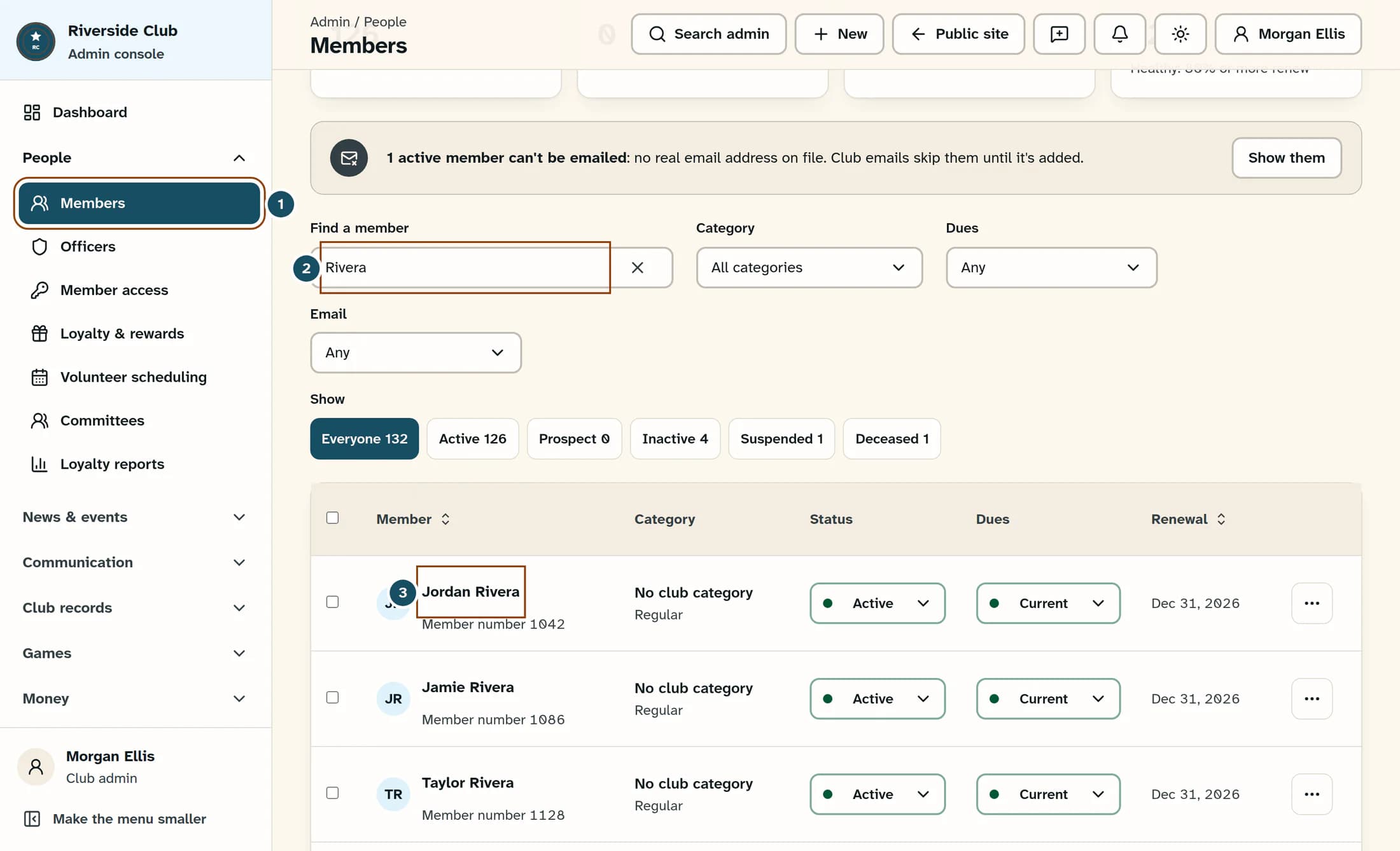
Open Members
In the admin menu, open People, then Members.
Step 2 of 7
Find the existing member
In Find a member, enter the member’s name or number. Check the name and member number in the results to make sure you have the right person.
Step 3 of 7
Open their details
Select the member’s name in the list. In the Member details panel, scroll to Membership.
Step 4 of 7
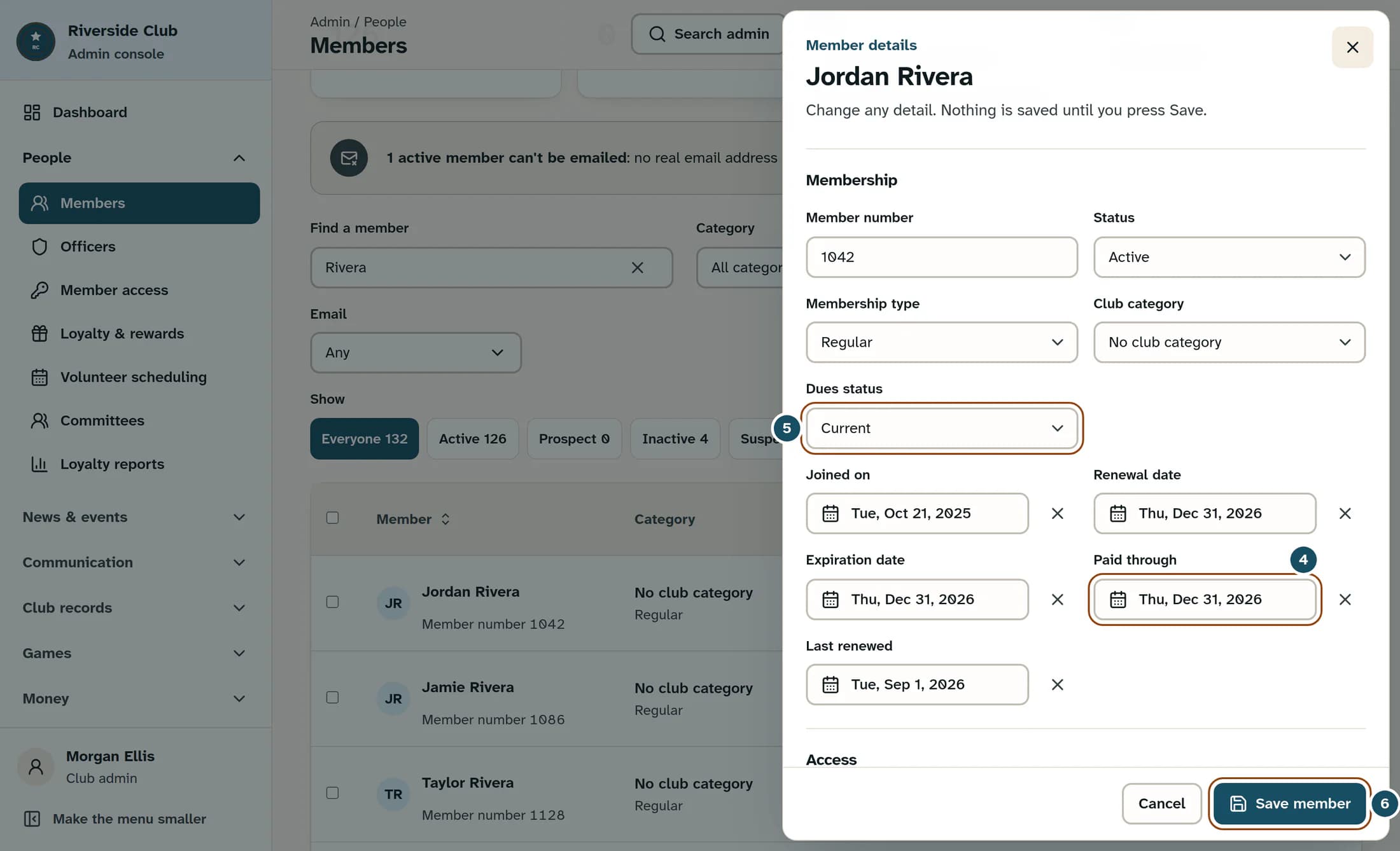
Set Paid through
Select Paid through and choose the confirmed date. The example uses December 31, 2026; use the date that applies to your member.
Step 5 of 7
Review Dues status
If the member’s dues standing has changed, select the appropriate Dues status. Changing Paid through does not change this status automatically.
Dues status choices
- Current — the member is up to date under your club’s rules.
- Due Soon — dues are approaching their due date.
- Overdue — dues are past due.
- Exempt — dues do not apply to this member.
- Not set — no dues status has been recorded.
Keep the other dates separate
Renewal date, Expiration date and Last renewed are separate fields. Leave them as they are unless your club has confirmed a change to those dates too. If Expiration date is blank and Renewal date has a value, saving also fills the expiration date with that renewal date.
Step 6 of 7
Save the member
Select Save member at the bottom of the panel. Wait for “Member profile updated.” and for the panel to close.
Step 7 of 7
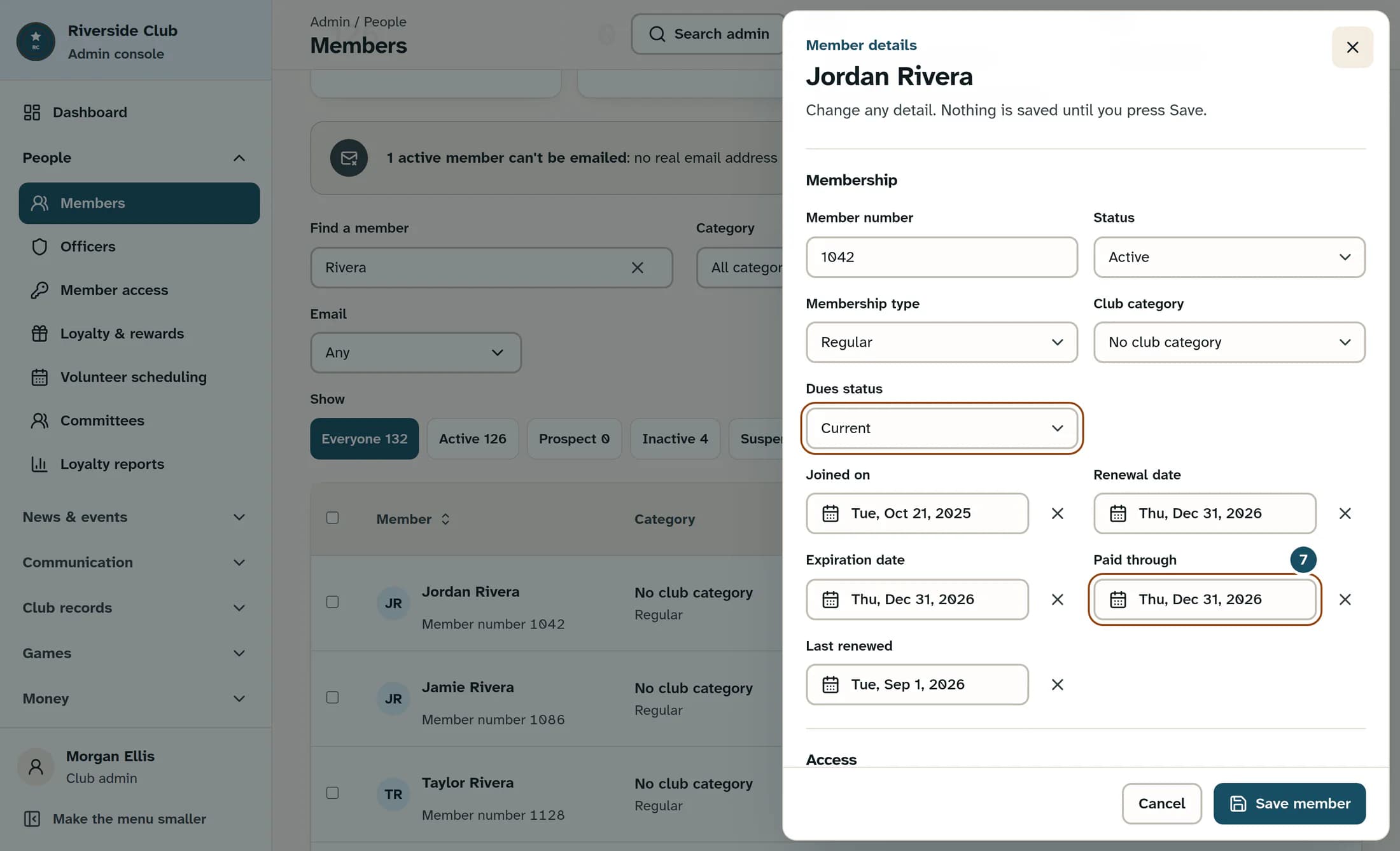
Check the saved date
Open the same member again and scroll to Membership. Confirm Paid through and Dues status match the values you intended to save.
If something does not look right
Expected result
The existing member’s Paid through date is saved, along with any Dues status change you chose. Financial payment records, invoices and receipts are separate.
About this guide
This guide covers ClubWorks web using the Clubhouse design, checked against the accepted October 21, 2026 source. Classic screens and the member and Workforce apps may differ. The illustrations are reconstructed from source with fictional people and values; they are not live application captures. No live save was tested.
The screens in this guide show example clubs and people. Your club's name, colours and some labels may look different.
