
On this page
Before you start
Step 1 of 4
Open the new-period form
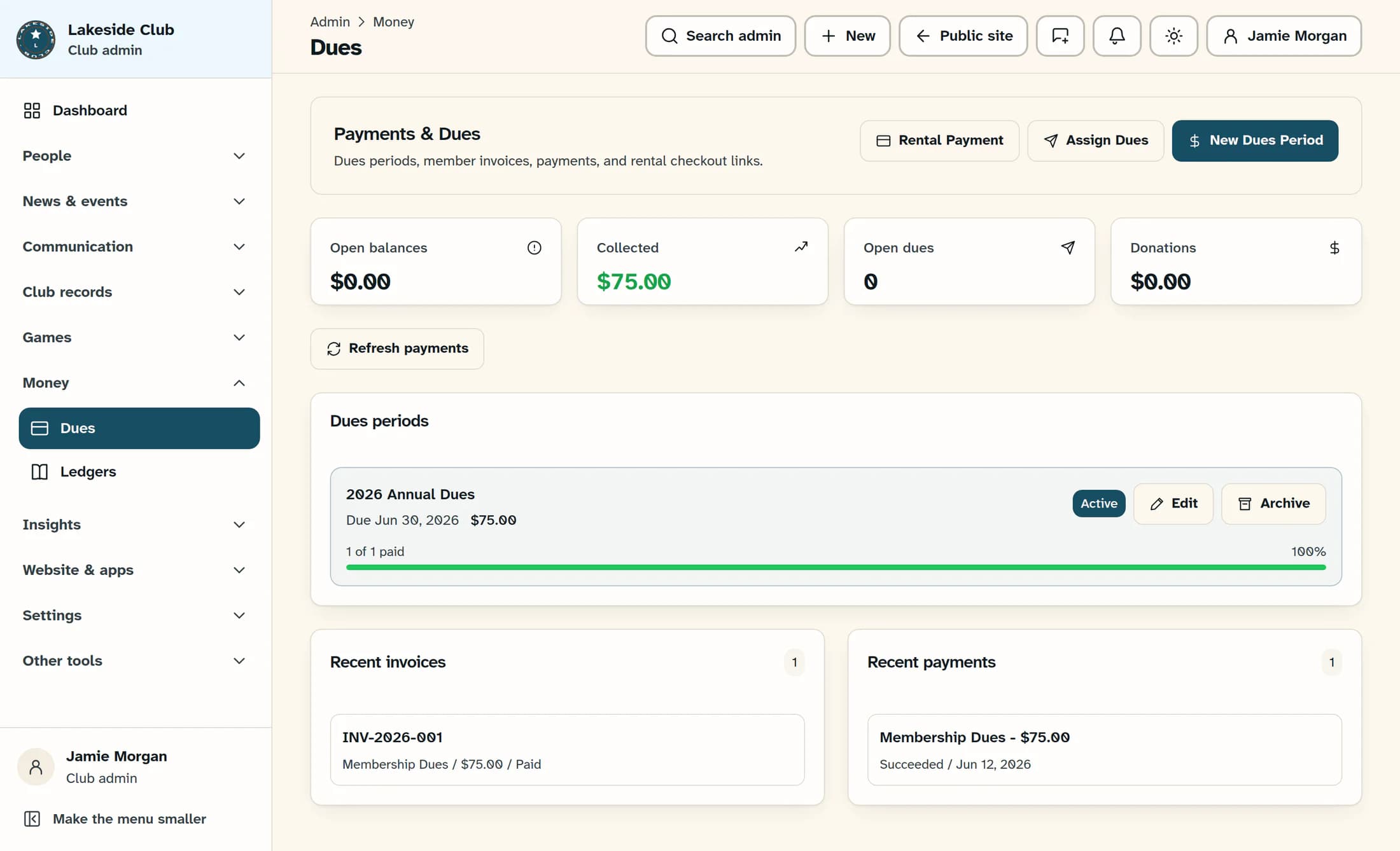
In the admin sidebar, open Money and choose Dues. On Payments & Dues, select New Dues Period.
Step 2 of 4
Name the period and enter its dates
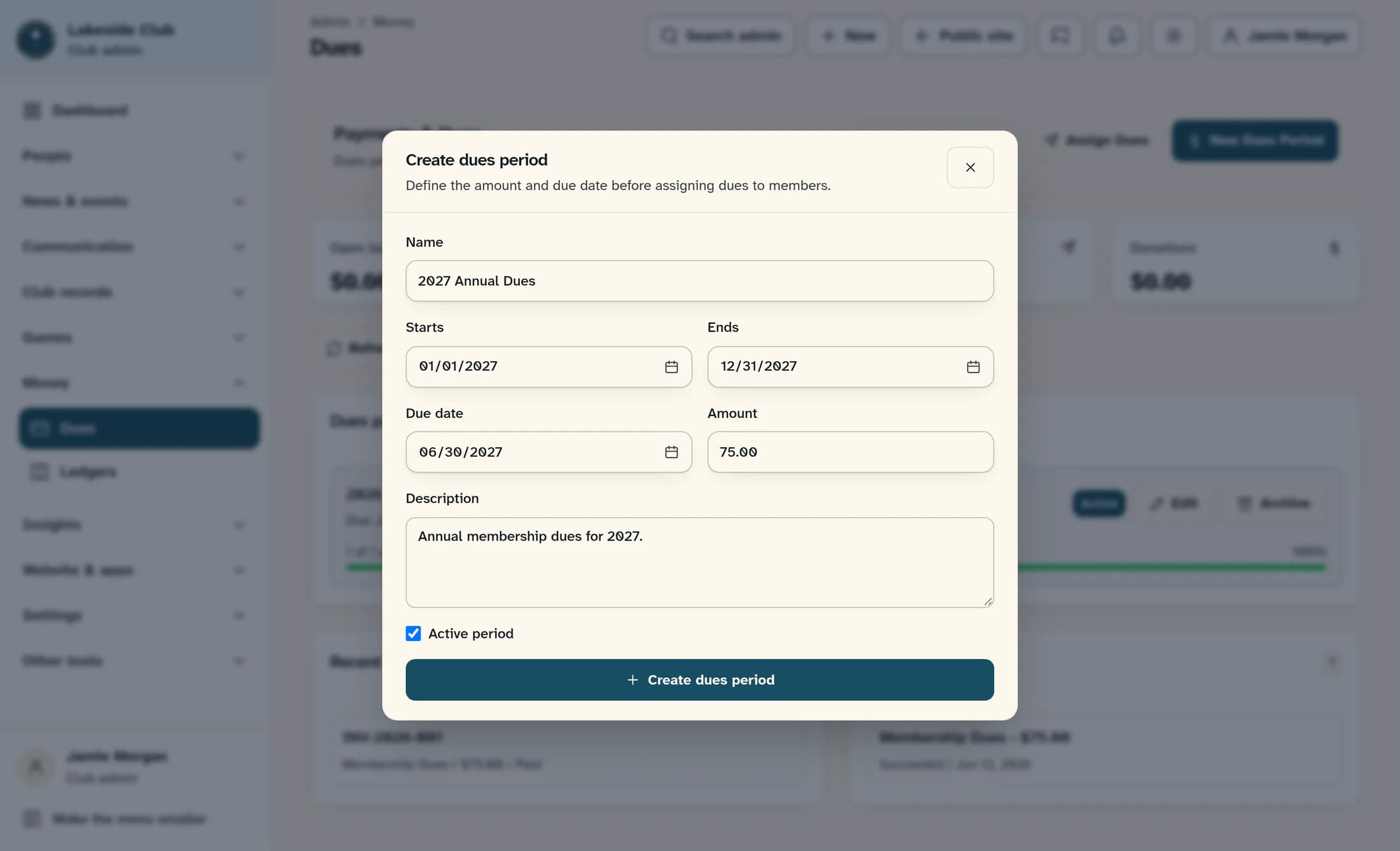
Enter a clear Name, such as 2027 Annual Dues. Type the period's first and last dates into Starts and Ends, then enter the payment deadline in Due date. Use the date format shown by your browser and check the year in each field.
Step 3 of 4
Enter the amount and description
Enter the dues price in Amount, in US dollars; for example, 75.00 means $75. Add an optional Description to explain the period.
Step 4 of 4
Create the period
Leave Active period checked if the period should be active, or clear it to save an inactive period. Review the dates and amount, then select Create dues period once.
Your dues period is ready
The form closes after a successful save. Under Dues periods, the new card shows its name, due date, amount and Active or Inactive status, with No dues assigned yet. Assigning dues to members is a separate task.
Troubleshooting
- A name and due date are required. The amount must be greater than zero, and the date fields must contain valid dates.
- If the form stays open with an error, check the message and the fields it identifies before submitting again.
- If your connection drops after submission, check the Dues periods list before trying again to avoid creating a duplicate.
- If Dues is missing or saving is denied, ask the club administrator to check your access and the club's dues features.
About these illustrations
These illustrations are a source-based reconstruction of the ClubWorks interface with fictional club and dues details. No real dues periods, invoices or payments were created for this guide.
