
On this page
Before you start
Step 1 of 7
Create your playlist
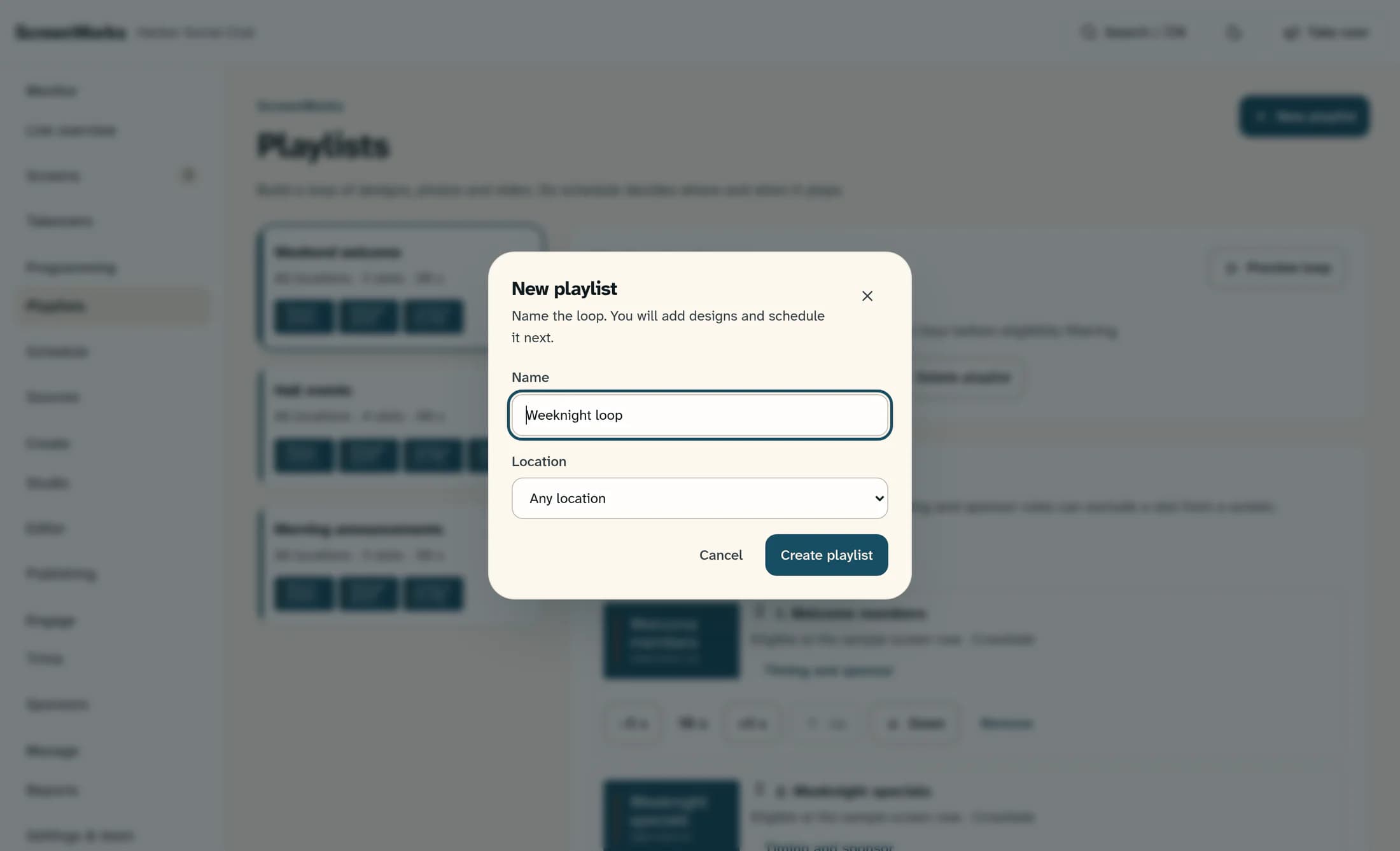
Open Playlists in ScreenWorks and choose New playlist. Enter a Name, choose a Location or Any location, then select Create playlist. This choice does not schedule the loop on any TV.
Step 2 of 7
Add content to the loop
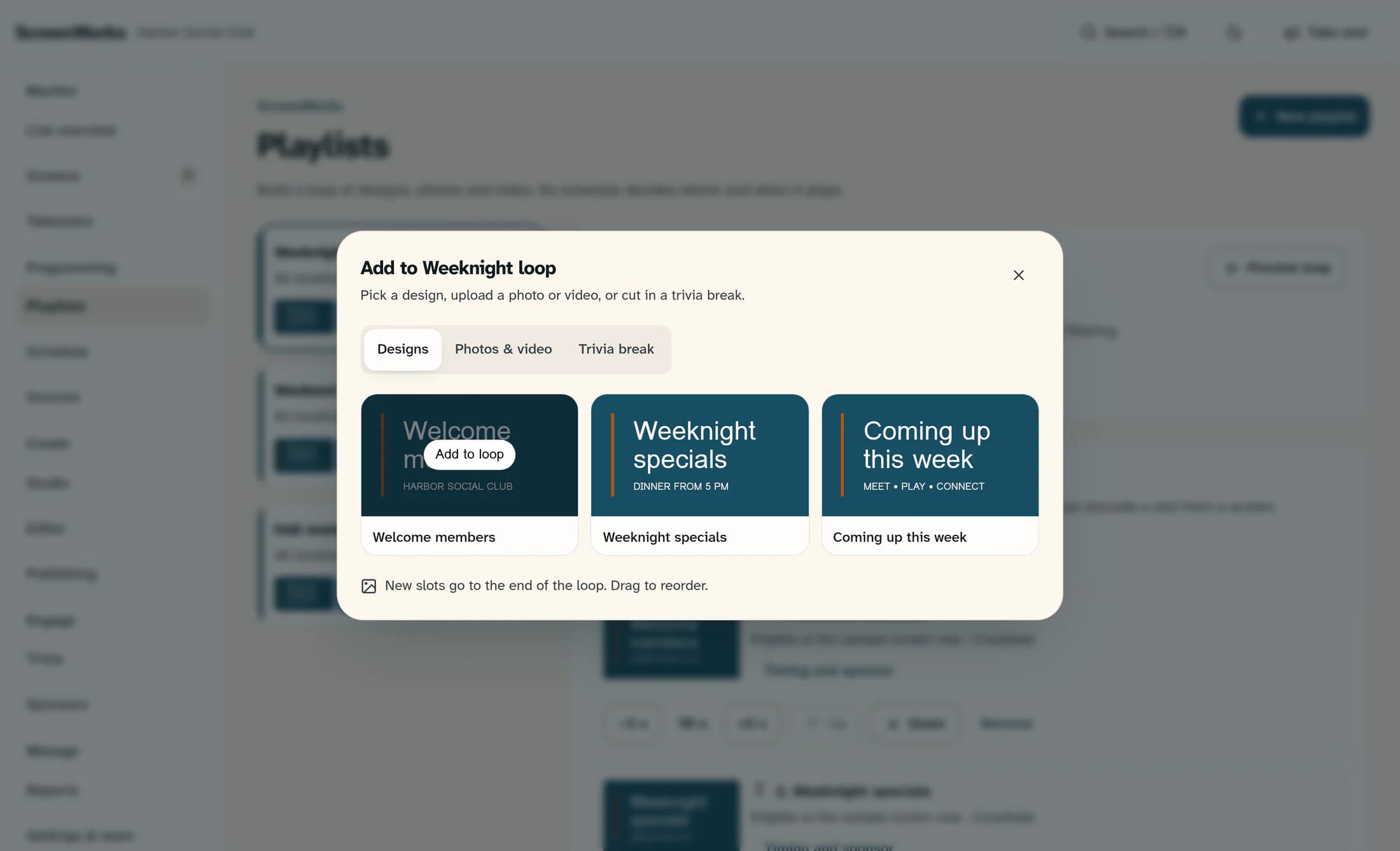
Choose Add to loop, keep Designs selected, and select the design you want to add. Each new slot goes at the end of the loop; repeat for more designs. An unpublished design can be added, but it must finish publishing before it can play.
Step 3 of 7
Add photos or video if needed
For media, choose Add to loop, then Photos & video. Select an existing file or choose Upload photos or video and pick your files. Media fills the screen and may be cropped.
Step 4 of 7
Put the slots in order
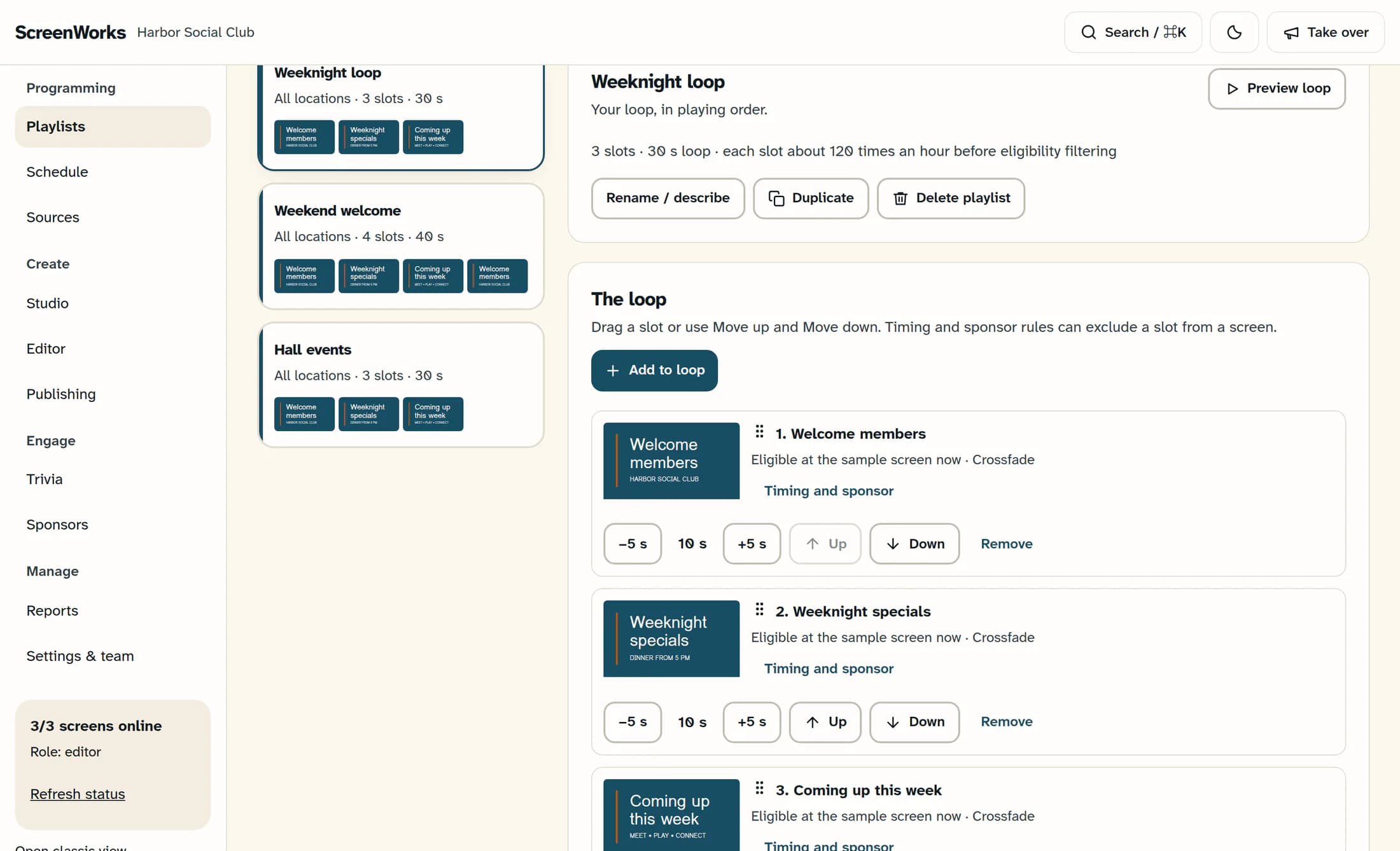
Use Up or Down on a slot to move it one place. Use −5 s and +5 s to shorten or lengthen its time on screen. These changes save immediately.
Step 5 of 7
Fine-tune a slot if needed
Choose Timing and sponsor on the slot, then adjust On screen for for an exact duration. Under Plays, choose Only at certain times for days and time windows, or use Run dates for a date range; review Sponsor and Transition in as needed. Select Save slot to apply the changes.
Step 6 of 7
Preview the eligible content
Select Preview loop and review the order and pacing. The preview includes slots eligible for a sample screen at the current time; it is not a live picture of a TV or proof that every screen shows the same content. Read any slot notices before scheduling.
Step 7 of 7
Schedule where and when it plays
Under Where and when it plays, choose Add rule. Review Where for the intended screen, group or location, then review When, Only between dates and Priority before selecting Put it on air. Check the physical TV after it picks up the change; another matching rule, a takeover, live trivia or quiet hours can change what plays.
Tips
Outcome
Your playlist now has content in the order and timing you want. A saved schedule rule makes it eligible to play on its chosen targets; the TV remains the final check of what is actually showing.
Troubleshooting
- Editing controls unavailable: confirm you have owner, manager or editor access in the intended ScreenWorks account.
- Slot is paused: that slot is excluded while inactive.
- Waiting for a finished publish: the design does not yet have a playable published version.
- Outside its days, time windows or run dates: the current sample time falls outside the slot’s timing rules.
- Campaign notices mean the campaign is not live, does not target the sample screen, or needs a scheduled screen before eligibility can be checked.
- No live trivia game targets this screen: the trivia break is skipped until a live game targets that screen.
- Uploaded media is unavailable: the slot’s uploaded content cannot be used.
- Preview differs from the TV: check the intended screen’s schedule, slot eligibility, quiet hours, takeovers and live trivia. Allow the TV to check in; playback changes are not guaranteed to appear instantly.
- A change could not be saved: check the current slots and order before retrying so you do not add the same content twice.
