
On this page
Before you start
Step 1 of 5
Open your design
Open ScreenWorks and confirm the account name at the top. In Studio, select the design you want to publish.
Step 2 of 5
Review and save the draft
Use Page to review each design page, checking spelling, prices, dates and layout. Wait for Saved beneath the design name, then select Preview at the top of the editor.
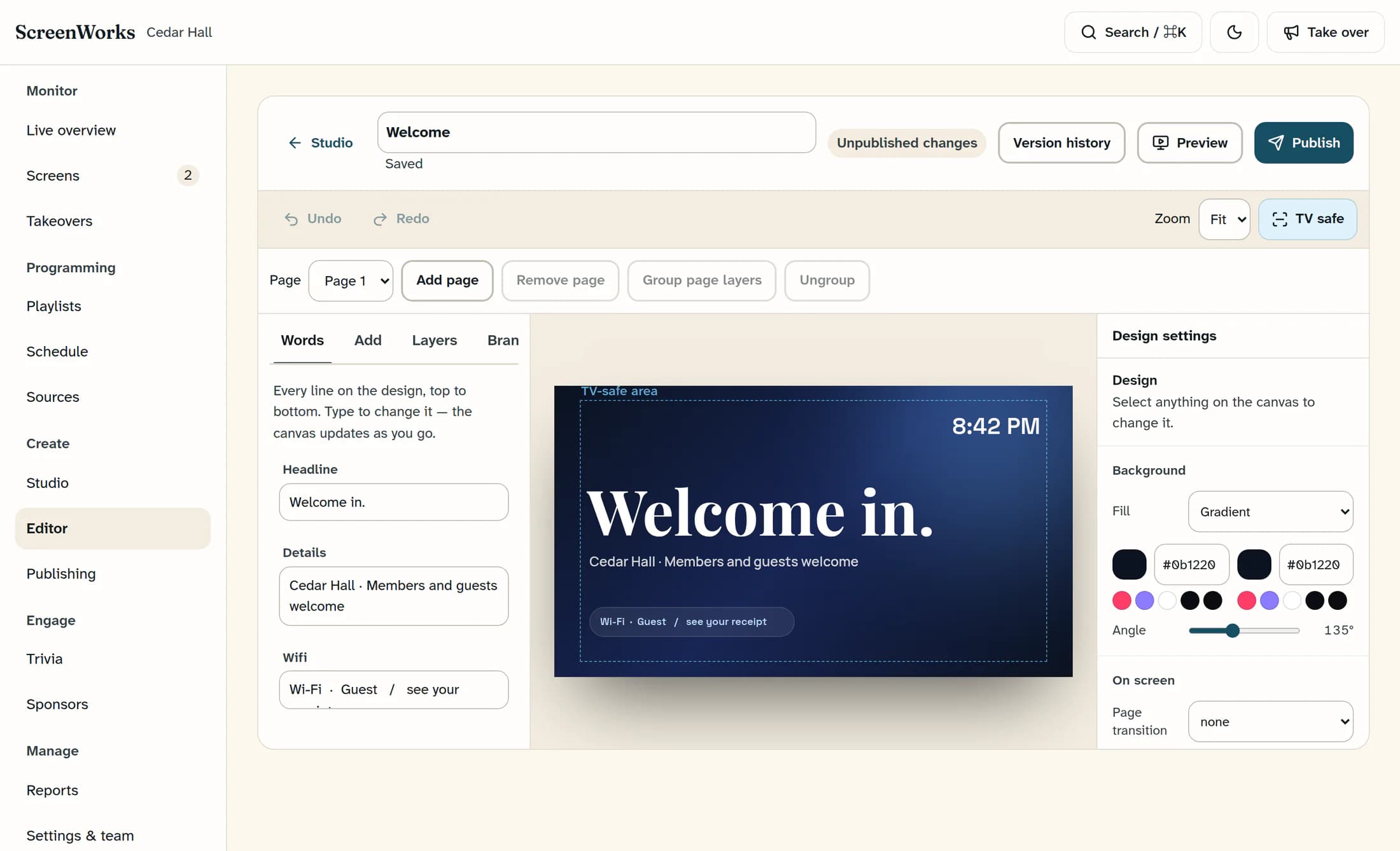
Illustration: reconstructed editor with the Page selector above the canvas, Saved beneath the name, and Preview and Publish at the upper right. Cedar Hall and the draft status are fictional; source release 01ea76e8, not a live TV test.
Editing… and Saving… mean your latest edits are still being saved. If you see Not saved. Check your connection and retry., check your connection and use Retry save; a saved draft does not change the published version.
Step 3 of 5
Check the TV preview
Review the preview under your design’s name and TV preview · live data is running. Let a multi-page design cycle through its pages and check any live clock, countdown or menu content; use the Close button in the upper-right corner to return to the editor.
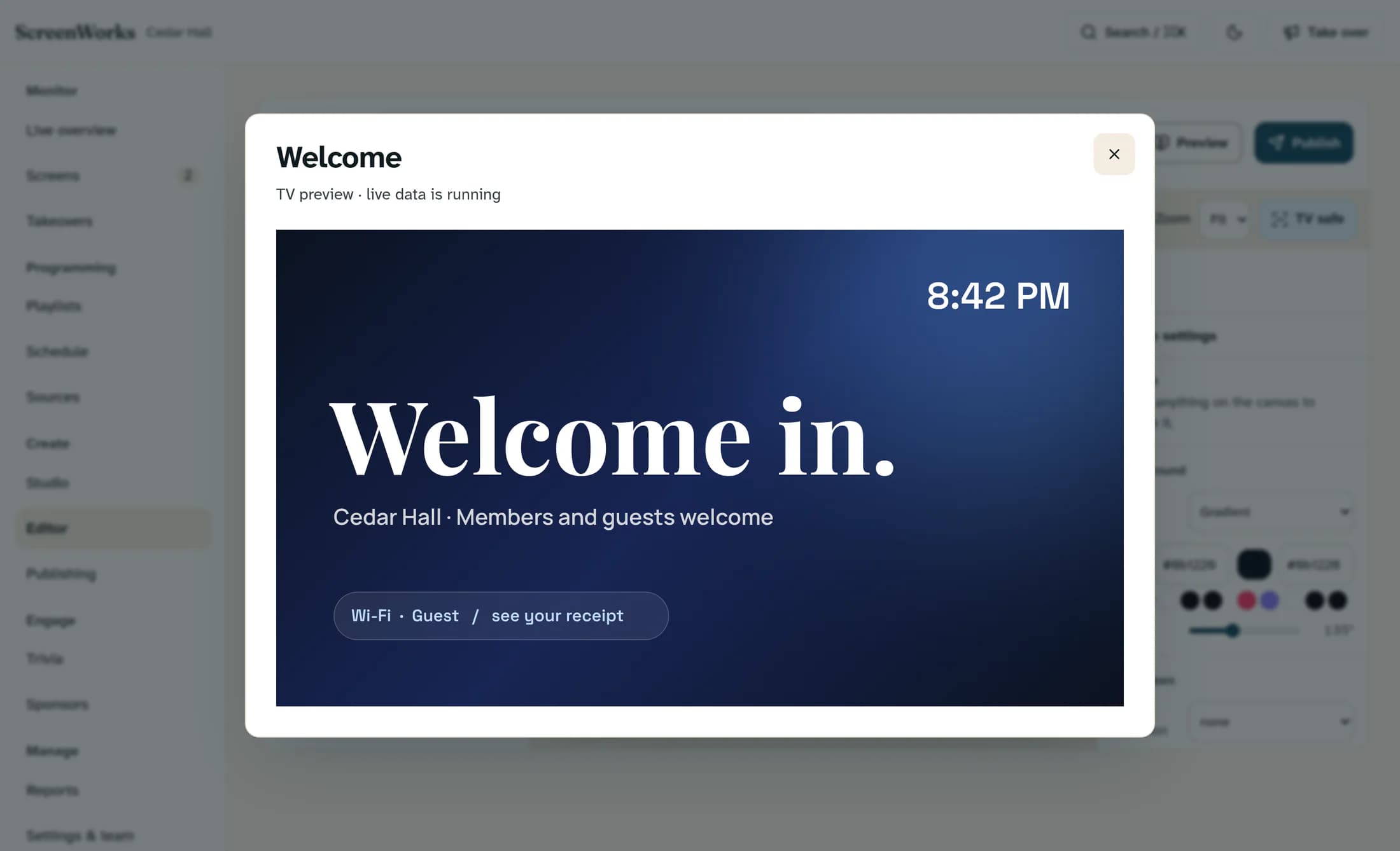
Illustration: reconstructed TV preview. Close is the cross-shaped button at the upper right; the live clock is shown as a fixed example in this image. Cedar Hall is fictional; source release 01ea76e8, not a live TV test.
Step 4 of 5
Publish the reviewed design
Select Publish at the top of the editor when the design is ready. It saves the latest document and name, then queues a drawing; Drawing… means it is still being prepared.
The last ready published version stays available while the new one is drawing. The editor shows Published · v followed by the version number when the current draft is published; Unpublished changes means you have newer draft edits. If the drawing fails, the editor shows Render failed with Try again.
Step 5 of 5
Check the publishing result
Open Publishing and find the design and version under Recent drawings. Look for Ready; Waiting means it is queued, Drawing… means it is rendering, and Didn't draw means it failed.
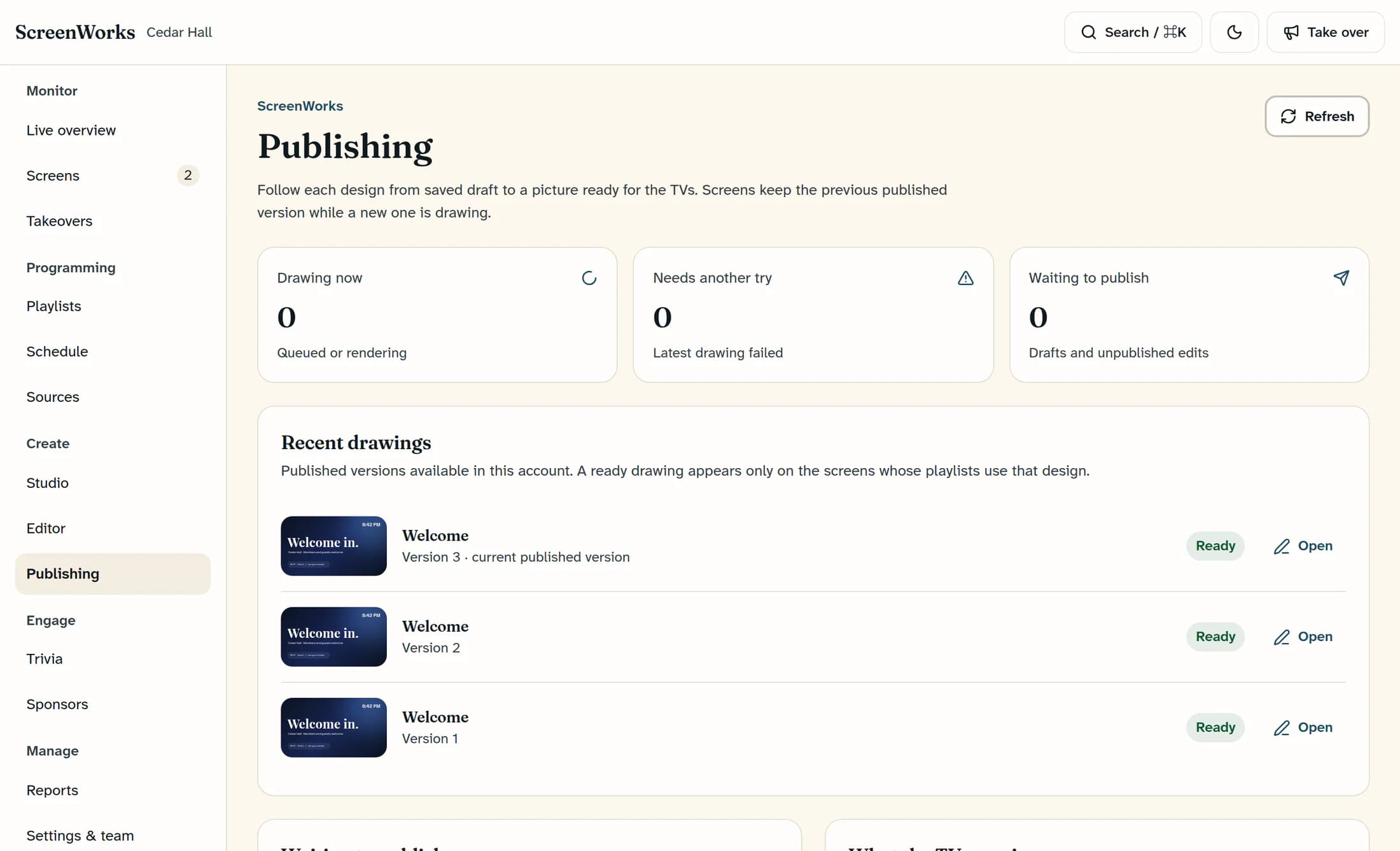
Illustration: reconstructed Publishing page. The example shows version 3 as the current published version with a Ready badge. These statuses are fictional; source release 01ea76e8, not a live publication.
A ready design appears only on screens whose playlists use it. If it is missing from a TV, check the playlist assignment, whether the screen is online, its schedule and quiet hours, and any active takeover. Timing depends on the screen’s next check-in and playback.
Restoring a version from Version history replaces the editable draft. Screens keep their current published version until you publish the restored draft.
The illustrations are source-based reconstructions of the Clubhouse interface in release 01ea76e8 (October 21, 2026). Venue names, designs and statuses are fictional examples. No live publication or TV test was performed.
What happens next
Your ready published version is available to playlists that use the design. Later edits stay in the draft until you publish again.
