
On this page
- Before you start
- Find the screen and read its health
- What the health states mean
- Check the TV and its connection
- Compare the expected program
- When content is eligible to play
- Read the player's last observations
- What the observations mean
- Identify the TV, then reload if needed
- How command requests work
- Confirm recovery at the TV
- Tips
- Outcome
- Troubleshooting
Before you start
Step 1 of 6
Find the screen and read its health
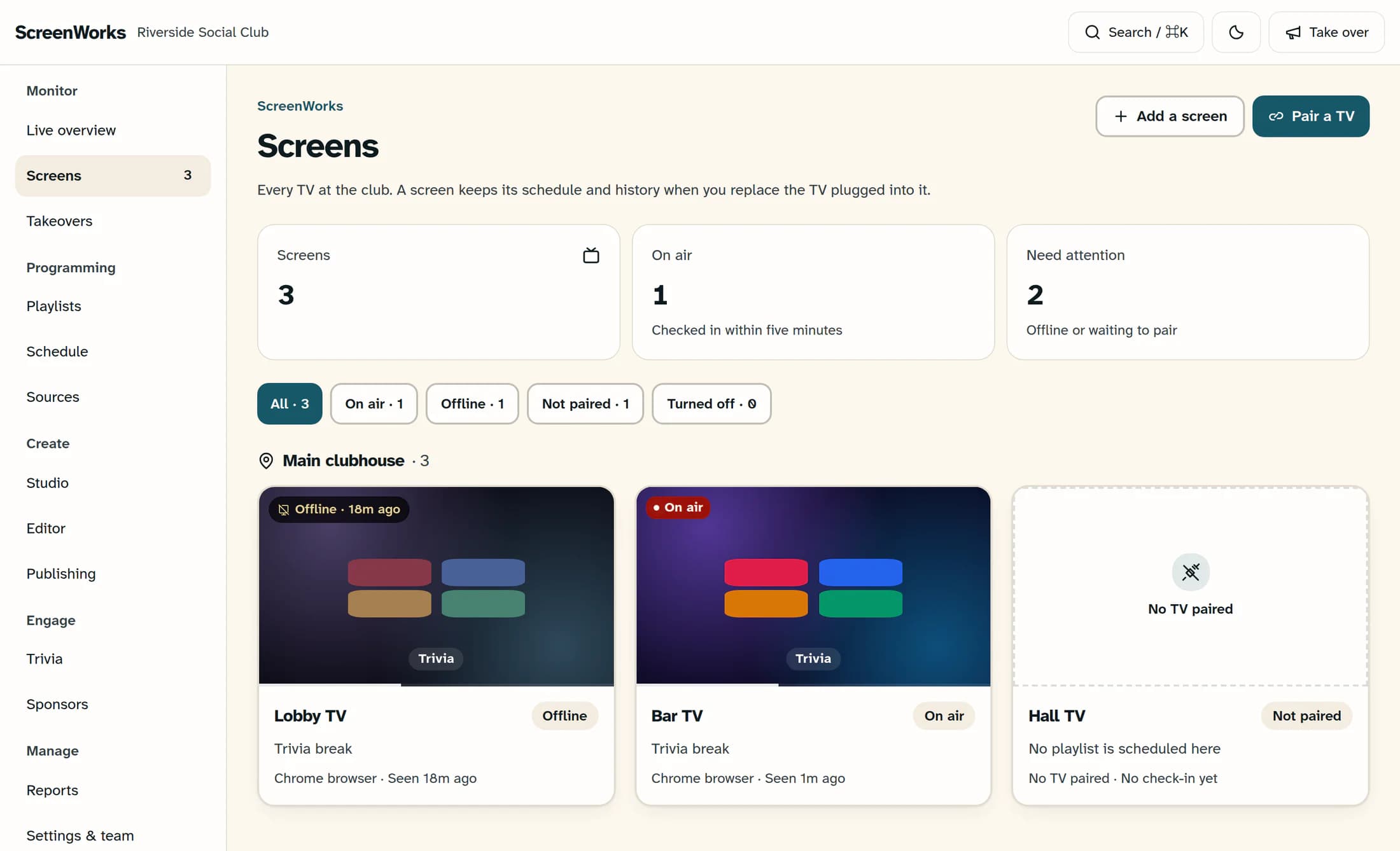
Open Screens in ScreenWorks and find the affected TV under its location. Read the health badge before deciding what to check.
What the health states mean
- On air means the linked player checked in less than five minutes ago. It does not confirm that the TV is powered on, using the right input, or showing the expected picture.
- Offline means a linked device has an old or missing check-in.
- Not paired means no current device is linked to the screen.
- Turned off means the screen record is disabled; it is different from the TV's physical power state.
Step 2 of 6
Check the TV and its connection
Check that the TV and player have power, the TV uses the player's input, and the cable is connected. Confirm the player is running and has a working network connection, including any network sign-in it needs. Restore that connection before sending another command; a player may continue its saved loop during an outage.
Step 3 of 6
Compare the expected program
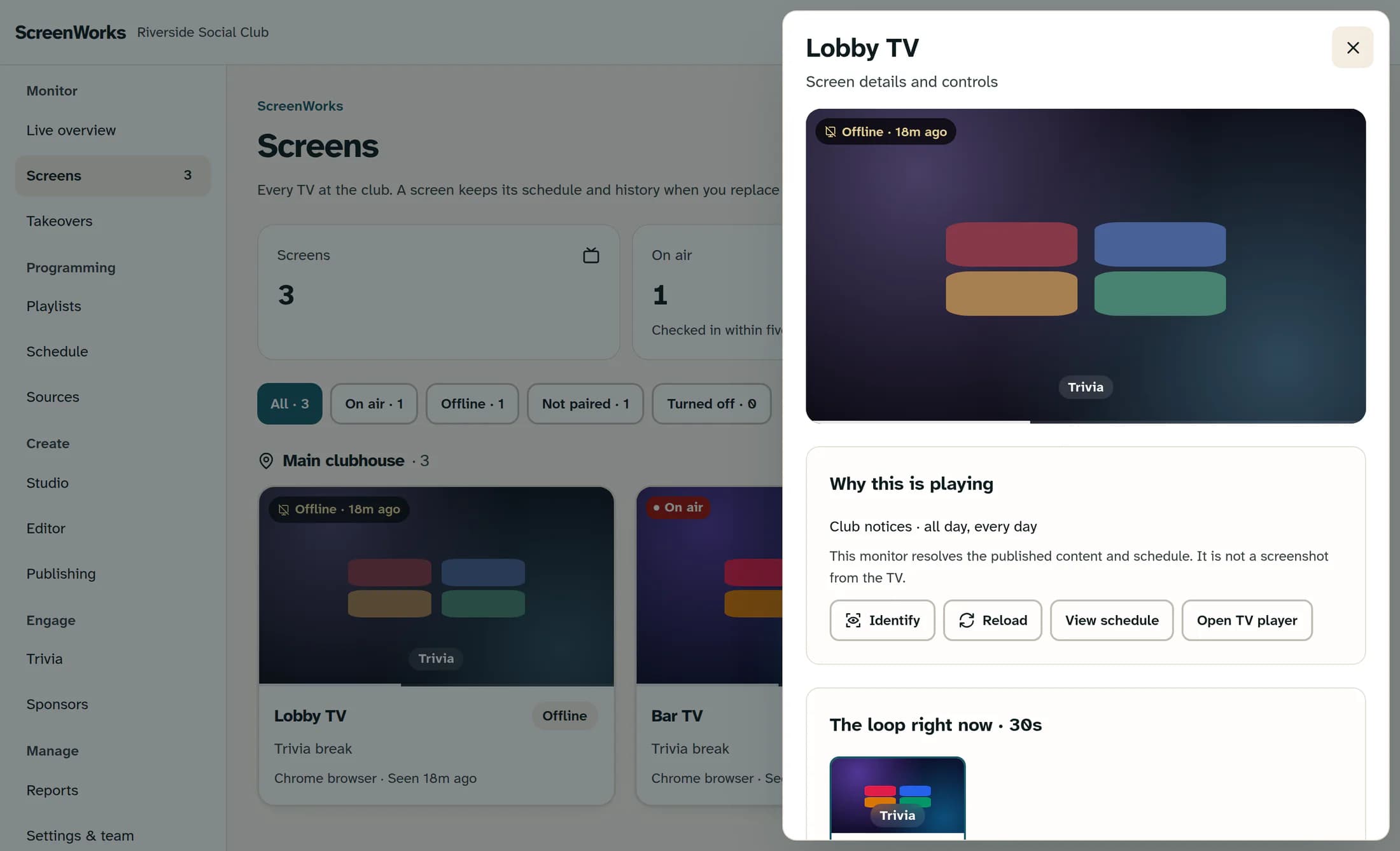
Open the affected screen's card and read Why this is playing. The monitor resolves published content and the schedule; it is not a screenshot from the TV. If the expected program looks wrong, select View schedule to inspect the screen's schedule, then return to Screens and reopen the affected screen.
When content is eligible to play
- Design edits must be published and their published render must be ready before they can play. An older published design can remain on the TV while a newer edit is still a draft or is rendering.
- A scheduled playlist can exclude slots because of their dates or times, campaign eligibility, or publish status. The winning schedule also depends on priority and how specifically it targets the screen.
- Quiet hours can keep the normal loop dark in the location's time zone. Active takeovers and a live trivia game targeted to this screen can still play during quiet hours.
Step 4 of 6
Read the player's last observations
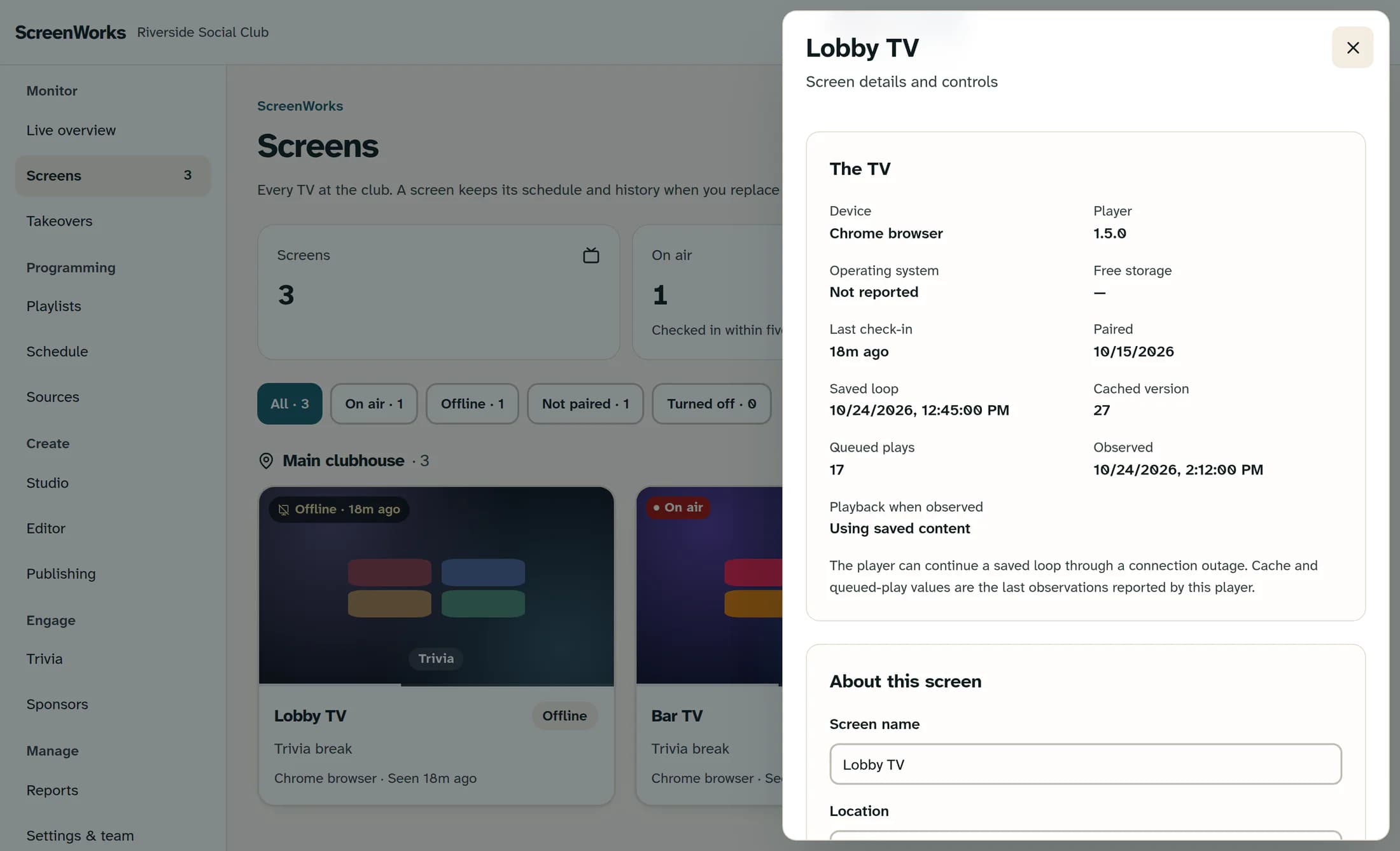
In the screen details, scroll to The TV and compare Last check-in with Observed. These fields describe the last information received from the player, not a live view of its current state.
What the observations mean
- Last check-in shows when the device last contacted ScreenWorks. Observed dates the cache and playback observations shown below it.
- Saved loop is when the player saved its playback information. It does not prove every asset is available or currently visible.
- Cached version is the saved playback manifest version—the version of the player's playback instructions. It is not a design's publication version.
- Queued plays counts playback reports waiting to upload. It does not count content waiting to play; the count can rise during an outage.
- Playback when observed shows Using saved content or Connected for that report. Read it alongside Observed, even if the health badge has since changed.
- If these details are absent, the player has not reported them. Record its Player version for support; missing observations alone do not prove playback has failed.
Step 5 of 6
Identify the TV, then reload if needed
Once the connection is restored, return to Why this is playing and select Identify while someone watches the physical TV for its name. Wait for that response before selecting Reload, and use reload only if the picture still needs to recover. After reload, wait for the player to return and check both the physical picture and a fresh Last check-in.
How command requests work
- Identify and Reload are delivered on the player's next successful check-in. A requested notice confirms that the request was saved, not that the TV responded.
- Each request expires after 15 minutes. A new command replaces the previous pending command, so do not send Identify and Reload back to back.
- If a request expired while the player was disconnected, restore the connection first, then request the needed command again and observe the response.
Step 6 of 6
Confirm recovery at the TV
Watch the actual TV long enough to confirm it shows the intended program, and compare that with the schedule and a fresh check-in. Recheck Observed before relying on the reported cache or queued-play values. A recent check-in alone does not confirm that the picture recovered.
Tips
Outcome
Recovery is confirmed when the physical TV shows the intended content and the player is checking in again. If either is still wrong, keep the observations below for support.
Troubleshooting
- Still Offline: revisit power, input, network, and whether the player is running. Repeated commands cannot reach a disconnected player.
- On air, but blank or outdated: compare the physical picture with Why this is playing, publication readiness, slot eligibility, and quiet hours. The monitor and health badge do not verify the picture.
- Not paired or Turned off: ask the account's ScreenWorks owner or manager to confirm the intended pairing or screen status before changing it.
- No visible response to a command: allow a successful check-in, remember the 15-minute expiry, and observe the TV before issuing another command.
- If the problem continues, send support the screen name and location, the symptom and when it began, Last check-in, Observed if present, and the Device, Player, and Operating system details. Include what someone actually saw at the TV and which command was requested, with its time.
