
On this page
- Before you start
- Open member sign-in
- Find your membership
- Add your email address
- Confirm your email in the original form
- Choose whether to add a password
- Check your membership
- If you cannot find your membership
- If the code does not arrive or work
- If the membership does not link
- Related guides
- What happens next
Before you start
Step 1 of 6
Open member sign-in
Open your club’s website and choose Sign in. Under No email with the club?, choose Use your member number.
Step 2 of 6
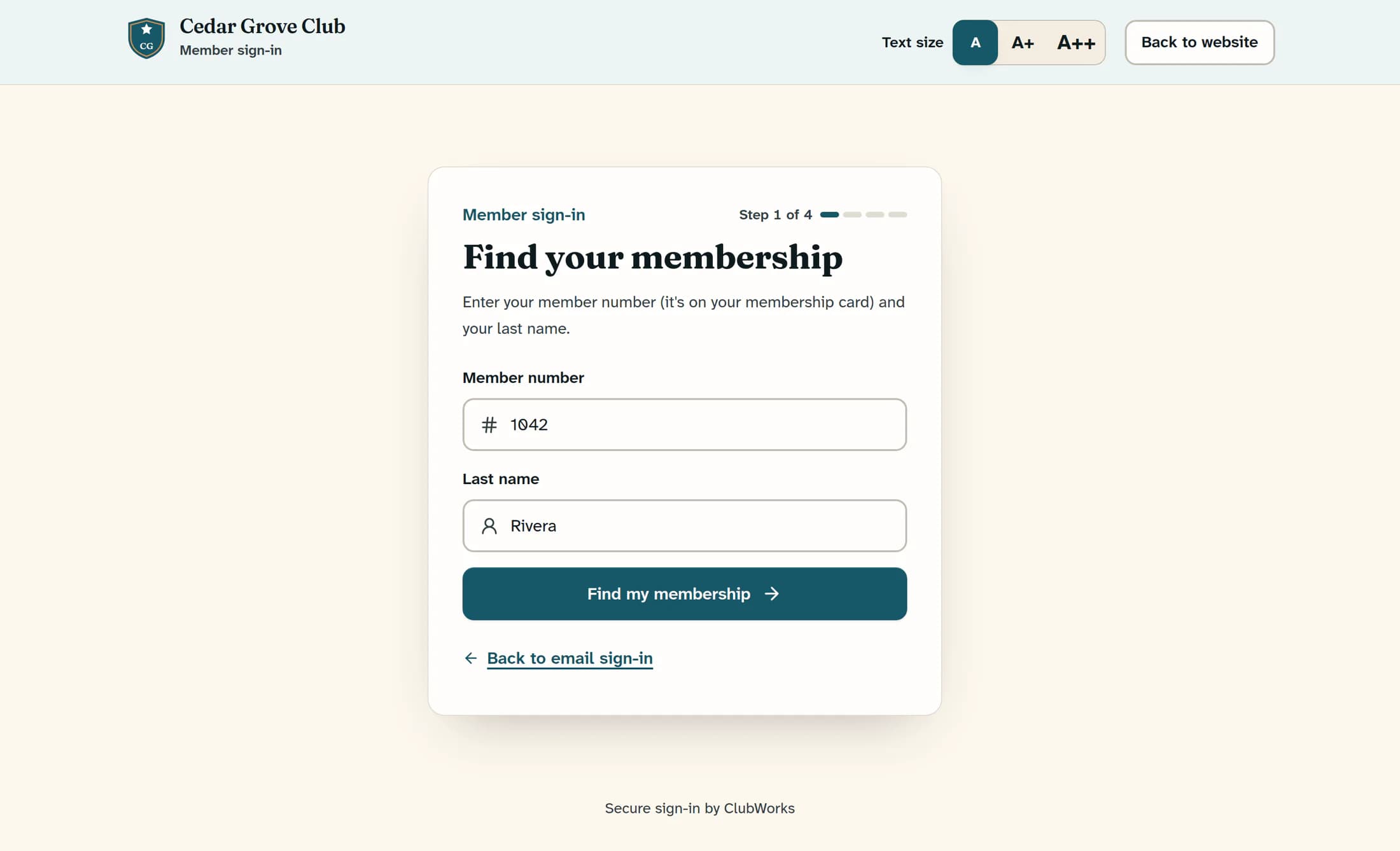
Find your membership
On Find your membership, enter your Member number exactly as it appears, including any leading zeros or punctuation. Enter your Last name, then choose Find my membership.
Step 3 of 6
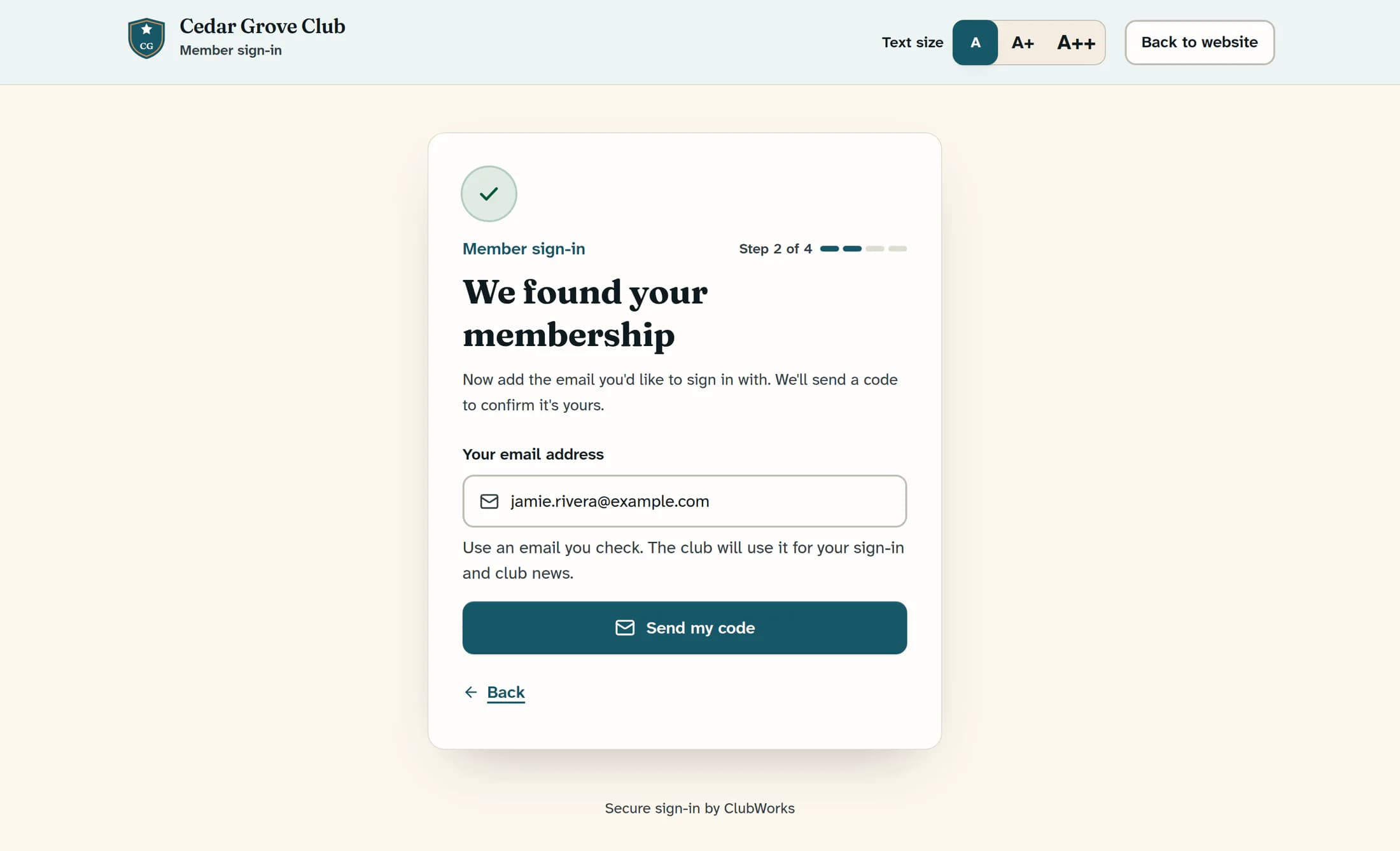
Add your email address
On We found your membership, enter your own reachable inbox in Your email address. Check the address for typos, then choose Send my code; requesting the code does not complete the claim.
Step 4 of 6
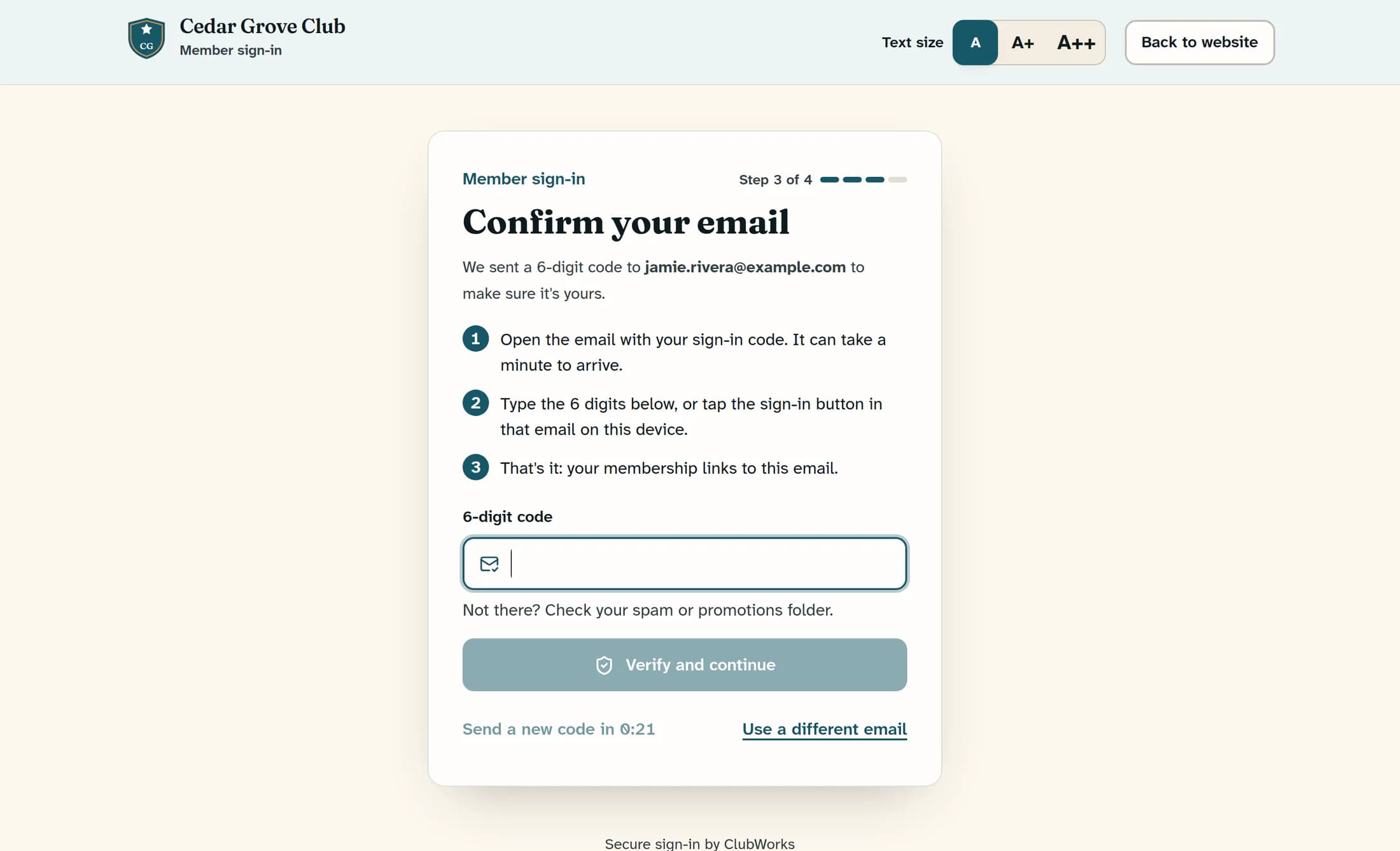
Confirm your email in the original form
Open the newest sign-in email, then return to the same browser form where you looked up your membership. Type its code into 6-digit code on Confirm your email; all six digits can submit automatically, or choose Verify and continue. For this claim, use the code in the original form rather than relying on an email link opened in another tab or device.
Step 5 of 6
Choose whether to add a password
If You're in! appears, enter at least eight characters in Choose a password and select Save password and continue, or choose Skip for now to keep using email codes. If this offer does not appear, you may go straight to the member area.
Step 6 of 6
Check your membership
Check that the member area shows your own name and membership details for the correct club. If the account is wrong or your membership is missing, stop and contact the club office; email verification alone does not confirm that your membership was linked.
If you cannot find your membership
- If the website could not find your email first, Find me by member number opens the same lookup. Staff sign-in and Platform sign-in do not offer this member claim path; return to your club’s public member sign-in.
- If there is no match, check the club, membership number, and spelling of your last name. Capitalization and spaces at the ends of your last name do not matter; the number must match exactly. Ask the office to check your record and active status if it still fails. Do not create a duplicate membership or try to change its status yourself.
- If you see a too-many-attempts message, stop and follow its wait or contact-the-office instructions.
- If the form returns to email sign-in with a masked email hint, the club already has a usable address. Enter the full address you recognize privately and follow the normal sign-in steps; do not guess the hidden characters.
- If that real address is wrong or inaccessible, ask the office to correct it. If the message says the membership already has a sign-in, use the email you signed in with before or contact the office; this claim cannot replace that existing sign-in.
If the code does not arrive or work
- Check your spam or promotions folder and use the newest code. After the 30-second countdown, Send a new code becomes available.
- If you entered the wrong address, Use a different email returns to the email sign-in screen. Choose Use your member number again if needed and repeat the lookup with your own correct inbox.
- Keep the original claim form open while you read your email. A sign-in link in another tab or device may not carry the membership lookup forward.
If the membership does not link
- Contact the club office if your email is already attached to another account, another member profile is linked, the club is inactive, or the claim reports that it could not link your membership. Do not try to detach another person’s account.
- If you see “You’re verified, but we couldn’t open your club account,” wait a moment and try normal sign-in, or ask the office for help. Your membership may already be linked, so do not assume the error undid every change.
What happens next
After a successful claim, your membership uses your verified email for sign-in and its saved email is updated. ClubWorks records the change and attempts to notify the club office, but notification delivery is not guaranteed.
