
On this page
Before you start
Start at your club’s sign-in page
Open your club’s website sign-in page. If the email step appears, enter your account email in Email address and select Continue to reach Welcome back. This guide starts at that password screen; a first-time or code-only account may follow a different sign-in flow.
The three illustrations below are reconstructed from the application source, with a fictional club and email address. They are not live captures or evidence that a reset email was delivered.
Step 1 of 7
Open password recovery
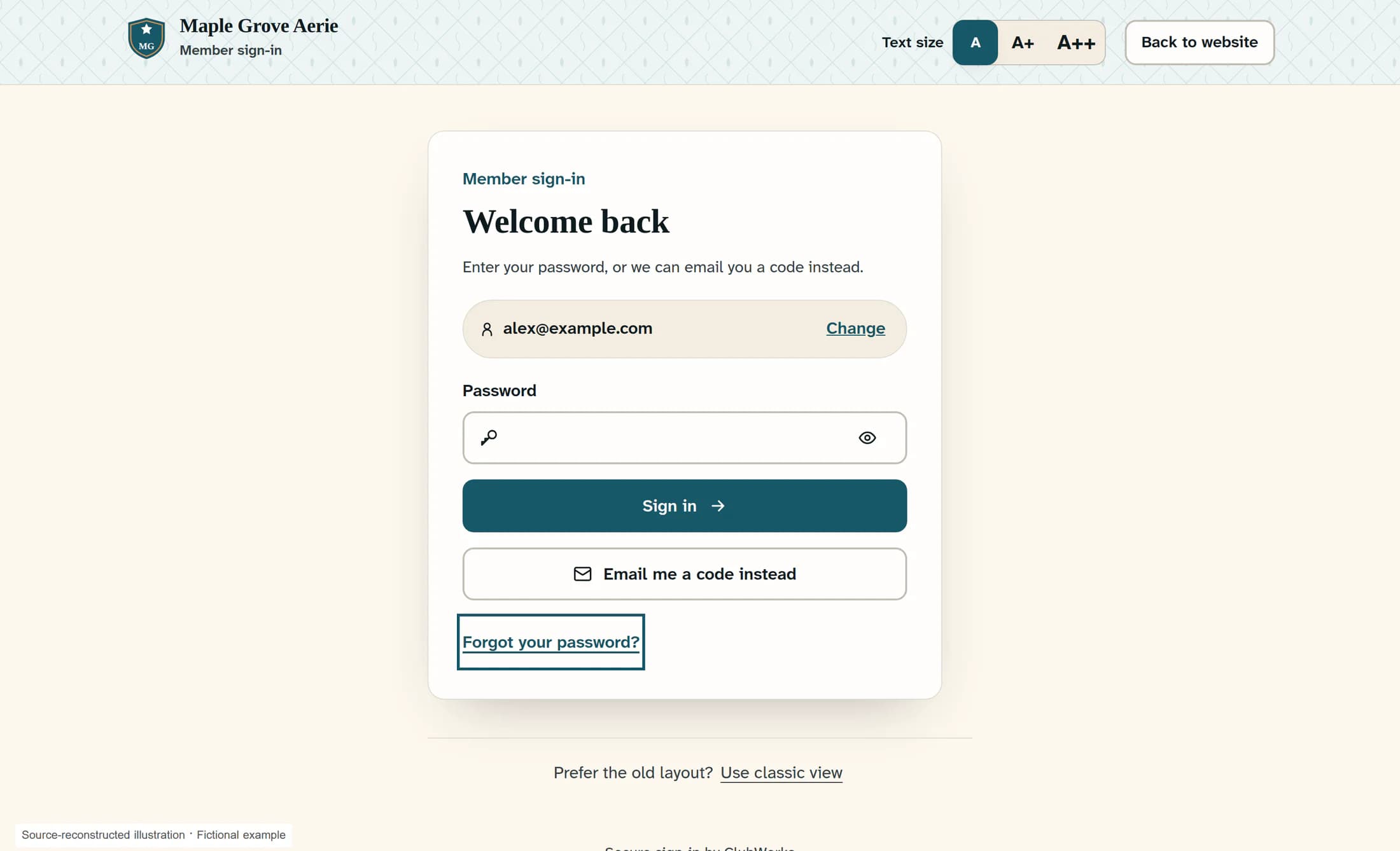
On Welcome back, select Forgot your password? beneath the sign-in buttons. You don’t need to enter your old password.
Step 2 of 7
Enter your account email
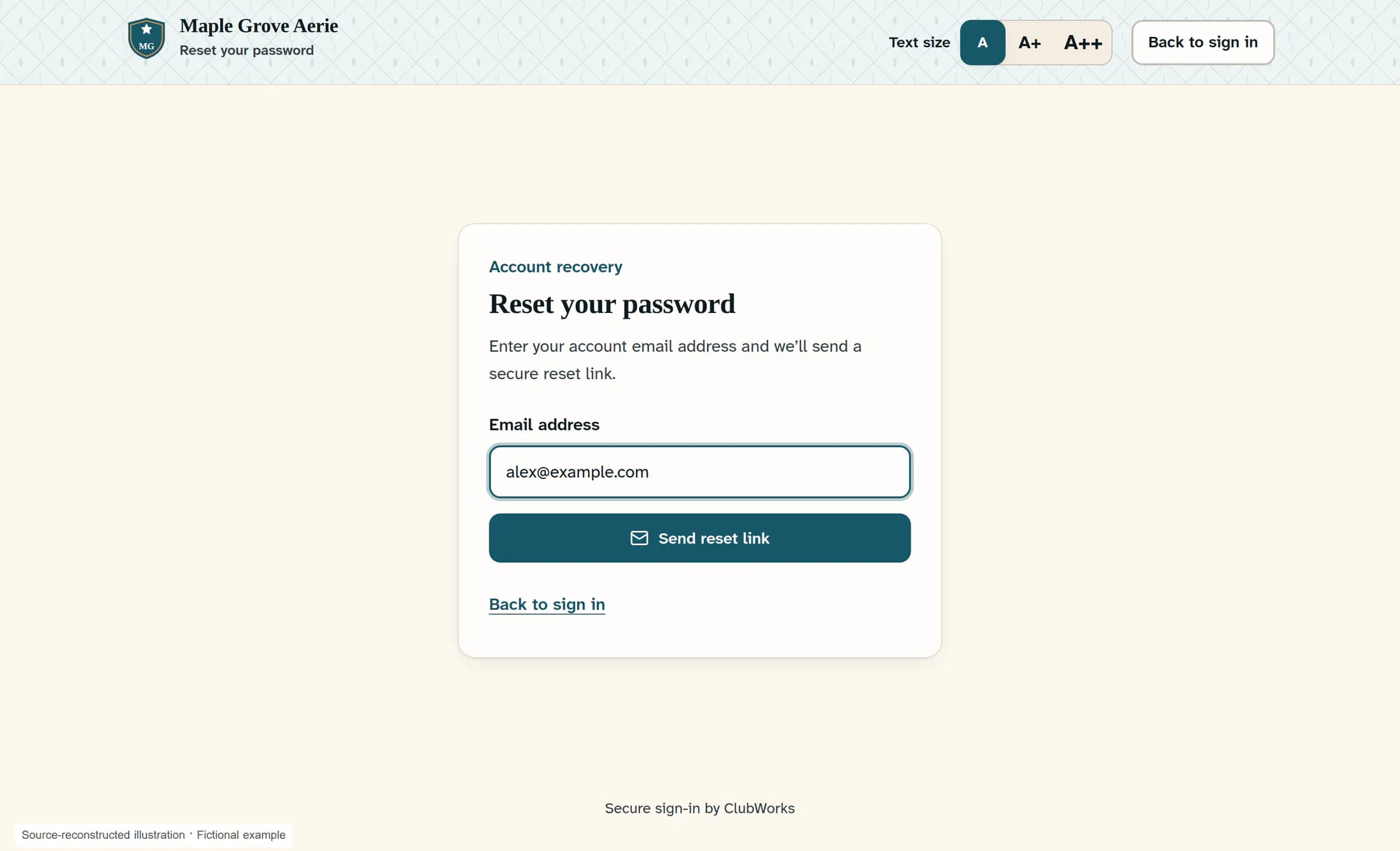
On Reset your password, enter the email address for your account in Email address. Use the address already associated with your account.
Step 3 of 7
Request the reset link
Select Send reset link. If the request completes without an error, the page says: “If an account uses that email address, you’ll receive a password reset link shortly.” This message does not confirm that an account exists or that an email reached your inbox.
Step 4 of 7
Open the link from your email
Open the password reset email for the request you just made and follow its reset link. Wait while the page checks the link; the password fields appear after the link and sign-in session have been verified.
Step 5 of 7
Choose your new password
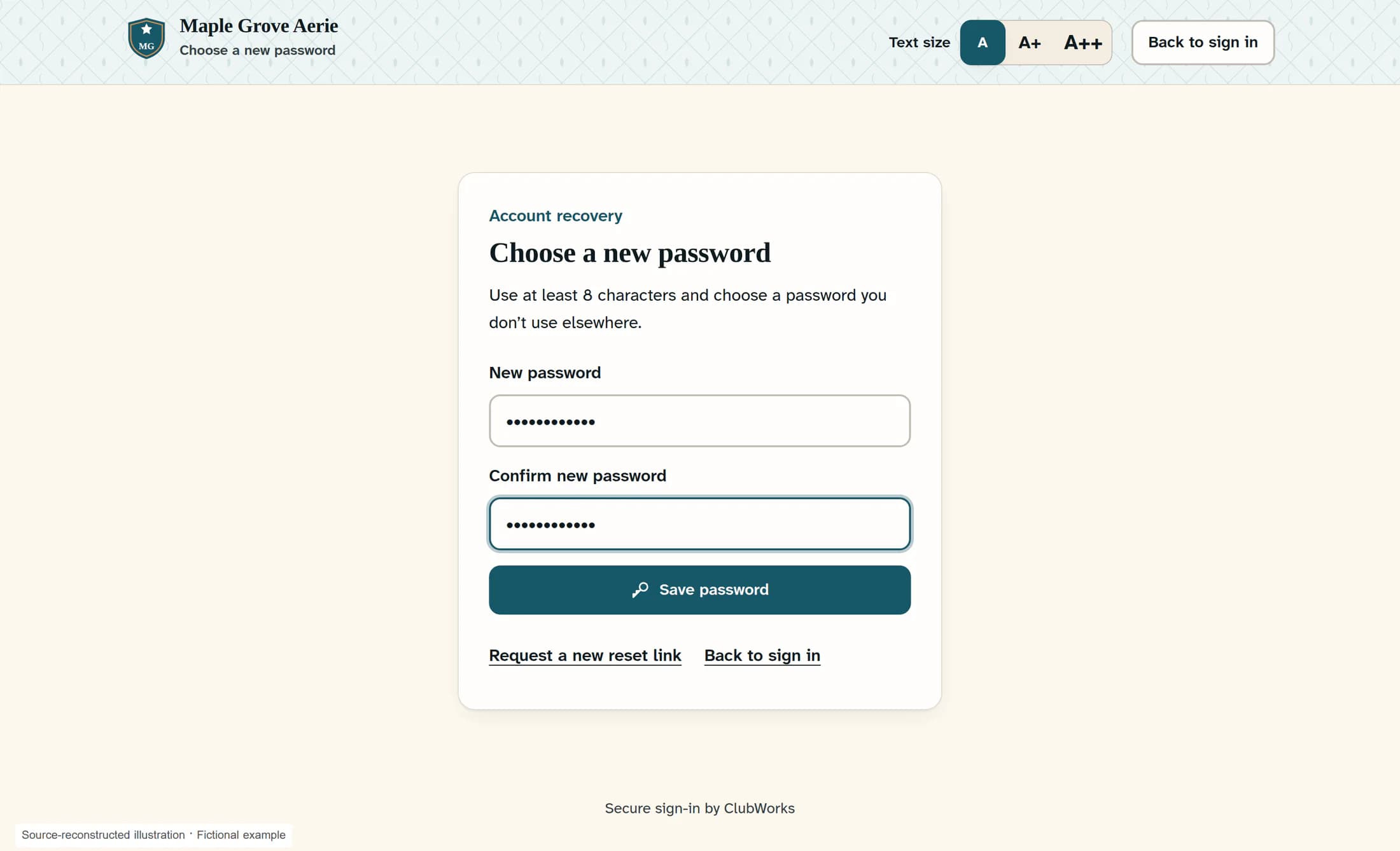
On Choose a new password, enter at least 8 characters in New password. Choose a password you don’t use elsewhere.
Step 6 of 7
Confirm your new password
Enter the same password in Confirm new password. The two entries must match.
Step 7 of 7
Save the new password
Select Save password. After the password is saved and sign-in finishes, ClubWorks opens your account.
Where you’ll arrive
The Forgot your password? path shown here normally opens the member portal after a successful reset, including when you started at staff sign-in. A reset page opened with a valid return destination can take you to that destination instead. A staff user who lands in the member portal can return to their usual staff page.
If something goes wrong
You’re ready to sign in again
After a successful save, use your new password for future password sign-ins. If ClubWorks says the password was saved but sign-in did not finish, continue to your account or return to sign in with that new password.
About this guide
Applies to the web sign-in flow in ClubWorks release 16782cba, dated October 21, 2026. Source checked October 22, 2026. This remains an illustrated draft; live workflow verification is pending. The member and Workforce phone apps are not covered by this guide.
The screens in this guide show example clubs and people. Your club's name, colours and some labels may look different.
