
On this page
Before you start
Step 1 of 8
Open your tasks
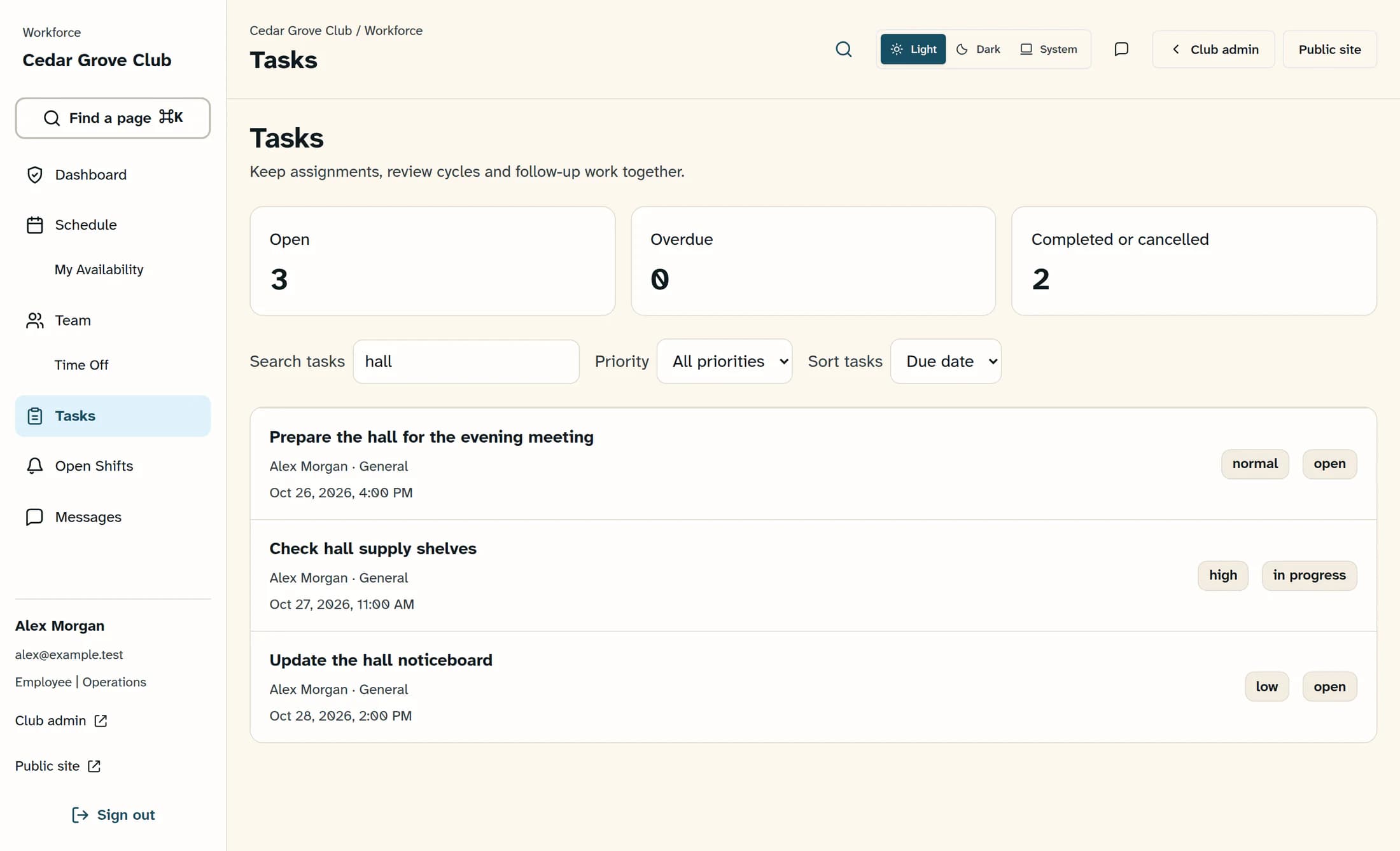
From the dedicated Workforce workspace, select Tasks in the side menu. Employees see their own assignments; managers with task-management access also have My tasks and All tasks.
Step 2 of 8
Find the assignment
Use Open for unfinished work or Overdue for work past its due date; Completed or cancelled shows closed tasks. Narrow the list with Search tasks or Priority, and use Sort tasks to order it by Due date or Title.
Step 3 of 8
Read the task
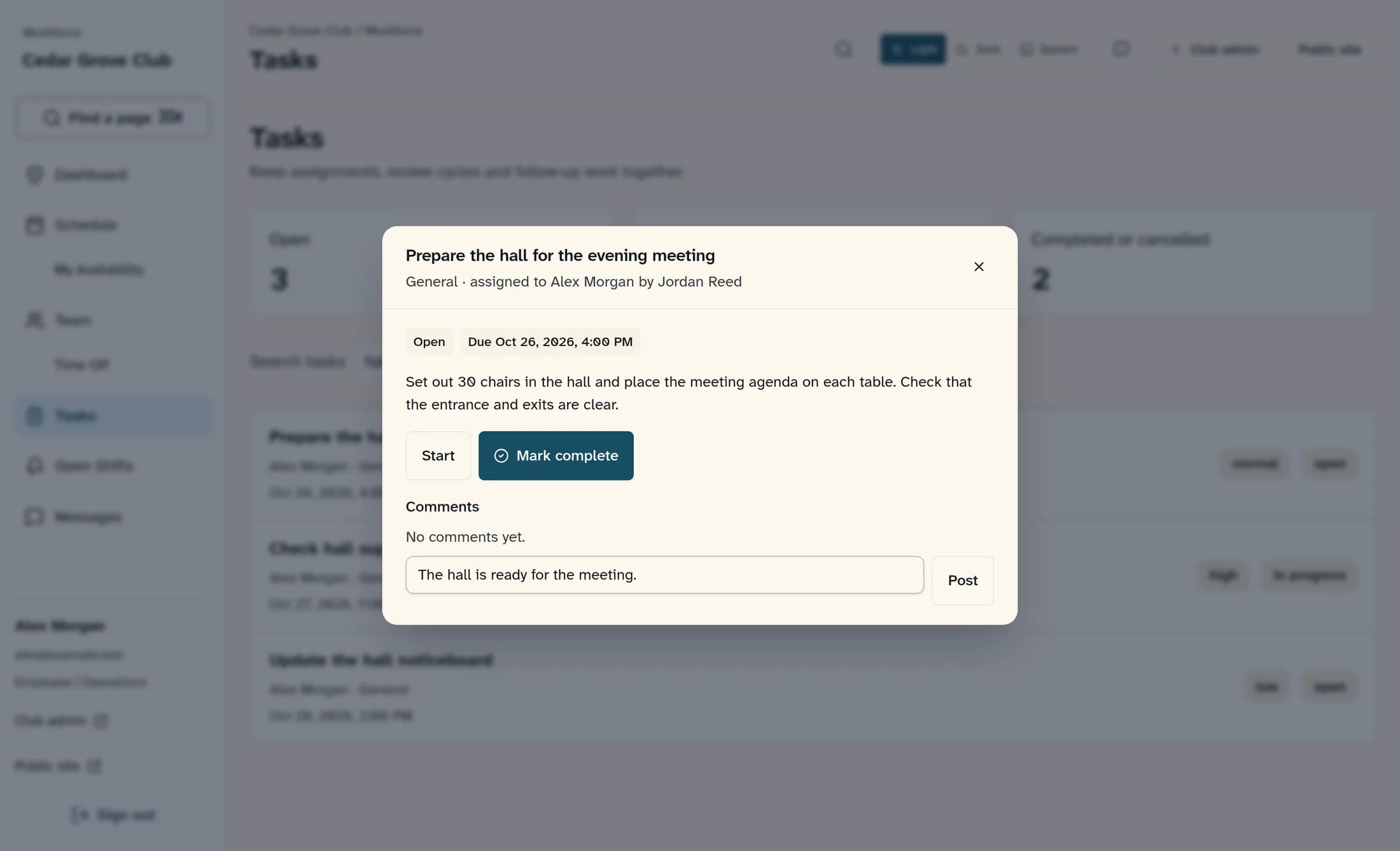
Select the task row to open its details. Read the instructions and due date, and check who it is assigned to before starting.
Step 4 of 8
Optionally record that you have started
If Start is available, select it when you begin the work. It changes the task to In progress; you can also complete an open task without using Start.
Step 5 of 8
Carry out the instructions
Do the actual work described in the task before recording completion. Updating a task's status does not perform the work, write a review, or sign an HR document.
Step 6 of 8
Optionally post an update
To leave an update, type it in Add a comment and select Post. Check that your update appears under Comments; posting a comment is separate from completing the task.
Step 7 of 8
Mark the finished work complete
When the work is done, select Mark complete in the task details. Wait for the update to finish before selecting it again.
Step 8 of 8
Check the result
Check the completed status in the task details, then close them with Close. Look for Task completed. above the task list, and select Completed or cancelled to find the task again; that view also includes cancelled work, so check its status.
Manager controls
Managers with task-management access also have Cancel task for open work and Reopen for completed or cancelled work. These controls do not appear for ordinary employees; ask your manager if a closed task needs attention.
If something does not look right
Expected result
Your finished task has a completed status and is available in Completed or cancelled. Any comment you posted is a separate update.
About this guide
Applies to the Clubhouse Workforce browser workspace. Source checked against release 16782cba (October 21, 2026), with the employee task workflow compared with the current main and live release during preparation. Illustrations are reconstructed from source with fictional task and staff details; they are not captures of a completed live workflow. Live task completion and native Workforce apps have not been verified for this guide.
The screens in this guide show example clubs and people. Your club's name, colours and some labels may look different.
