
On this page
Before you start
Step 1 of 4
Open your schedule
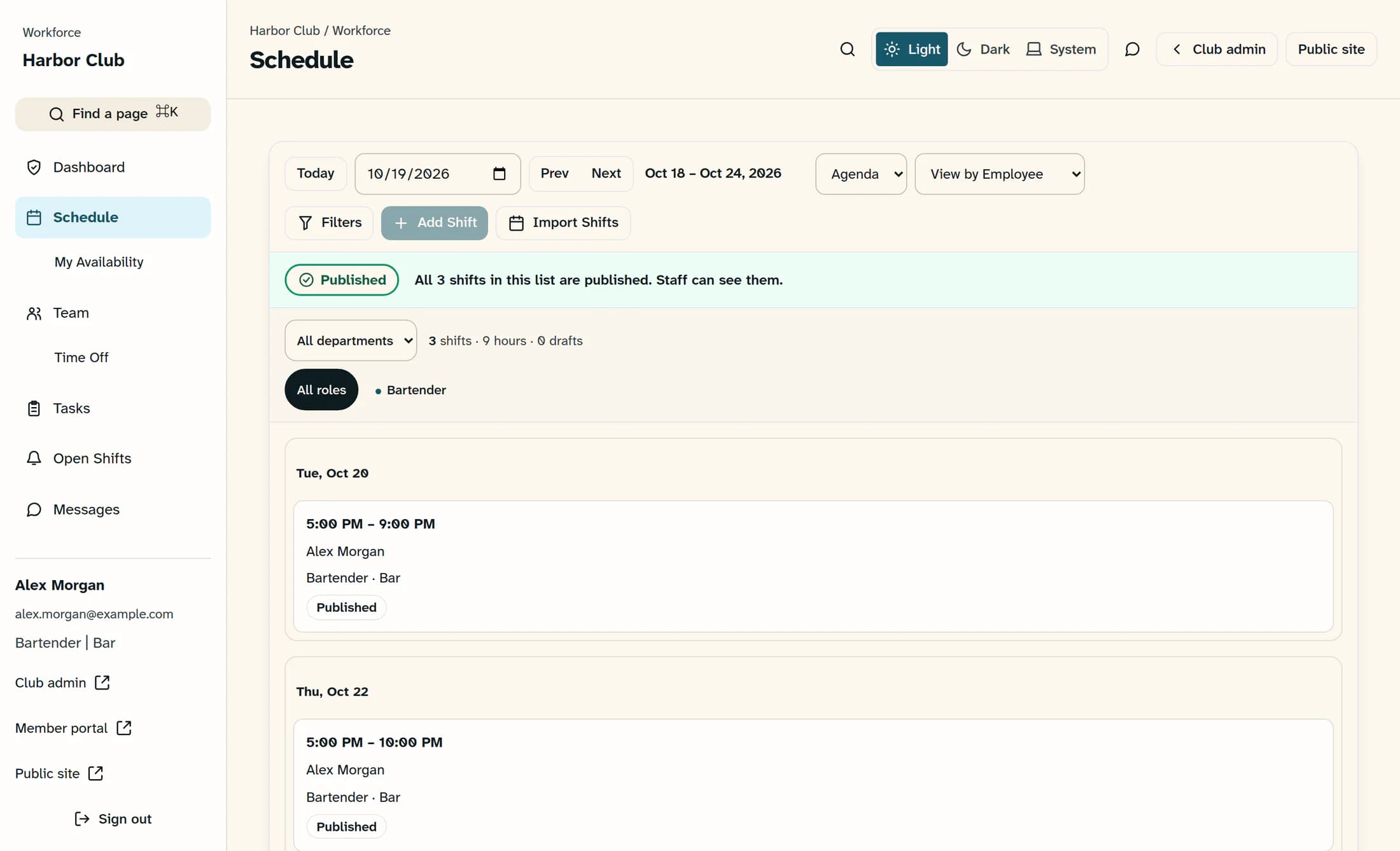
Open the Workforce address or website link your club gave you, then choose Schedule in the left menu. On a phone browser, tap Schedule in the bottom navigation.
Step 2 of 4
Choose your dates and view
Use the date field or Prev and Next to reach the dates you need; Today returns to the current date. Choose Day, Week, Month, or Agenda from the view menu—Agenda lists shifts for the selected week and is useful on a phone. The grouping menu offers View by Employee, View by Role, and View by Department for the weekly grid.
Step 3 of 4
Narrow the schedule if needed
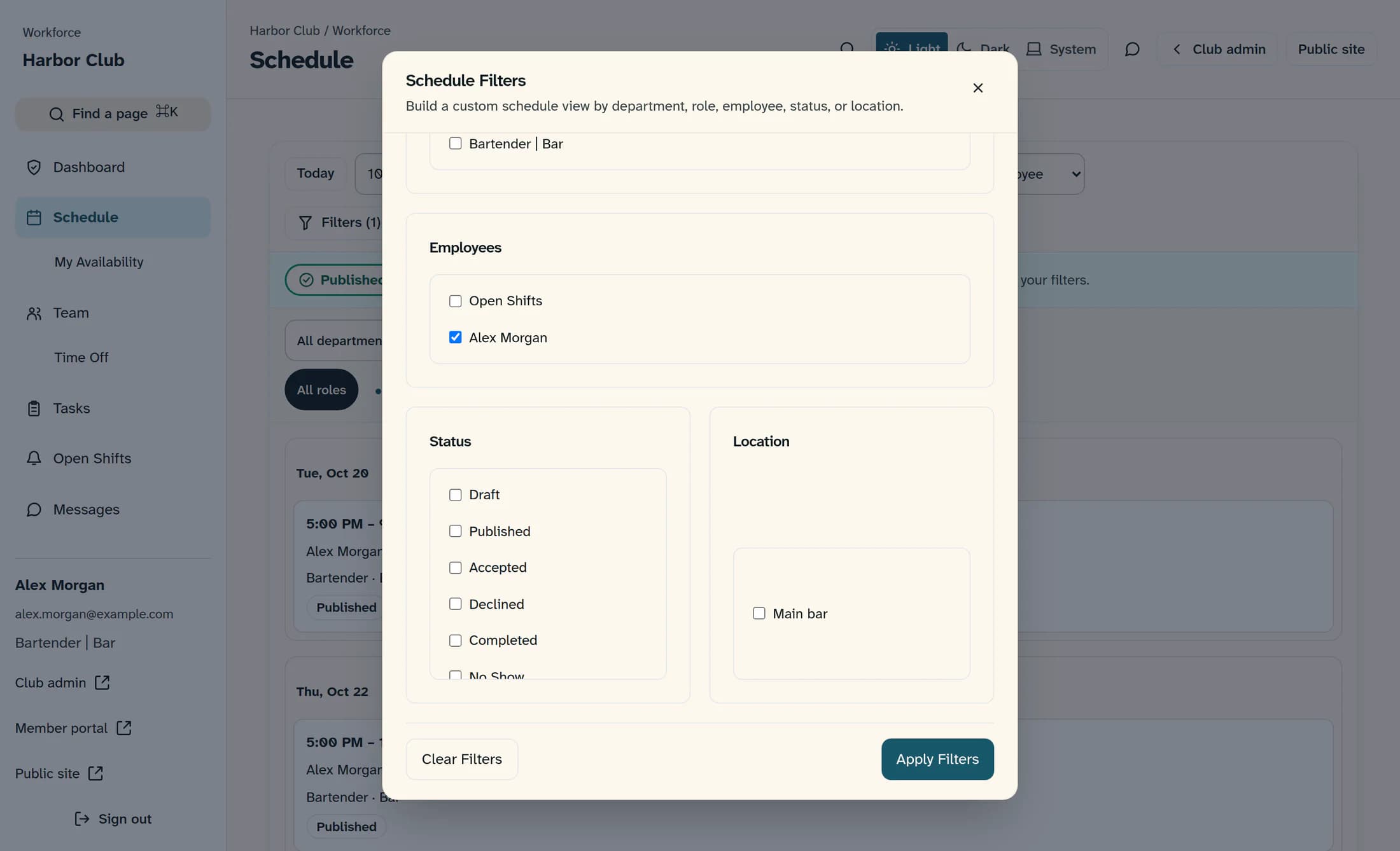
Open Filters, scroll to Employees, and select your name, then choose Apply Filters. Clear Filters removes your selections; the other filters can narrow the list by department, role, status, or location. Filters only narrow the shifts your account can already see.
Step 4 of 4
Read your shift
In Agenda, read the date heading and your shift card: it shows the start and end time, your name, role, department, and status. A shift without a fixed end time shows an end label such as Close. Read the details on the card; if you need a location, notes, or other instructions that aren’t shown, ask your scheduler.
Tips
Outcome
You’ve found the dates you need and checked the visible details of your assigned shifts.
Troubleshooting
- Nothing appears: check the date range and clear any filters. An empty view does not by itself confirm that you have no work; ask your scheduler whether your shift is assigned and published.
- Older dates look empty: wait while “Loading the shifts for these dates…” appears. If older shifts cannot be loaded, refresh the page and return to the dates; if the problem continues, share the message and date range with your scheduler.
- A shift still shows its previous time: ask whether the change has been published, then refresh the page.
- The shift card does not open: Day, Month, and Agenda cards do not open an editor for ordinary employees. Use the visible card details and ask your scheduler for anything missing.
- You see Workforce access needed: confirm you are at the right club and signed in with your linked employee account. Ask your club to check the account link if access is still missing.
