
On this page
Before you begin
Step 1 of 6
Open the display settings
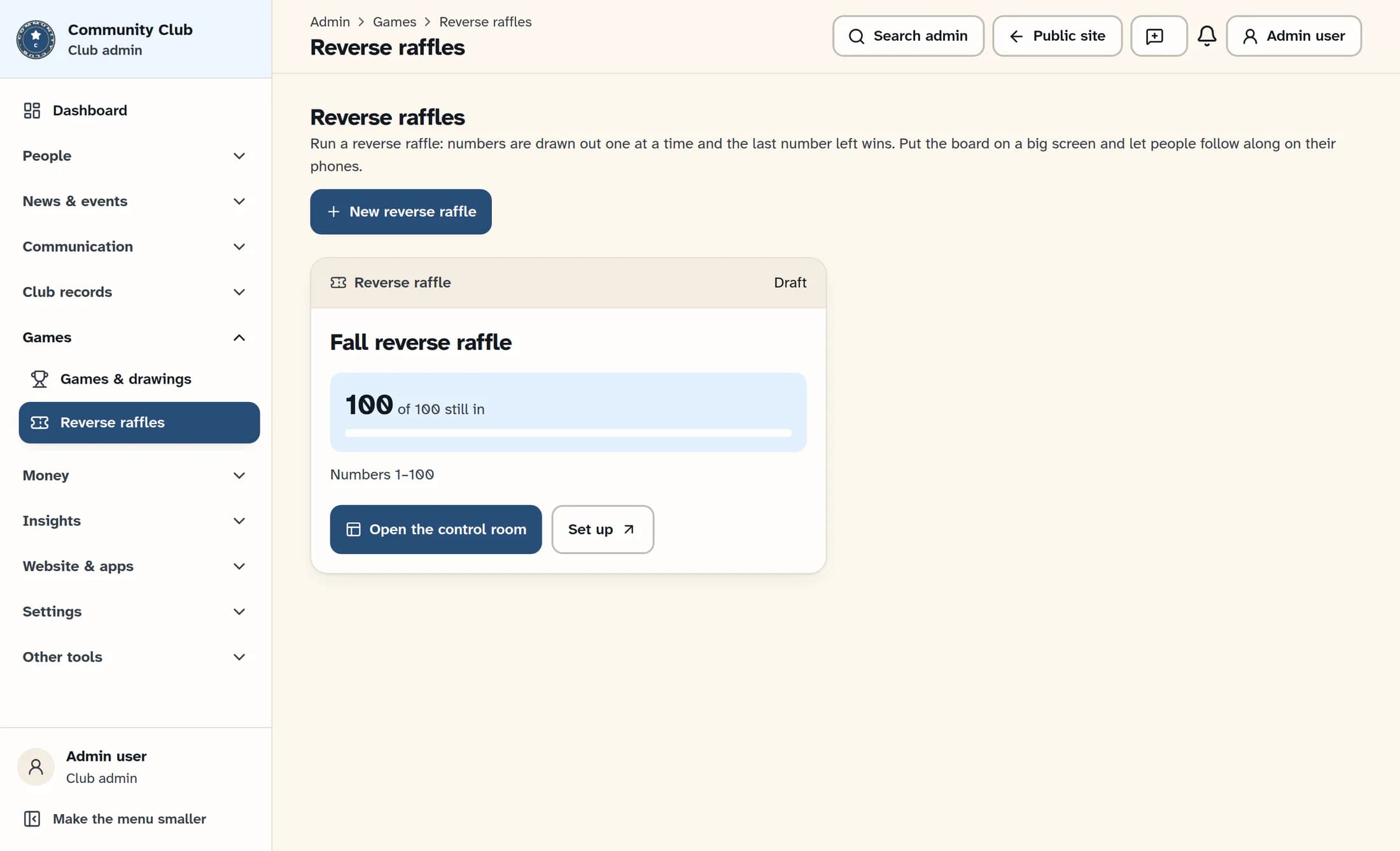
In admin, open Reverse Raffles under Games. On your raffle, choose Set up, then select Big screen & phones.
Step 2 of 6
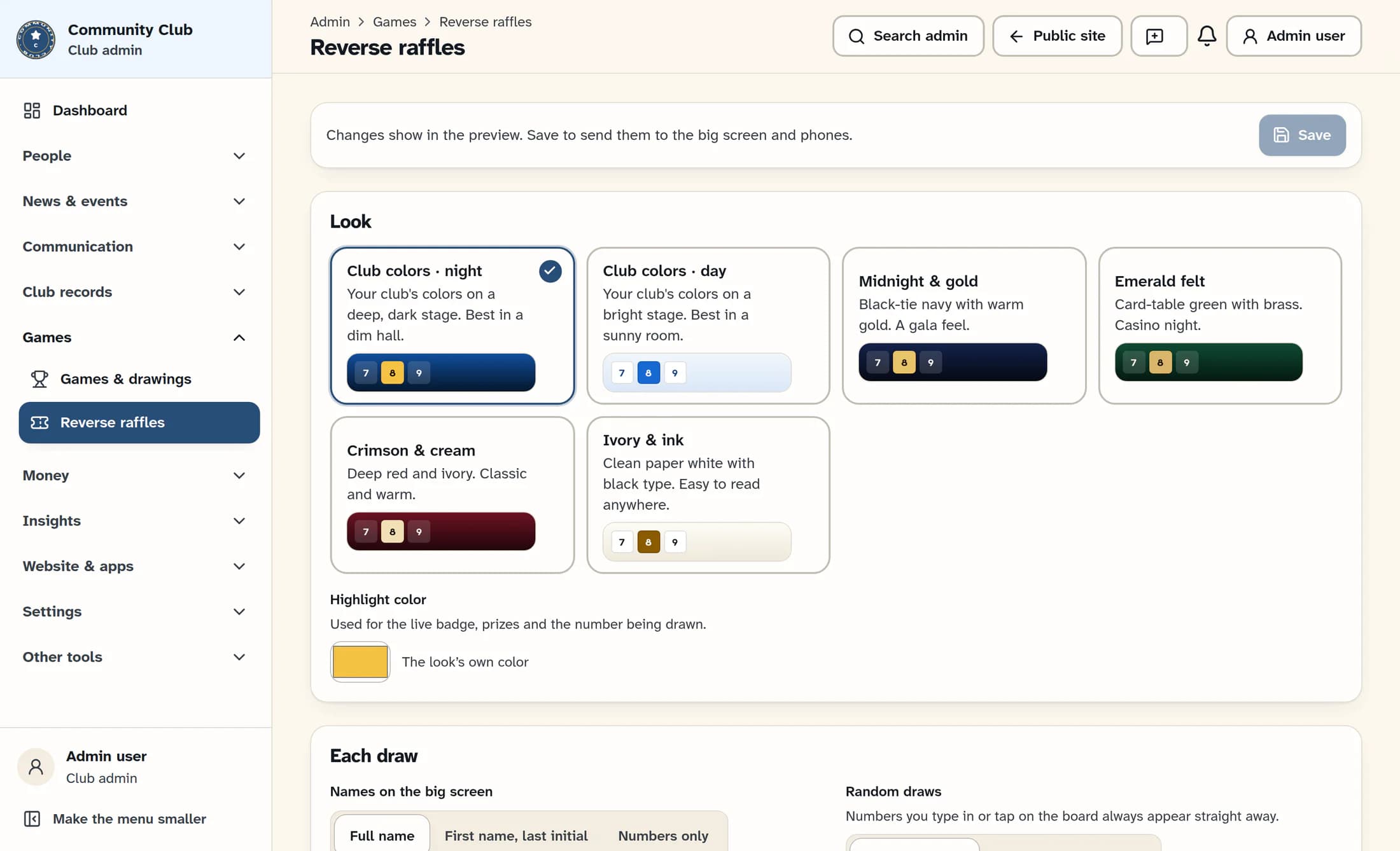
Choose a look and draw settings
Under Look, choose a look and, if you like, a Highlight color. Under Each draw, choose Names on the big screen, the random draw reveal and how long the number stays up; you can also turn sound and confetti on or off.
Step 3 of 6
Set up the board and messages
Under On the board, choose whether to show the next prize and QR code, the number style, the final countdown and when to offer a split. Under Along the bottom, add an optional thank-you line or scrolling messages, one per line, up to eight.
Step 4 of 6
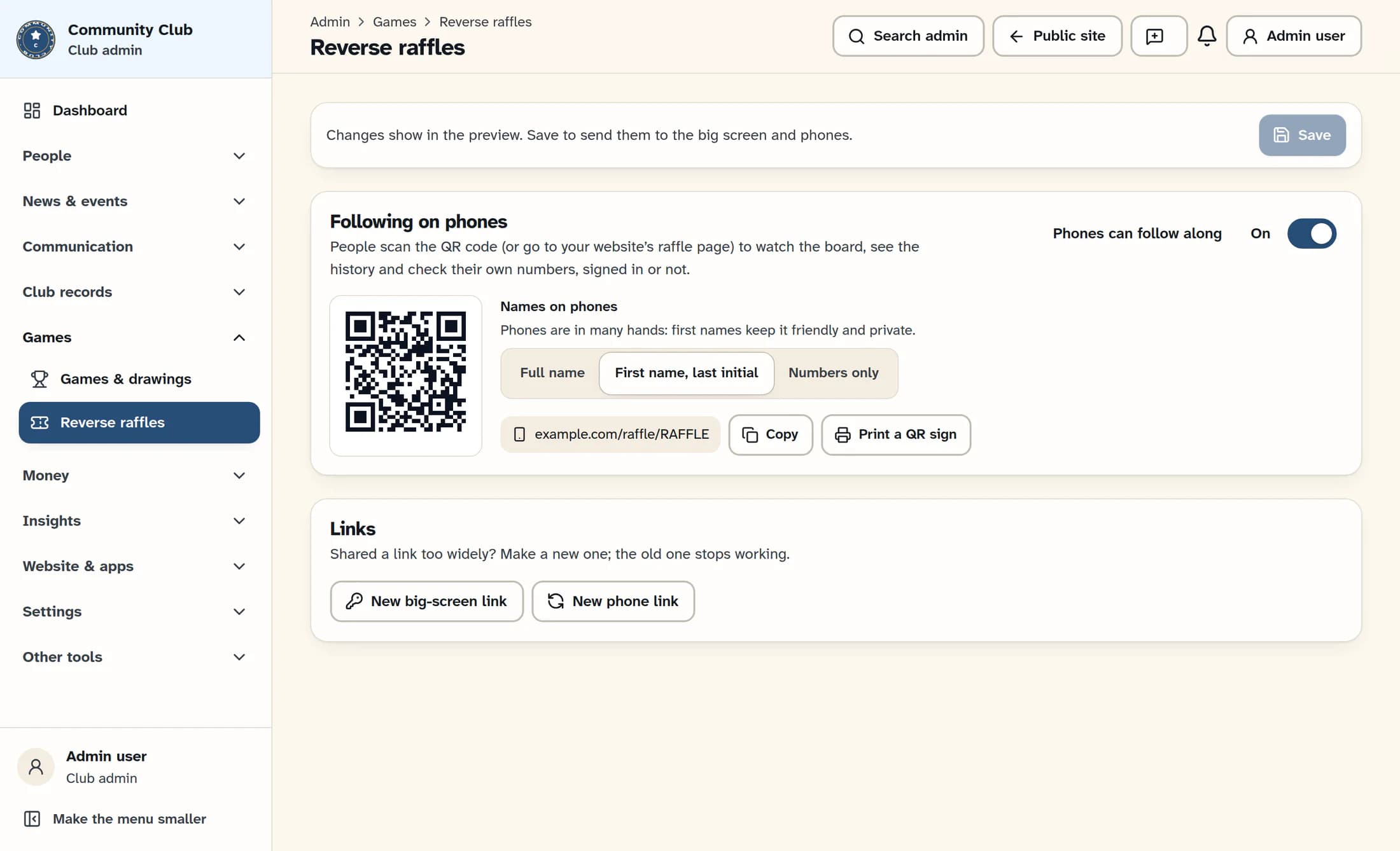
Choose phone access and name privacy
Under Following on phones, turn Phones can follow along on or off. When it is on, choose Names on phones separately from the big-screen names; people with the phone link can follow without signing in.
Step 5 of 6
Preview and save
Check the preview under The big screen. Select Save to send changes to the big screen and phones, or Undo changes to discard unsaved settings.
Step 6 of 6
Open the big screen
Select Open the big screen and move its window to the TV, or use Copy the link to open it on the connected computer. Press F on the big screen for full screen.
Tips
Summary
Your saved choices determine what the audience sees on the big screen and on phones.
