
On this page
Before you begin
Step 1 of 4
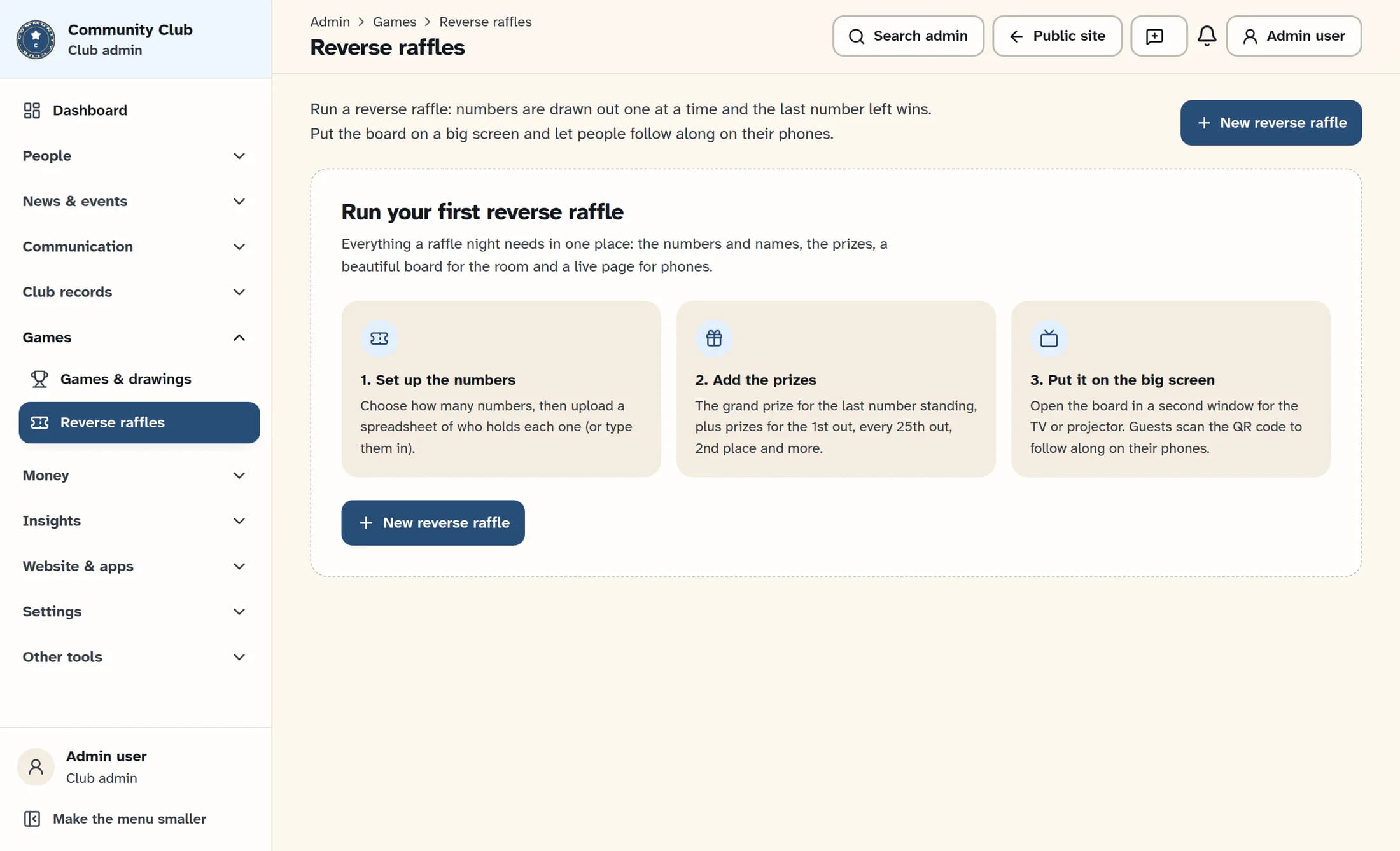
Open reverse raffles
In the admin menu under Games, select Reverse raffles. Select New reverse raffle.
Step 2 of 4
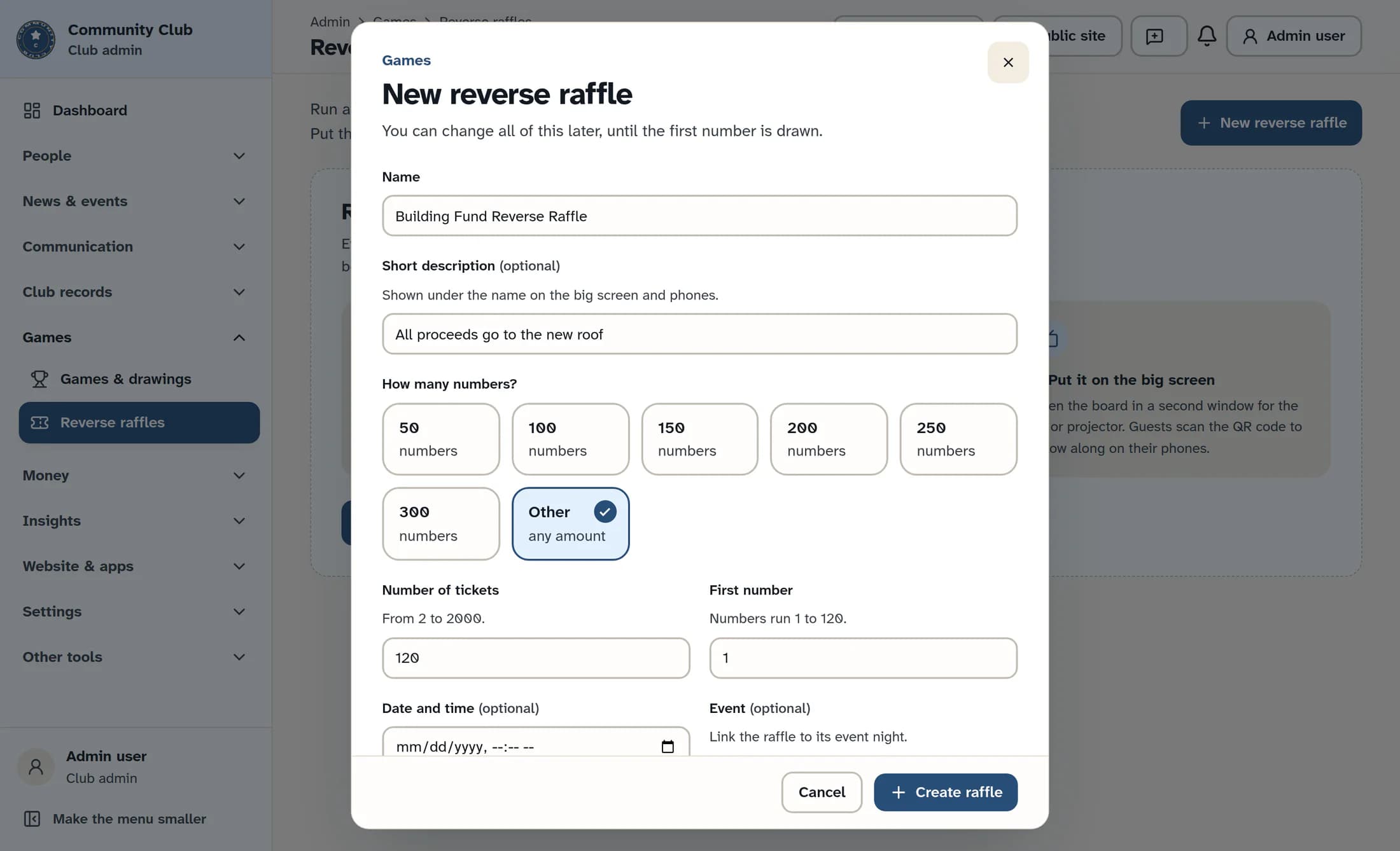
Enter the raffle details
Enter a Name and, if you like, a Short description. Choose How many numbers?; select Other to enter a custom count from 2 to 2,000, and set the First number.
Step 3 of 4
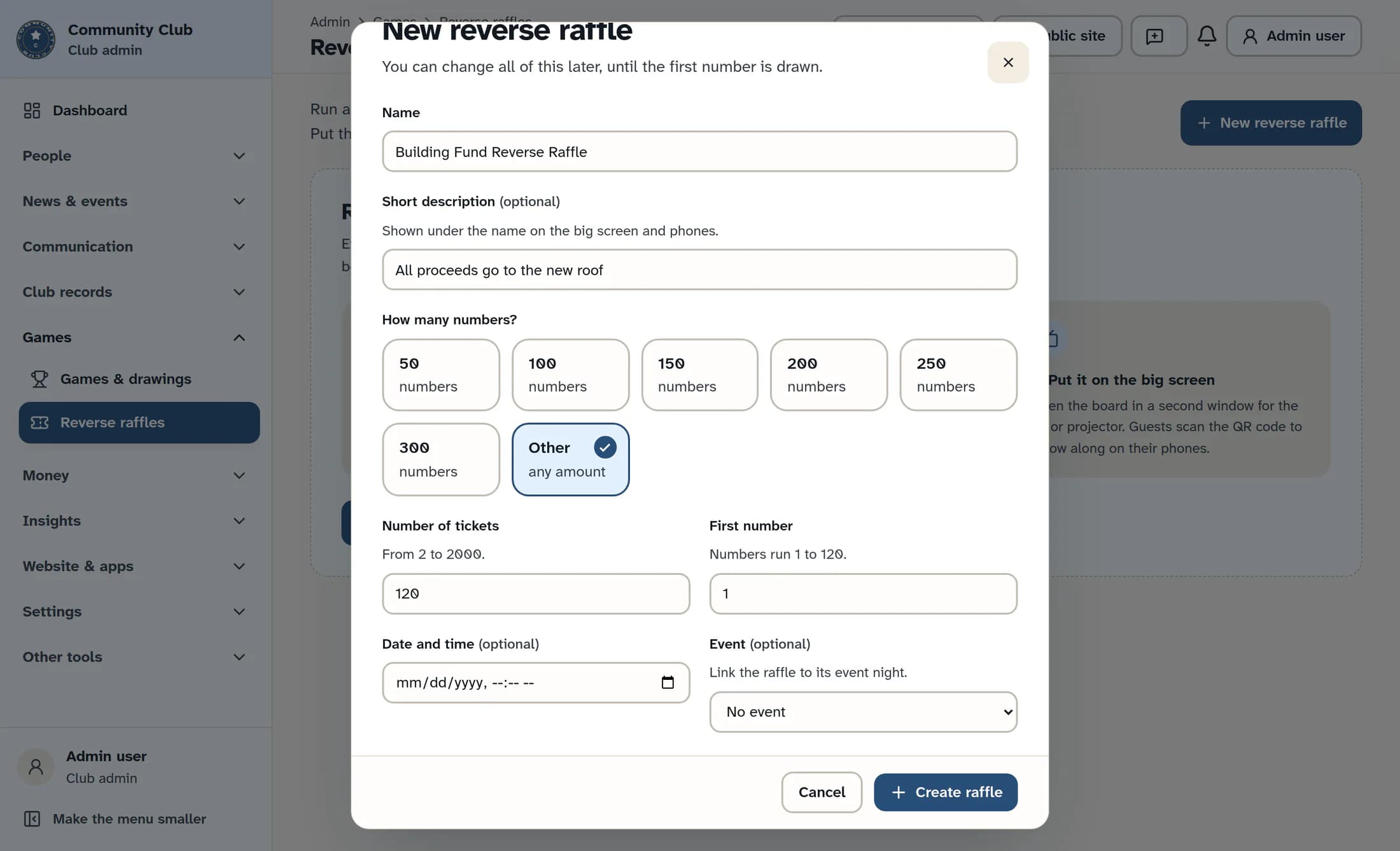
Add scheduling details
If you like, choose a Date and time and an Event if one is available. Scroll down in the dialog to reach these fields.
Step 4 of 4
Create the raffle
Select Create raffle. The raffle opens in its workspace, where you can add ticket holders and prizes before running it.
Tip
Next steps
Your raffle is created. Use its Tickets and Prizes tabs to prepare for the drawing.
Illustrations are source-based reconstructions using fictional examples; your club’s details may differ.
