
On this page
- Before you start
- Open Payment Reports
- Optional date range
- Which dates the range uses
- Open the received payments
- Review the payment rows and export
- What the columns mean
- Check the downloaded payment file
- Open the unpaid dues bills
- Export the separate dues report
- Check the downloaded dues file
- Use the exports with their limits in mind
- Your two exports
Before you start
Step 1 of 7
Open Payment Reports
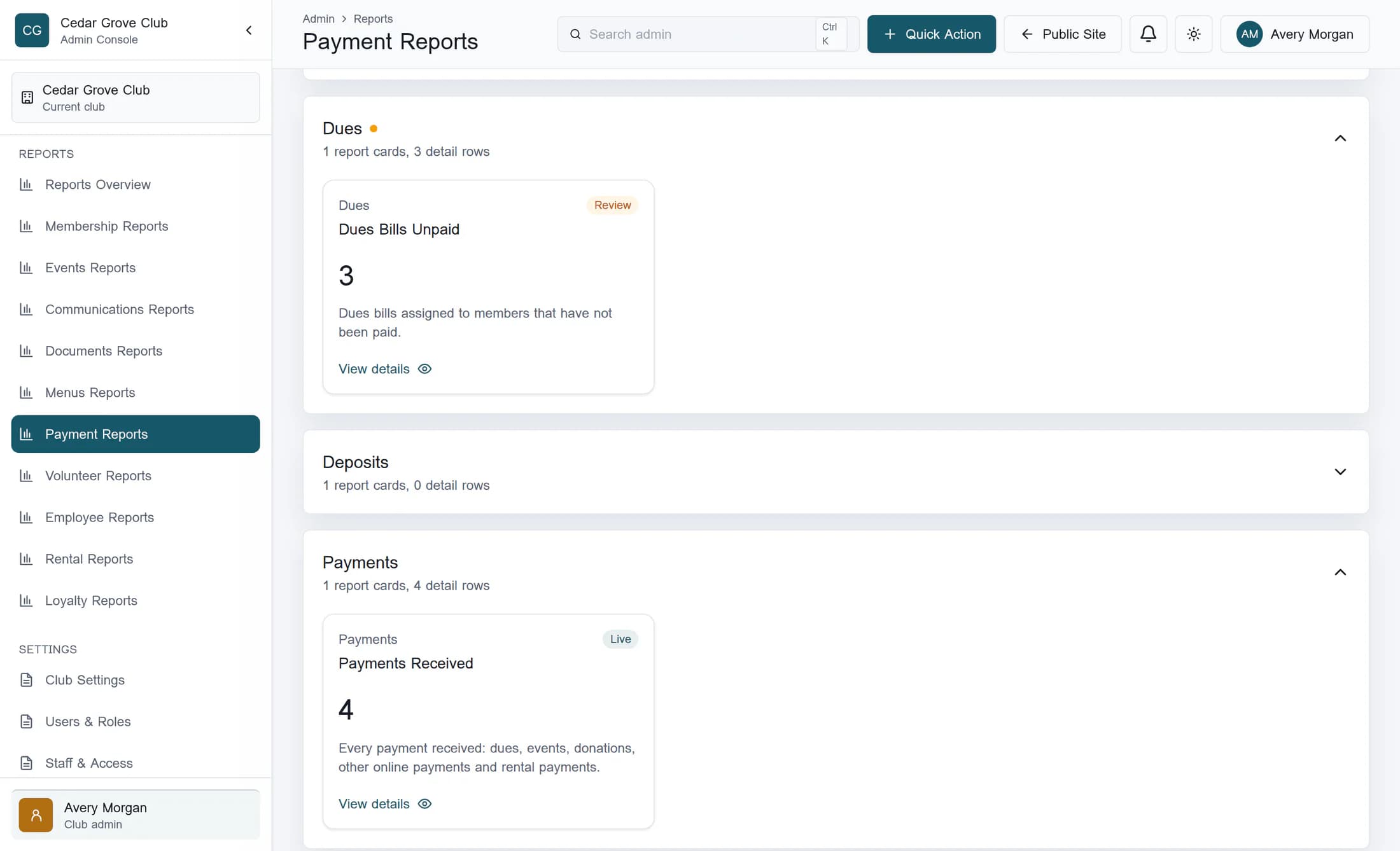
In Club Admin, choose Payment Reports under Reports in the classic sidebar; the Clubhouse menu groups this link under Insights. Wait until the loading message disappears and Last Refreshed shows a time. If the page says some report data could not be loaded, stop before exporting: the download can still be available with incomplete data.
Optional date range
The optional Report date from and Report date to fields filter the page as their values change. Either endpoint can be blank; both blank includes all available dates. A start date after the end date can return no matches without a warning.
Which dates the range uses
- Payments: paid date, or creation date when no paid date is stored.
- Extra donation records: creation date. Rental payments: payment date.
- Dues bills: due date. Invoices: due date, or creation date when no due date is stored.
- Boundaries are inclusive and use the stored date portion, rather than converting timestamps to your local midnight. These dates are not all payment dates.
Step 2 of 7
Open the received payments
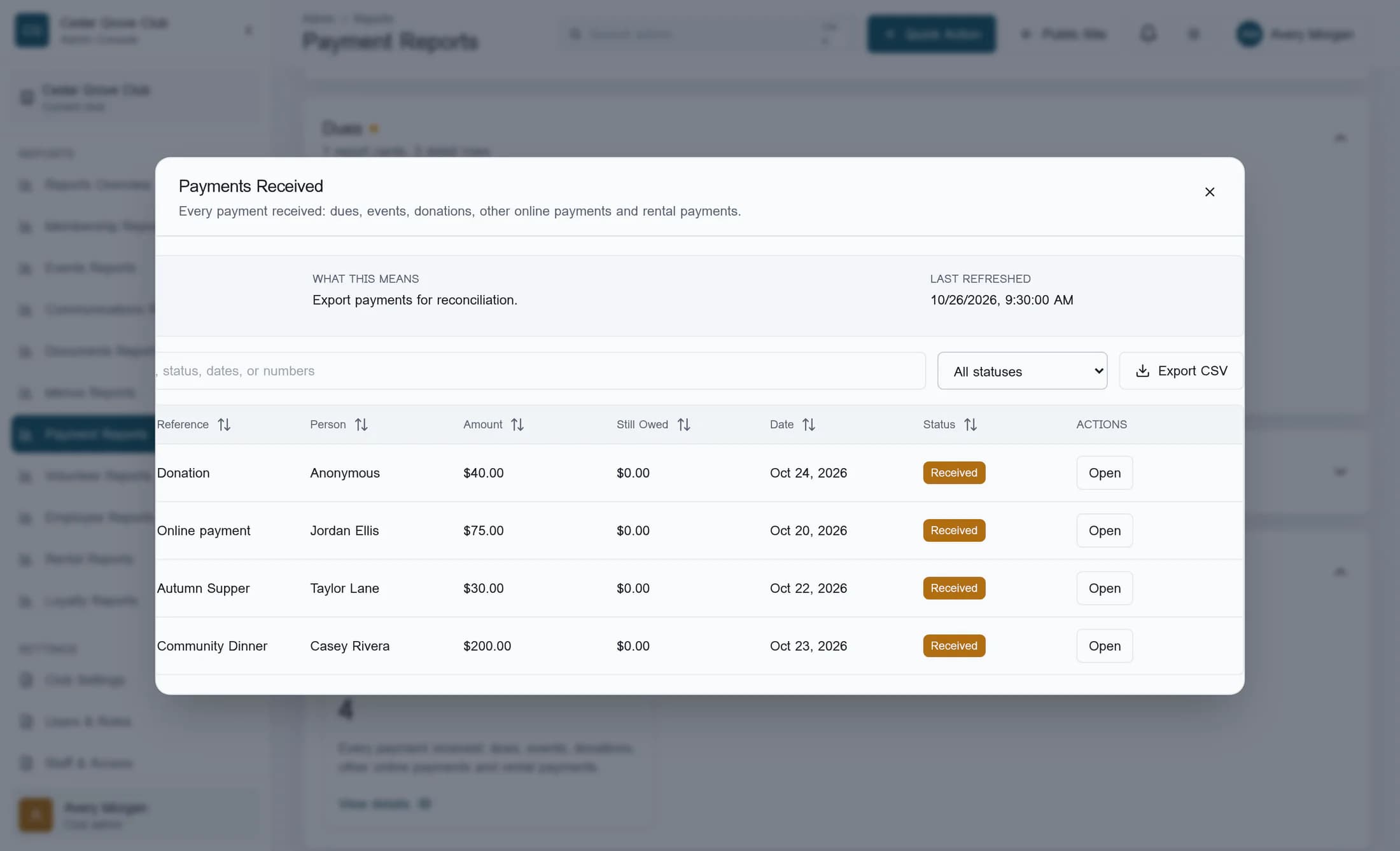
Under Payments, choose View details on Payments Received; expand Payments first if it is closed. This report combines successful online payments, successful donations without a linked payment record, and rental payment records. A donation linked to a payment is excluded from the extra donation list to avoid counting that donation twice here.
Step 3 of 7
Review the payment rows and export
Check Count and the seven columns below, then choose Export CSV; if the button is off the right edge, scroll the drawer body sideways to reach it. The file contains only rows matching the current detail search and Detail status filter, in the current column sort order. A fresh drawer starts with an empty search, All statuses, and ascending Type order.
What the columns mean
- Type identifies the source or payment purpose, such as dues, donation or rental.
- Reference identifies the invoice, dues bill, online payment, event or rental reference available for that source.
- Person shows the member, payer, donor or rental customer available for that record.
- Amount shows the record amount. Still Owed is zero for received payments; for invoices it is the invoice total less the amount paid, with a minimum of zero.
- Date follows the source dates described above. Status shows the record's report status.
- The CSV adds Action URL after the seven columns: Type, Reference, Person, Amount, Still Owed, Date and Status. Action URL points to the relevant ClubWorks area; it is not a payment receipt.
Step 4 of 7
Check the downloaded payment file
Inspect the downloaded CSV in your spreadsheet app: its header should contain those eight columns, and its number of data rows should match Count at export time. Confirm that its dates and records match the scope you intended. The filename includes the report title and the UTC export date; there is no separate in-app success message to rely on.
Step 5 of 7
Open the unpaid dues bills
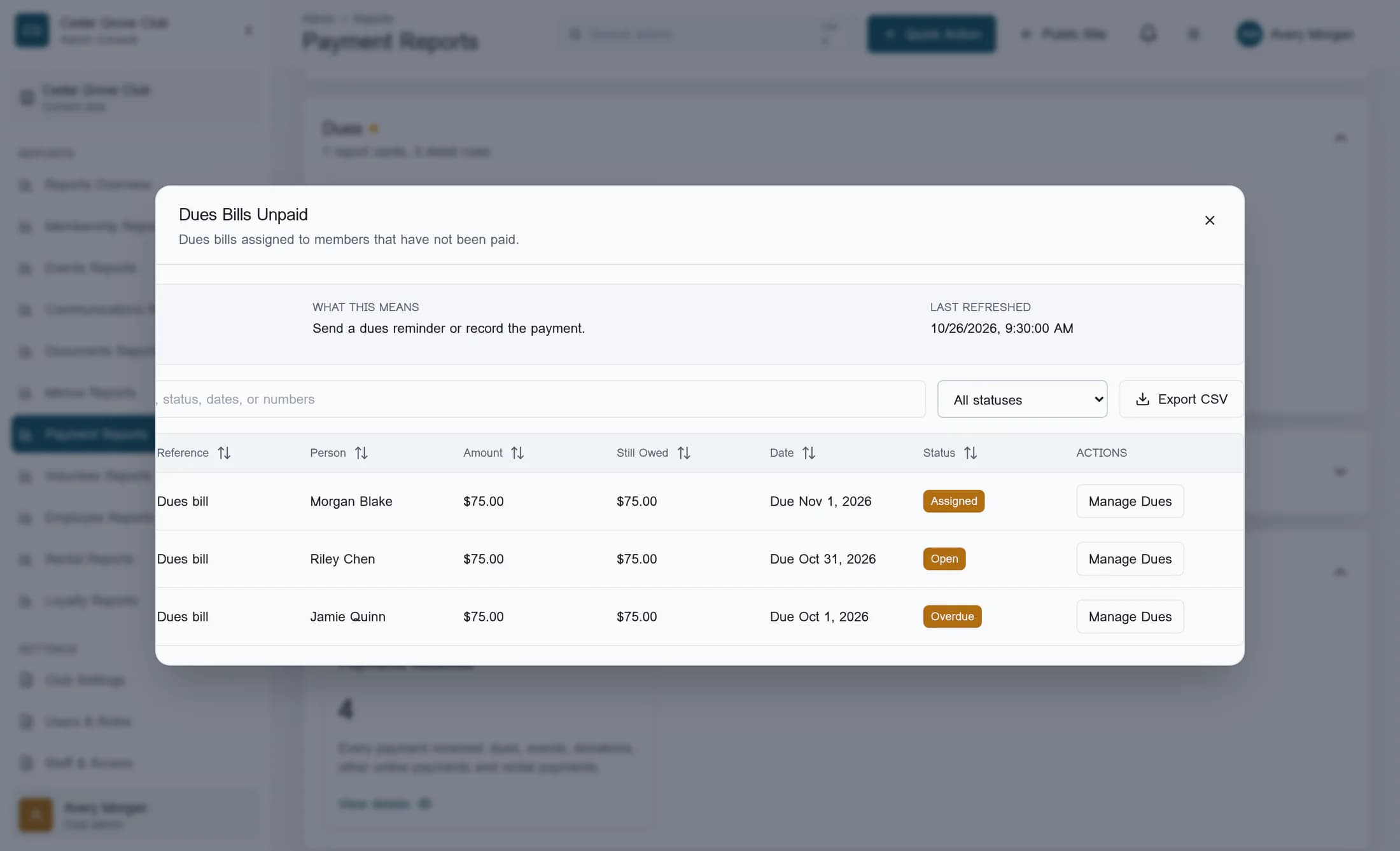
Choose Close to return to the report cards, expand Dues if it is closed, then choose View details on Dues Bills Unpaid. The report includes dues assignments with assigned, open or overdue status, using their due dates for the page's date range. The overview illustration shows both report groups expanded so you can locate the two cards.
Step 6 of 7
Export the separate dues report
Review Count, dates and statuses, then choose Export CSV, scrolling the drawer body sideways if needed. Both Amount and Still Owed show the dues assignment amount; Still Owed is not recalculated from a linked invoice's remaining balance. The current detail search, status filter and column sort also control this download.
Step 7 of 7
Check the downloaded dues file
Inspect the second CSV for the same eight-column header and a data-row count matching this drawer's Count at export time. Confirm that the due dates and assigned, open or overdue records fit your intended report. Keep it separate from the payments file when reviewing what was received and what was assigned.
Use the exports with their limits in mind
Your two exports
You now have separate received-payment and unpaid-dues-bill CSVs, checked against their report counts and date scope.
