
On this page
Before you start
Step 1 of 7
Open the club’s form link
Open the direct form link on your club’s website, or follow the form link the club shared with you. Check that you are on the right club’s website; there is no need to enter the admin area.
Step 2 of 7
Sign in if the form asks you to
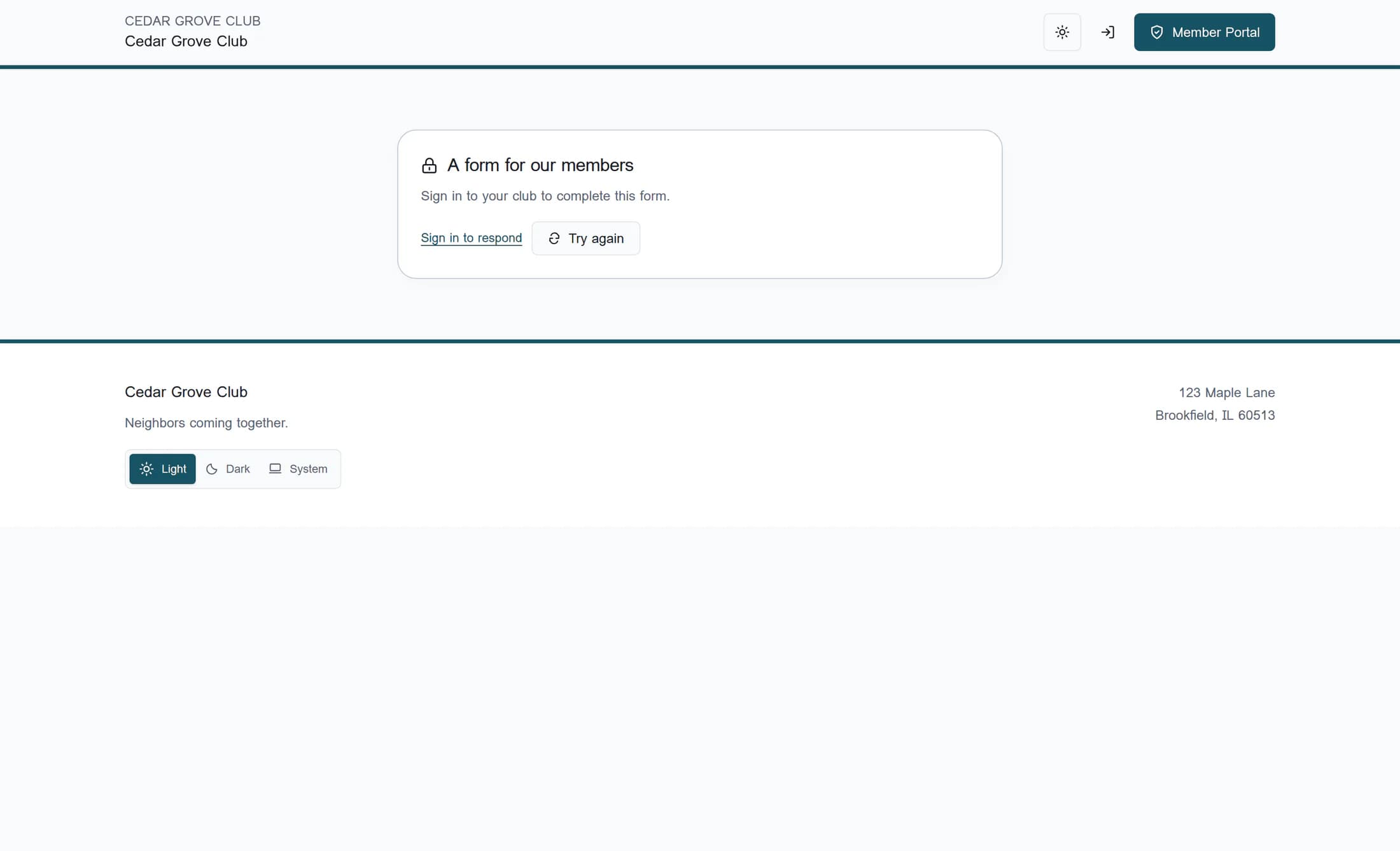
If you see A form for our members, choose Sign in to respond and complete your normal club sign-in. The link is set to return you to this form after sign-in; public forms skip this step.
Step 3 of 7
Check what the club is asking
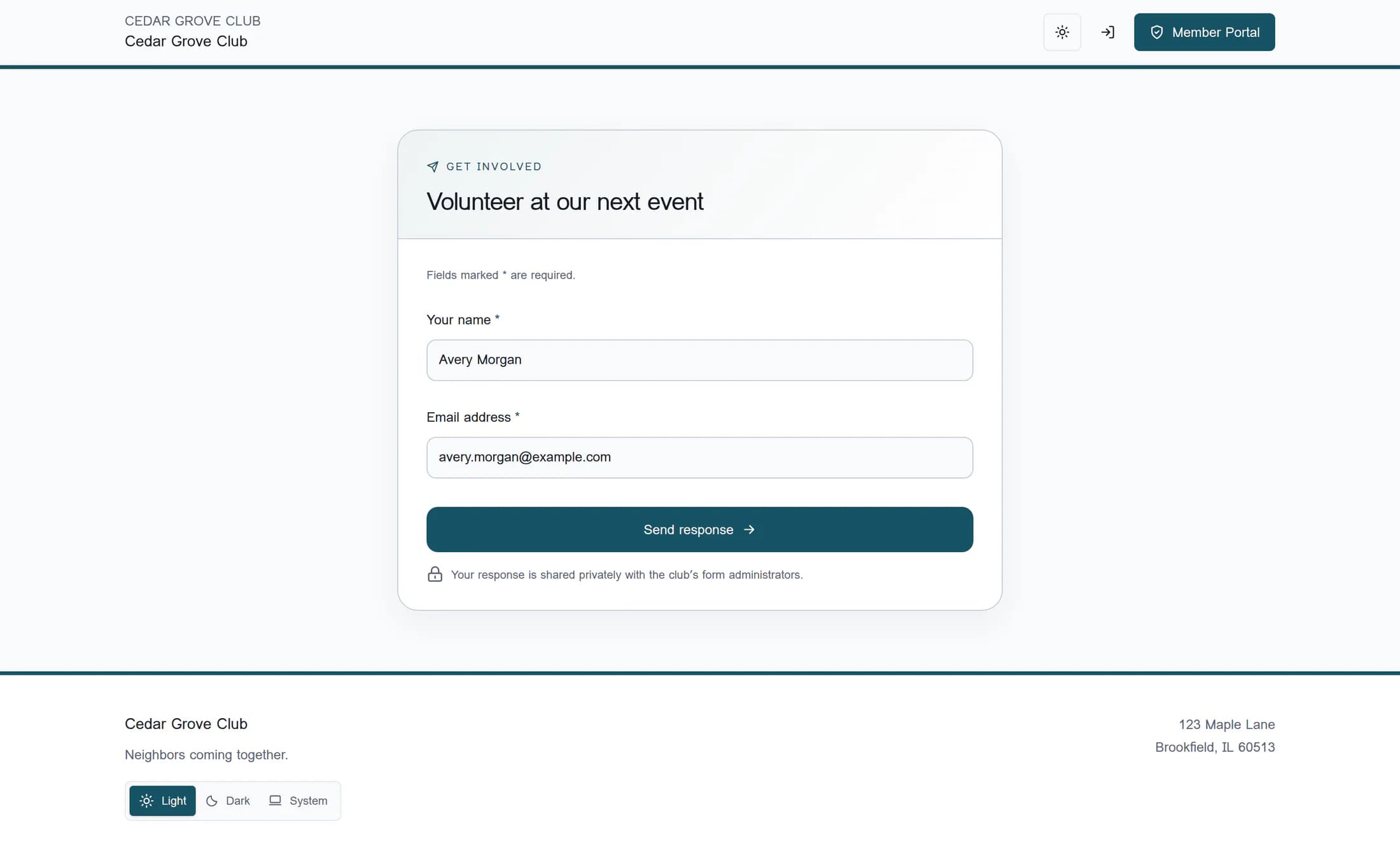
Read the form title, introduction and privacy note, plus Respond by if a deadline is shown. Look for Fields marked * are required.; questions and button wording depend on the club’s form.
Step 4 of 7
Answer the visible questions
Enter your answers in the fields shown, using the format requested for email addresses, numbers, dates or website links. Choose from the listed options where offered, and confirm consent only if you agree; some answers reveal extra questions, while hidden questions do not need an answer.
Step 5 of 7
Send your response once
Review your answers and choose Send response once, or the club’s own wording on that button. Wait while Sending… appears; if highlighted questions need attention, correct them and use the send button again.
Step 6 of 7
Check that the response was received
Look for You’re all set. and Your response has been received., together with the club’s confirmation message. This confirms receipt of the form response; follow any separate instructions for payment, event registration, a booking or membership approval, and do not assume an email was delivered.
Step 7 of 7
If delivery is uncertain, keep this page open
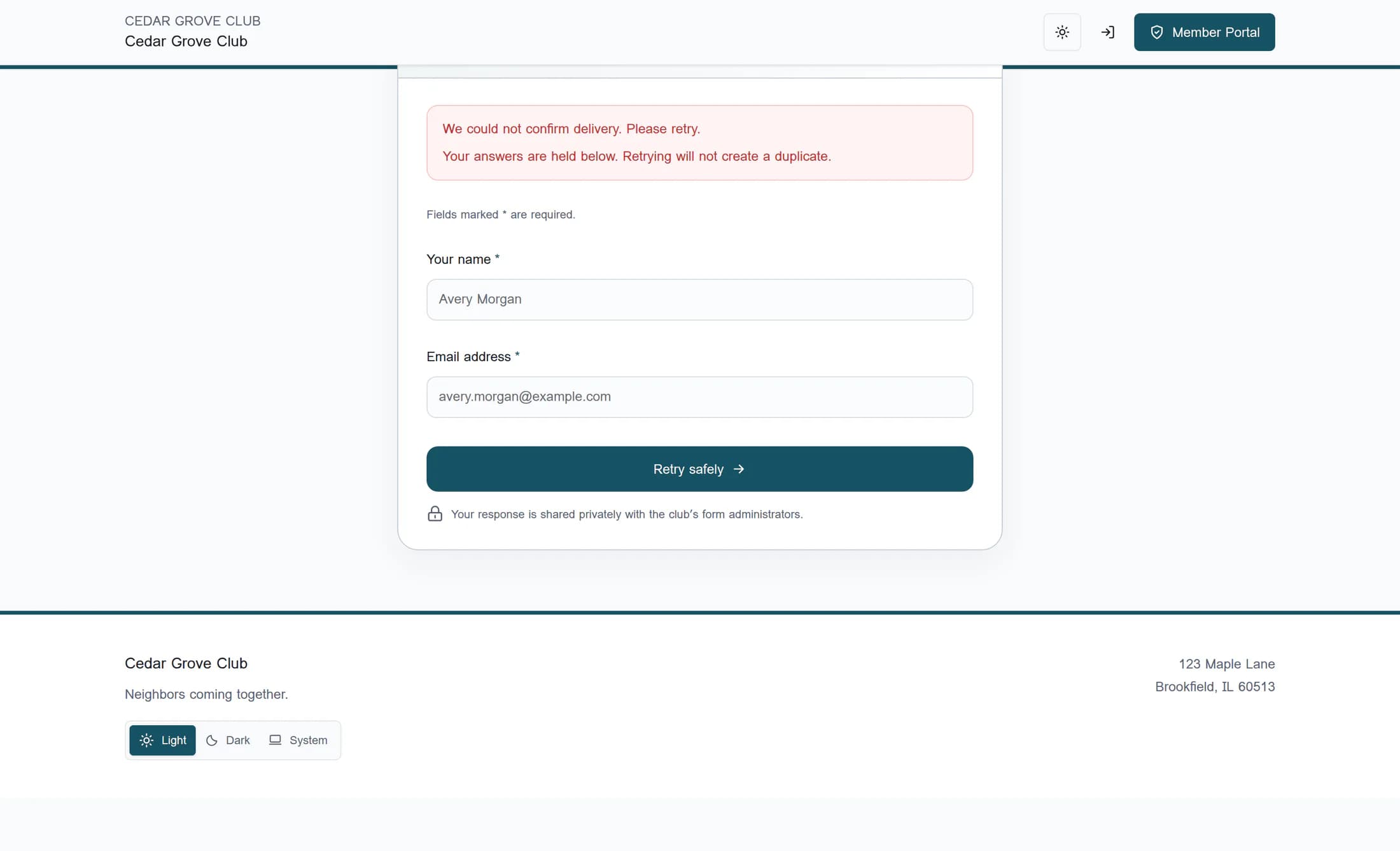
If the form says delivery could not be confirmed, keep the same page open with the held answers and choose Retry safely. Answers are locked during this uncertainty, and this retry checks and sends the same attempt without creating a duplicate; do not reload, open a new tab or start a fresh response to retry.
If you cannot continue
- Before the questions have loaded: Try again retries loading the form. It is different from Retry safely, which is for an uncertain response after sending.
- If access is refused after sign-in, check that the account belongs to this club and has the required member, officer or administrator access. Ask the club to check your access if needed.
- If the form is unavailable or no longer accepting responses, ask the club for the correct link or another way to respond. Signing in does not reopen a closed form or increase its response limit.
- If questions are highlighted, follow the message beside each question. Required answers cannot be blank; use valid email addresses, dates and numbers, listed choices and full website links.
- If an explicit message says the form was updated and must be reloaded, a reload can lose your local answers. Contact the club first if you are unsure whether an earlier attempt was received; do not use a reload to resolve uncertain delivery.
- If the page asks you to wait because there have been too many responses, wait before trying again. Contact the club if the problem continues.
Where this guide applies
Applies to the ClubWorks website in a desktop or phone browser. Source checked on October 26, 2026 against release 16782cba, with the form flow compared to the current deployed source. The illustrations are source-based reconstructions with fictional answers, not captures of a live submission; club branding, questions and button wording may vary. Native app behavior is not verified here.
Summary
Your response is complete when the form confirms it was received. Keep the same page open and use Retry safely if delivery is uncertain.
