
On this page
Before you start
The illustrations below are source-based reconstructions of the web portal, not live screenshots. Club names, update titles and message content are fictional; your club’s colours and available pages may differ.
Step 1 of 4
Find your club’s updates
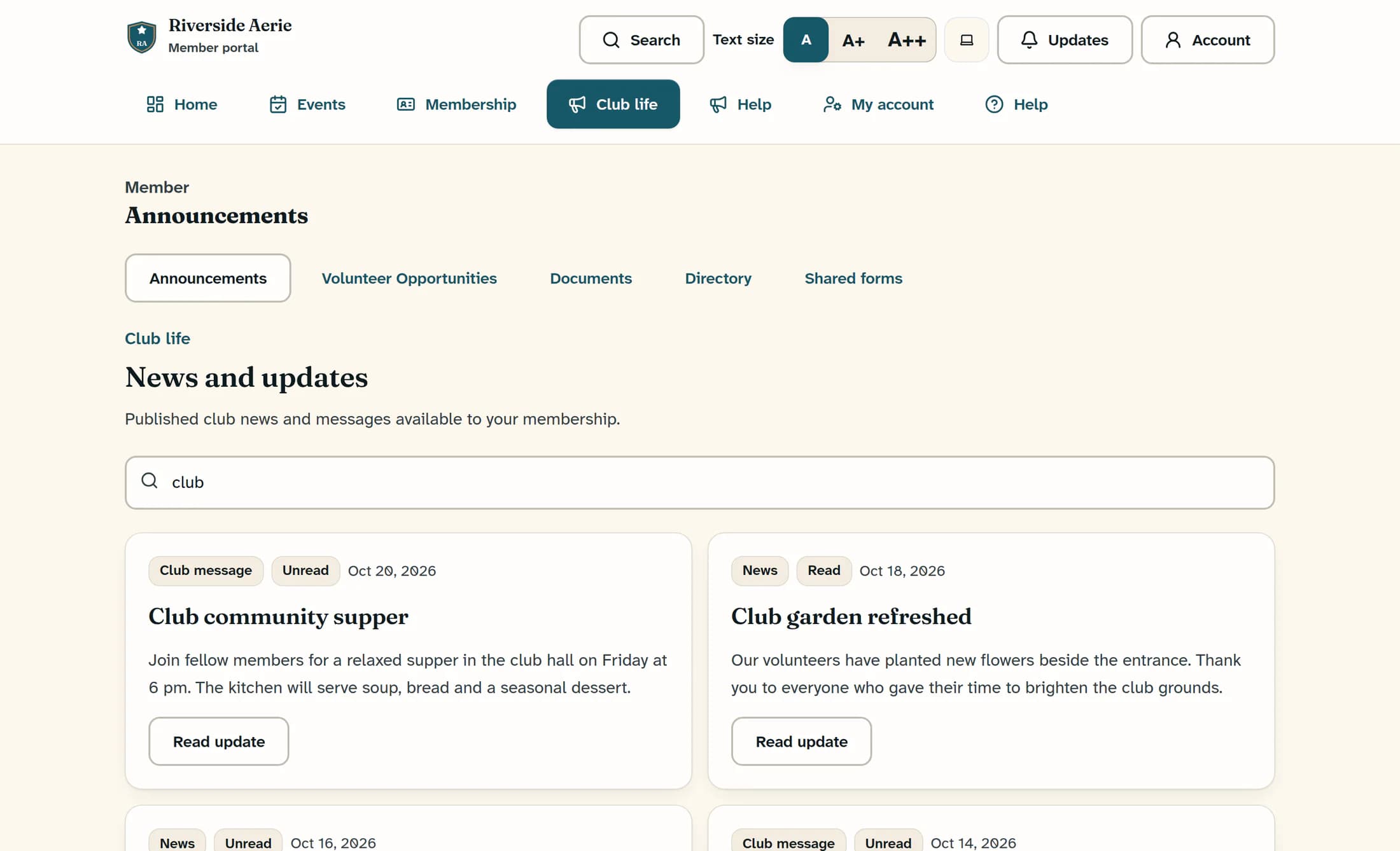
Open Club life, then Announcements. Under News and updates, enter a word from an update’s title or preview text in Search club updates to narrow the list. Each card is labelled News or Club message.
Step 2 of 4
Read the full update
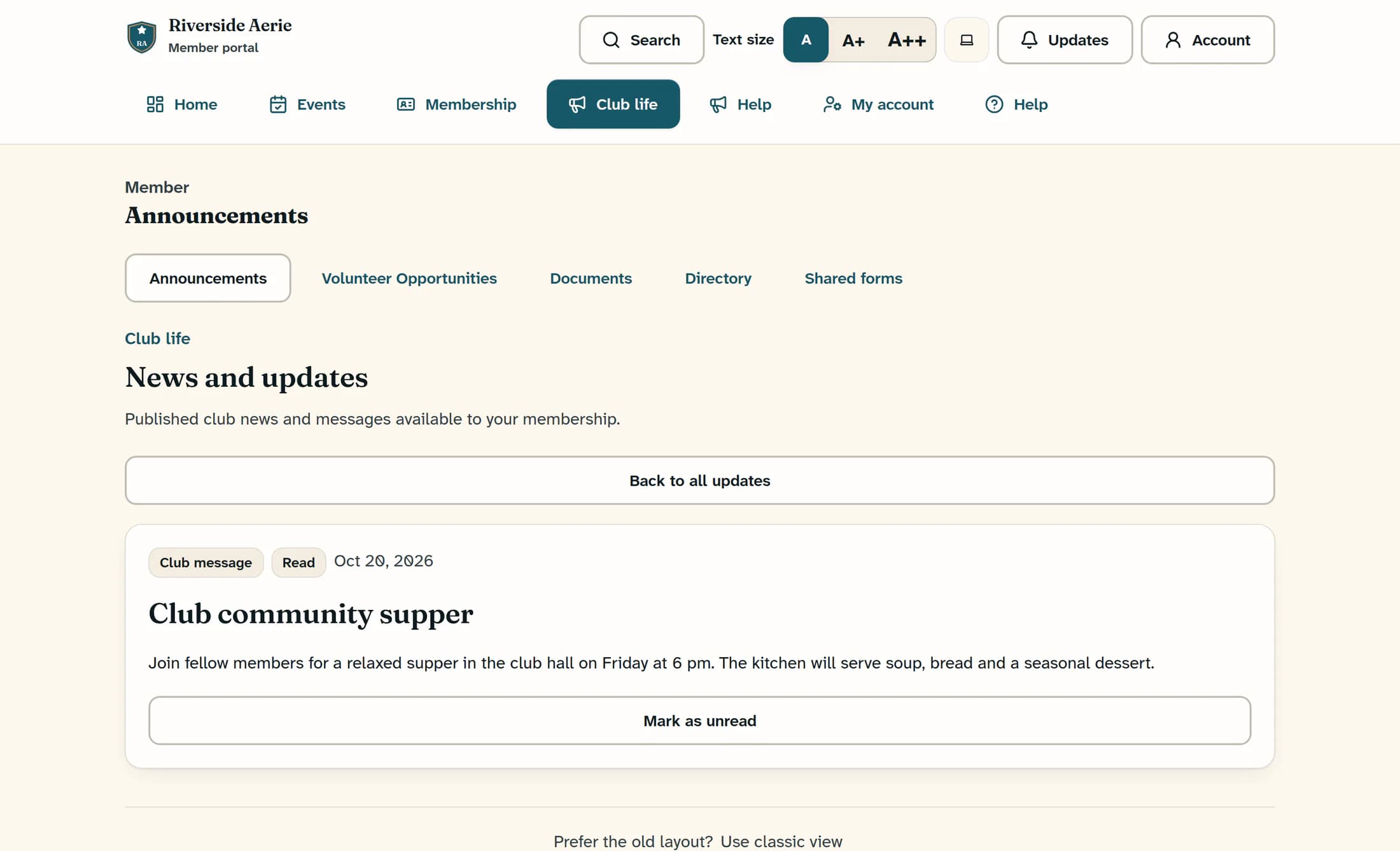
Choose Read update on the card you want. The update opens in the same page; when read status is available, opening an unread update also requests a change to Read, which appears only after the change saves. Some news updates include attached forms beneath the content; this guide covers reading the update, not submitting a form.
Step 3 of 4
Keep an update unread for later
If you want to return to an update, choose Mark as unread beneath its content when that button is available. Wait for the badge to change from Read to Unread so you know the change saved.
Step 4 of 4
Mark it read and return to the list
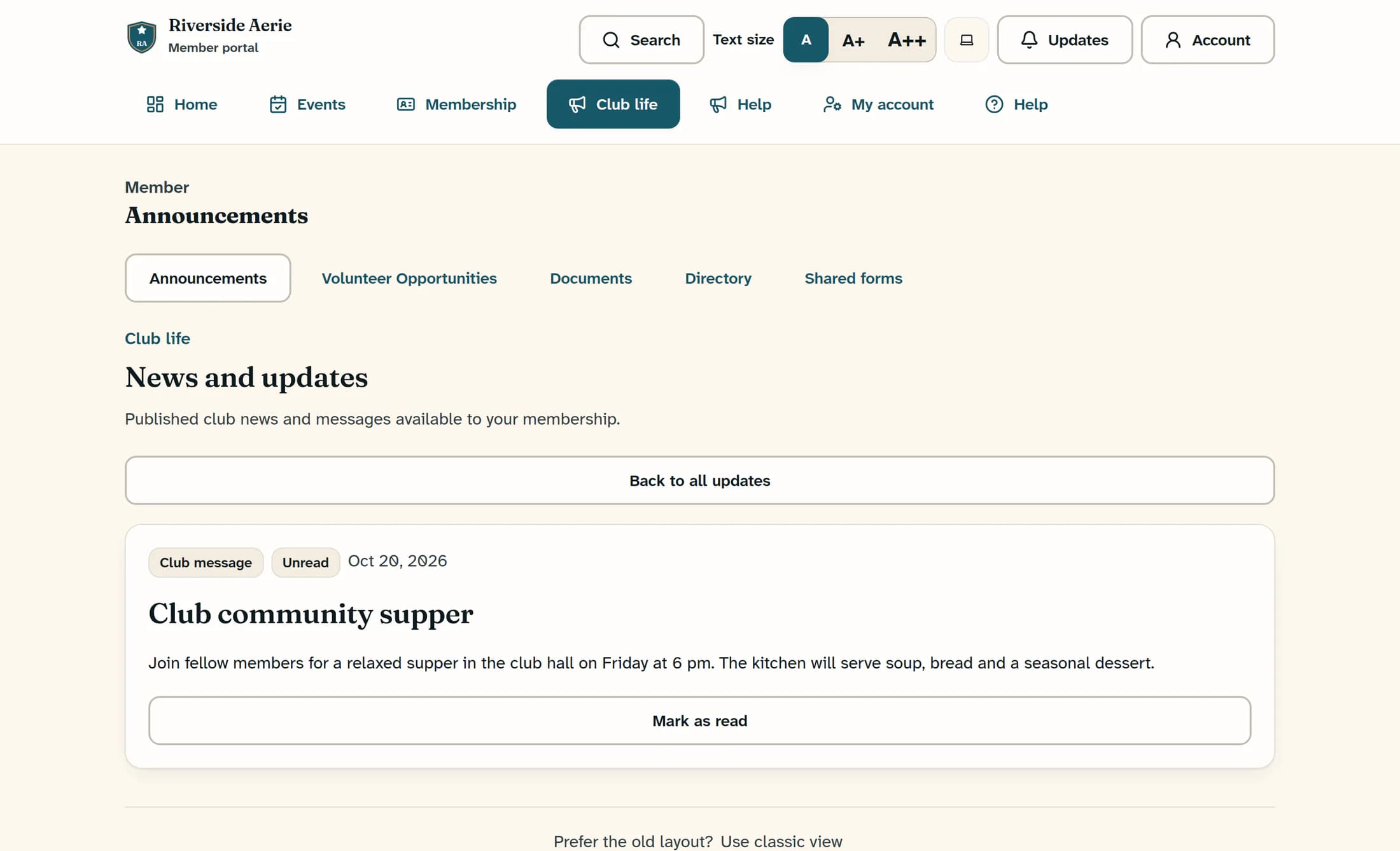
To change an open unread update back, choose Mark as read and wait for Read to appear. Choose Back to all updates above the update to return to the list; your search text stays in place.
If a status or update is missing
Summary
Use the update list to find club news and messages, and rely on the saved Read or Unread badge to track what you want to revisit.
