
On this page
Before you start
Step 1 of 5
Find an upcoming event
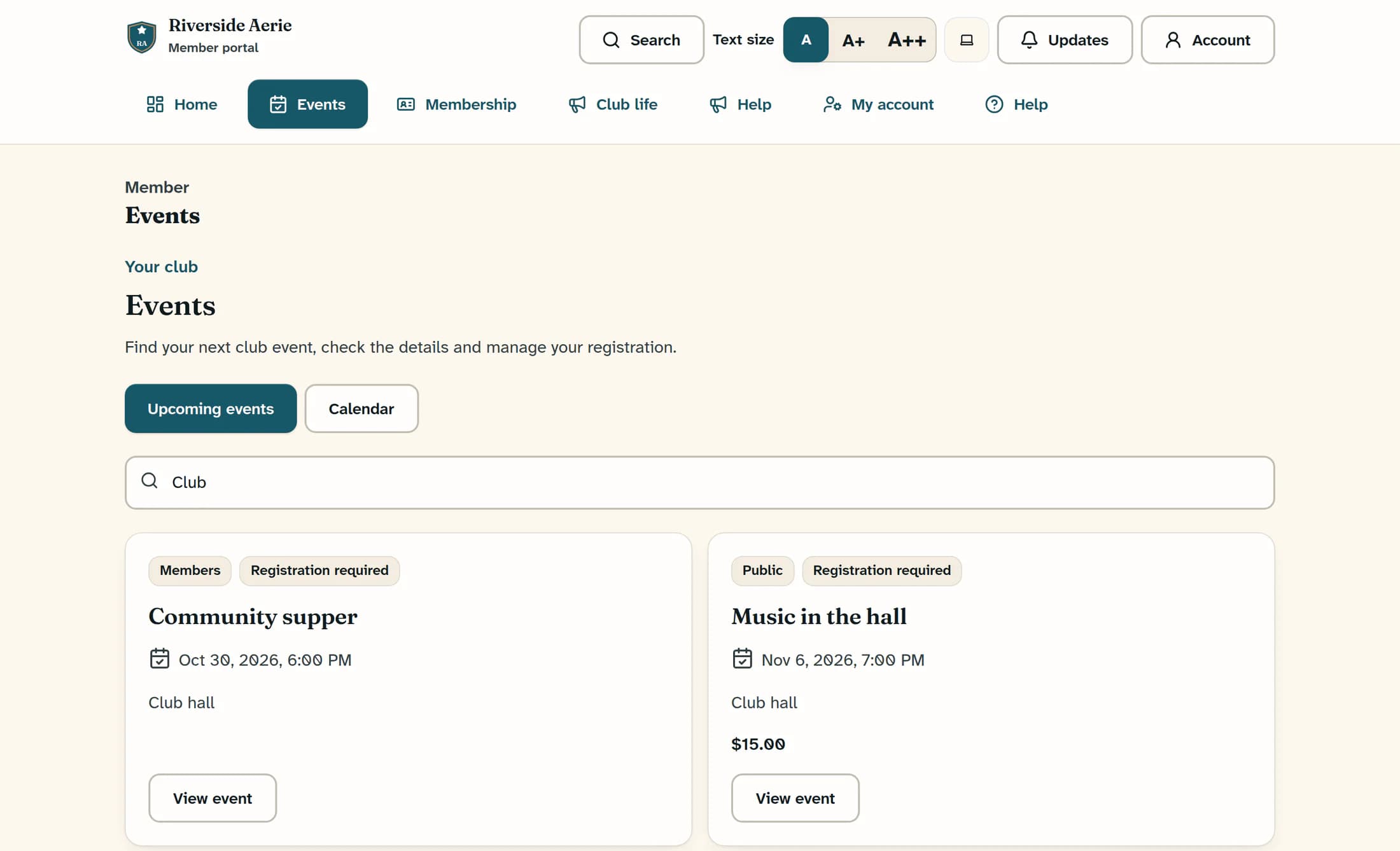
Open Events in the member navigation and use Upcoming events. Enter an event title or location in Search events and locations to filter the upcoming events shown in your portal. Cards show the event’s date, location when supplied, audience and any registration or price information.
Step 2 of 5
Browse the calendar
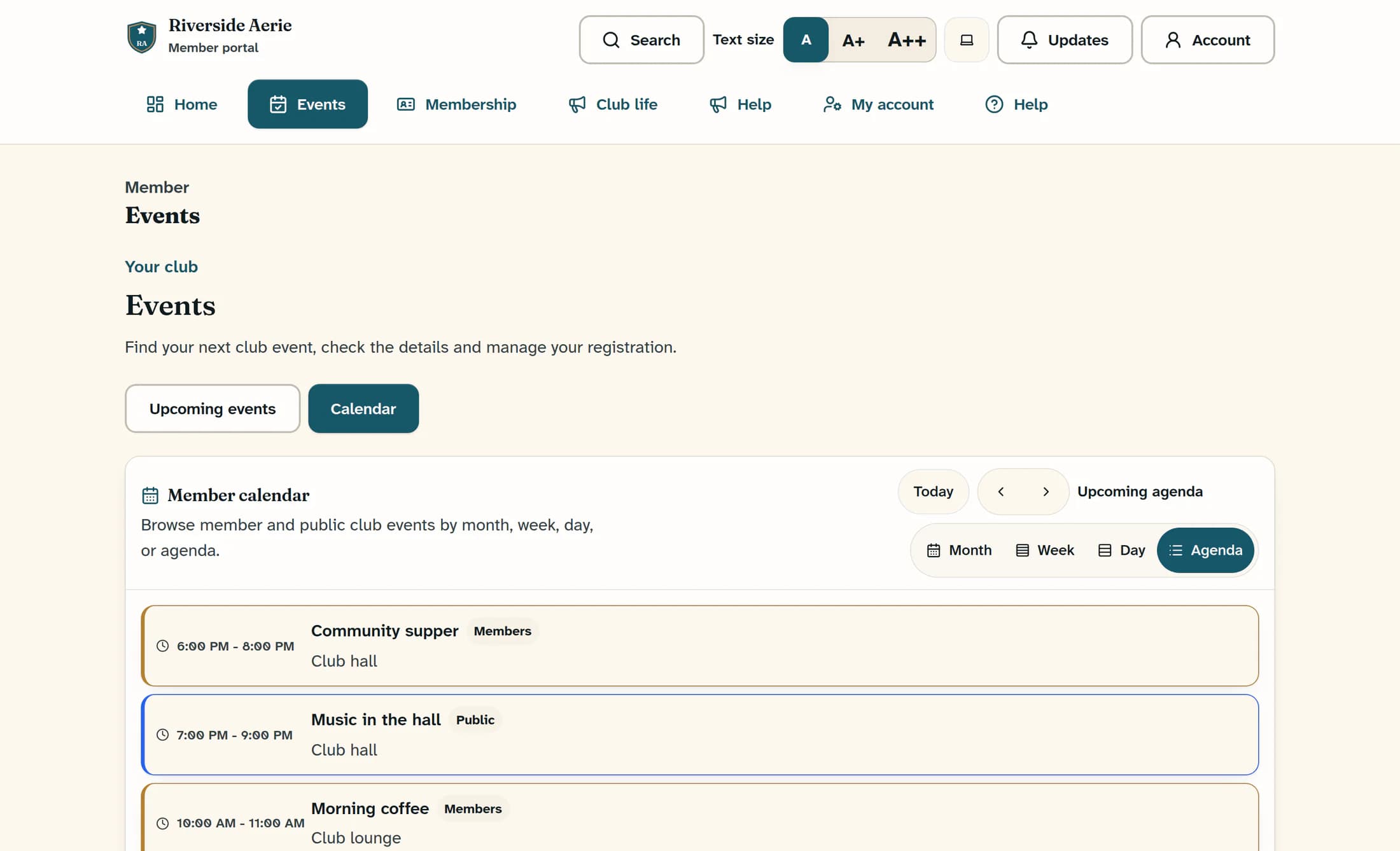
Choose Calendar, then Month, Week, Day or Agenda to change the view. In Month, Week or Day, use the Previous and Next arrows or Today to move through dates; the calendar shows the upcoming events available in this portal view. Choose Upcoming events to return to the searchable cards.
Step 3 of 5
Read the event details
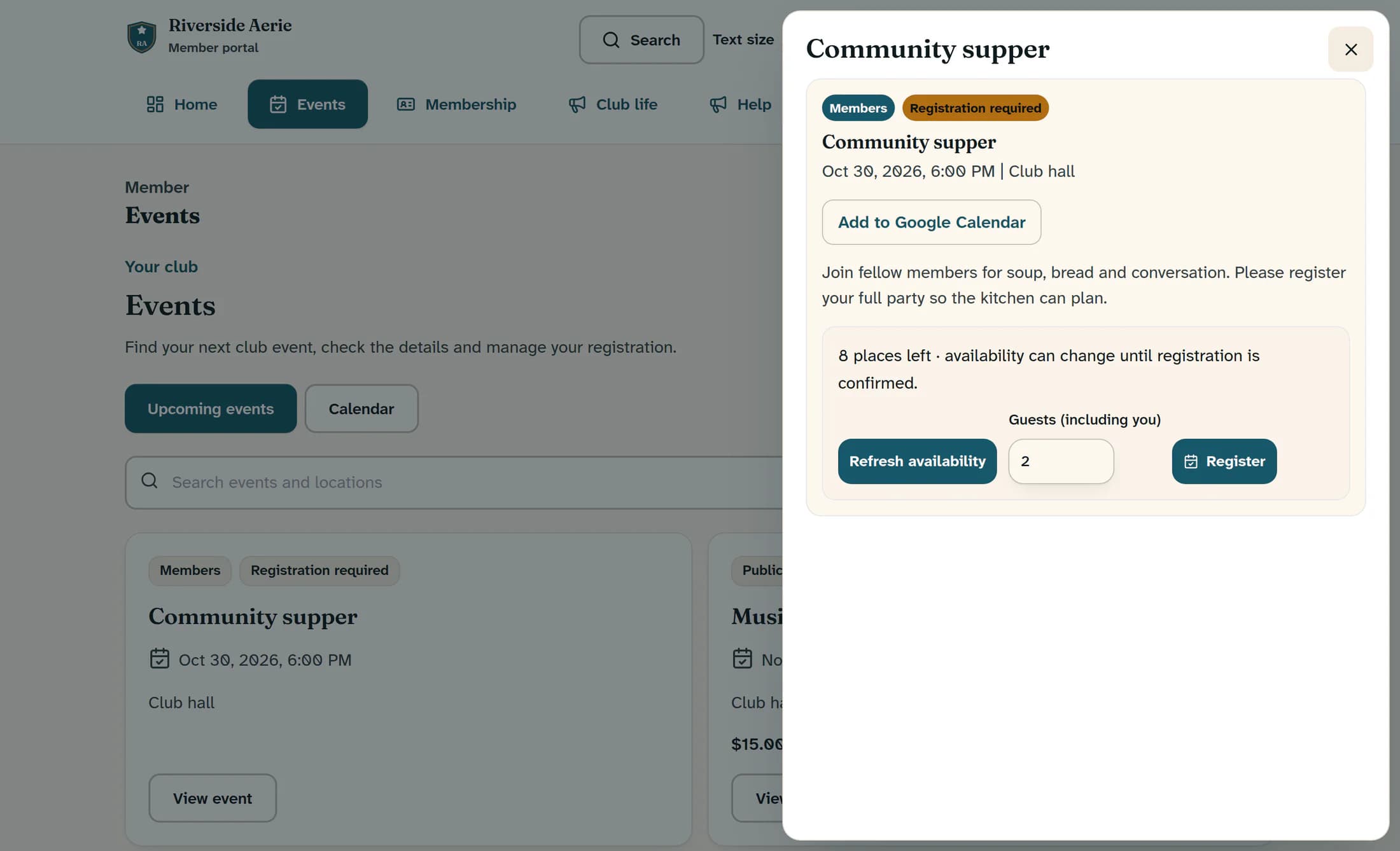
Choose View event on a card to open its details panel. Check the date and time, location, description, Members or Public audience, and any Registration required notice before making plans.
Check payment separately
A paid event may show a separate payment section with an amount and a Pay button when your club supports online payments. That button starts checkout; opening checkout or seeing a temporary seat hold does not confirm payment. Paid-event registration can require a successful payment covering your party, so check Paid and your registration status separately, and ask your club if the charge or guest coverage is unclear.
Step 4 of 5
Register when required
In the details panel, check the availability message, choose Refresh availability, then set Guests (including you) to your total party size and choose Register. Places can change until the registration saves; look for Event registration saved. and the panel’s “You're registered” message with your guest count.
Step 5 of 5
Add a calendar reminder if you want one
Choose Add to Google Calendar in the details panel to open Google Calendar with the event information filled in. Adding a reminder to your calendar does not register you for the event or pay for it.
If an event or confirmation is missing
Summary
Check the event details and total guest count, then rely on the saved registration message. Calendar reminders and payment confirmation are separate from registration.
