
On this page
Before you start
Step 1 of 6
Open extra fields
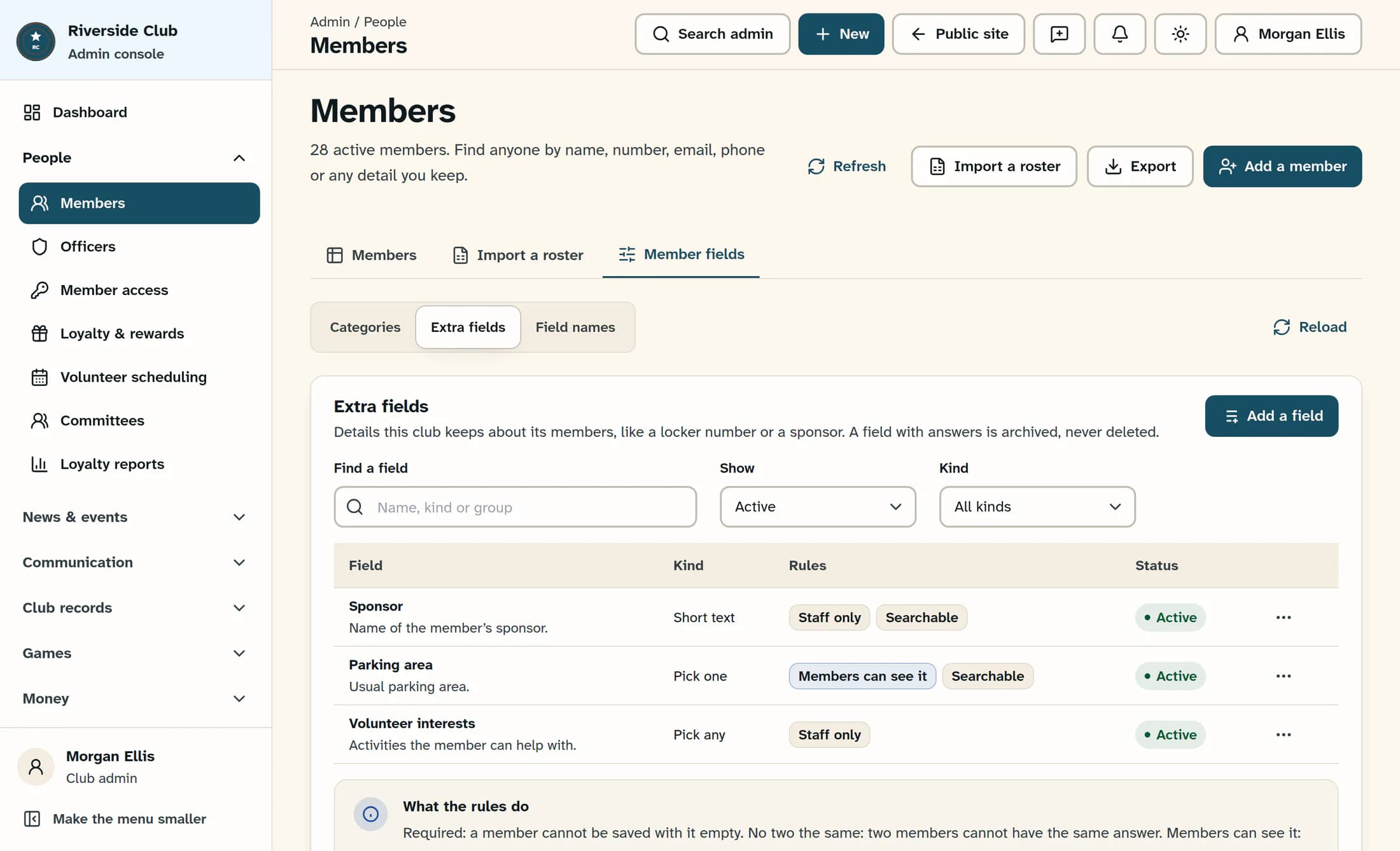
In the admin sidebar, open People > Members, then select Member fields > Extra fields. Select Add a field to open Add an extra field.
Step 2 of 6
Describe the field
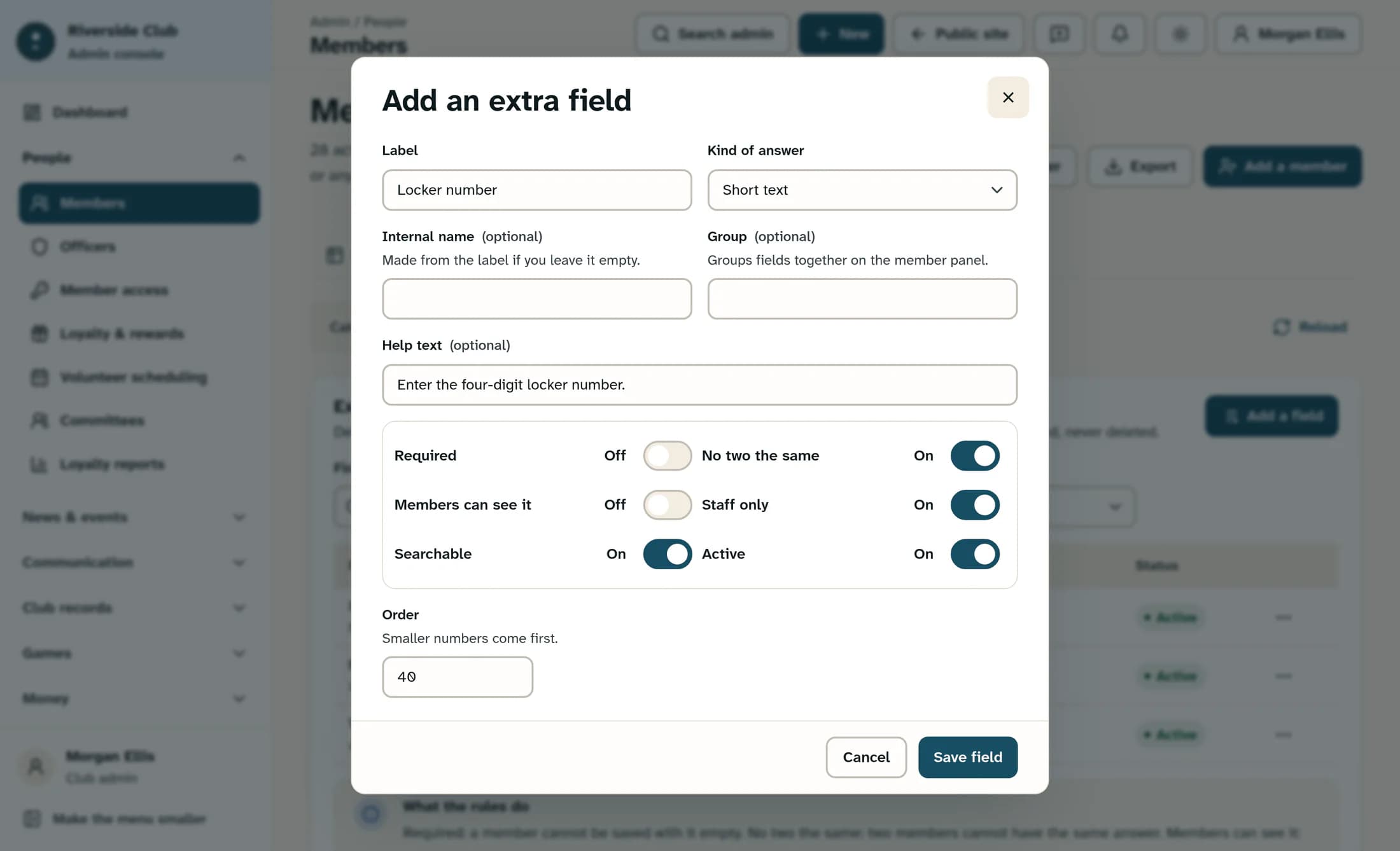
Enter Locker number in Label and select Short text under Kind of answer. Leave Internal name empty to create it from the label, or enter a name that is unique within your club. Add Help text if staff need a hint, and use Order to position the field; smaller numbers come first.
Choose the right answer format
- Kind of answer offers Short text, Long text, Number, Date, Yes or no, Pick one, Pick any, Phone, Email, Web address, and Money.
- For Pick one or Pick any, enter Choices, one per line. At least one choice is needed; the first 100 distinct, nonblank lines are kept. A removed choice remains visible on members who already have that answer.
- Internal name is fixed after creation. Group is optional and can help you find a field in the settings list; all fields appear together under Extra details, and Group does not add headings there.
- Choose the kind carefully. Changing it later does not convert existing answers into the new format.
Step 3 of 6
Set the rules and visibility
For the locker example, turn on No two the same, Staff only, Searchable, and Active. Leave Required and Members can see it off, then select Save field. This saves the field setup; it does not enter a locker number for any member.
What the switches mean
- Required checks for an answer when a member is saved through the member form. Turning it on does not fill existing blank answers.
- No two the same checks answers against other members when saving a member in this form. It does not clean up existing duplicates, and it is skipped for Yes or no fields.
- Members can see it lets members read their own answer on My Membership; they cannot change it there. Turning it on turns Staff only off, and turning Staff only on turns member visibility off.
- Staff only hides the answer from members. It does not exclude an active field from staff CSV exports.
- Searchable makes saved answers available to the member search. Active makes the field available for member entry; turning it off archives the field.
Step 4 of 6
Save an answer on a member
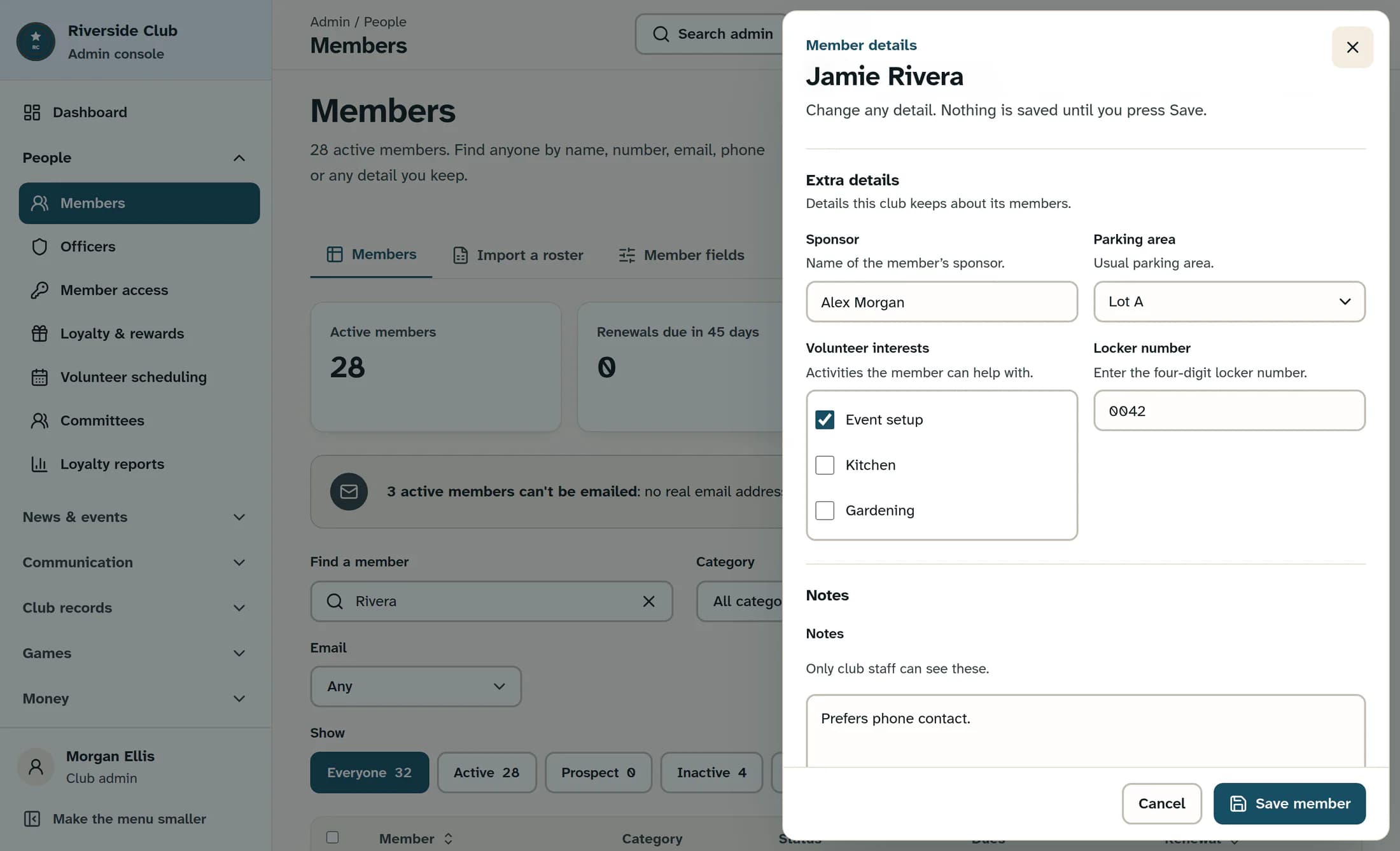
Return to the Members tab and find the correct member; verify their name and member number, then select their name to open Member details. Scroll to Extra details and enter 0042 in the Locker number field. Select Save member, then reopen the same profile to check that the answer was saved.
Step 5 of 6
Find or change an existing field
Return to Member fields > Extra fields and use Find a field to search by name, kind, or group. Use Show to choose Active, Archived, or All, and Kind to narrow the list. Select the field’s row, or its three-dot menu > Edit, make your changes in Change the field, and select Save field.
Step 6 of 6
Archive or restore a field
In the field’s three-dot menu, select Archive to stop using it; this takes effect immediately and keeps existing answers. To bring it back, set Show to Archived or All, then select Restore in its three-dot menu. The field and its saved answers appear again.
Keep existing answers safe
- Archiving hides the field from active entry and member display, but retained answers from a searchable field can still match the member search.
- If you select Delete for a field with saved answers, ClubWorks offers Archive it instead; an already archived field stays archived.
- An unused field can be permanently deleted after the Delete the field confirmation. This cannot be undone.
If something does not save
- For “Enter a field label.”, fill in Label. For a choice field, add at least one nonblank line in Choices.
- If an internal name is already in use, choose a different Internal name for the new field. Renaming the label of an existing field does not change its internal name.
- If a member save asks for a required answer, fill in the named field. If it says another member has the same answer, check the member and use the correct, distinct value.
- Use Reload within Member fields to reload settings, or Refresh at the top of Members to reload member data. If access is refused, ask a club administrator to check your field-settings and member-edit permissions.
- A failed member save can leave some profile details saved while extra answers are still unsaved. Reopen the member and inspect both before retrying.
Related: Edit a member profile · Export the member roster
Illustrations are source-based reconstructions with fictional club and member details, checked against release 16782cba. This workflow has not been tested in a live club.
You’re done
Your club now has a reusable field and a saved answer on the member you updated. Use the same field on other profiles as needed.
