
On this page
Before you begin
Understand the two choices
Membership type has five built-in choices: Regular, Auxiliary, Social, Honorary and Lifetime. Names vary by organization—for example, an Eagles club uses Aerie and Life member. You cannot add a sixth built-in type here.
Club category is a separate, club-created group, such as Volunteer. A member has one primary Club category in the member panel, or No club category. Creating a category does not assign anyone to it.
Choosing Lifetime in this panel does not automatically record a payment, set dues to exempt or update renewal dates. Review the member's dues details separately.
Step 1 of 4
Open your club categories
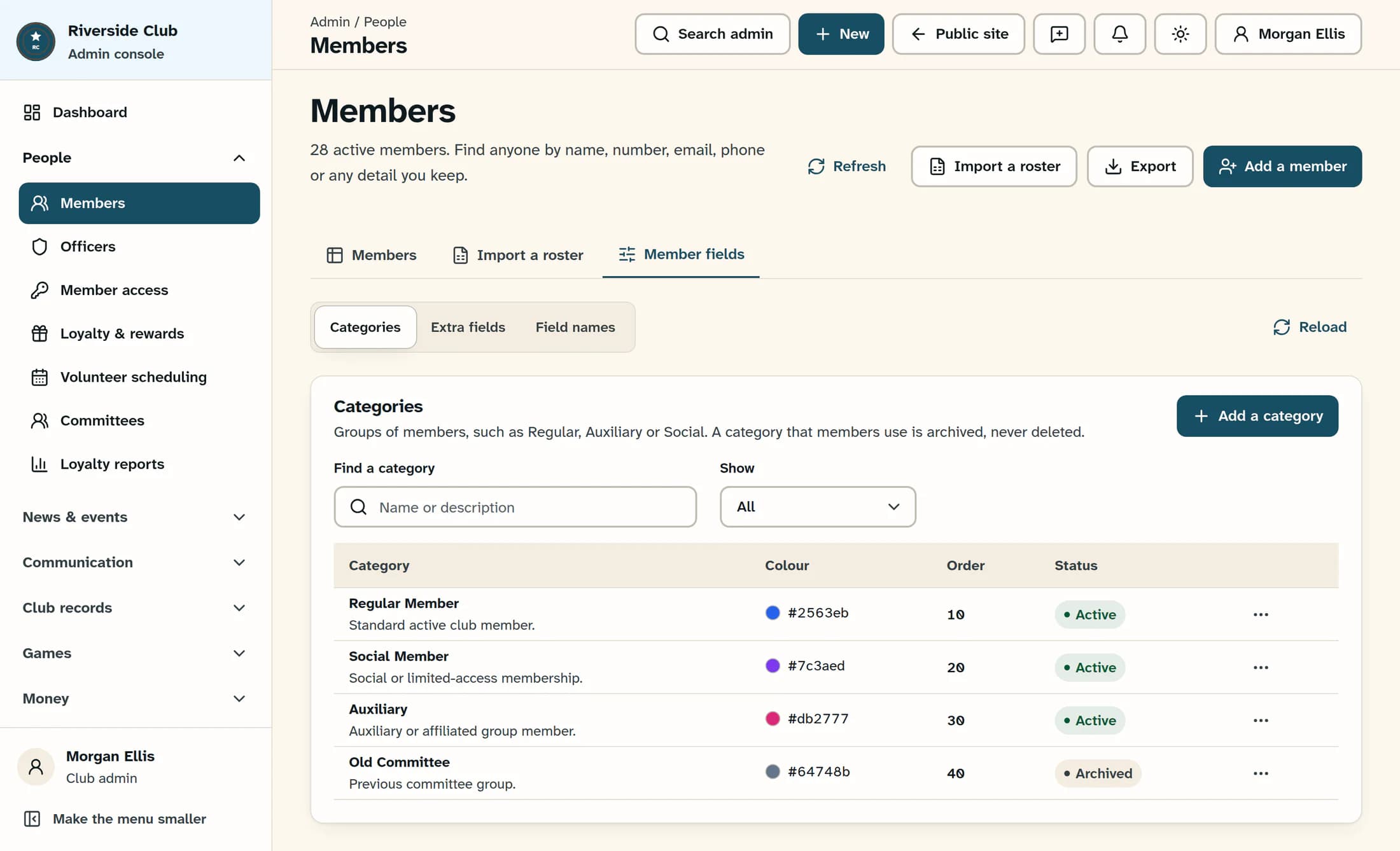
In the admin menu, open People → Members. Choose Member fields, then Categories.
Use Find a category to search names and descriptions. Set Show to Active, Archived or All to choose which categories appear. Select Add a category to create one.
Step 2 of 4
Add a category
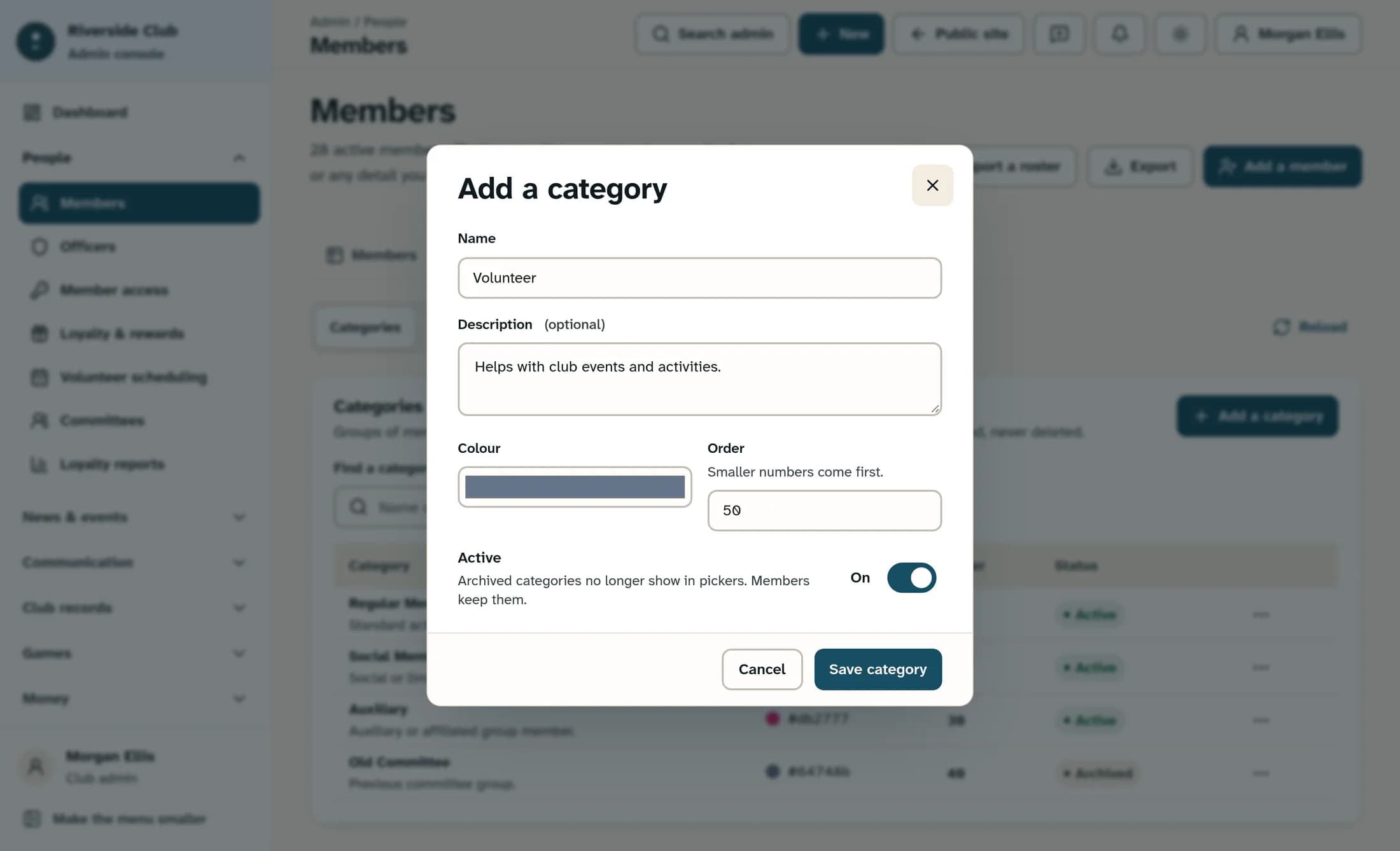
In Add a category, enter a Name that is unique within your club. Names that differ only in capitalization or surrounding spaces count as duplicates.
Add an optional Description, choose a Colour, and set Order. Smaller numbers come first. Leave Active on to offer this category to staff editing member records.
Select Save category. The dialog closes after a successful save and the category is added to the list. This saves the category only; the next step assigns it to a member.
Step 3 of 4
Assign the type and category to a member
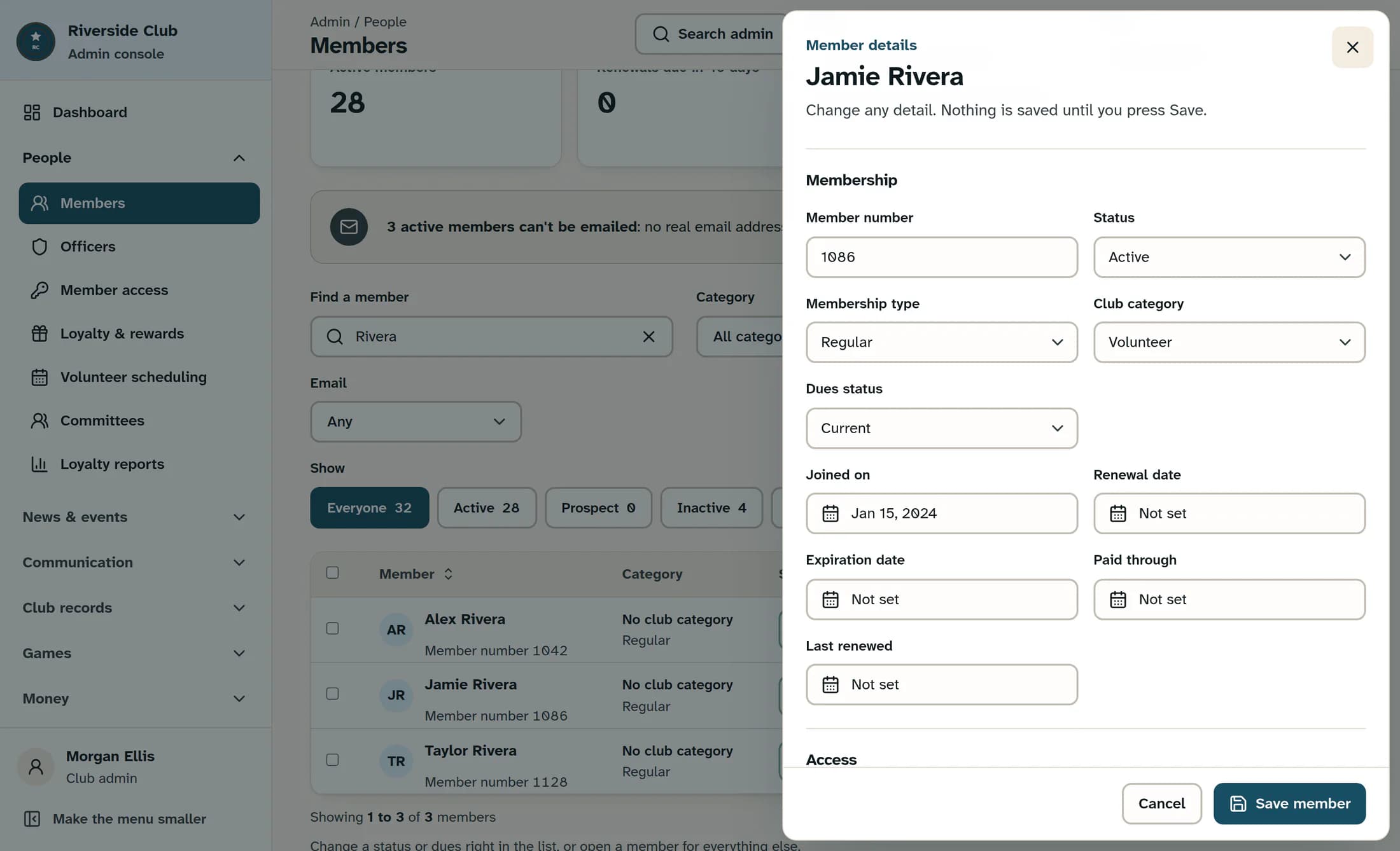
Return to the Members tab, find the member, and select their name to open Member details. In the Membership section, choose their Membership type and one Club category. Choose No club category to clear the category.
Select Save member. After the panel closes, reopen the member to check both choices. If a new category is missing from the picker, confirm it is active and use Refresh on the Members page before trying again.
Step 4 of 4
Edit, archive or restore a category
In Member fields → Categories, select a category row, or open its More menu and choose Edit. Update the details in Change the category, then select Save category.
To stop offering a category for new selections, choose Archive from its More menu. This takes effect immediately. Existing members keep the category, but it no longer appears in pickers.
To bring it back, set Show to Archived, open its More menu and choose Restore. Restore also takes effect immediately.
Delete only an unused category
If a category is no longer needed, its More menu offers Delete. An unused category asks you to confirm with Delete the category; deletion cannot be undone.
If members use an active category, the dialog offers Archive it instead. A used category that is already archived can only be closed from that dialog. Archiving preserves members' existing category assignments.
Field names change labels
The Field names tab changes what your club calls standard member details. Enter the wording beside the relevant field and select its Save button. To restore a standard name, clear its box and select Save.
These changes affect labels on Members and My Membership. They do not create a new membership type or rename each of the five built-in type choices; those choice labels come from the club's organization type.
If a change does not save
Read any inline error or That did not save notice. Check for a missing or duplicate category name and confirm you have the required permissions.
Use Reload in Member fields to check the saved category list. For a member change, use Refresh on the Members page and reopen the record. Verify what saved before retrying or creating another category, especially if the connection failed partway through.
You're set
Your categories can now reflect the groups your club needs. Keep membership type and Club category separate, save member assignments explicitly, and archive categories when existing members still use them.
