
On this page
Before you start
Step 1 of 4
Open the time-off requests
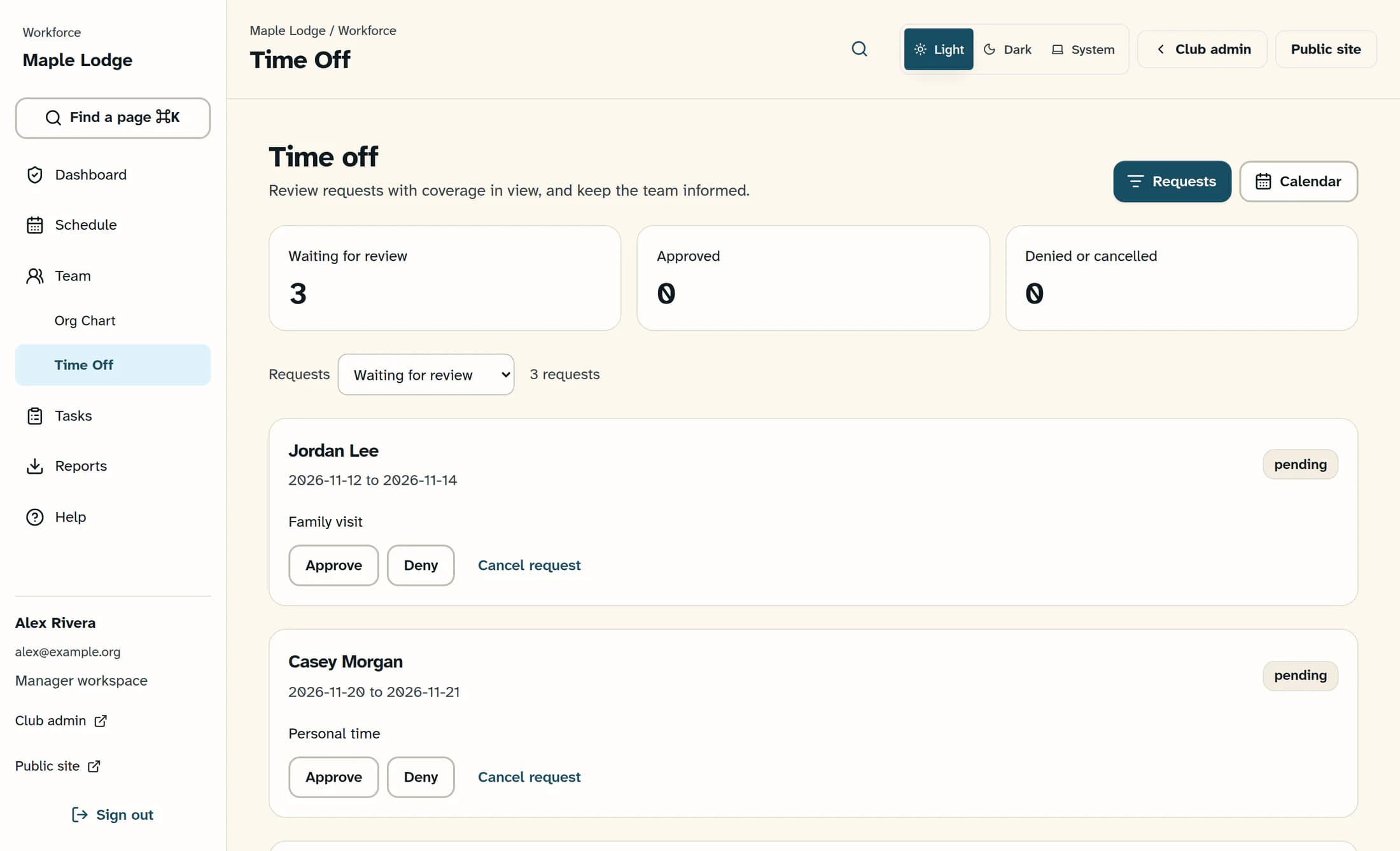
In Workforce, open Team, then Time Off. Depending on your access, Team may open time off directly. Select Requests if the calendar is showing.
Step 2 of 4
Find requests waiting for a decision
In the Requests filter, choose Waiting for review. Read the employee’s name, the full start and end dates, and the reason on each request before making a decision.
Step 3 of 4
Approve or deny the request
Select Approve or Deny on the intended pending request. Wait for the update to finish before taking another action; only pending requests can be approved or denied.
Step 4 of 4
Confirm the updated status
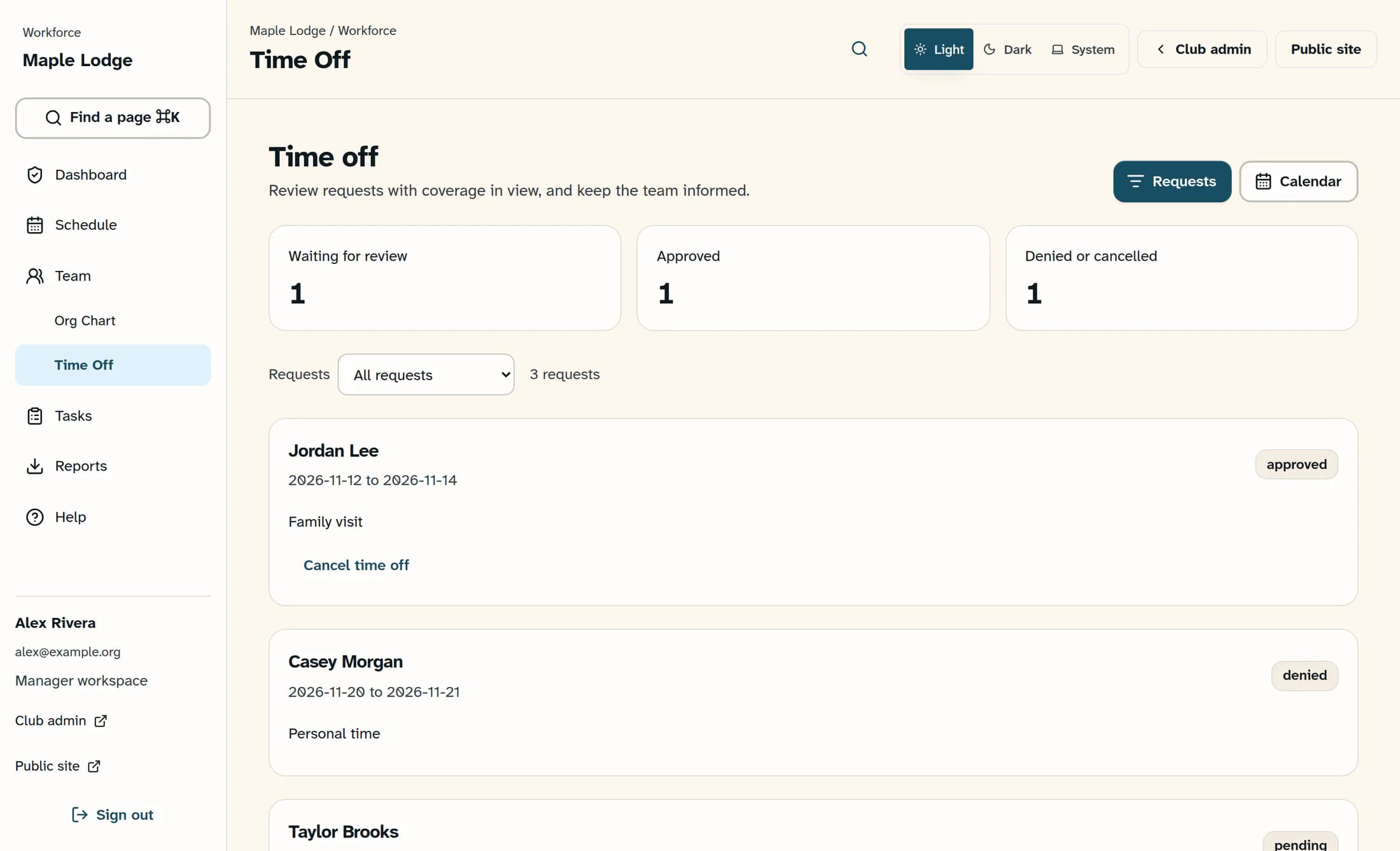
Use the Requests filter to choose Approved, Denied or cancelled, or All requests. Find the same employee and dates, then check the status badge to confirm your decision.
Cancel time off when plans change
For a pending request, select Cancel request to cancel it. For an approved request, select Cancel time off; the cancelled request appears under Denied or cancelled.
Keep in mind
Summary
The request’s status records your decision so you and the team can follow it.
