
On this page
Before you begin
Step 1 of 4
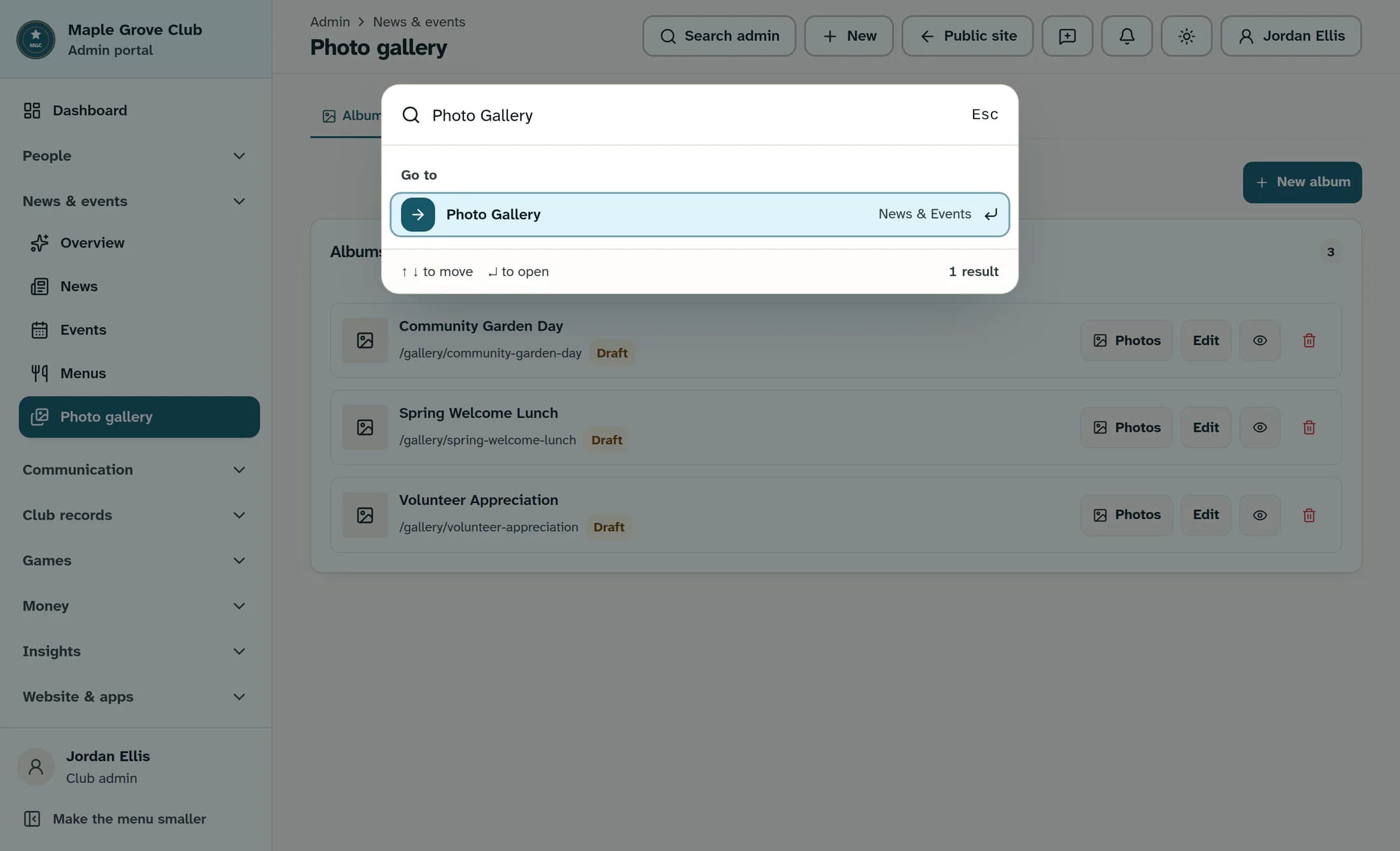
Find Photo Gallery
Click Search admin in the top bar. Type Photo Gallery in the search field, then select Photo Gallery from the results.
Step 2 of 4
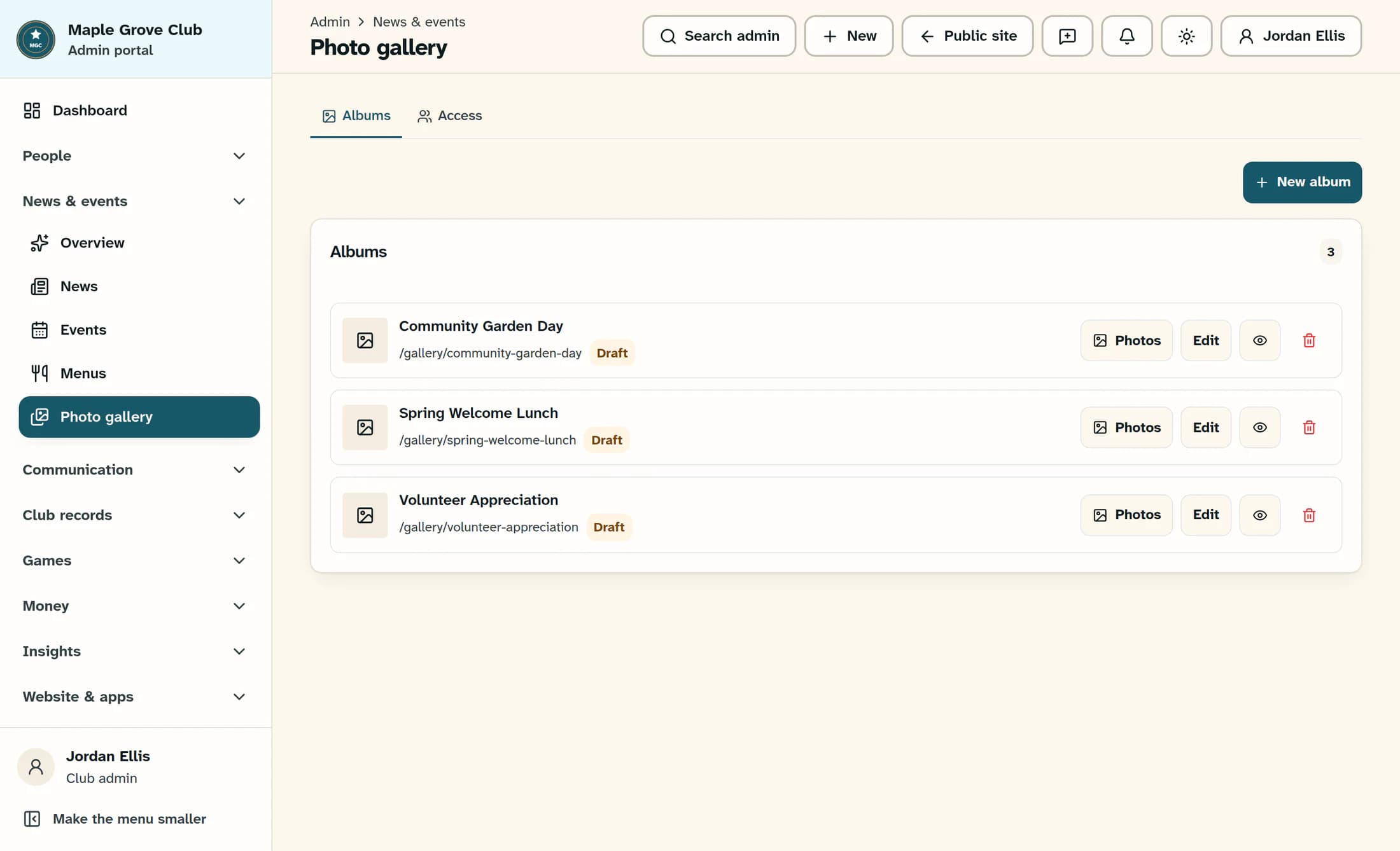
Start a new album
On the Albums tab, click New album above the album list. The creation form opens on the same page.
Step 3 of 4
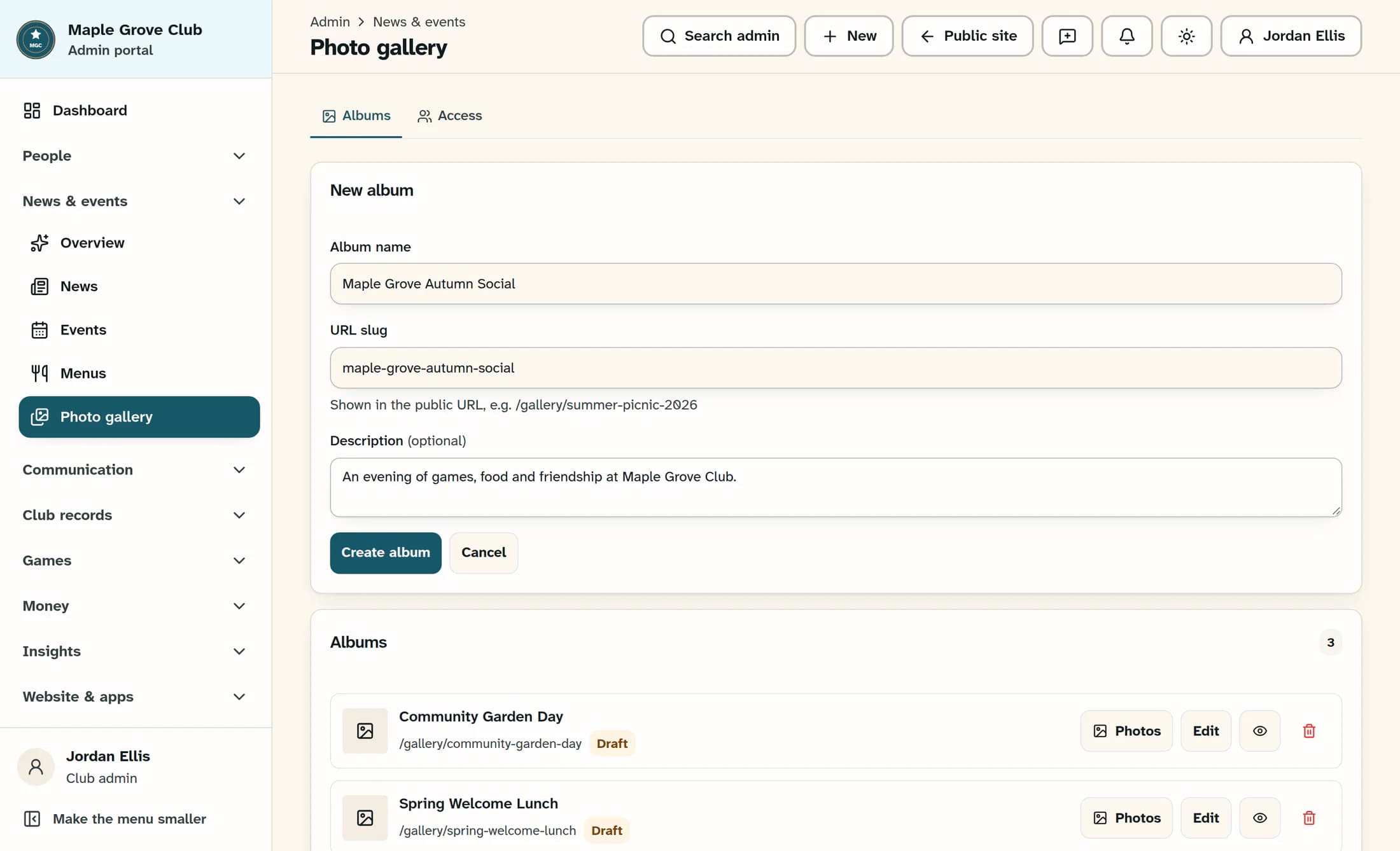
Enter the album details
Enter a name in Album name, such as Maple Grove Autumn Social. Review and edit URL slug to the readable address you want, such as maple-grove-autumn-social. If useful, enter a short Description to appear on the gallery page.
Step 4 of 4
Create the draft
Click Create album once the name and slug are filled in. Wait for Album created., then confirm that the form closes and the album appears in the list with the correct name, /gallery/maple-grove-autumn-social address and Draft badge.
Good to know
Your album is ready for photos
Once the new album is visible with its Draft badge, you have a saved draft to build on. It has not been published.
About this guide
The illustrations are reconstructed from the reviewed ClubWorks source and use fictional club and album details. They are not live captures; this workflow, your permissions and your club’s configuration have not been verified in a live or native session.
The screens in this guide show example clubs and people. Your club's name, colours and some labels may look different.
