
On this page
Before you start
Step 1 of 6
Open your empty menus page
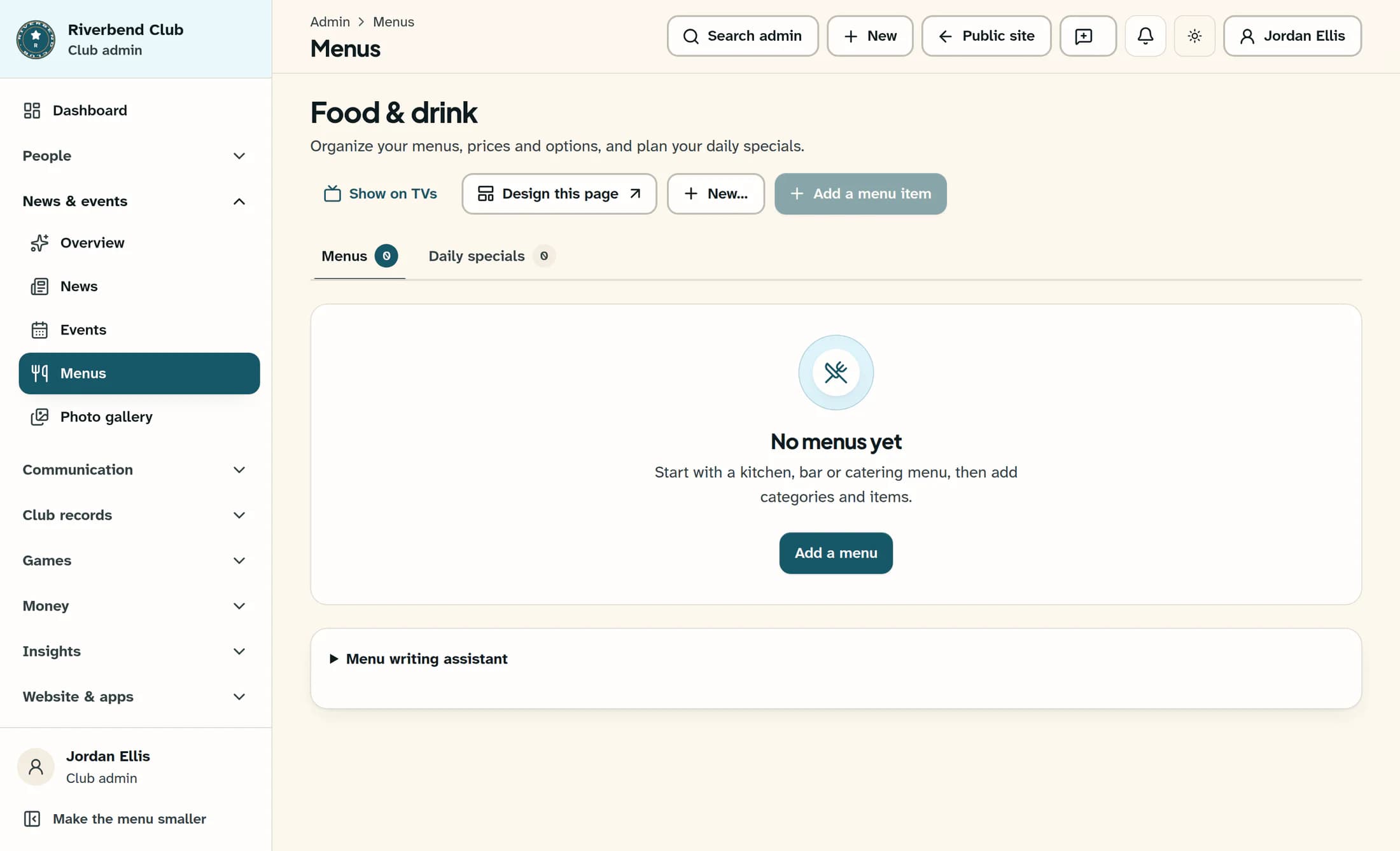
Open Menus in the admin area and keep the Menus tab selected on Food & drink. With No menus yet displayed, choose Add a menu in the empty-state card.
Step 2 of 6
Create your first menu
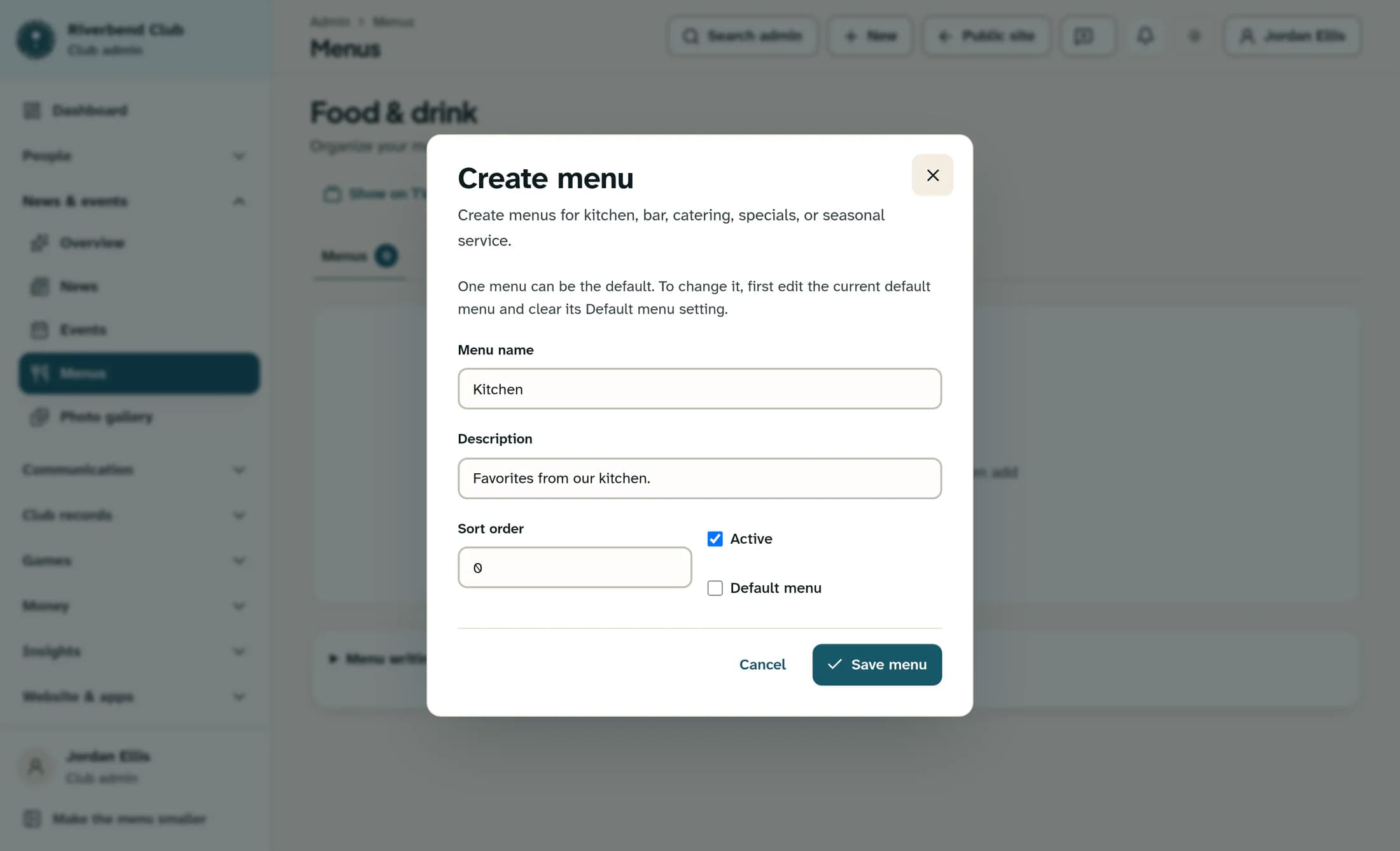
In the Create menu dialog, enter a Menu name such as Kitchen and an optional Description. Set Sort order to 0, leave Active checked for a menu you want to show, and choose Save menu at the bottom right.
Step 3 of 6
Start your first category
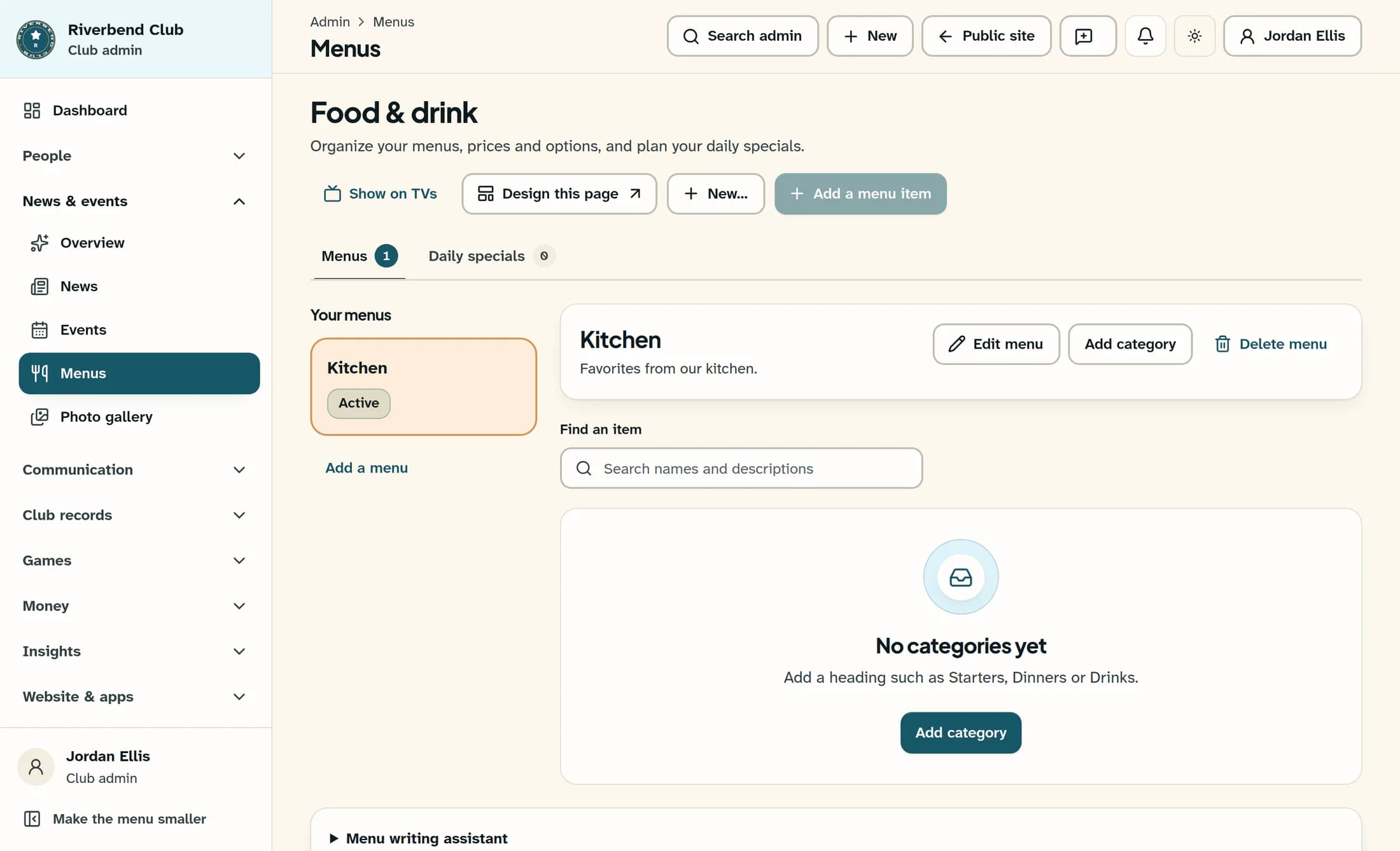
After saving, Kitchen appears because it is your only menu. Choose Add category beside the menu heading or in the No categories yet card.
Step 4 of 6
Enter and save the category
In the Create category dialog, confirm that Menu at the top is Kitchen. Enter a Category name such as Starters and an optional Description below it. Set Sort order to 0, leave Visible checked, and choose Save category at the bottom right.
Step 5 of 6
Start your first menu item
After the category saves, choose Add a menu item at the top of the Food & drink page.
Step 6 of 6
Enter and save the item
In the Create menu item dialog, choose Kitchen / Starters in Category at the top. Fill in Name and Description, then enter Price in dollars, such as 8.50, beside Sort order. Leave Available checked near the bottom for an item you want to offer, then choose Save item at the bottom right.
Visibility and saving
Summary
Your first menu now has a category and a priced item. You can repeat the category and item steps to build out your offerings.
