
On this page
Before you start
Step 1 of 4
Open the raffle’s prizes
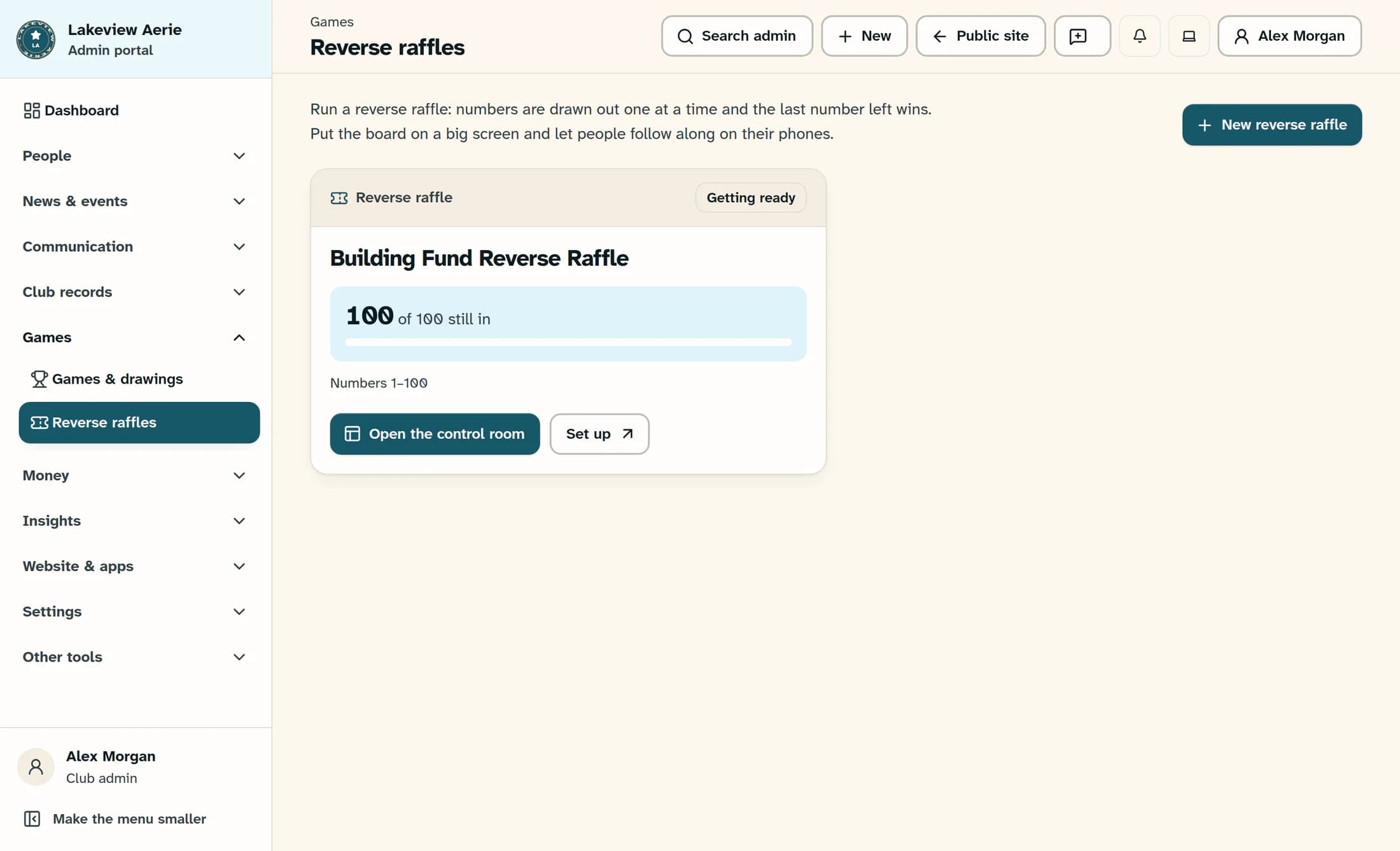
In the admin area, open Games, then Reverse raffles. On the raffle’s card, select Set up, then select Prizes.
Step 2 of 4
Add and describe a prize
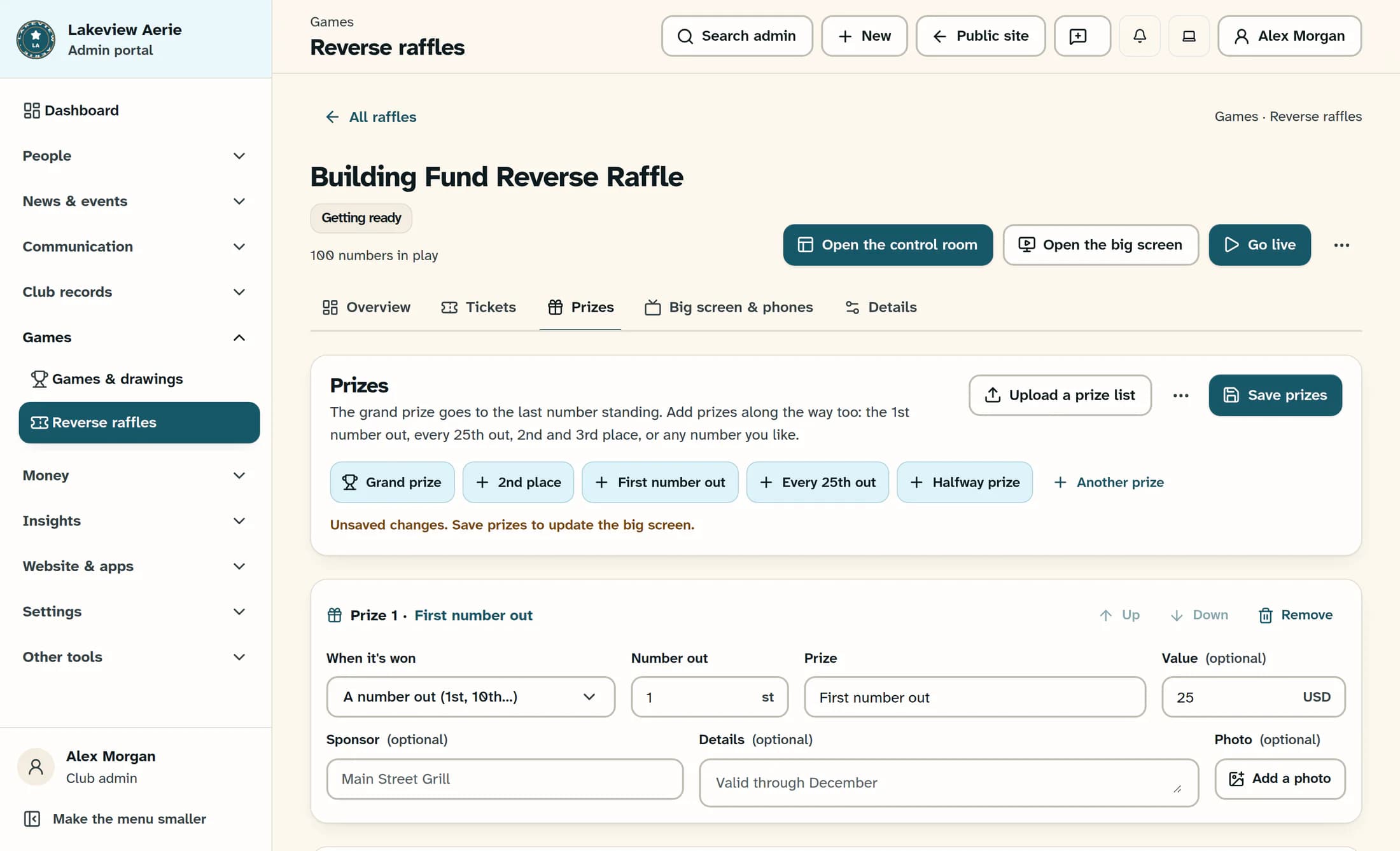
Choose a shortcut such as Grand prize, First number out, or Another prize. In the new row, choose When it's won, enter a Prize name, and set the place, number out, or interval when applicable. Add a value, sponsor, details, or photo if you want.
Step 3 of 4
Review and save the list
Edit any row or choose Remove. Review the prize schedule, then select Save prizes; every prize needs a name. Saving updates the big screen and, when follow-along is on, phones.
Step 4 of 4
Import a list if you have one
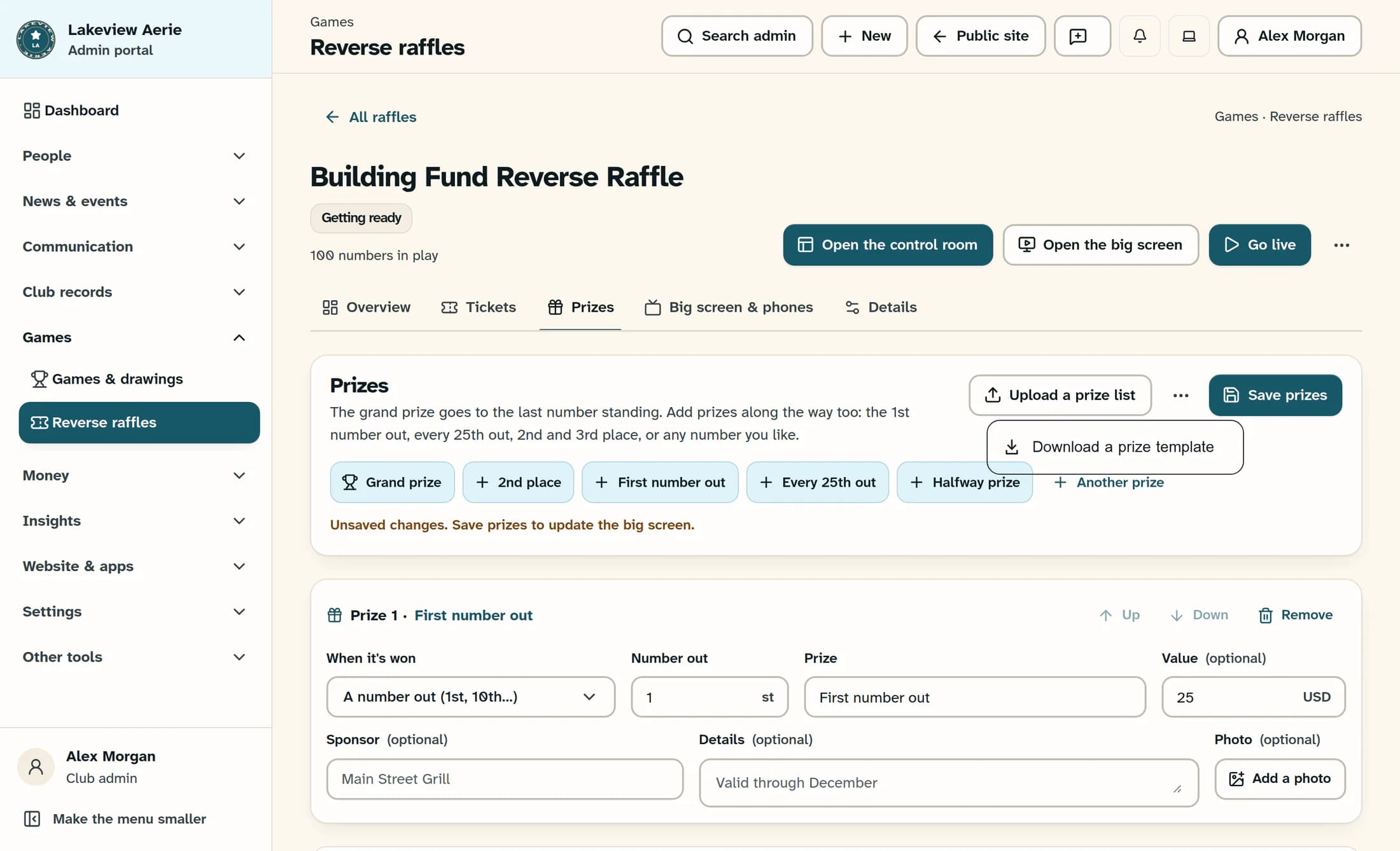
Open the three-dot More prize actions menu and choose Download a prize template, or select Upload a prize list to add a CSV or Excel file. The import adds rows to your current list; check the result and any skipped-row message, then save. For a last-out prize, use its numbered draw position (for example, 99th out when 100 numbers are in play) rather than the template’s 'Last number out' wording, which the importer does not recognize.
Tips
You’re ready
Your saved prizes appear on the big screen and, when follow-along is on, phones. Return to the Prizes tab whenever you need to update the list.
