
On this page
- Before you start
- Open the club's task list
- Describe the work
- Choose the assignee
- Choose the task type
- Set the priority and due date
- Check and assign once
- Find and reopen the saved task
- Use the right list and filters
- Leave and verify an update
- Follow the work through
- Cancel an assignment when needed
- Reopen closed work
- Alternatively, start a review cycle
- Select employees and assign the review tasks
- Check the review assignments
- Open the separate review or HR workflow
- If something needs attention
- Notifications and reminders
- Expected result
Before you start
Step 1 of 16
Open the club's task list
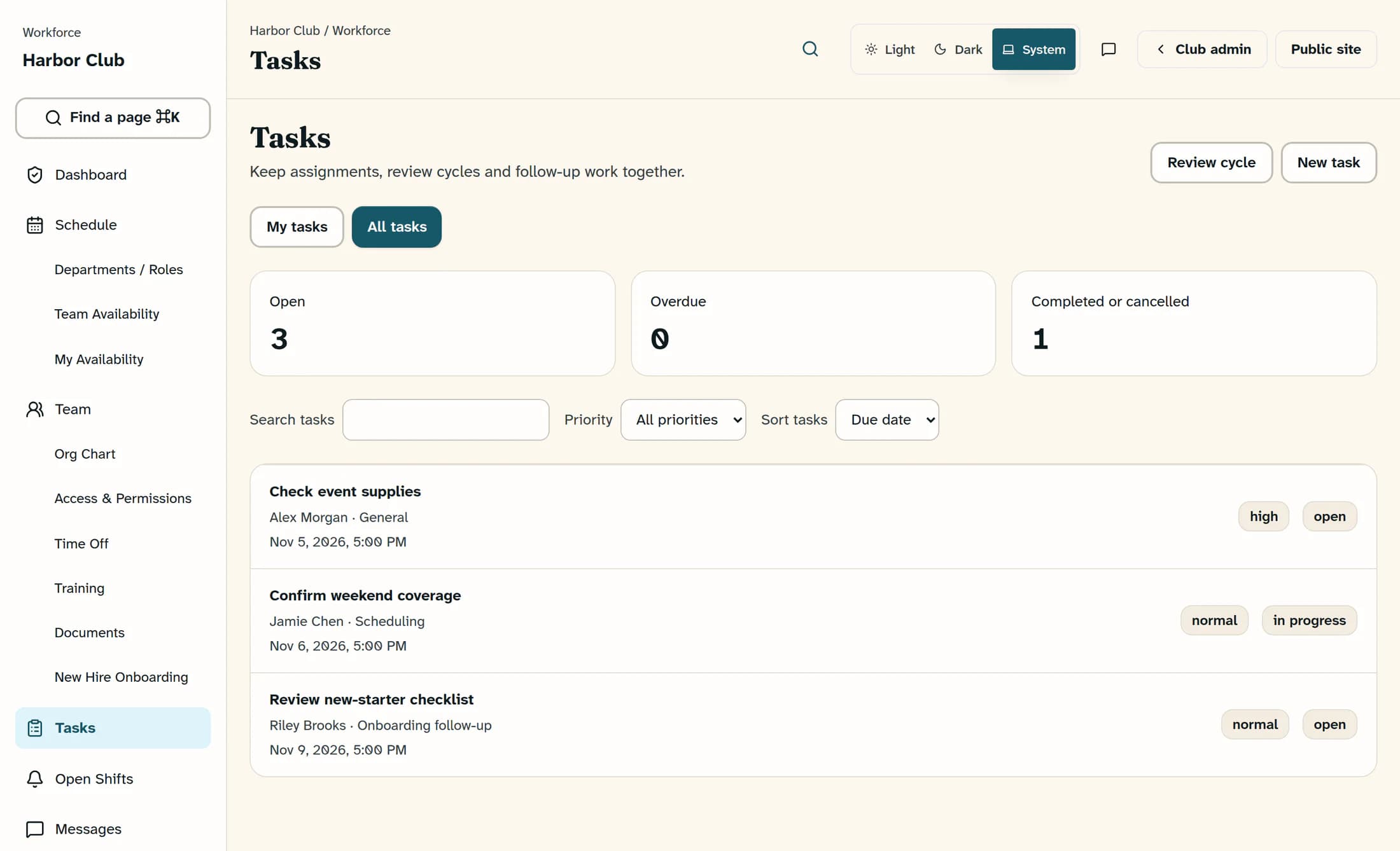
In the dedicated Workforce workspace, select Tasks, then All tasks to work across the club's assignments. Select New task at the top right; the Classic layout calls this New Task.
Step 2 of 16
Describe the work
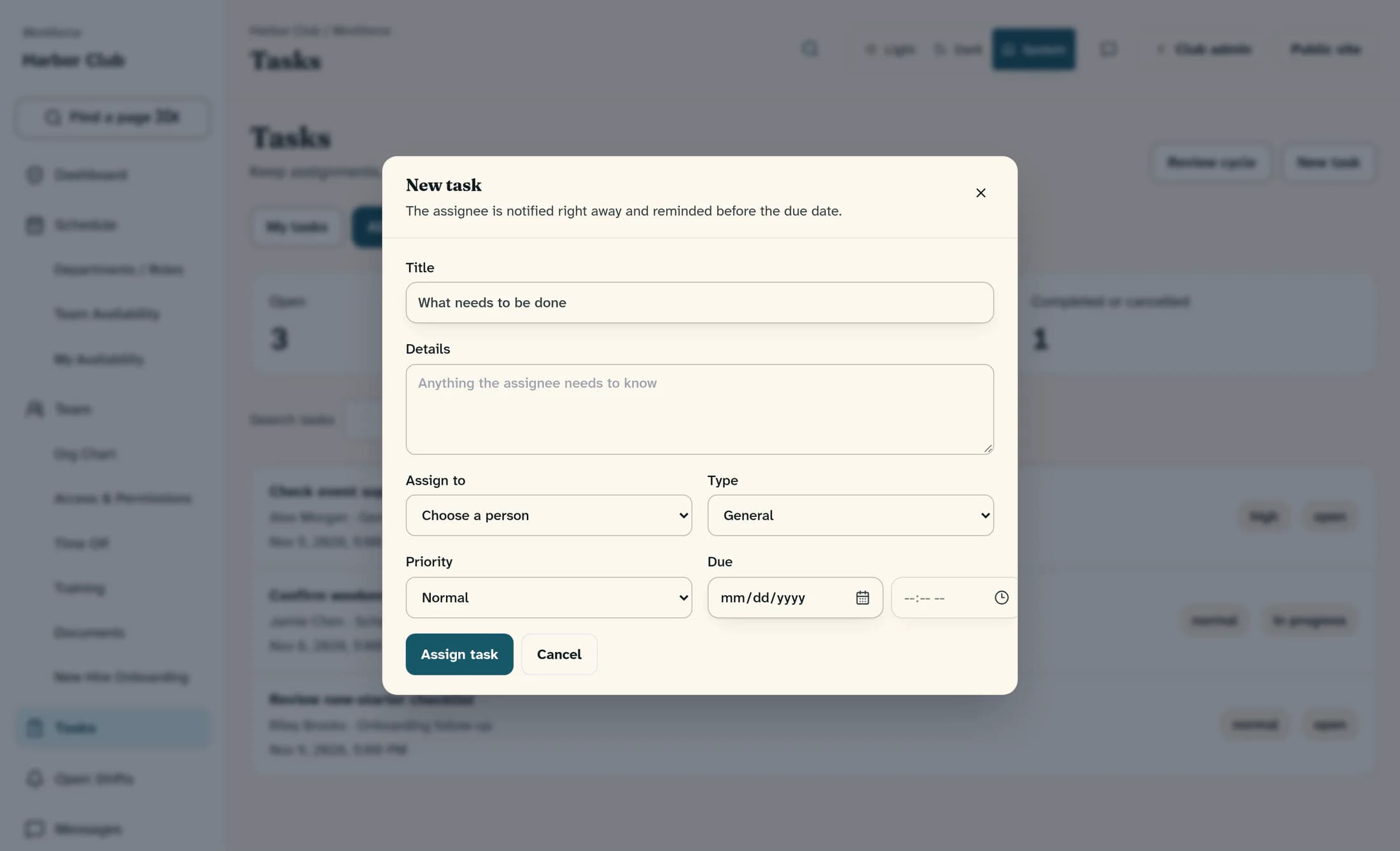
In the New task panel, enter a clear Title. Add instructions in Details if useful; the title is required, and details are optional.
Step 3 of 16
Choose the assignee
Under Assign to, choose the actual person who will do the work. Use an available staff-linked user or club administrator, and check that you have picked the intended person before assigning.
Step 4 of 16
Choose the task type
Under Type, choose General, Employee review, HR document, Onboarding follow-up, Scheduling or Other. The initial choice is General; for Employee review, HR document or Onboarding follow-up, you can optionally select About employee, or leave Not tied to a specific employee.
Step 5 of 16
Set the priority and due date
Choose Low, Normal, High or Urgent under Priority; the default is Normal. If the work has a deadline, use Due date and Due time under Due; choosing a date initially fills 5:00 PM, and you can change the time.
The due date is optional. The time uses your browser's local date and time, so confirm it before assigning, especially when working across time zones; clearing the date also clears the time, and the time control is unavailable until a date is set.
Step 6 of 16
Check and assign once
Review the title, instructions, assignee, type, priority and due date in the filled panel, then select Assign task once. Wait for the request to finish before taking another action.
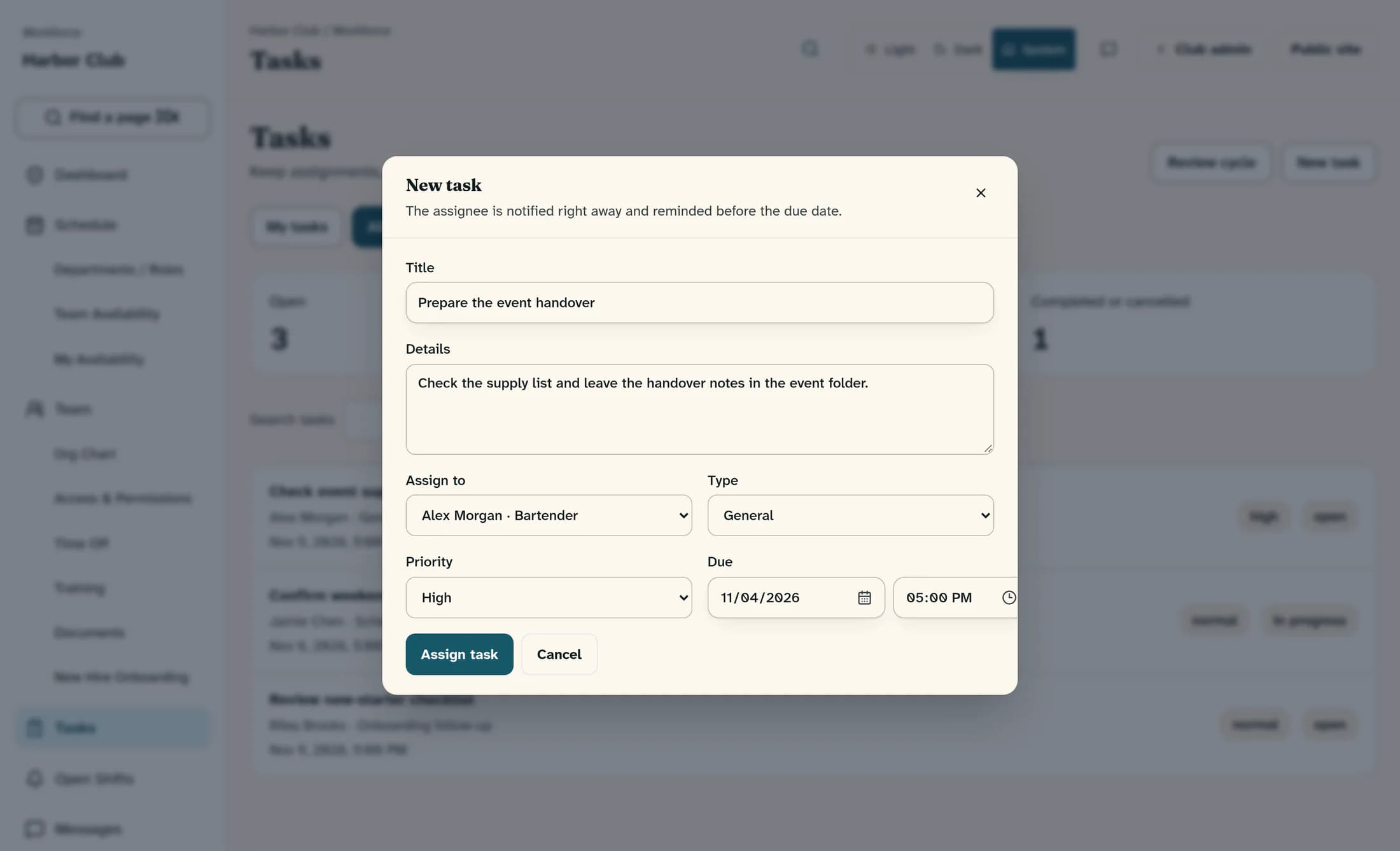
Once people have loaded and at least one assignee is available, Assign task can be enabled even with a blank title or no selected person. Selecting it checks the required title and available assignee; correct any message before trying again. Cancel or Close discards the unsaved panel.
Step 7 of 16
Find and reopen the saved task
After the panel closes, find the assignment in All tasks and select its row to reopen the details. Check the title, instructions, assignee and assigner, type, due date, priority and status, plus the related employee when one was selected.
Step 8 of 16
Use the right list and filters
Use My tasks for work assigned to your own sign-in and All tasks to monitor the club's tasks. Choose Open, Overdue or Completed or cancelled, narrow with Search tasks and Priority, and use Sort tasks to order by Due date or Title.
Open includes work in progress, while Completed or cancelled includes both kinds of closed work. Search covers the title, instructions, assignee and type; a filter can hide an existing task. Reopen the task list or refresh the browser when you need a fresh view of another person's changes.
Step 9 of 16
Leave and verify an update
In the task details, type an update in Add a comment and select Post, or press Enter. Check that it appears under Comments; posting a comment saves a separate update and does not complete the task.
Step 10 of 16
Follow the work through
The assignee can select Start to record In progress, then Mark complete after doing the work; an open task can also be completed directly. Reopen the details and check its status and completion information rather than relying on a notification.
Share Complete an assigned task with the person doing the work. Completing a task records its status; the actual review, HR document, signature or other work must be finished separately.
Step 11 of 16
Cancel an assignment when needed
As a task manager, open unfinished work and select Cancel task if it should no longer be done. The cancellation applies immediately without a confirmation panel; check the cancelled status under Completed or cancelled.
Step 12 of 16
Reopen closed work
As a task manager, open a completed or cancelled task and select Reopen when the assignment needs attention again. Check that it returns to Open; reopening clears its earlier completion information.
The task details do not provide a general form for editing the title, instructions, assignee, priority or due date, or a delete action. If an assignment is wrong, inspect what was saved, deliberately cancel it and create the correct replacement. Closing the details panel does not cancel a saved task.
Step 13 of 16
Alternatively, start a review cycle
To assign reviews for several employees, select Review cycle from Tasks. In Start a review cycle, choose one person under Manager completing the reviews and optionally set Due.
Although the picker says Choose a manager, it uses the available assignee list rather than filtering only to managers. Choose someone who separately has permission to carry out the reviews; assigning a review task does not grant that authority.
Step 14 of 16
Select employees and assign the review tasks
Under Employees to review, select the individual employee checkboxes, or use Select all and Clear all. Check the selection count and intended assignee, then select Assign review tasks once.
A review cycle creates one separate Employee review task for each selected employee, all assigned to the same chosen person with Normal priority and the selected due date. The employee list contains current active or onboarding employees visible to you, and existing review tasks are not automatically suppressed; check for prior assignments before starting another cycle.
Step 15 of 16
Check the review assignments
Find each new review task in All tasks and reopen it to check the assignee, related employee, due date and status. If a save result is unclear, inspect the existing tasks before starting the cycle again.
Step 16 of 16
Open the separate review or HR workflow
For a review task tied to an employee, use Write the review in its details when available; the current review area is Reviews & HR → Reviews. An HR document task tied to an employee can offer Open HR documents; finish the relevant workflow and any required sharing or signing separately before marking the task complete.
If something needs attention
Notifications and reminders
Expected result
Your assignment is saved once, addressed to the intended person, and available in the correct task view. Reopening its details lets you verify its instructions, deadline, progress and comments.
About this guide
Applies to the Clubhouse Workforce browser workspace. The illustrations reconstruct the Clubhouse screens with fictional club, staff and task details; they show controls before use, not proof of a saved assignment or delivered notification. Current review navigation is stated in the text; live task creation, comments, notification delivery and native apps were not exercised for this guide.
The screens in this guide show example clubs and people. Your club's name, colours and some labels may look different.
