
On this page
Before you start
The illustrations are source reconstructions with fictional club, people and payment details, not captures of live records. This workflow has not been verified in a live club. They reflect the accepted October 21, 2026 source; newer navigation may include Help Desk or Door Access.
Step 1 of 4
Open Payments Received
In Club Admin, find Payment Reports in the Reports navigation group; newer navigation may group reports under Insights. Wait for Loading every record for these reports to finish. If Some report data could not be loaded appears, refresh the page and resolve the warning with your administrator before relying on the result. Missing access or an incomplete load does not mean there were no donations.
Find Payments and expand it if it is closed. On the Payments Received card, choose View details. The card includes dues, events, donations, other online payments and rental payments.
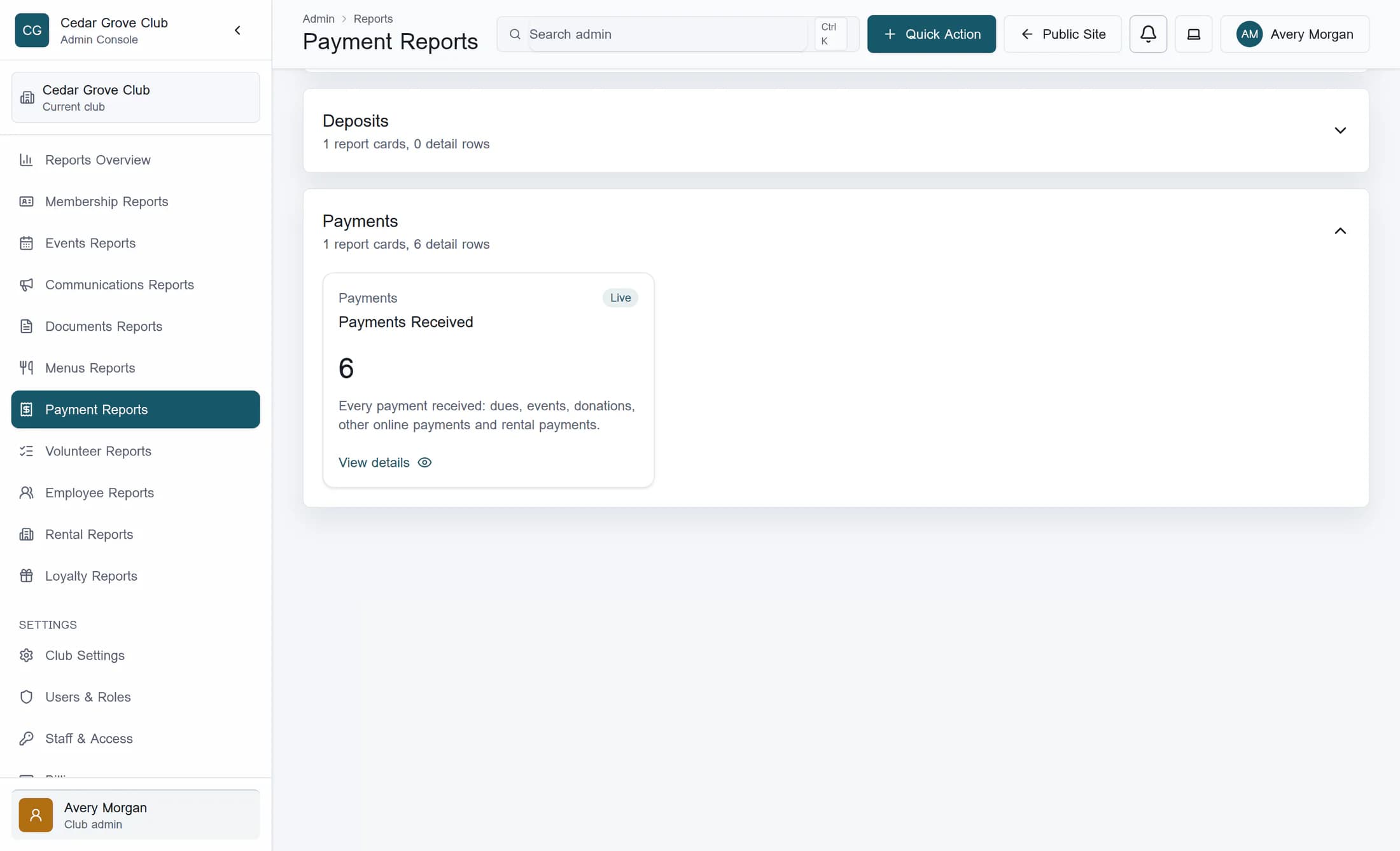
Check the date scope
The page’s Report date from and Report date to fields apply as soon as they change. Blank endpoints leave that end unrestricted. If you need a period, set it before opening the drawer, with the earlier date first; a reversed range can return no matches. Linked payments use their payment date, or creation date when no payment date is stored. Standalone donations use their creation date. Rental payments use their payment date. The range compares stored calendar dates inclusively, so it is not a guarantee of your local time-zone boundaries.
Step 2 of 4
Search for Donation and verify Type
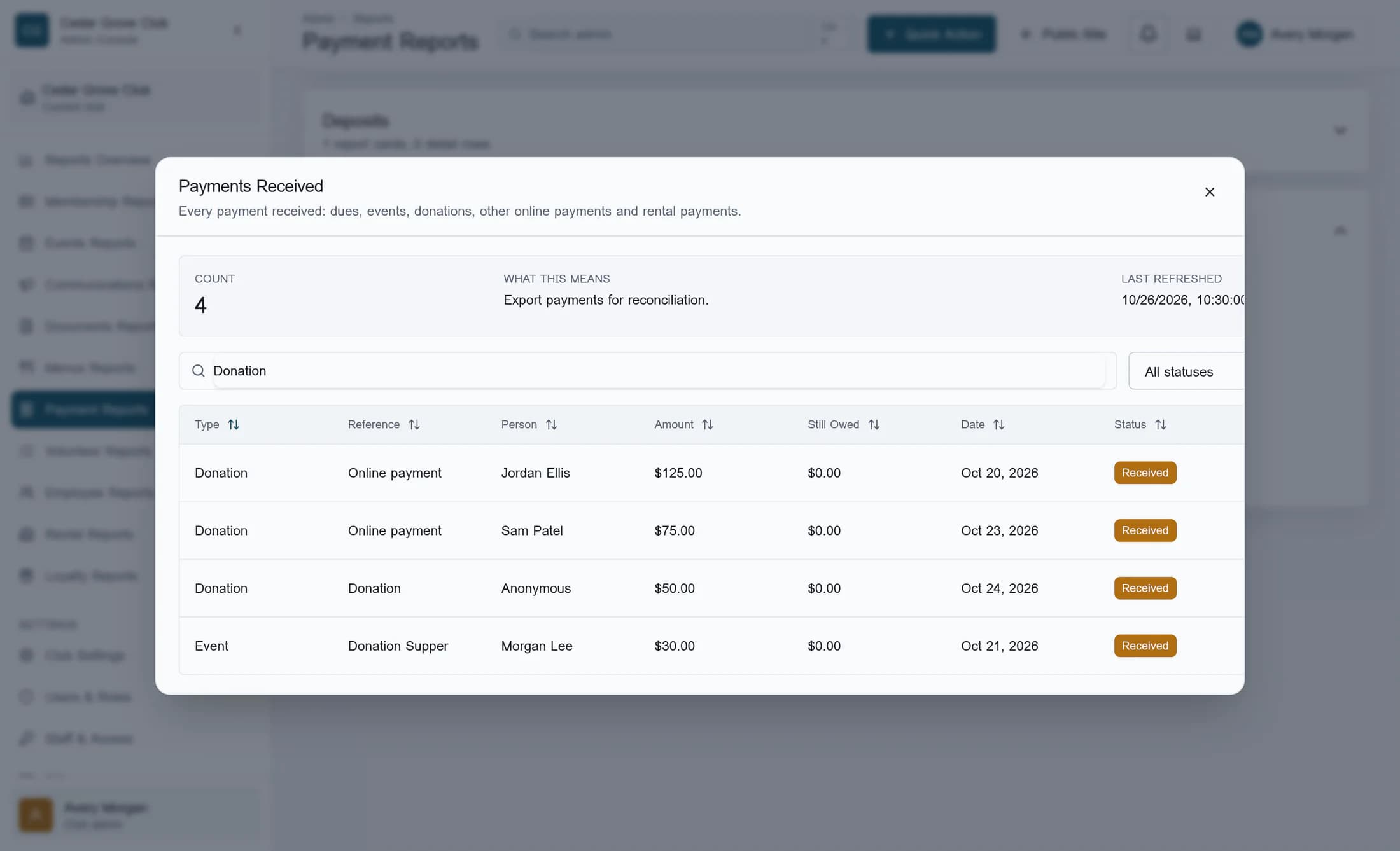
In the drawer, enter Donation in Search names, emails, status, dates, or numbers. Keep Detail status filter at All statuses for this review. Search checks multiple fields, including names and references; it is not an exact donation-type filter.
At the left side of the table, check Type on every matching row. Include only rows labelled Donation in your donation review. For example, an Event row whose reference contains Donation can also match. Count includes all matching rows, including those other types; do not treat it as a donation count or add every matching amount together.
Step 3 of 4
Review each donation’s details
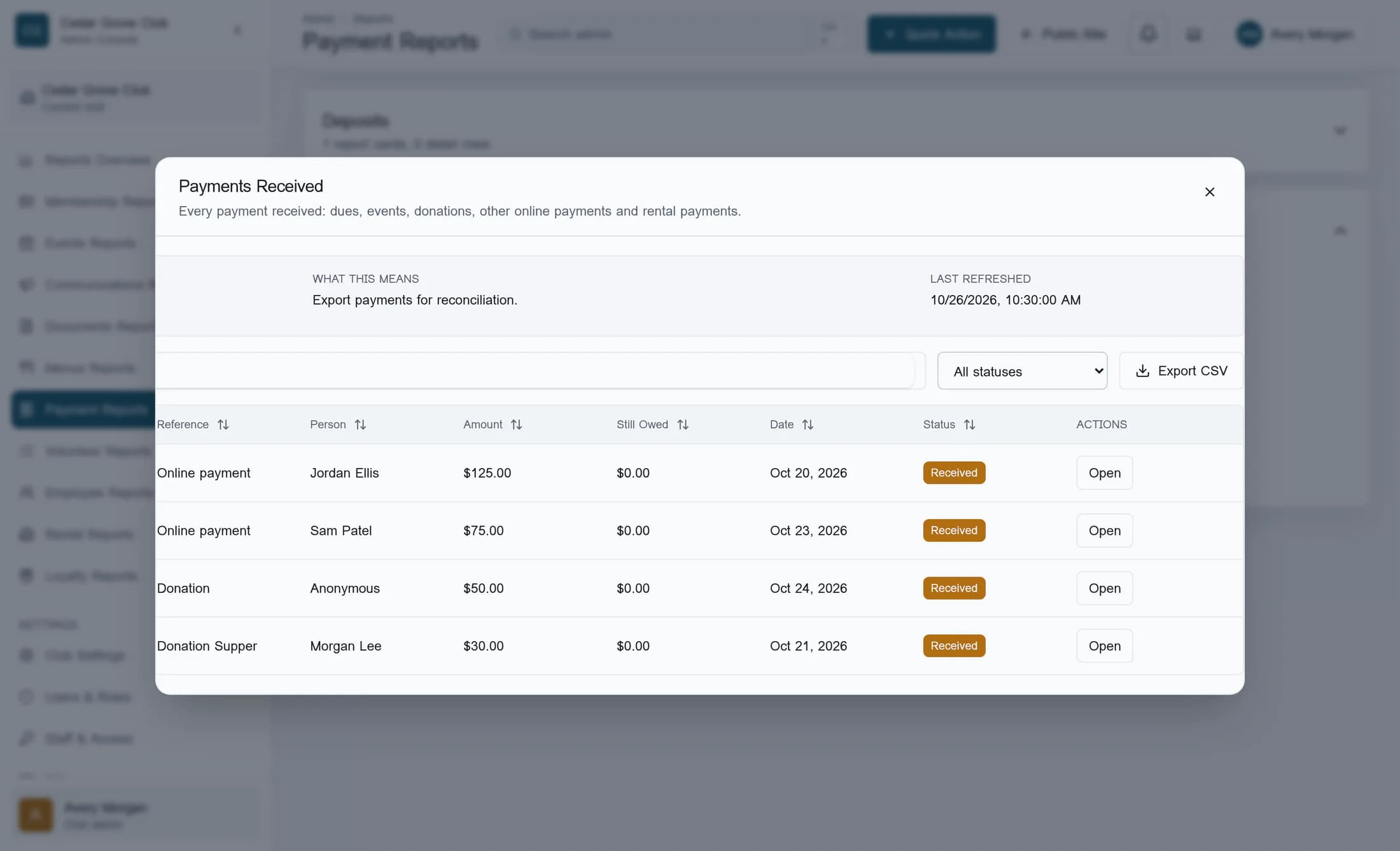
Read Person and Amount for each confirmed Donation row. Scroll horizontally in the drawer as needed to reach Date and Status, keeping track of the same row. The two drawer illustrations show the same fictional results at different horizontal positions; columns that are off screen have not been removed.
A successful donation linked to a payment appears through its payment record. A successful donation without a linked payment is added once as a standalone Donation row. Failed and pending payment or donation attempts are outside this report. Standalone donations marked anonymous show Anonymous. Linked payment rows can show the payer’s name or payment metadata, even if a related donation is anonymous.
Received is the report’s status label. It does not confirm bank payout, settlement, tax deductibility or refund eligibility. A linked row’s Date is its payment date, falling back to creation date; a standalone donation’s Date is its creation date.
Step 4 of 4
Clear the search and close the drawer
Scroll back to the left if needed. Delete Donation from Search names, emails, status, dates, or numbers to return to all received payments within the page’s date scope and the selected status. Count updates with the matching rows. Choose Close at the top right of the drawer when you finish.
Keep these limits in mind
You’ve reviewed the matching records
You can now distinguish actual donation rows from other text matches and interpret their person, amount, date and status. Resolve missing-source or access warnings before using the records for follow-up.
