
On this page
Before you start
Step 1 of 5
Choose the playback report
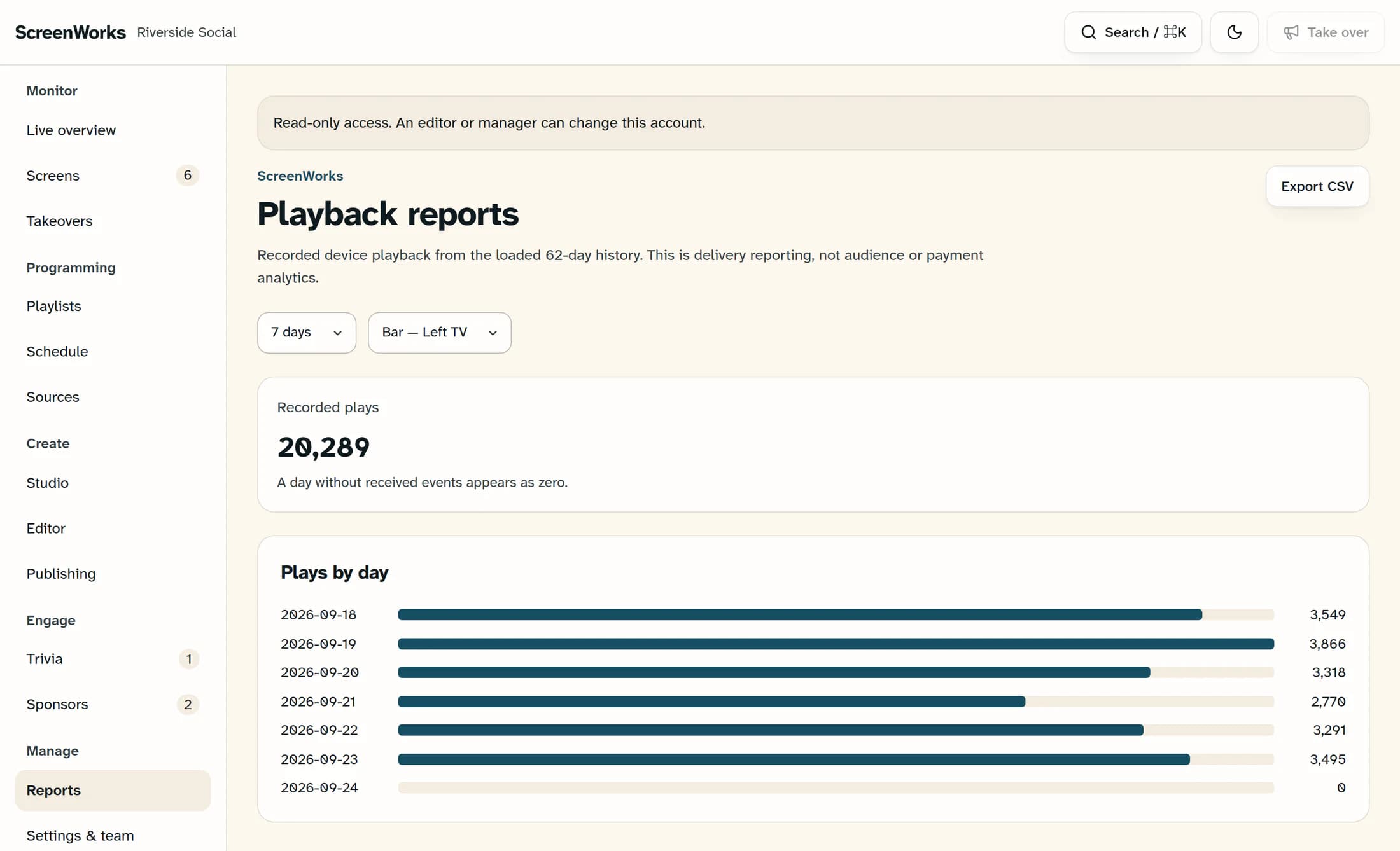
Open Reports. Use Report days to choose 7, 14, 30 or 60 days, and Report screen to choose a screen or All screens. Read Recorded plays and Plays by day for that selection. These are device-reported plays, not audience counts.
Step 2 of 5
Export the selected daily totals
Select Export CSV to download the days and play totals shown in the report, including dates displayed as zero. This export follows your playback day and screen filters.
Step 3 of 5
Find the sponsor campaign
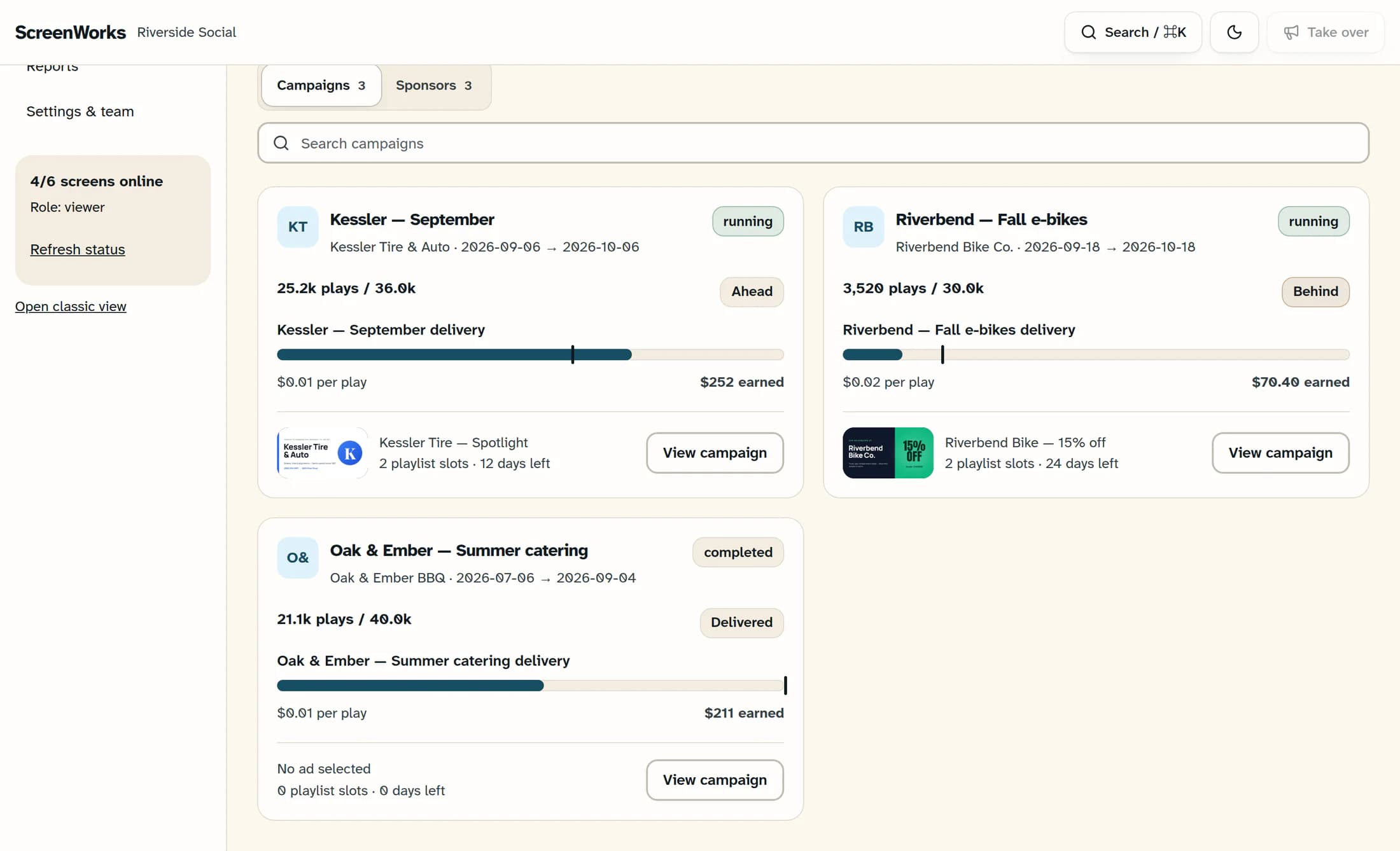
Open Sponsors in the sidebar. In Campaigns, identify the campaign by its name, sponsor and flight dates, then select View campaign on that card.
Step 4 of 5
Review the campaign’s delivery
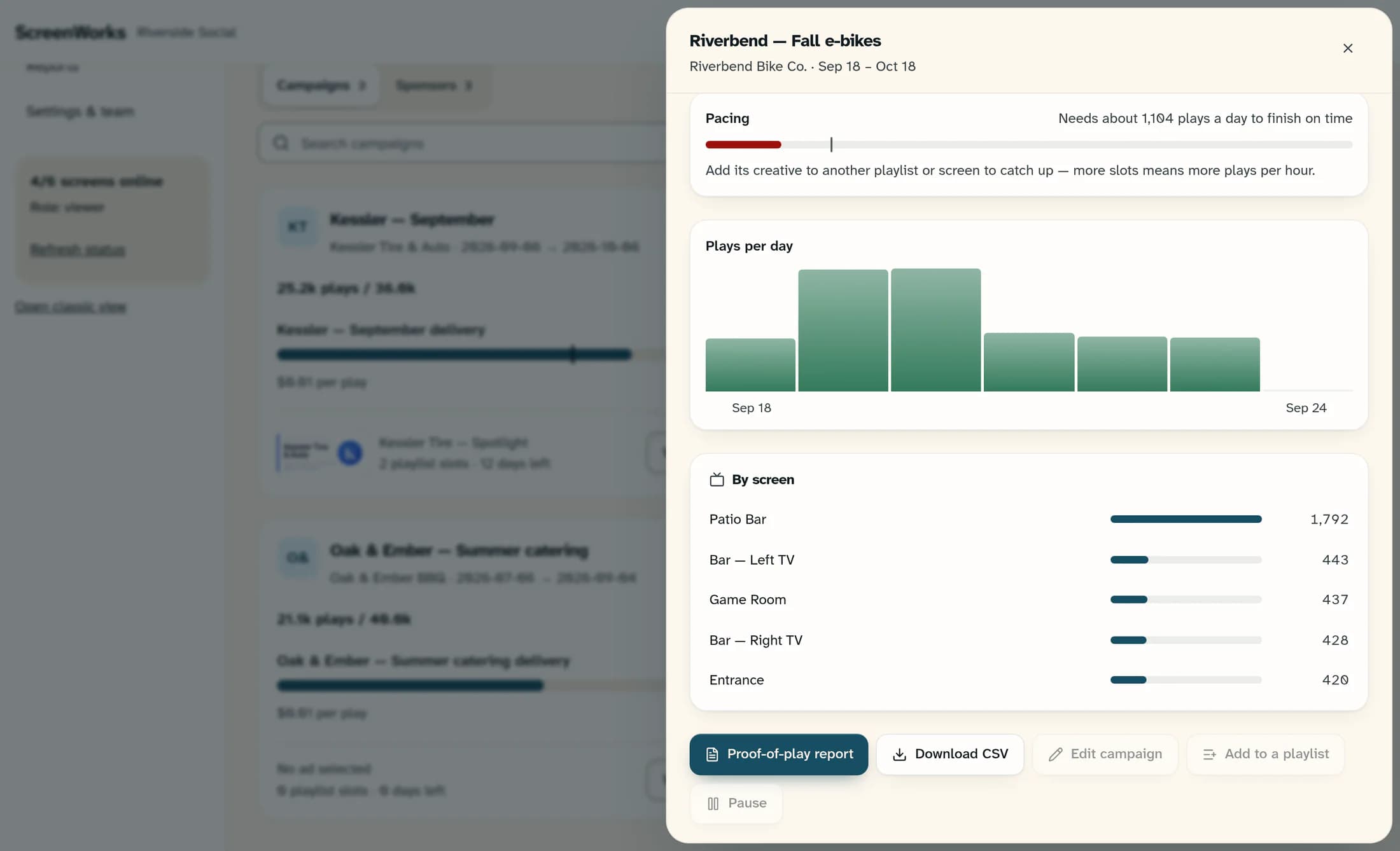
Confirm the campaign and sponsor at the top of the details. Review Plays delivered, Screens reached, Days on air, Plays per day and By screen. Compare delivered plays with the target when one is set, then select Proof-of-play report. The playback report’s day and screen filters do not carry into this campaign report.
Step 5 of 5
Check and export the proof-of-play report
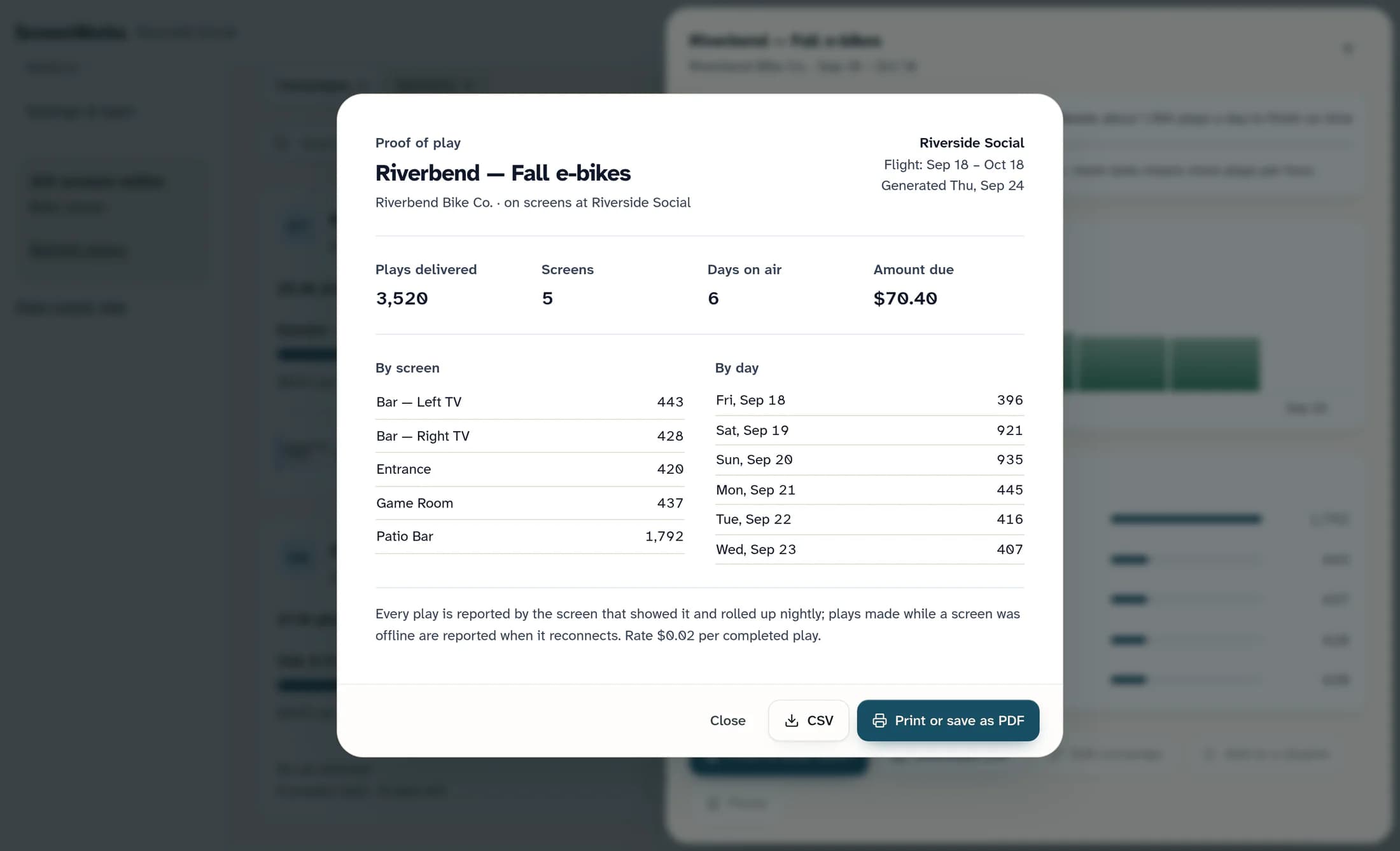
Check the campaign, venue and flight, then review Plays delivered, By screen and By day. Select CSV for the loaded campaign rows, or Close to return to the details. Download CSV in the details exports the same rows.
Print a copy if you need one
Select Print or save as PDF in the proof-of-play report to open your browser’s print controls. Choose and finish the destination there; opening the report does not save a PDF.
Read the numbers in context
Summary
Keep the playback export for the selected daily totals and the campaign export for its loaded delivery rows. Their different scopes explain why the totals may differ.
