
On this page
Before you begin
Step 1 of 5
Open the page and its history
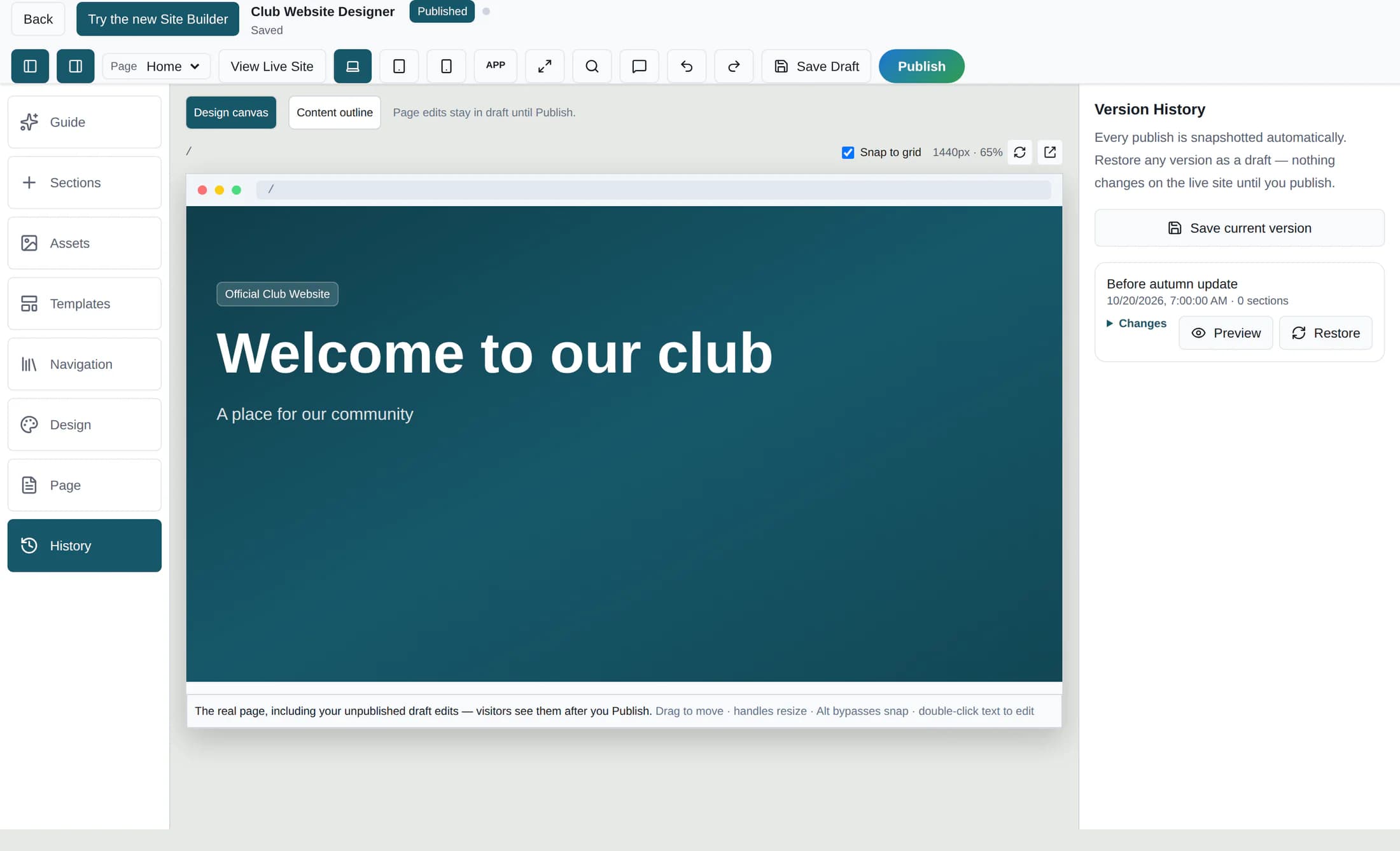
Open Site Builder from the admin area. If you are in the new builder, choose Use the classic Site Builder. In Club Website Designer, select the page in the Page menu, then select History on the left.
Step 2 of 5
Save a current version
In Version History, select Save current version. Enter an optional name in the prompt; a blank or cancelled name uses Manual save. Check that the new entry appears in the history list and preview it. The Version saved. notice alone does not confirm the snapshot was stored; if it is missing or looks incomplete, contact support before relying on it.
Step 3 of 5
Inspect a version
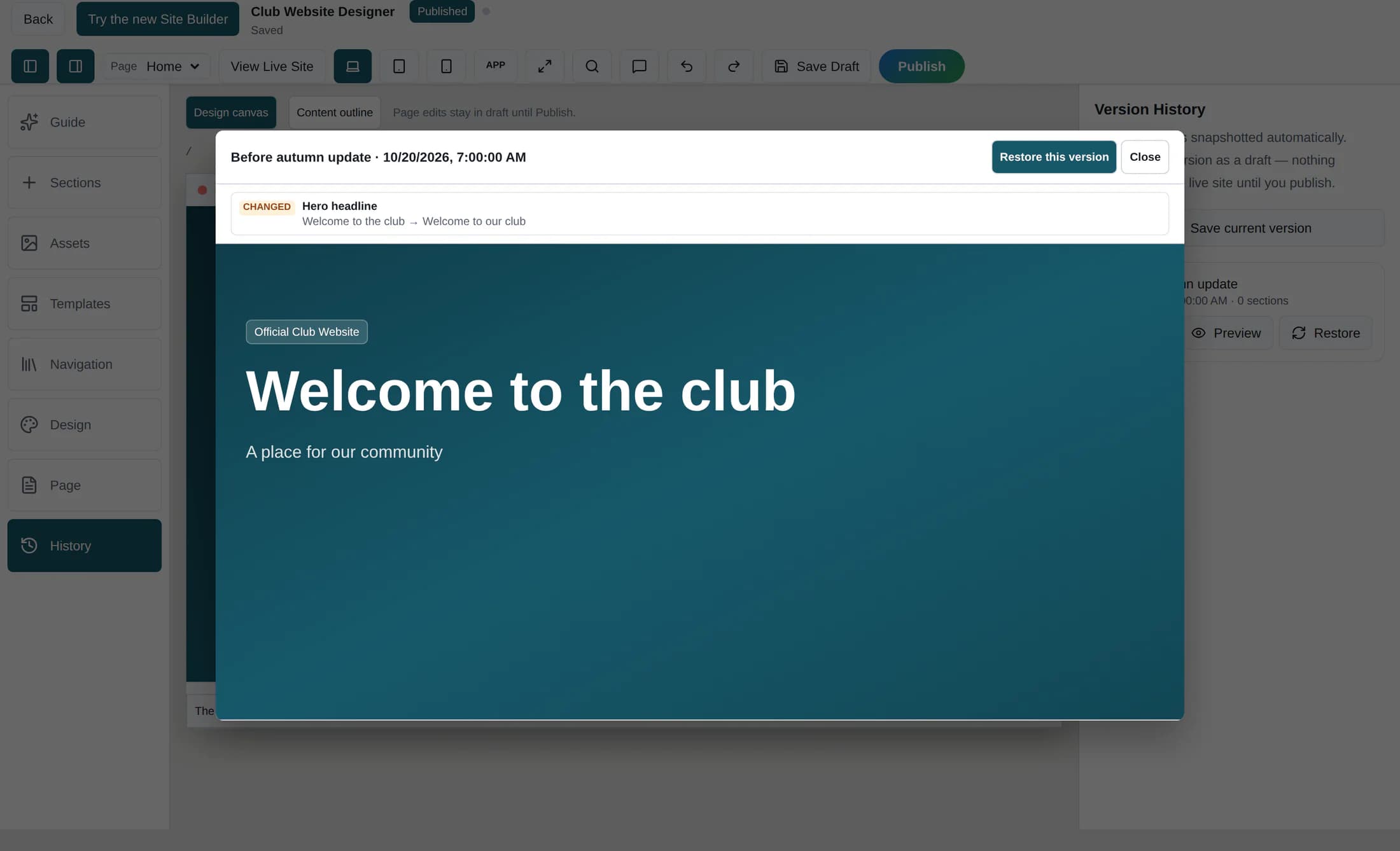
Choose Changes on a history entry to compare it with the current draft, or select Preview to view the snapshot and its differences. The comparison labels items as current only, version only, or changed. Use Close when you are done inspecting.
Step 4 of 5
Restore as a draft
Select Restore on the entry, or Restore this version in its preview. The restore replaces the selected page’s draft in the editor without changing the live page immediately. There is no separate confirmation dialog for this action, so review the version first.
Step 5 of 5
Review, undo, or publish
Review the restored page. To return to the previous draft immediately, use Undo in the toolbar; later edits may take additional undo steps. Drafts autosave, and Save Draft forces a save. When ready, select Publish; if checks appear, fix errors first or review warnings and choose Publish anyway. Publishing can proceed directly when there are no checks.
What history includes
A snapshot captures the selected page’s draft fields, including its page-level navigation settings, and sections. It does not restore the separate navigation menu or site theme; those have their own controls. Successful publishes attempt to add a snapshot automatically, and history shows up to the 20 newest versions for a page. Verify important entries appear and preview correctly, since saving and pruning snapshots may not report every error.
If something goes wrong
If page setup or draft saving fails, read the message and keep your edits in the editor; retry Save Draft when appropriate. If another editor’s changes cause a conflict, review the conflict before saving. If publishing cannot be confirmed, the draft is retained: check the live page before retrying. History loading can also fail without a specific error message, so an empty list alone does not prove no versions exist; check your connection and contact support if uncertain.
You’re set
A restored version stays a draft until you publish it. Verify important snapshots and review the page before making it live.
