
On this page
- Before you start
- Find the person’s reporting links
- Choose who they report to
- Check the saved relationship
- Assign departments to a manager or lead
- Add named reporters outside those departments
- Add a lead from the department
- Use the department assignment screen
- Review the resulting team
- Remove only the relationship you intend
- Understand the team-only setting
- If a change does not stick
- Summary
Before you start
Step 1 of 3
Find the person’s reporting links
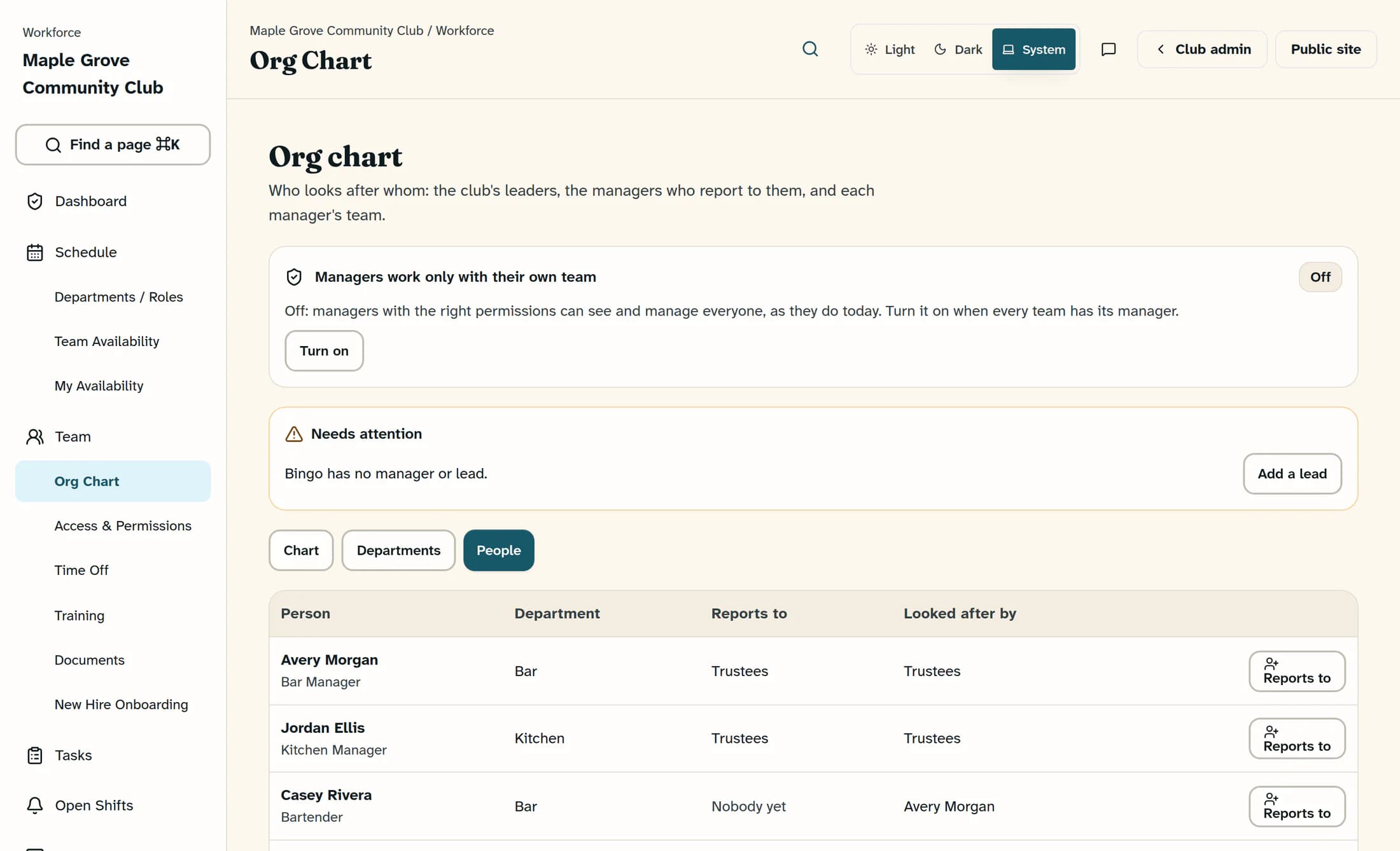
In Workforce, open Team → Org Chart and choose People. Compare Reports to, which lists explicit links, with Looked after by, which can also include department leads alongside the explicit leaders or groups; then choose Reports to on the person’s row.
Step 2 of 3
Choose who they report to
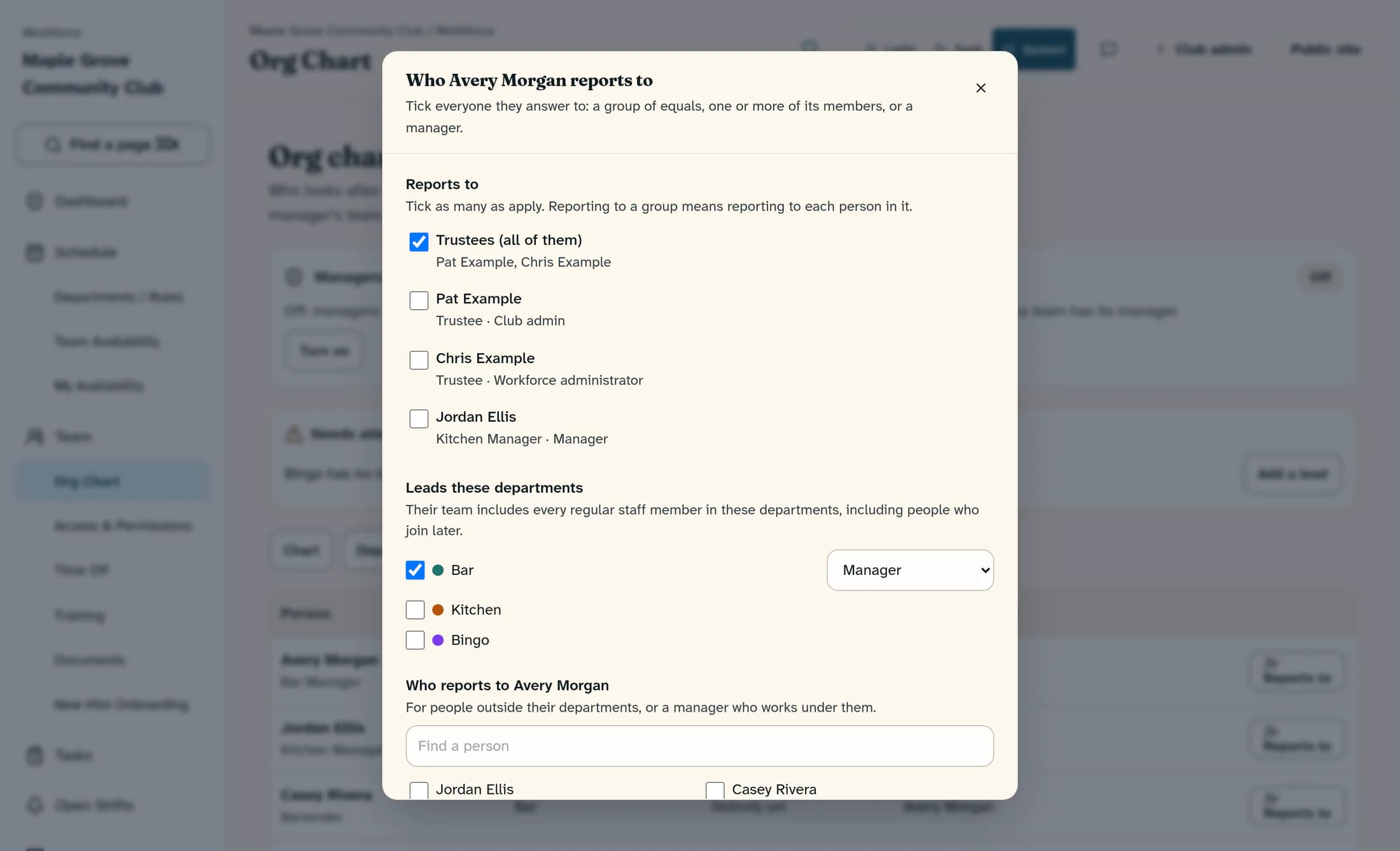
In the person’s reporting dialog, tick the leaders or groups they should answer to under Reports to. You can choose more than one target; choosing a group means reporting to every member of that group.
Step 3 of 3
Check the saved relationship
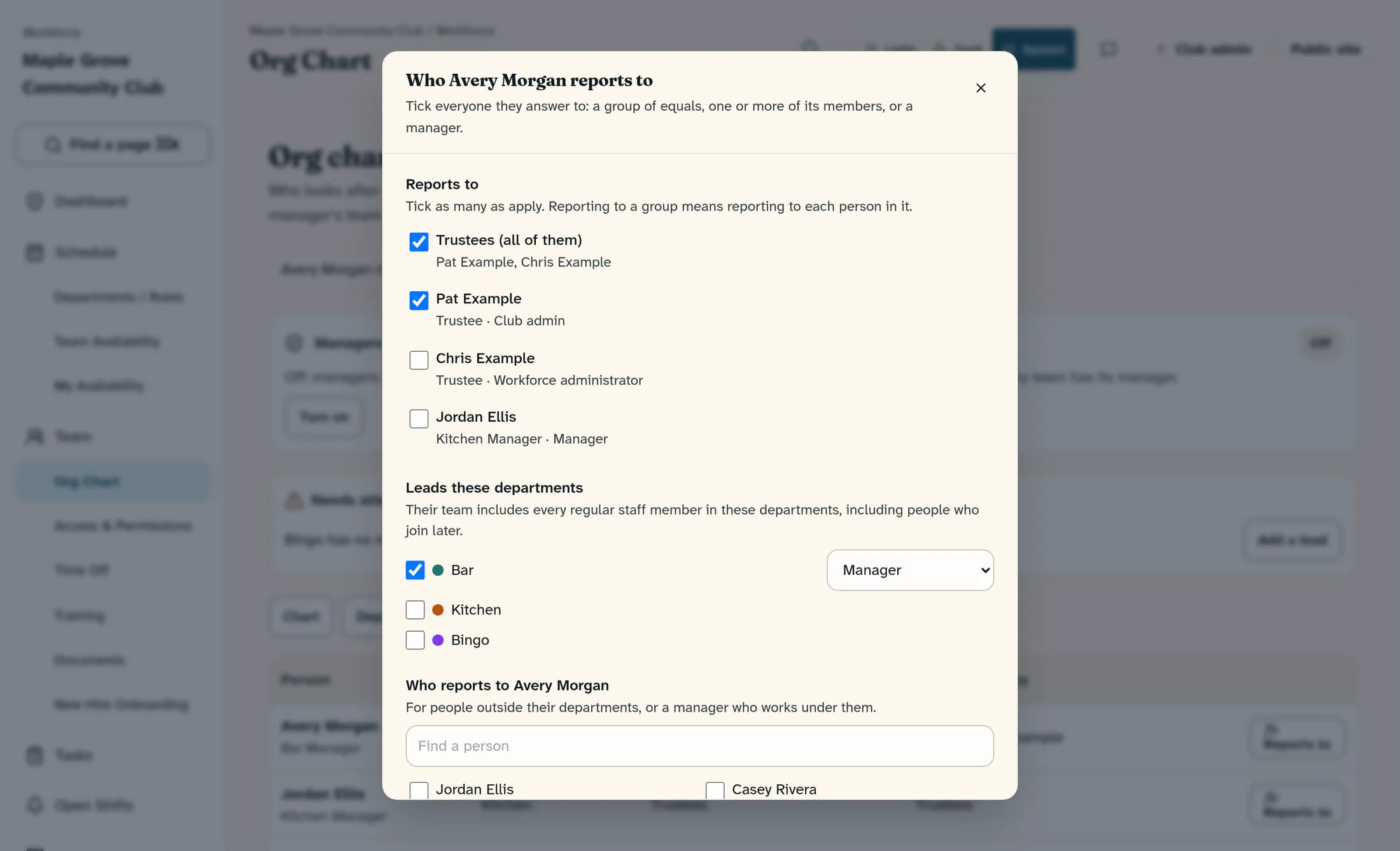
Wait for the success message after each checkbox change, then use Close and reopen the person to check the current selections. Check People and Chart as well; the reporting checkboxes save individually and have no separate Save button.
Assign departments to a manager or lead
Open the manager’s Reports to dialog and find Leads these departments. Tick each department they lead and choose Manager, Assistant manager or Lead from its type selector; each change saves immediately, and the team includes that department’s regular staff, including people who join later.
Add named reporters outside those departments
In the same dialog, find the Who reports to heading followed by the manager’s name and use Find a person to tick people who report to them explicitly, including people outside their departments or another manager. The manager needs a staff sign-in before anyone can report to them through this control; assigning leadership does not create that sign-in or grant Manager access.
Add a lead from the department
Alternatively, choose Departments in Org Chart, find the department and choose Add a lead. Select Person and Their part, then choose Add as lead and check the success message and updated department card.
Use the department assignment screen
You can also open Schedule → Departments / Roles and choose Assign under Managers on the department card. In Assign Department Manager, choose Department, Manager and Manager type, then choose Assign Manager; wait for the successful assignment and check the department card.
Review the resulting team
Reopen the person’s reporting dialog and compare People, Chart and the department cards. A person can belong to a manager’s team through several direct, group or department routes; managers and club administrators join a team through reporting links, rather than simply sharing a department.
Remove only the relationship you intend
Untick the intended leader or group in the person’s Reports to dialog to remove that explicit link, or untick the department under Leads these departments to remove that leadership assignment. You can also use the X remove control beside the lead on a department card; wait for confirmation and reopen the chart, because another direct, group or inherited route may still keep someone on the team.
Understand the team-only setting
Managers work only with their own team is a club-wide access setting, not a chart filter or a required step when assigning one person. When on, it limits managers’ HR records, time off, time clock, shift changes and applications to their team or departments, while everyone still sees the whole schedule and directory; club and Workforce administrators retain all-team scope.
Leave the team-only setting as agreed for your club and review any Needs attention gaps before changing it separately. Reporting links and department labels do not create sign-ins, grant Workforce access or replace access permissions.
If a change does not stick
Summary
You’ve assigned the intended reporting links and department leadership, then checked the resulting teams. Keep explicit links, inherited team membership and staff access permissions separate when making future changes.
