
On this page
- Before you begin
- Open the dues reports
- Check the report has loaded
- Open Unpaid Dues
- Review the members and their context
- What Unpaid Dues includes
- Switch to Upcoming Renewals
- Check the renewal context
- How the renewal window works
- Confirm the member details before following up
- If a person seems to be missing
- Ready for follow-up
Before you begin
Step 1 of 6
Open the dues reports
Open Membership Reports from the admin reports navigation and wait for loading to finish. Scroll to Dues and expand it if needed; the illustration shows the group open. Locate Unpaid Dues and Upcoming Renewals.
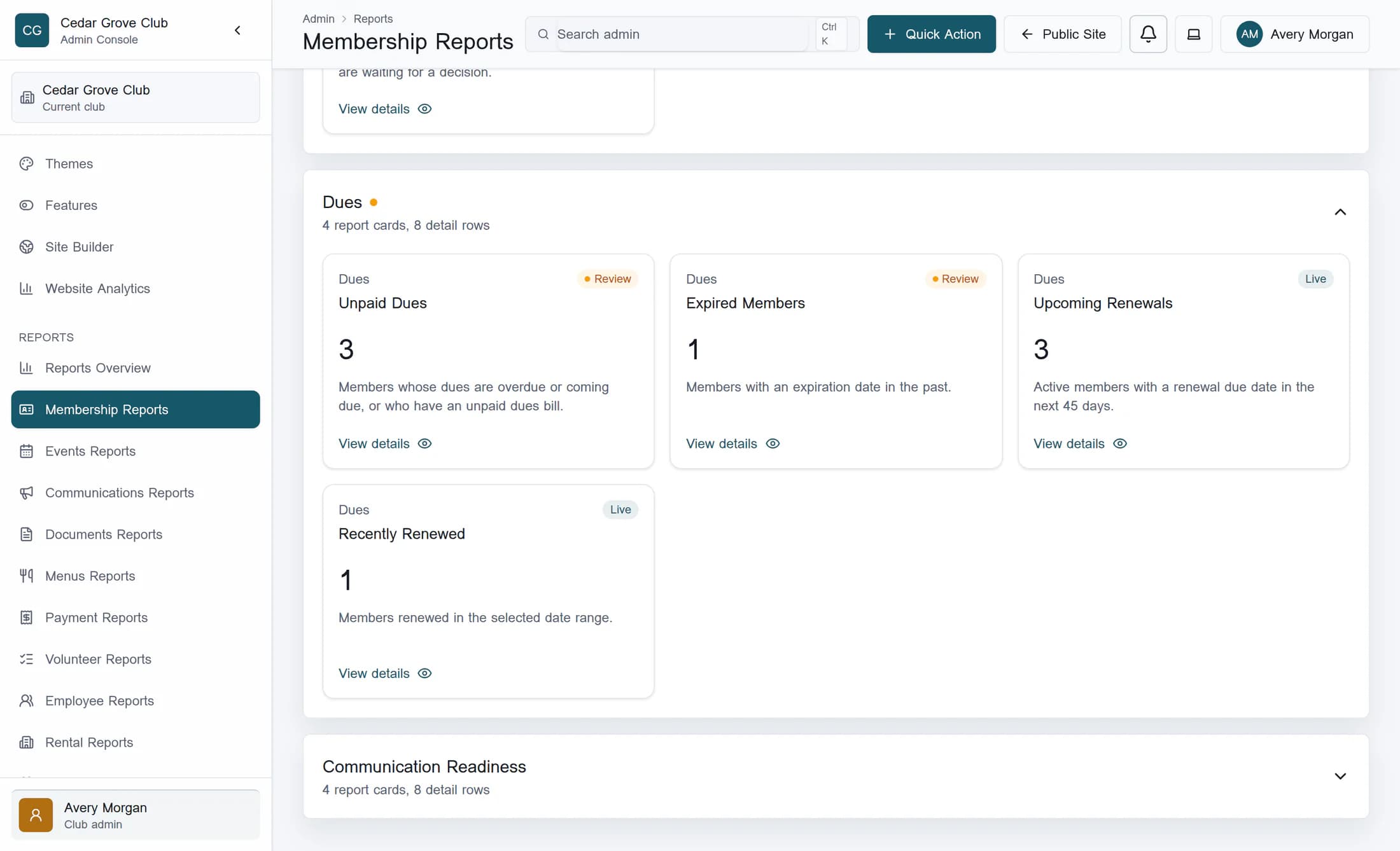
Check the report has loaded
While the loading message is present, the numbers can change. If you see “Some report data could not be loaded, so a few reports may be incomplete. Refresh the page to try again.”, refresh the page and wait; if the warning persists, ask your club administrator to check source access before relying on the list. Reports reflect the records your account can read and have a large-data safety limit, so they are not a certified complete financial statement.
Step 2 of 6
Open Unpaid Dues
In Dues, select the Unpaid Dues card with View details. The drawer shows the matching members and a Count for the current detail list.
Step 3 of 6
Review the members and their context
Review Member Name, Member Number, contact details and Status to identify each person. Scroll the table horizontally if more columns are off-screen. Treat Status as membership status; it does not tell you the dues balance or why someone appears here.
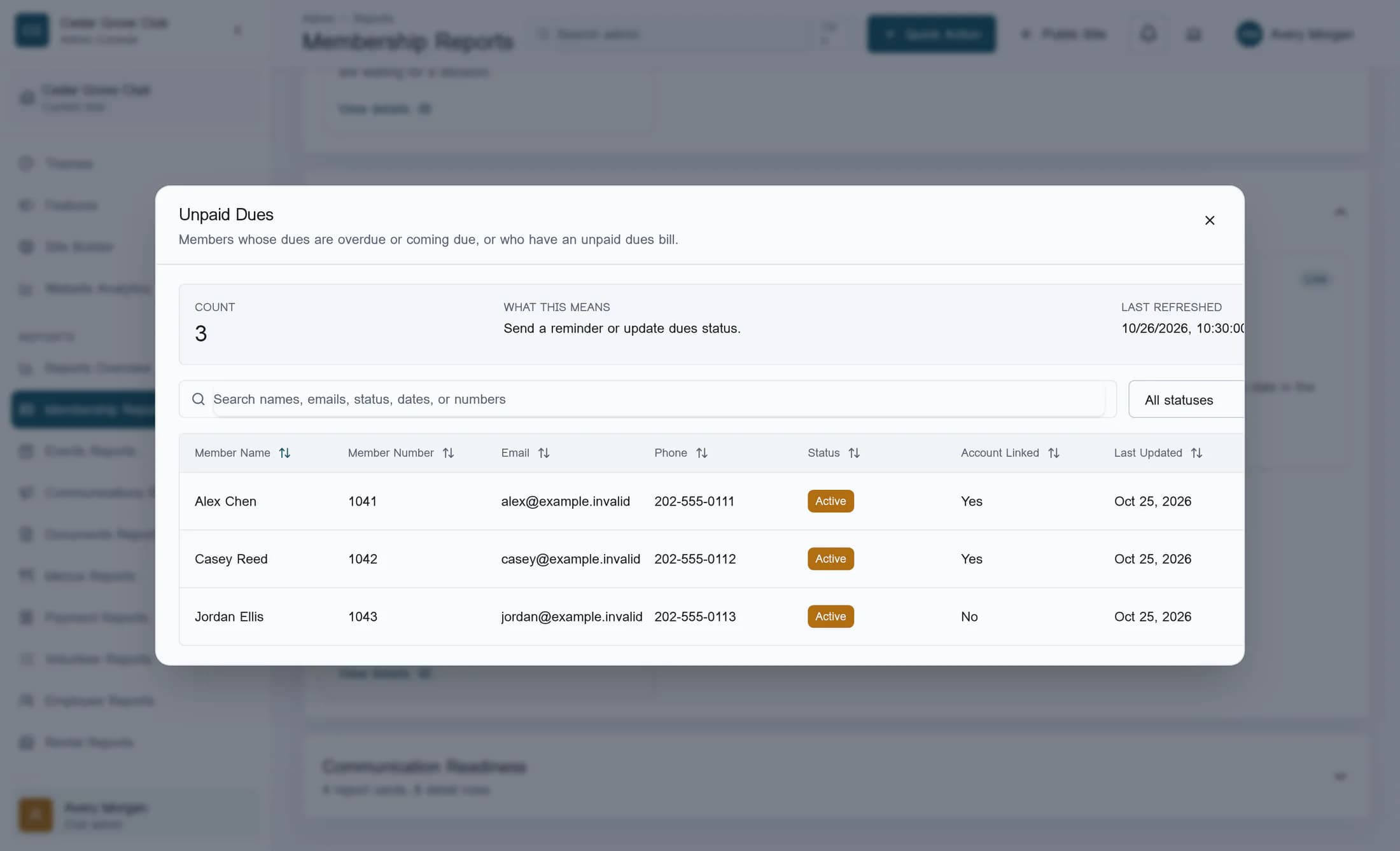
What Unpaid Dues includes
- The full unpaid list includes non-exempt memberships whose dues are overdue or coming due, plus memberships with assigned, open or overdue dues bills. A current membership with an open dues bill can appear; not every result is already overdue.
- If the unpaid-list lookup fails, the screen silently uses overdue and coming-due membership dues-status values instead. That fallback can miss other members with open dues bills even when there is no general report warning.
- A zero count or All clear badge is not proof that every bill is settled. Membership dues status, an invoice balance and a successful online payment are different facts.
Step 4 of 6
Switch to Upcoming Renewals
Select Close to return to Dues, then select the Upcoming Renewals card with View details. Review the member names and Status before deciding who needs follow-up.
Step 5 of 6
Check the renewal context
Read Status for each member, scrolling the table horizontally if needed. Although the description says “Active members,” the list can include other membership statuses. The standard member columns show neither the renewal date nor the amount due.
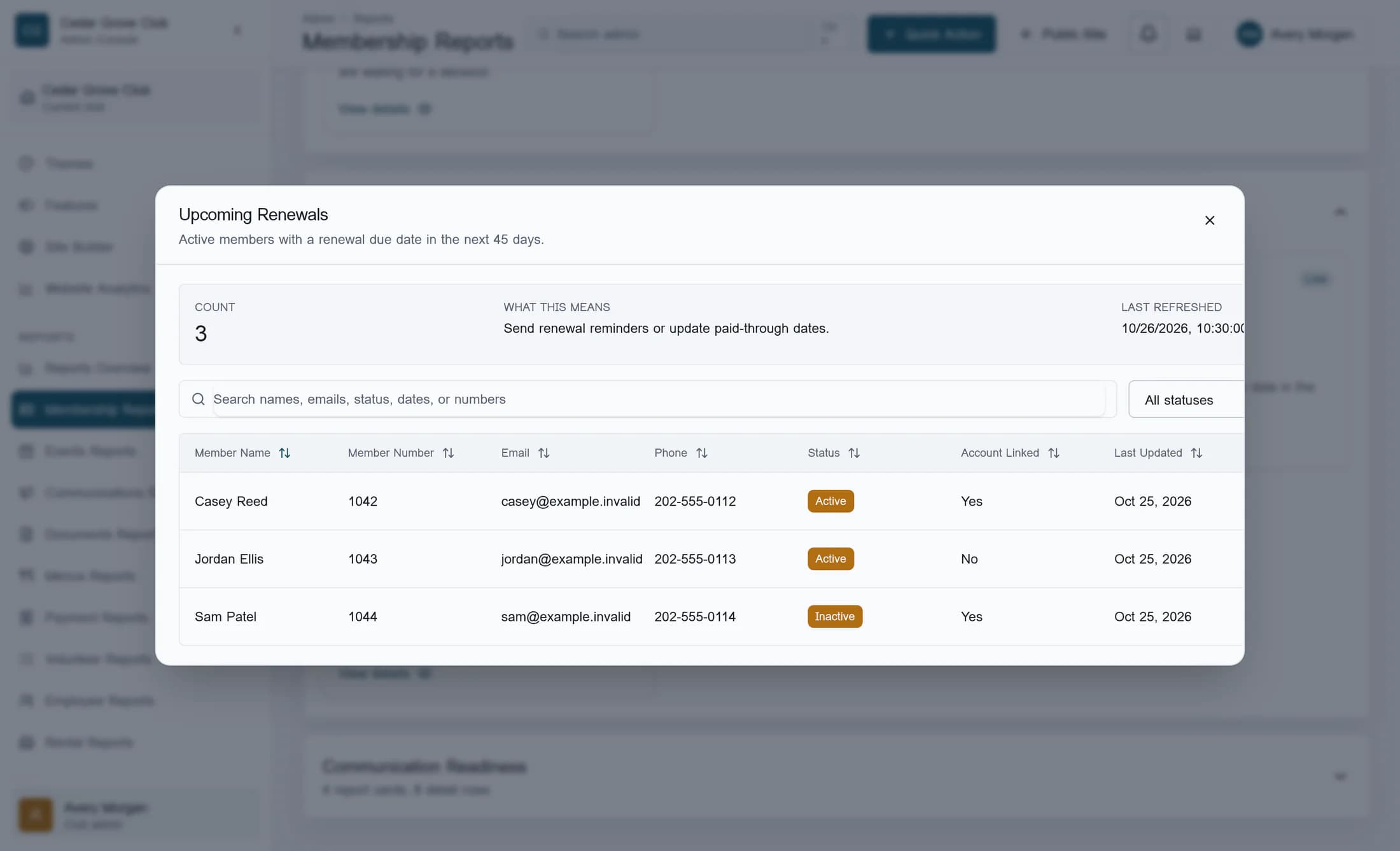
How the renewal window works
- Upcoming Renewals uses the renewal due date, or the expiration date when no renewal due date is set. It includes timestamps from the moment the report screen opened through 45 days later, including the endpoint.
- The Report date from and Report date to fields do not change either of these two cards or the 45-day window.
- Dates stored without a time are interpreted at midnight. A same-day renewal can already be earlier than the report’s starting moment and be left out; this is not a guaranteed club-local calendar-day cutoff.
Step 6 of 6
Confirm the member details before following up
Select Close, then use Edit a member profile to find the person in Members and confirm their dues status and relevant dates. The Manage Dues row link opens the general member area, not that person’s profile directly. For amounts, ask authorized club staff to check the underlying dues bill or invoice.
If a person seems to be missing
Ready for follow-up
You now have two lists to guide a closer review of member records. Reading them does not send reminders, assign dues, settle an invoice or change member access.
